How to create gradient, texture and moving backgrounds, copy the CSS and record video
A good background changes the look of a website, a presentation, a video or a post. This guide shows how to build backgrounds with colors, gradients and textures, how to use the animated textures and record them as video, how to take the result to your project as an image or as ready-made CSS, and how to send the background to Video Editing and to the Clock.
Guide written by Marcelo Amantino · updated on October 19, 2026 · about us
Where your data is processed
This tool runs entirely in your browser: your files and data are not sent to any WebFaz server.
The background is generated in your browser from the colors and shapes you choose; nothing is sent to WebFaz. The backgrounds you save in “My backgrounds” stay in this browser. Since the result comes from your choices, the background is yours to use.
See the full list on the Privacy page.
Real-world use cases
Create a gradient for the top of a website and copy the CSS
Situation: You want a soft, modern background for a website’s main section, without depending on a heavy image.
- Open the “Gradient” tab, choose the type and set the colors. The gradient can use two or three colors, or start from one of the ready-made palettes.
- Adjust the angle, scale and origin (you can drag the origin right on the preview) and follow the result in real time.
- Click “Copy CSS” and paste the code into your element’s selector: it carries colors, gradient and texture embedded.
- Test the contrast of the text that will sit on top.
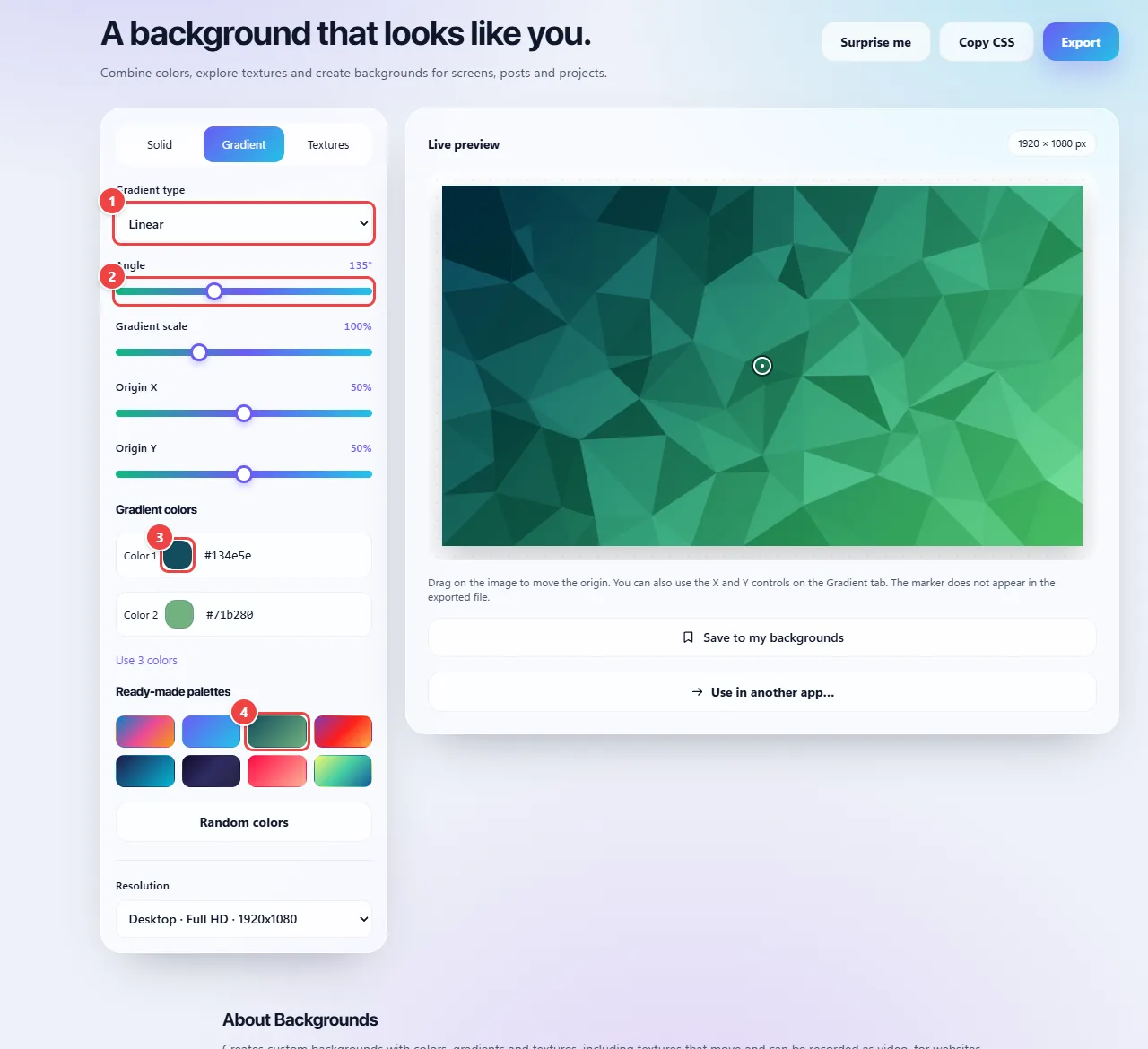
- Point 1: Choose the gradient type (linear, radial and others).
- Point 2: Adjust the angle, the scale and the origin of the gradient. You can also drag on the preview to move the origin.
- Point 3: Set each color. The gradient can have two or three colors (use Use 2 colors or Use 3 colors).
- Point 4: Or start from a ready-made palette.
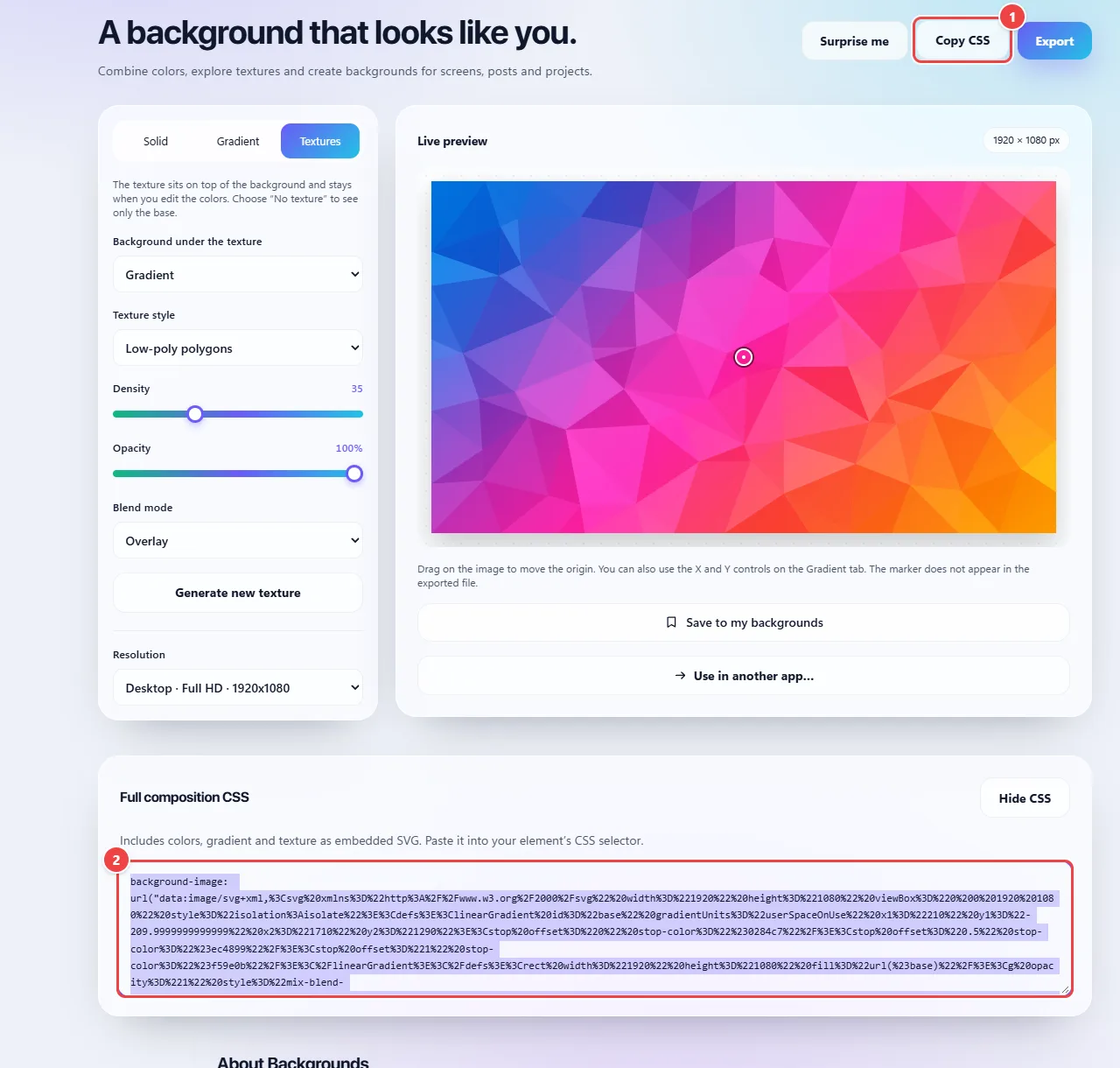
- Point 1: Copy CSS shows the code of the full composition (colors, gradient and texture).
- Point 2: Paste it into your element’s selector: the background is identical to the preview, with no image file needed.
Result: A light CSS background that scales to any screen with no image file.
Add texture to a background
Situation: A flat color looks dull and you want a bit of subtle texture.
- Open the “Textures” tab and choose the background under the texture (solid color or gradient).
- In “Texture style”, choose a style (polygons, shapes, waves, grid and others).
- Adjust density and opacity until the texture is discreet and choose the blend mode. “Generate new texture” creates another variation.
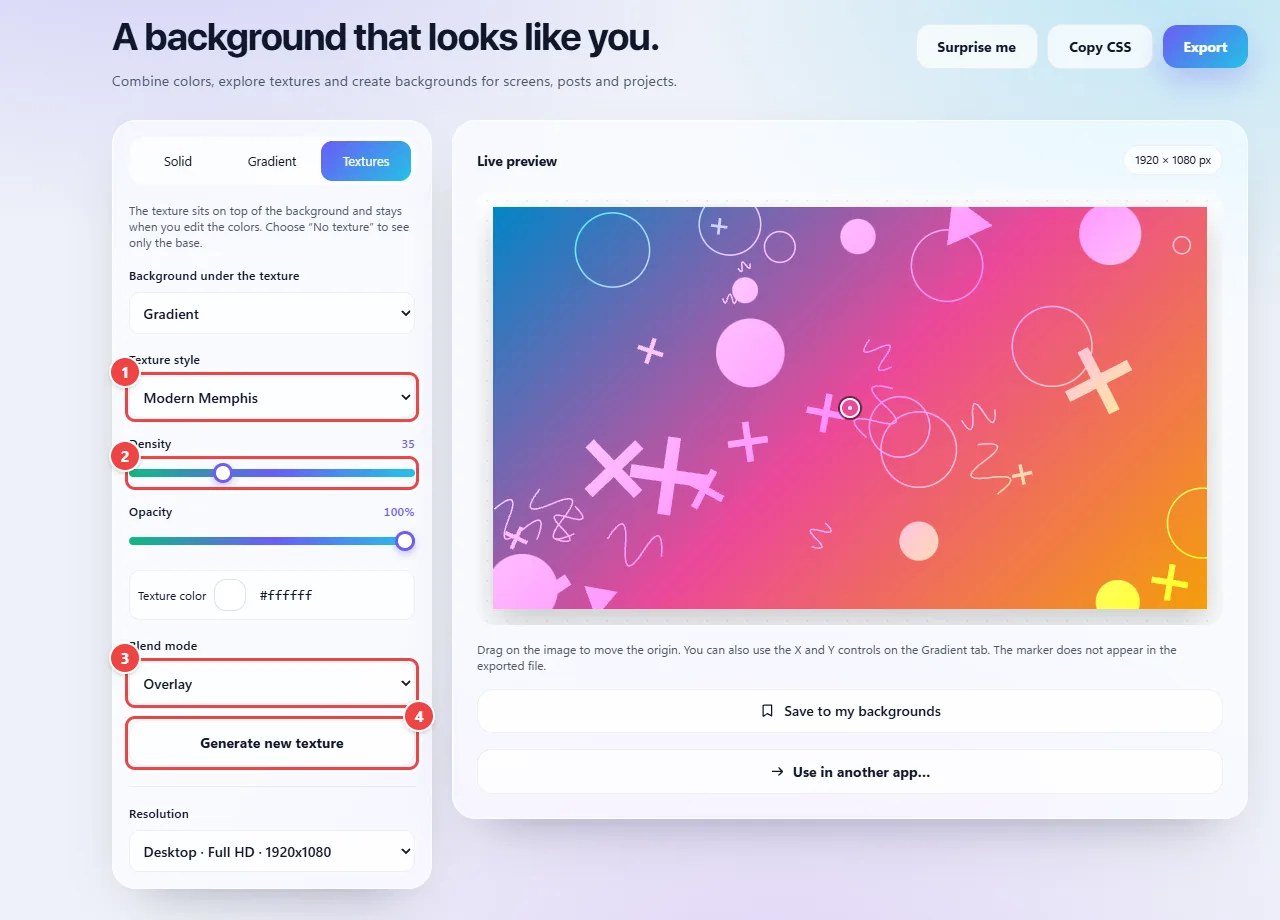
- Point 1: Choose the texture style (polygons, shapes and others). It sits over the chosen background.
- Point 2: Density and opacity control how much of the texture shows.
- Point 3: The blend mode (normal, overlay, multiply…) changes how the texture combines with the colors.
- Point 4: Generate new texture creates another variation of the same style.
Result: A background with subtle texture that adds depth without competing with the content.
Create an animated background and record it as video
Situation: You need a moving background for a video, an intro or a livestream.
- On the “Textures” tab, open the “Texture style” menu and choose one of the animated models, such as “Floating bubbles”, “Fluid motion”, “Color waves”, “Rings” or “Stars and bokeh”. The preview starts moving.
- Adjust the model’s colors and parameters. Use “Pause” to freeze the frame and “Restore the model’s values” to go back to the original.
- For a video, choose the “Video duration” (4, 8, 12 or 20 seconds) and click “Record video (WebM)”. The file downloads when the recording ends.
- For an image of the current frame, use “Export” (PNG or JPG). If you need MP4, convert the WebM in WebFaz Video Converter.
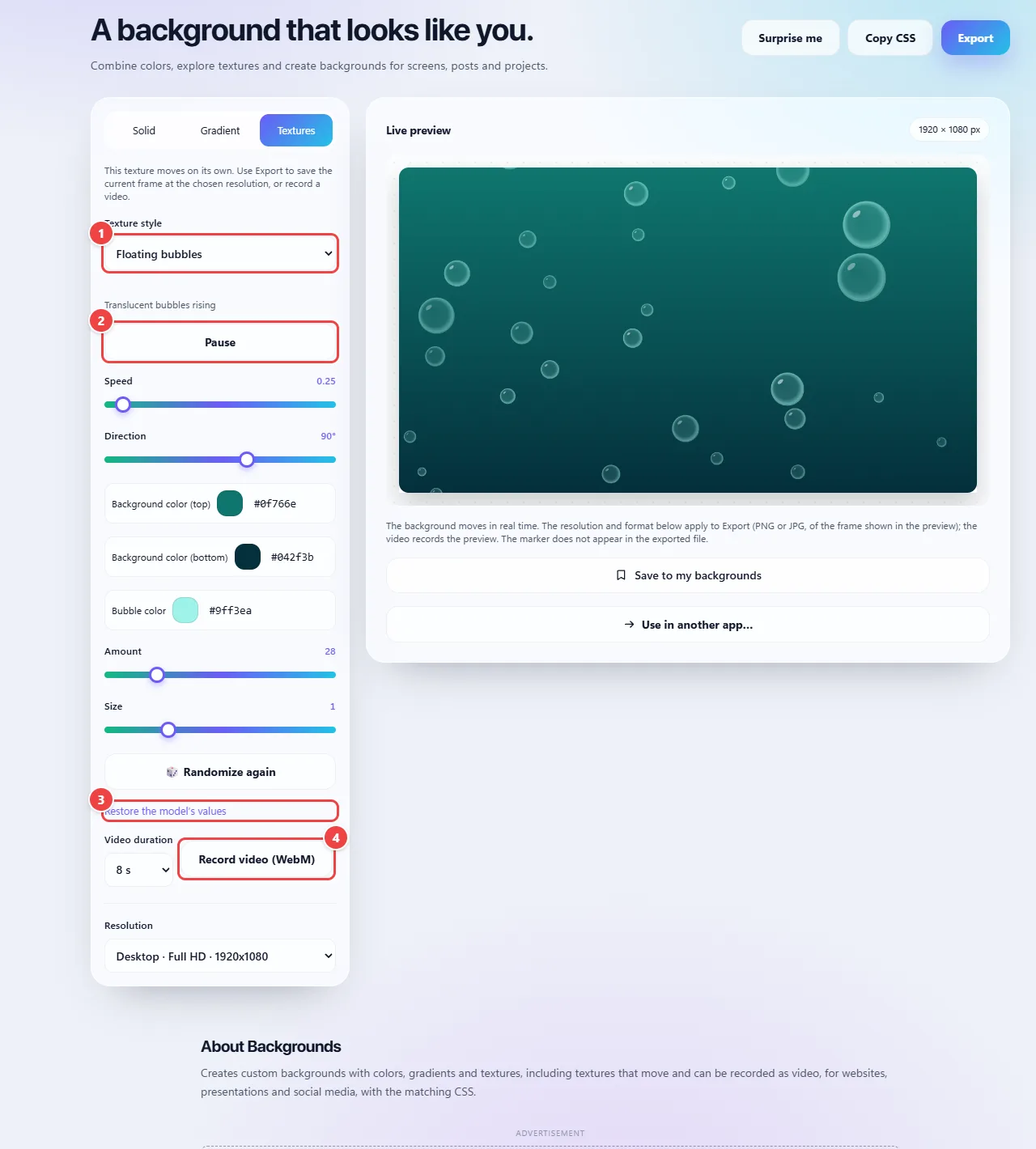
- Point 1: In the texture style list, models such as Floating bubbles, Fluid motion, Color waves, Rings and Stars and bokeh move on their own. When you choose one, the panel changes to the animated background controls.
- Point 2: Pause freezes the animation on the frame you want; Play continues where it stopped.
- Point 3: Each model has its own colors and parameters, which you adjust with the controls below. Restoring the model’s values goes back to the original.
- Point 4: Record video (WebM) records the preview for 4, 8, 12 or 20 seconds and downloads the file. For MP4, use WebFaz Video Conversion.
Result: A WebM video of the animated background, or an image of the frame you chose.
Make a background for slides or social media
Situation: You need a background image for a presentation or post, at the right size.
- Build the background with your brand colors.
- In “Resolution”, choose the size: Full HD desktop or the story and post formats. The preview changes proportion and shows the pixels.
- Click “Export”, choose the format (high-quality PNG or JPG), name the file and download.
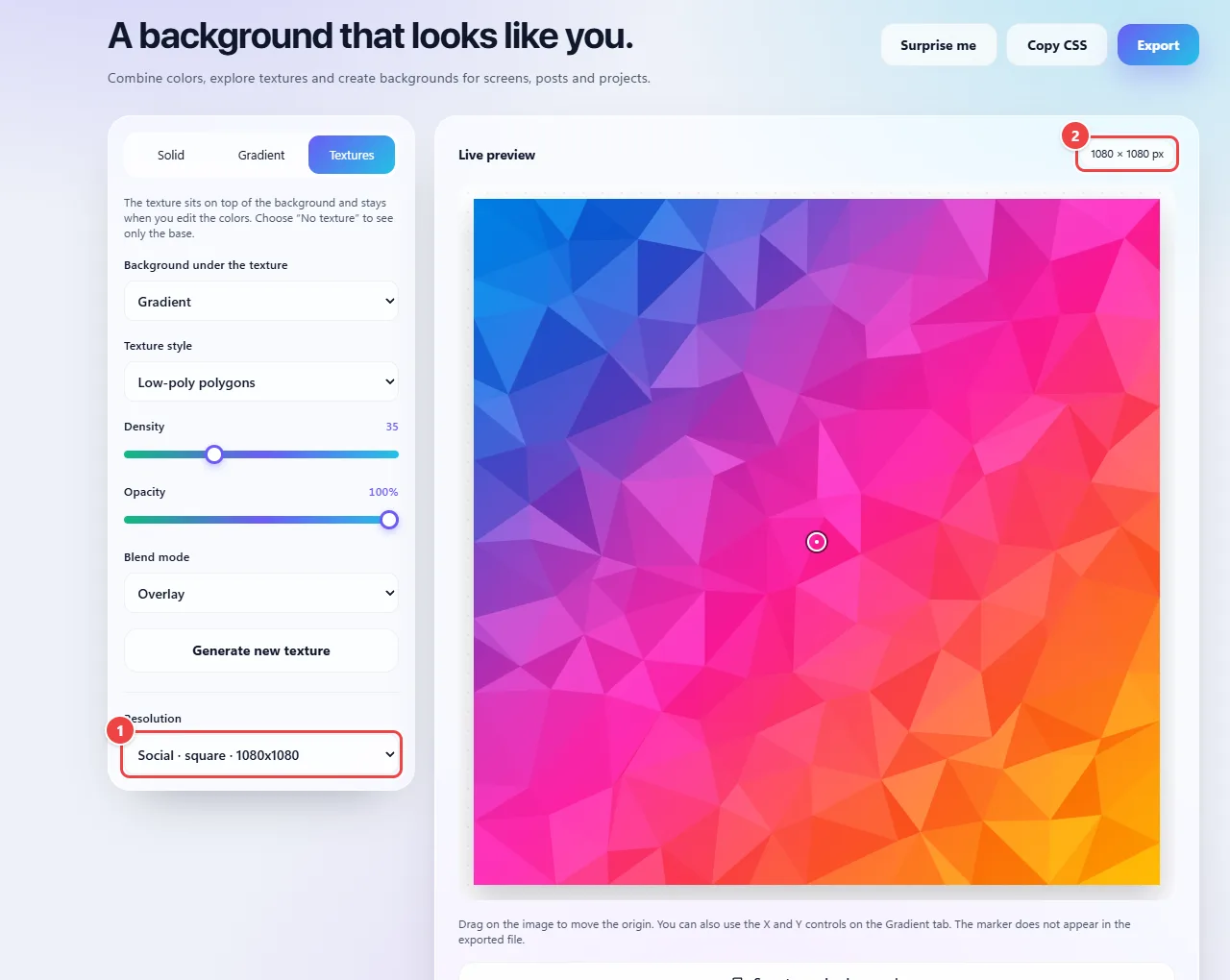
- Point 1: Choose the file size: Full HD desktop, stories and post formats and others.
- Point 2: The preview changes proportion and shows the size in pixels that will be exported.
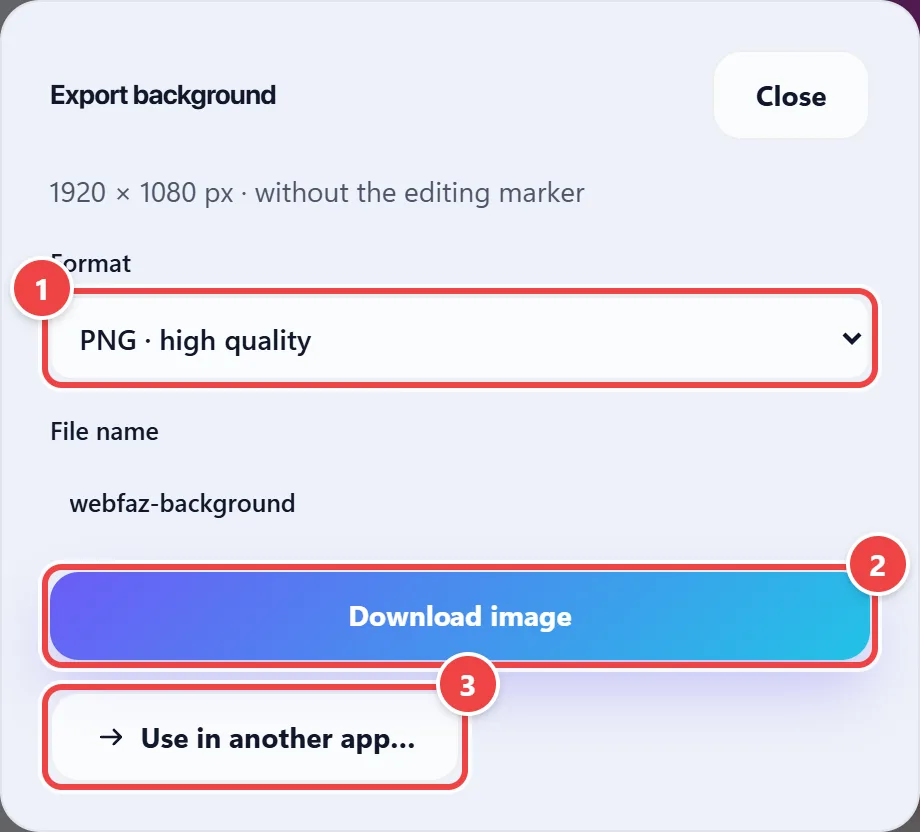
- Point 1: Choose the image format (high-quality PNG, JPG and others). The editing marker does not go in the file.
- Point 2: Download image saves the file on your device.
- Point 3: Or take the background straight to another WebFaz app.
Result: A ready background image at the size of its destination.
Take the background to Video Editing and to the Clock
Situation: You want to use the same background in your video or on the full screen of a countdown.
- With the background ready, click “Save to my backgrounds” to keep it in this browser.
- Click “Use in another app…” and choose Video Editing (as an animated background) or the Clock (as the countdown background).
- In the Clock, the background can also be chosen later, under “Edit” → “Choose from Backgrounds”.
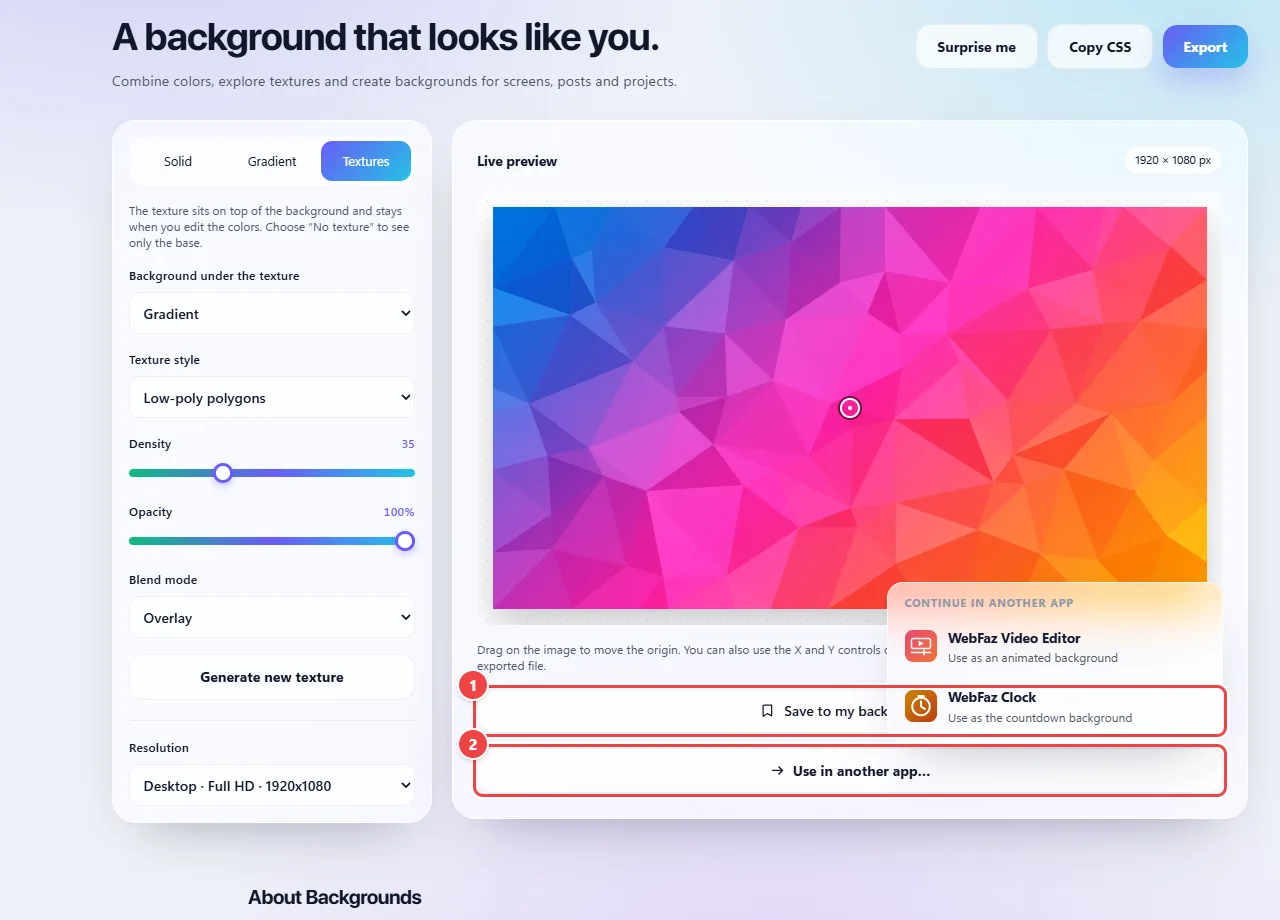
- Point 1: Save to my backgrounds keeps the background in this browser to use again.
- Point 2: Use in another app: takes the background to Video Editing (as an animated background) or to the Clock (as the countdown background).
Result: The same background applied in another app, without redoing anything.
Where to click, in practice
Images of the tool itself, with the click points numbered. Tap an image to see it at its original size.
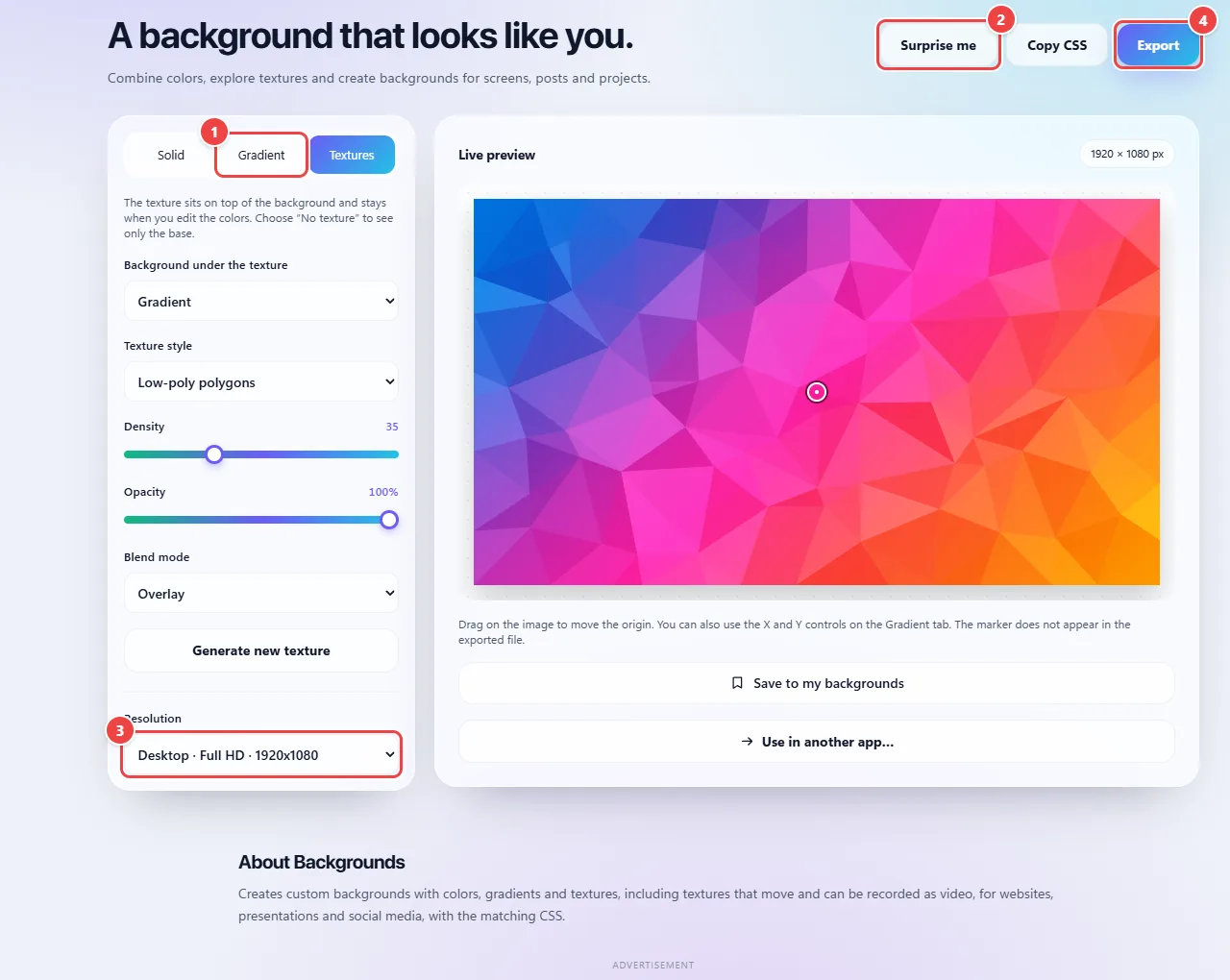
- Point 1: Choose between solid color, gradient or texture and adjust colors, angle, density and blending.
- Point 2: Surprise me draws a random combination.
- Point 3: Choose the resolution (desktop, stories and others).
- Point 4: Export the image or copy the CSS. “Save to my backgrounds” keeps the background in this browser.
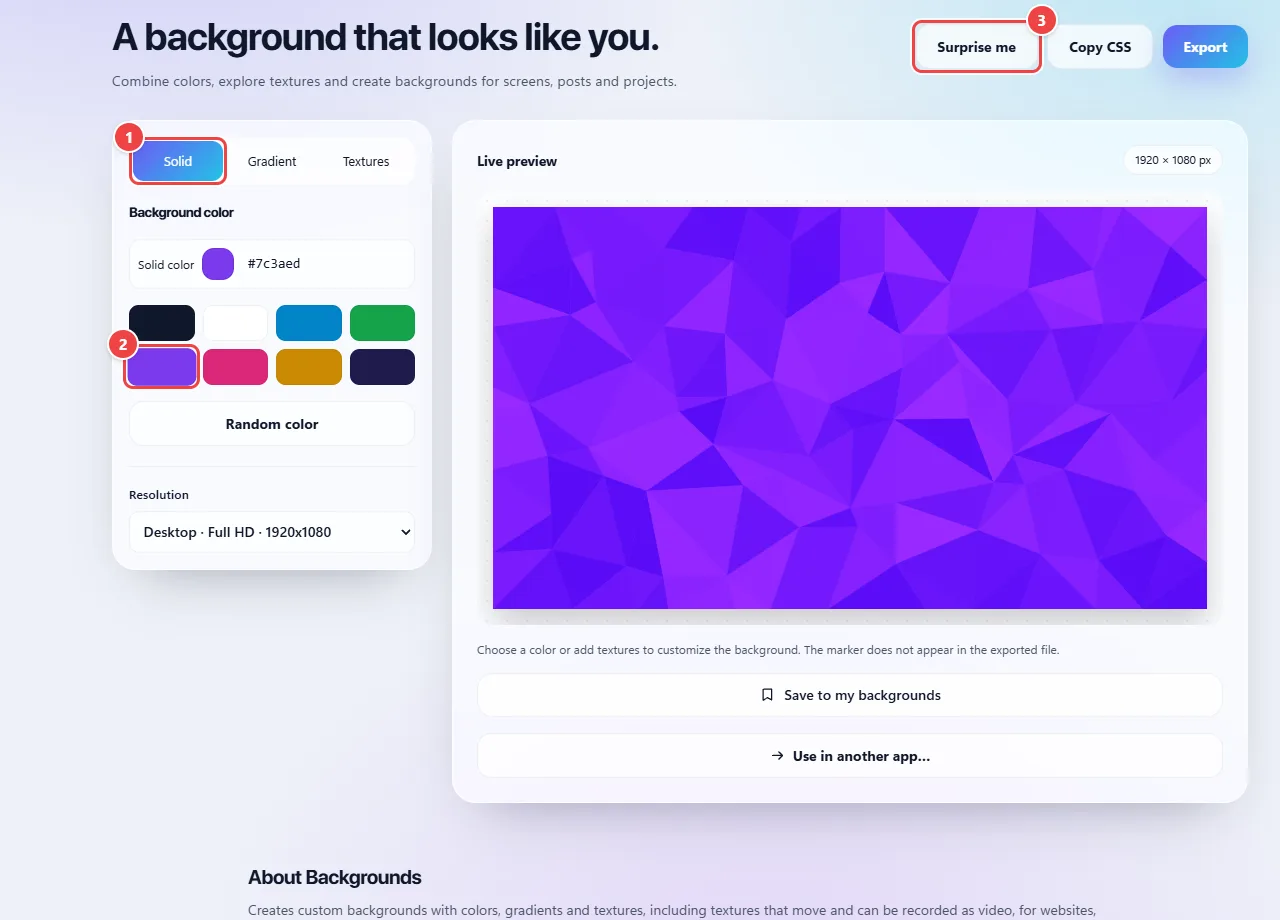
- Point 1: Choose the background type: solid, gradient or textures.
- Point 2: Click a ready-made color or type the hexadecimal code.
- Point 3: Surprise me draws a combination of colors and style.
Tips for a better result
- Use CSS for gradients: they stay sharp at any size and weigh very little.
- Prefer PNG or JPG only when you need a fixed image, for example for slides.
- Check the contrast between the text and the background; very vivid backgrounds hurt readability.
- Textures and high intensities compete with the content; less is usually more.
Limits, and when this is not the best option
- Images exported at very large sizes use a lot of browser memory.
- In animated models, image export comes out as PNG or JPG (SVG becomes PNG) and shows a single frame: the motion exists in the recorded WebM video.
- Video recording depends on the browser: if it cannot record WebM from the canvas, the tool tells you.
- The tool generates backgrounds from colors, gradients and textures; it does not edit photos or create illustrations.
Frequently asked questions
- Where are the animated backgrounds?
- Inside the “Textures” tab, in the “Texture style” menu: models such as Floating bubbles and Rings move on their own.
- How do I record an animated background as video?
- Choose the model, set the duration (4, 8, 12 or 20 seconds) and click “Record video (WebM)”. For MP4, convert the file in Video Converter.
- Can I use the background commercially?
- The backgrounds are generated by you from colors and shapes; the result is yours to use.
- Can I copy only the CSS?
- Yes: “Copy CSS” shows the full composition code for you to paste.
- Do I need an account?
- No. It is free and runs in the browser, with no sign-up.