Scanned an object with your iPhone and can’t print it? How to convert USDZ to STL
By Marcelo Amantino · published October 21, 2026 · 3 min read · who we are
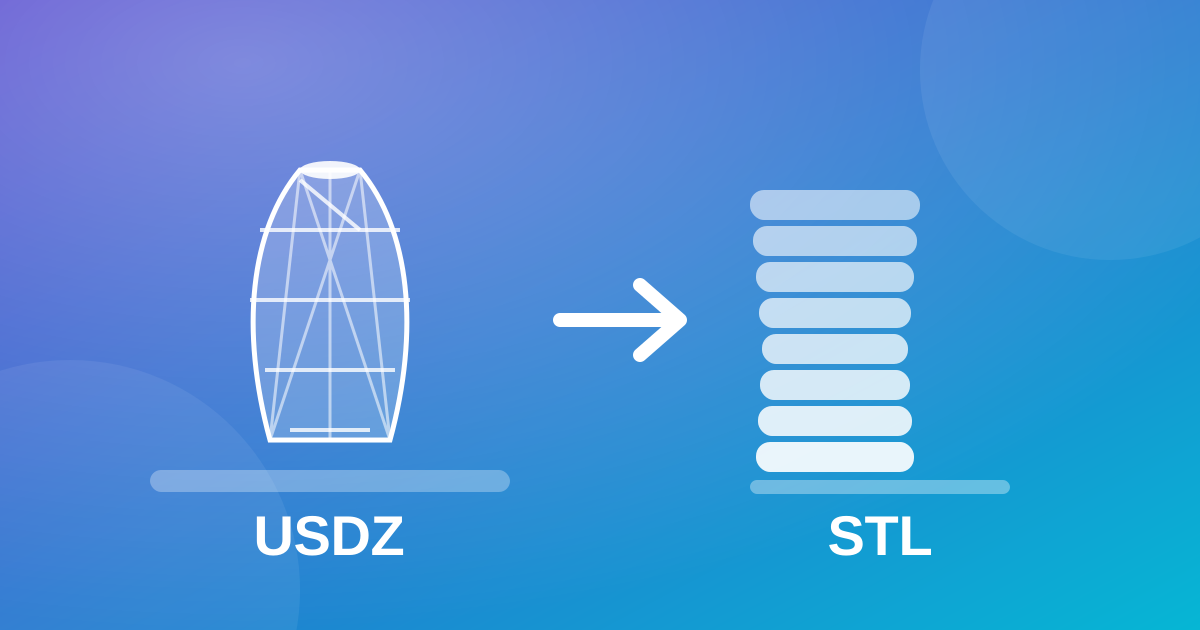
You spent a few minutes walking around a part with your iPhone, the scan looked great on screen, and when it was time to print, your 3D printer software simply would not open the file. It is not a bug: the iPhone usually delivers the scan as USDZ, a format built for Apple’s augmented reality, while 3D printing runs on STL and OBJ. The good news is that the bridge between the two is short, and you can cross it without installing anything.
Why the iPhone scan won’t open in your slicer
3D scanning apps for the iPhone usually export USDZ (some also offer OBJ or GLB, depending on the app). USDZ stores the mesh, the textures and the information needed to view the object in AR. The slicer, the program that turns a model into layers for the printer, works with geometry formats, mainly STL and OBJ. That is why the file “won’t open”: it needs to be translated from one format to the other.
One detail explains a lot of frustration: STL stores only the shape, as triangles. Colors and textures are left out. For a printer that uses one material and one color this makes no difference, but it is worth knowing the conversion goes one way, and you should keep the original file.
Step by step: from USDZ to STL
- Move the scan file to your computer (if it is on the iPhone, WebFaz Drop does it without a cable, or use whatever sharing method you already have).
- Open WebFaz 3D and upload the USDZ file. The file is read in the browser, using your device’s graphics card.
- Rotate the model and look for holes, “bubbles” and loose pieces. The Solid, Wireframe and Clay modes help you spot flaws in the mesh.
- Check the dimensions shown by the tool. If the part is 10 cm in real life and the tool shows something very different, there is a unit problem (see the section below).
- Choose STL (or OBJ, if your slicer prefers it) as the output format and download the converted file.
- Open the STL in the slicer and confirm the size before you start printing.
The most common mistake: the part arrives tiny or huge
3D formats do not reliably carry the information that “this unit is millimeters or meters”. When a file thinks in meters and the slicer reads it as millimeters (or the other way around), the part shows up 1000 times smaller or larger. That is why checking the dimensions is the most important step: compare the size shown with the real measurement of the object, and adjust the scale in the slicer if needed. Measuring one dimension with a ruler or caliper and comparing takes a minute and saves hours of filament.
What a scan does not fix by itself
Converting the format does not repair the mesh. A phone scan, however good, usually brings:
- Holes, mainly underneath and in areas the camera could not reach. Printing needs a closed surface; the slicer may warn you or try to repair it, and modeling programs do it better.
- Noise and wavy surfaces where it should be smooth.
- Trouble with shiny, transparent or very dark objects, which confuse the camera.
- Background or the base captured along with the object, which has to be trimmed.
How to scan for better results
- Use soft, even light, with no hard shadows or reflections.
- Prefer matte, textured objects. Smooth, shiny surfaces scan poorly.
- Go all the way around, slowly, and scan from above and from below (propping the object up so you can see its base).
- Place the object on a surface with a pattern or texture, so the camera can “orient itself”.
What if I want the model on the web or in AR?
The same converter serves other destinations. To display a model on a website, the most recommended format is GLB, which carries the mesh and textures in a single file. To edit in modeling programs, OBJ is usually the safe choice. And USDZ is the format the iPhone opens directly in augmented reality. In every case, not every conversion preserves textures and animations, so keep the original file. The model is not sent to WebFaz: reading and conversion happen in your browser.
Tools mentioned in this article
Keep reading
- Why processing files in the browser is more private (and what that does not guarantee)
- Is your photo giving away where you live? How to remove location (GPS) from photos, PDFs and Office files
- How to reduce the size of a PDF and a video to send by email
- WhatsApp voice message or recorded meeting: how to turn it into text in minutes (and what not to send to AI)
- PNG, JPEG or WebP: which image format to use in each situation
- How to create a Pix QR Code and test it before printing
- MP3, WAV or FLAC: which audio format to choose
- What OCR is and how to improve accuracy when reading a photo of a document
- Countdown for a launch or live stream: how to build one and take people to the link at the right moment
- The Pomodoro technique: how to use focus and break cycles without getting tangled up
- iPhone photo won’t open on Windows? How to convert HEIC to JPG without uploading your photos
- PDF turned into a mess in Word? Why it happens and how to convert with less rework
- How to record your computer screen for free, with no watermark, nothing to install and your camera in the corner
- Subtitles early, late or in the wrong format? How to fix, convert and translate SRT, VTT and ASS
- How to calculate hours worked, overtime and time bank without errors (8h30 is not 8.3 hours)
- Is your text readable for everyone? How to check color contrast (WCAG) and convert HEX, RGB and HSL
- How to extract images from a PDF, Word, PowerPoint or Excel file without losing quality
- How to send files from iPhone to Android, Windows or Mac with no cable and no sign-up