How to create a Pix QR Code and test it before printing
By Marcelo Amantino · published October 5, 2026 · 2 min read · who we are
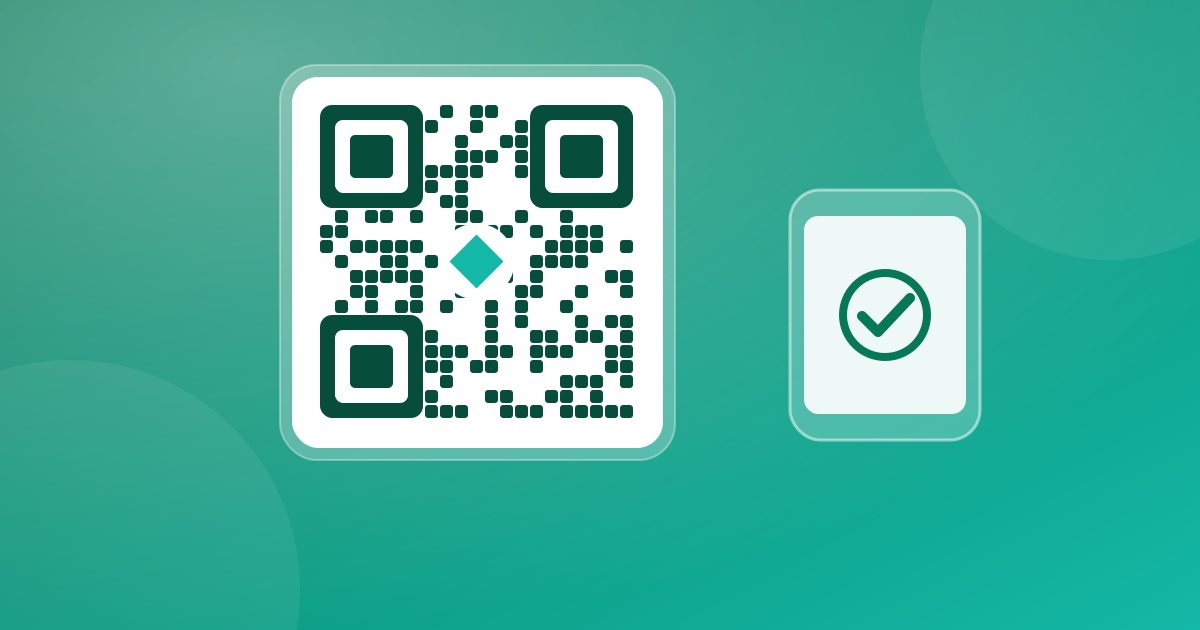
A well-made Pix QR Code speeds up service: the customer points the camera and pays without typing any key. Badly made, it does not scan, shows the wrong data or is exposed to scams. See how to generate it, customize it without ruining the scan and test it before printing a run. (Pix is Brazil’s instant payment system.)
Step by step to generate
In the WebFaz QR Code generator:
- Choose the Pix-oriented content type and enter your key.
- Customize the colors, keeping strong contrast between the background and the code’s modules.
- If you want, add the logo, small and centered, or a frame.
- Download as PNG for common use or as SVG for large prints without losing sharpness.
Your data does not need to leave your device
A Pix key is sensitive data. The WebFaz code is generated in your browser: what you type is not sent to WebFaz or stored on a server. Just remember that, once ready, the QR Code contains that information in a form readable by any camera, so the care becomes where you display it.
Test before printing: a 5-minute routine
Never print a run without testing. Follow this routine:
- Scan with the camera of at least two different phones, a newer one and an older one.
- Scan with your bank’s app, and check that the key and the payee’s name shown are correct before confirming any payment.
- Test with the code already printed, at the same distance and light in which the customer will use it, not just on screen.
- Test in low light and with glare, which are the real conditions of a counter.
The mistakes that prevent scanning
- Low contrast: similar colors between the code and the background, or a light code on a dark background on devices that cannot read the inverted version.
- Logo too big: it covers part of the code’s data. Keep it small.
- Insufficient margin: the code needs white space around it; do not cut it or stick text against it.
- Print too small: as a rule of thumb, a square about 2 to 3 cm per side usually scans well at close range, and bigger if the customer will scan from far away.
- Blurry printing or glossy paper with glare.
Beware of counter scams
A known scam is to stick another QR Code over the original, diverting the payment to someone else’s account. To reduce the risk: fix your code so it cannot be covered without being noticed (laminated or inside a closed holder), check from time to time that it is still yours and tell the staff to report if they notice anything different. Customers can also check the payee’s name in the bank app before confirming.
When the QR Code content changes
The QR Code generated here is a fixed image: it stores exactly what you typed. If your Pix key changes, you need to generate and print a new one. Keep the original file somewhere safe to reprint without redoing it.
The same generator creates QR Codes for links, Wi-Fi, WhatsApp, contact cards and text. If you are going to open support conversations, also see the WhatsApp Link.
Tools mentioned in this article
Keep reading
- Why processing files in the browser is more private (and what that does not guarantee)
- Is your photo giving away where you live? How to remove location (GPS) from photos, PDFs and Office files
- How to reduce the size of a PDF and a video to send by email
- WhatsApp voice message or recorded meeting: how to turn it into text in minutes (and what not to send to AI)
- PNG, JPEG or WebP: which image format to use in each situation
- MP3, WAV or FLAC: which audio format to choose
- What OCR is and how to improve accuracy when reading a photo of a document
- Countdown for a launch or live stream: how to build one and take people to the link at the right moment
- The Pomodoro technique: how to use focus and break cycles without getting tangled up
- Scanned an object with your iPhone and can’t print it? How to convert USDZ to STL
- iPhone photo won’t open on Windows? How to convert HEIC to JPG without uploading your photos
- PDF turned into a mess in Word? Why it happens and how to convert with less rework
- How to record your computer screen for free, with no watermark, nothing to install and your camera in the corner
- Subtitles early, late or in the wrong format? How to fix, convert and translate SRT, VTT and ASS
- How to calculate hours worked, overtime and time bank without errors (8h30 is not 8.3 hours)
- Is your text readable for everyone? How to check color contrast (WCAG) and convert HEX, RGB and HSL
- How to extract images from a PDF, Word, PowerPoint or Excel file without losing quality
- How to send files from iPhone to Android, Windows or Mac with no cable and no sign-up