How to extract images from a PDF, Word, PowerPoint or Excel file without losing quality
By Marcelo Amantino · published October 21, 2026 · 3 min read · who we are
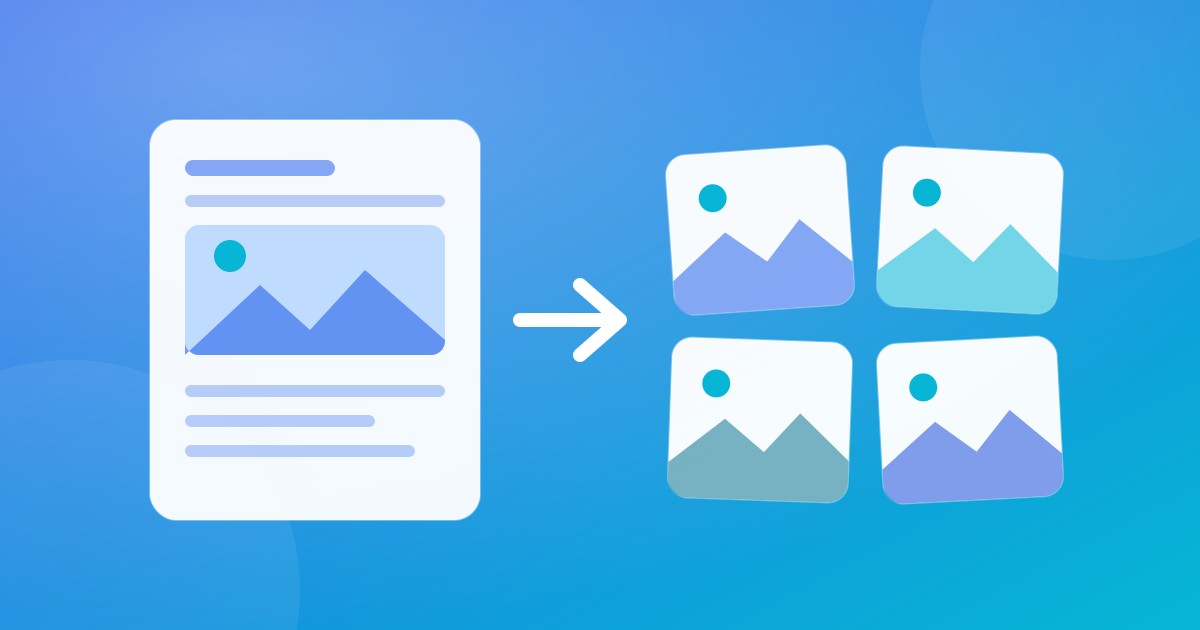
It happens all the time: the product photo only exists inside a presentation, the logo is in a Word contract and the original file has vanished from the computer. You could take screenshots, but you lose resolution. There is a better way, and it depends on a little-known detail of how these documents are built inside.
Why you can recover the images from a document
DOCX, PPTX and XLSX files and the LibreOffice equivalents (ODT, ODP, ODS) are actually compressed packages, similar to a ZIP. Inside them there is a media folder where each photo is stored as a separate file, in the format it was inserted. Extracting means opening that package and copying the files: nothing is recompressed, so the quality is the same as when it was inserted.
The PDF is different. It is not a package of files, and the images are embedded in the pages, together with text and drawings. The tool has to go through each page, locate the images and rebuild them, and that has consequences worth knowing (below).
What to expect from each file type
- Word, PowerPoint, Excel and OpenDocument: images come out in the original format (PNG, JPEG, GIF, SVG, among others), with the same quality as when they were inserted.
- ZIP: the tool looks for images in every folder of the archive, useful when you received a package with dozens of photos.
- PDF: embedded raster images come out as PNG, with the same pixels that are in the PDF, but the PNG is a new file, not a copy of the original (a JPEG inside the PDF becomes a PNG on the way out, and the file may get larger).
- Vector formats such as SVG, EMF and WMF are kept as they are; EMF, WMF and TIFF can be downloaded even when the browser cannot show a preview.
Step by step in WebFaz Image Extraction
- Open Image Extraction and drag one or more documents to the upload area (or click to choose).
- Wait for the gallery to load: images appear as they are found, without waiting for the whole file to finish.
- If you like, filter by format (PNG, JPEG, SVG or others) to see only what matters.
- Mark the images you want (Shift+click marks a range) or leave everything unmarked to take them all.
- Download them one by one or in a single ZIP file.
Why this doesn’t send your documents to anyone
Contracts, proposals and internal presentations often contain information that should not circulate. Here the extraction happens in the browser itself: the document is read from your device’s memory and the images are delivered as a download, with no upload. If you want to understand this principle more calmly, read why processing files in the browser is more private.
When the tool doesn’t find what you expect
A few common cases, and they are not defects:
- PDF with only text and graphics: vector graphics and text are not embedded images, so they do not show up. A scanned PDF, on the other hand, has one image per page.
- Transparency: transparency masks in a PDF are not rebuilt as complete figures, so a logo with a transparent background may come out different from how it looks on the page.
- Password-protected files cannot be read.
- Safety limits: documents with more than 500 images or 200 MB of extracted images are stopped, and a PDF image above 25 megapixels is refused.
- If you want the whole page as an image (and not the embedded images), the PDF tool is the best route.
After extracting: convert and clean
With the images in hand, two steps are frequent. If you need to change the format, for example to WebP or a lighter JPEG, use Image Converter (and, to choose well, see PNG, JPEG or WebP: which format to use). If the photos are going to be published, first remove the hidden data, such as location and camera model, with Metadata Removal.
A word of common sense: extracting an image does not give you the right to use it. Stock photos, third-party images and protected ones remain subject to the license and copyright of whoever created them.
Tools mentioned in this article
Keep reading
- Why processing files in the browser is more private (and what that does not guarantee)
- Is your photo giving away where you live? How to remove location (GPS) from photos, PDFs and Office files
- How to reduce the size of a PDF and a video to send by email
- WhatsApp voice message or recorded meeting: how to turn it into text in minutes (and what not to send to AI)
- PNG, JPEG or WebP: which image format to use in each situation
- How to create a Pix QR Code and test it before printing
- MP3, WAV or FLAC: which audio format to choose
- What OCR is and how to improve accuracy when reading a photo of a document
- Countdown for a launch or live stream: how to build one and take people to the link at the right moment
- The Pomodoro technique: how to use focus and break cycles without getting tangled up
- Scanned an object with your iPhone and can’t print it? How to convert USDZ to STL
- iPhone photo won’t open on Windows? How to convert HEIC to JPG without uploading your photos
- PDF turned into a mess in Word? Why it happens and how to convert with less rework
- How to record your computer screen for free, with no watermark, nothing to install and your camera in the corner
- Subtitles early, late or in the wrong format? How to fix, convert and translate SRT, VTT and ASS
- How to calculate hours worked, overtime and time bank without errors (8h30 is not 8.3 hours)
- Is your text readable for everyone? How to check color contrast (WCAG) and convert HEX, RGB and HSL
- How to send files from iPhone to Android, Windows or Mac with no cable and no sign-up