How to record your computer screen for free, with no watermark, nothing to install and your camera in the corner
By Marcelo Amantino · published October 21, 2026 · 3 min read · who we are
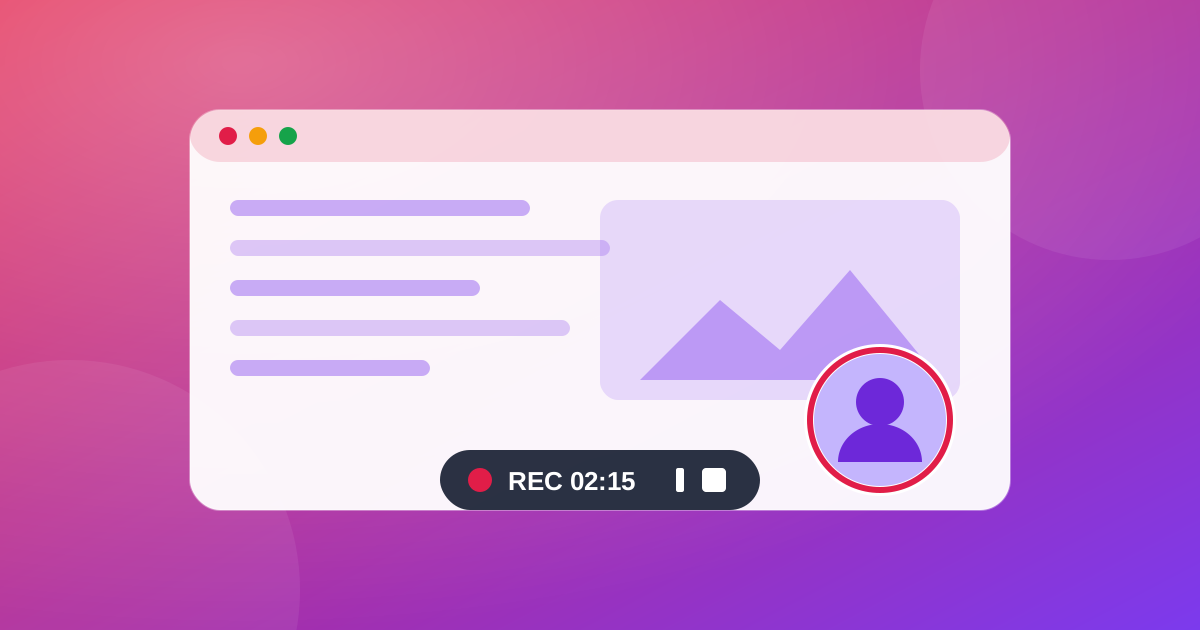
You need to show someone how to do something on the computer, and explaining by message does not work. You look for a screen recorder and find programs to install, trial versions with a watermark or a time limit. There is a simpler way: the browser itself knows how to record the screen. This guide shows how to use that feature, what it does well and where it falls short.
What you can record
With WebFaz Screen Recorder you choose between the whole screen, a window or a browser tab, set the quality and frames per second, and download the video as WebM or MP4. There is no watermark, no sign-up, and WebFaz imposes no time limit (the real limit is your device’s memory and storage). The video is built on your computer and is not sent to any server.
Step by step
- Open Screen Recorder on your computer and choose the sources: screen, microphone, system sound and camera.
- Click to record and authorize sharing in the browser window. Without your permission, nothing is recorded.
- Use the floating bar (timer, pause and stop) or the shortcuts: F9 pauses and resumes, F10 stops and saves.
- When you finish, download the video or send it to editing.
Your camera in the corner of the screen
For classes, presentations and tutorials, seeing the face of the person explaining creates presence and trust. The recorder can include the webcam image in a bubble in the corner of the video while it records the screen. It is a feature that usually lives in paid programs and here it runs in the browser.
How to record the computer’s sound
This is the point that causes the most headaches in any browser-based recorder. System sound is only captured in compatible browsers and systems and, in practice, it usually works when you share a tab and tick the option to share audio. The microphone is a separate source that you turn on or off. Do a test of about 10 seconds before recording anything long.
After recording: trim, caption and make it yours
Recorded it and messed up the start? Instead of redoing it, send the video to WebFaz video editor and customize: trim what is left over, add text, captions (including automatically generated ones, reviewed by you), music, backgrounds and transitions, and export to MP4 without a watermark. The editor runs in the browser, and automatic captions are the only part that sends the audio to a speech recognition service, when you ask for it.
What doesn’t work: recording a phone screen
It is important to be clear: this recorder is for computers. Most mobile browsers do not offer this screen capture feature, so support on phones is limited. To record a phone screen, use the system’s own recorder (iPhone and Android both have one) and, if you like, take the video to the WebFaz editor afterwards, moving it to the computer through Drop.
Precautions before pressing the button
- Close notifications, emails and personal tabs: anything on the screen may end up in the video.
- If you are recording the whole screen, hide passwords, client data and document numbers.
- For very long recordings, do it in parts: the video stays in the device’s memory until you download it.
Tools mentioned in this article
Keep reading
- Why processing files in the browser is more private (and what that does not guarantee)
- Is your photo giving away where you live? How to remove location (GPS) from photos, PDFs and Office files
- How to reduce the size of a PDF and a video to send by email
- WhatsApp voice message or recorded meeting: how to turn it into text in minutes (and what not to send to AI)
- PNG, JPEG or WebP: which image format to use in each situation
- How to create a Pix QR Code and test it before printing
- MP3, WAV or FLAC: which audio format to choose
- What OCR is and how to improve accuracy when reading a photo of a document
- Countdown for a launch or live stream: how to build one and take people to the link at the right moment
- The Pomodoro technique: how to use focus and break cycles without getting tangled up
- Scanned an object with your iPhone and can’t print it? How to convert USDZ to STL
- iPhone photo won’t open on Windows? How to convert HEIC to JPG without uploading your photos
- PDF turned into a mess in Word? Why it happens and how to convert with less rework
- Subtitles early, late or in the wrong format? How to fix, convert and translate SRT, VTT and ASS
- How to calculate hours worked, overtime and time bank without errors (8h30 is not 8.3 hours)
- Is your text readable for everyone? How to check color contrast (WCAG) and convert HEX, RGB and HSL
- How to extract images from a PDF, Word, PowerPoint or Excel file without losing quality
- How to send files from iPhone to Android, Windows or Mac with no cable and no sign-up