Countdown for a launch or live stream: how to build one and take people to the link at the right moment
By Marcelo Amantino · published October 5, 2026 · 4 min read · who we are
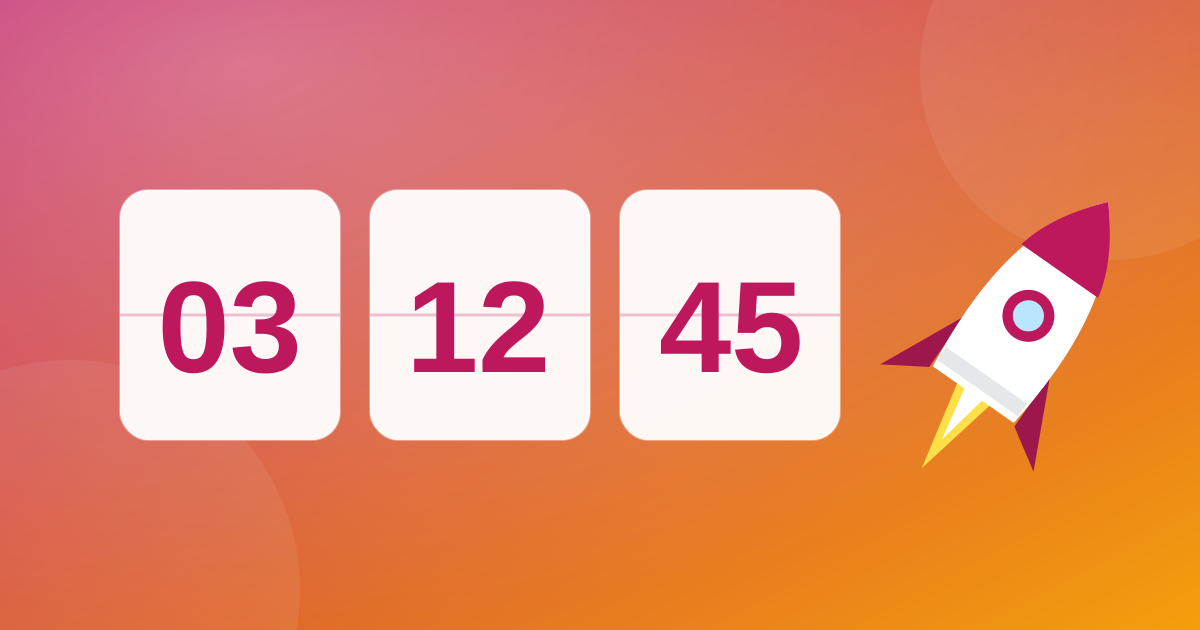
Anyone who presents, launches products or streams live knows the value of the final seconds: the countdown builds anticipation, organizes the screen and marks the moment something begins. But it only works well if it is correct, legible and, preferably, if the next step happens without a hitch. This guide shows how to build one and how to make it end by taking people straight to its destination.
What a well-made countdown is for
It is useful whenever there is a set moment and an audience, real or virtual, waiting for it:
- Opening a live stream: the waiting screen with a countdown fills the time before it starts and tells people when it will go on air.
- Launching a product, course or campaign at a set date and time.
- Events, webinars and presentations where the opening needs to be punctual.
- New Year’s Eve, birthdays and celebration dates.
Building the countdown on WebFaz
In the Countdown tab of the Clock:
- Give the event a title, which appears next to the countdown.
- Customize the messages: a phrase below the title during the countdown (“The live starts in”) and another for when it reaches zero (“We’re live!”). Up to 80 characters each.
- Set the exact date and time of the final moment.
- Choose one or more animations for the moment the countdown reaches zero (confetti, fireworks, flash, neon and others) and one or more sounds, and click each one to preview it.
- Add, if you want, a background for the full screen: your own image or a background created in Backgrounds, static or moving, with your event’s identity.
- Open in full screen to present or share the screen.
- Click “Share” to copy a link that opens the same countdown for whoever you like.
Sharing the countdown with your audience
The copied link carries the title, messages, date, animation, sound, destination and the Backgrounds background, if any. Whoever opens it sees the countdown in their own time zone, which avoids confusion at events with an audience from many places. An image you uploaded does not go in the link.
To protect whoever clicks, the redirect of a shared link is never silent: at the final moment a 5-second notice appears with the destination address and the “Cancel” and “Go now” buttons. Only http and https destinations are accepted. If the person opens the link after the event has ended, there is no automatic redirect, only a button to go to the destination.
The redirect: going straight to the destination at zero
A detail that saves time and reduces human error: instead of you having to rush to open the live page at the exact second, the countdown can do it for you. Under “When finished, redirect to”, choose “A link” and enter the address (the live page, a sign-up form, a social network). At zero, the animation and sound play and, right after, the tab is taken to the destination.
It is also possible, instead of a link, to go to another tab of the Clock itself, such as the Stopwatch or the Pomodoro, to chain the next step of your flow.
What the redirect does not do
It is important to know the limits so you are not caught by surprise:
- The page must be open at the moment the time runs out. There is no scheduler running with the browser closed.
- The shareable link puts the title, date and destination in the address. Do not include anything in it that cannot be public, including in the messages.
- The redirect takes the same tab to the destination. If you need the countdown to stay visible to other people, use a separate window for the destination.
Test routine before the big moment
Never leave the first run for the time of the event. Do this test:
- Create a test countdown for 1 or 2 minutes from now, with the same destination link.
- Click anywhere on the page at least once: browsers may block the sound if you have not yet interacted with the page.
- Let the countdown run to the end and confirm the animation, sound and redirect.
- Check that the computer does not go to sleep and that the tab is visible; background tabs can lose accuracy.
- Only then set the real time and save.
Presentation tips
- Prefer strong contrast between the text and the background; if you use an image, choose one that does not fight with the numbers.
- Do not overdo it: one animation and one sound are usually enough. Several at once can become clutter.
- Tell the audience the start time in text too (description, chat), just in case.
- Have a plan B: the destination link written down, in case something fails.
Privacy
The countdown runs in your browser: the title, date and link are saved only there, without passing through a WebFaz server. More about this on the Privacy page. The full step by step, with usage situations, is in the Clock guide.
Tools mentioned in this article
Keep reading
- Why processing files in the browser is more private (and what that does not guarantee)
- Is your photo giving away where you live? How to remove location (GPS) from photos, PDFs and Office files
- How to reduce the size of a PDF and a video to send by email
- WhatsApp voice message or recorded meeting: how to turn it into text in minutes (and what not to send to AI)
- PNG, JPEG or WebP: which image format to use in each situation
- How to create a Pix QR Code and test it before printing
- MP3, WAV or FLAC: which audio format to choose
- What OCR is and how to improve accuracy when reading a photo of a document
- The Pomodoro technique: how to use focus and break cycles without getting tangled up
- Scanned an object with your iPhone and can’t print it? How to convert USDZ to STL
- iPhone photo won’t open on Windows? How to convert HEIC to JPG without uploading your photos
- PDF turned into a mess in Word? Why it happens and how to convert with less rework
- How to record your computer screen for free, with no watermark, nothing to install and your camera in the corner
- Subtitles early, late or in the wrong format? How to fix, convert and translate SRT, VTT and ASS
- How to calculate hours worked, overtime and time bank without errors (8h30 is not 8.3 hours)
- Is your text readable for everyone? How to check color contrast (WCAG) and convert HEX, RGB and HSL
- How to extract images from a PDF, Word, PowerPoint or Excel file without losing quality
- How to send files from iPhone to Android, Windows or Mac with no cable and no sign-up