PDF turned into a mess in Word? Why it happens and how to convert with less rework
By Marcelo Amantino · published October 21, 2026 · 3 min read · who we are
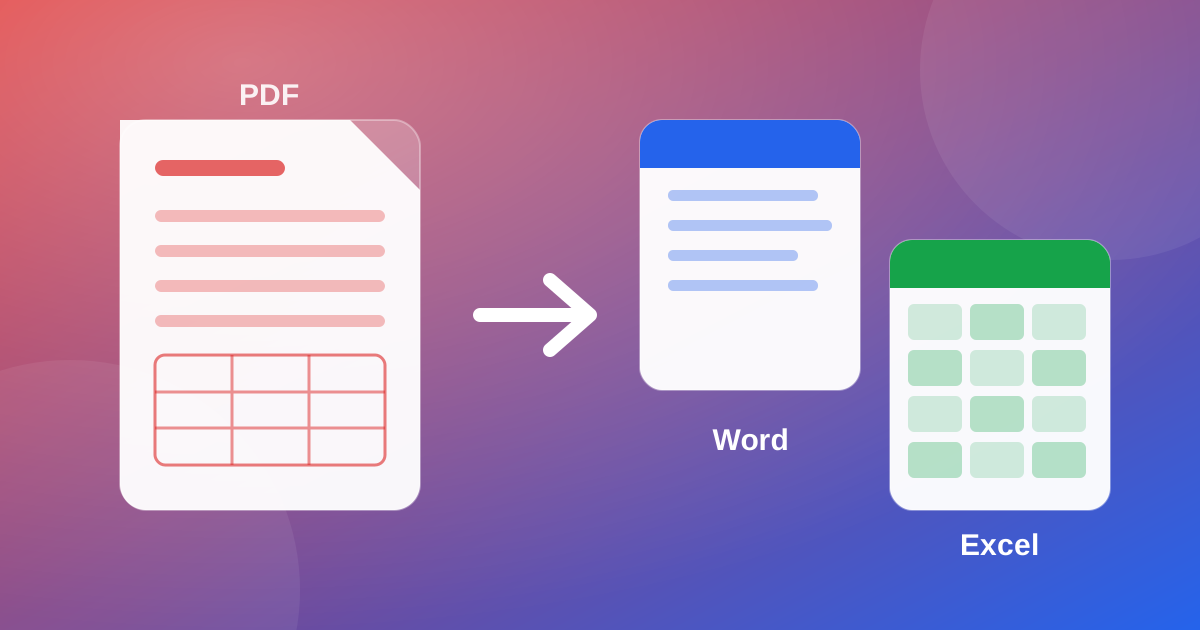
You convert the PDF to Word, open the file and find a broken table, paragraphs cut in half and an image floating in the wrong place. It feels like the conversion “broke” the document. Most of the time it broke nothing: the PDF simply never stored the document the way Word expects it. Understanding this changes how you convert and saves you from redoing the work from scratch.
Why the conversion gets it wrong
The PDF was made to look identical on any screen and printer. To do that, it stores the position of each piece of text and each image on the page, and not the paragraphs, columns and tables the way Word and Excel see them. When converting, the program has to guess the structure from the positions: where a paragraph ends, what is a table, what is a column. In simple documents it gets almost everything right. In documents with several columns, complex tables or special fonts, the guess fails.
First test: is your PDF text or an image?
Open the PDF and try to select and copy a sentence. If it works, the PDF has real text and the conversion has a good chance. If you cannot select anything, the file is just an image of each page, typical of a scanned document or a photo turned into a PDF. In that case, converting directly brings no text at all: you first need OCR, which recognizes the letters in the image. WebFaz OCR accepts images and scanned PDFs and exports to TXT, Word or Excel. For more accuracy tips, read what OCR is and how to improve accuracy on a photo.
Step by step in WebFaz PDF
- Open the PDF tool and choose the conversion to Word, Excel or PowerPoint.
- Upload the PDF. If it is password protected, remove the protection in the original program first.
- If only part of it matters, split the pages first: converting only what you need reduces errors.
- Convert and download the result.
- Open the file and check tables, numbers, headings and images before using it.
Word or Excel: which one to choose
- Text document (letter, contract, report): Word.
- Table, statement, price list or a spreadsheet that became a PDF: Excel, which keeps the data in cells, ready to add and filter.
- Presentation: PowerPoint, but that is where the layout most often changes.
What not to expect
Some real limits, which apply to any converter, not just this one:
- Complex layouts may need manual adjustment after the conversion.
- Fonts you do not have installed are swapped for others, and that changes spacing and line breaks.
- Numbers in tables must always be checked: a wrong value matters more than a nice layout.
- Scanned PDFs depend on the quality of the OCR, which makes mistakes with small letters, handwriting and crooked photos.
If you still have the original file
Nothing converts better than the source document. If the original Word file, spreadsheet or presentation still exists, edit it there and generate a new PDF. Converting a PDF to Word is for when the original is lost, or when the PDF came from someone else. The opposite direction, from Word, Excel and PowerPoint to PDF, is also in the PDF tool, as are merging, splitting and reducing the size. Everything runs in your browser: the documents are not sent to WebFaz.
Tools mentioned in this article
Keep reading
- Why processing files in the browser is more private (and what that does not guarantee)
- Is your photo giving away where you live? How to remove location (GPS) from photos, PDFs and Office files
- How to reduce the size of a PDF and a video to send by email
- WhatsApp voice message or recorded meeting: how to turn it into text in minutes (and what not to send to AI)
- PNG, JPEG or WebP: which image format to use in each situation
- How to create a Pix QR Code and test it before printing
- MP3, WAV or FLAC: which audio format to choose
- What OCR is and how to improve accuracy when reading a photo of a document
- Countdown for a launch or live stream: how to build one and take people to the link at the right moment
- The Pomodoro technique: how to use focus and break cycles without getting tangled up
- Scanned an object with your iPhone and can’t print it? How to convert USDZ to STL
- iPhone photo won’t open on Windows? How to convert HEIC to JPG without uploading your photos
- How to record your computer screen for free, with no watermark, nothing to install and your camera in the corner
- Subtitles early, late or in the wrong format? How to fix, convert and translate SRT, VTT and ASS
- How to calculate hours worked, overtime and time bank without errors (8h30 is not 8.3 hours)
- Is your text readable for everyone? How to check color contrast (WCAG) and convert HEX, RGB and HSL
- How to extract images from a PDF, Word, PowerPoint or Excel file without losing quality
- How to send files from iPhone to Android, Windows or Mac with no cable and no sign-up