What OCR is and how to improve accuracy when reading a photo of a document
By Marcelo Amantino · published October 5, 2026 · 2 min read · who we are
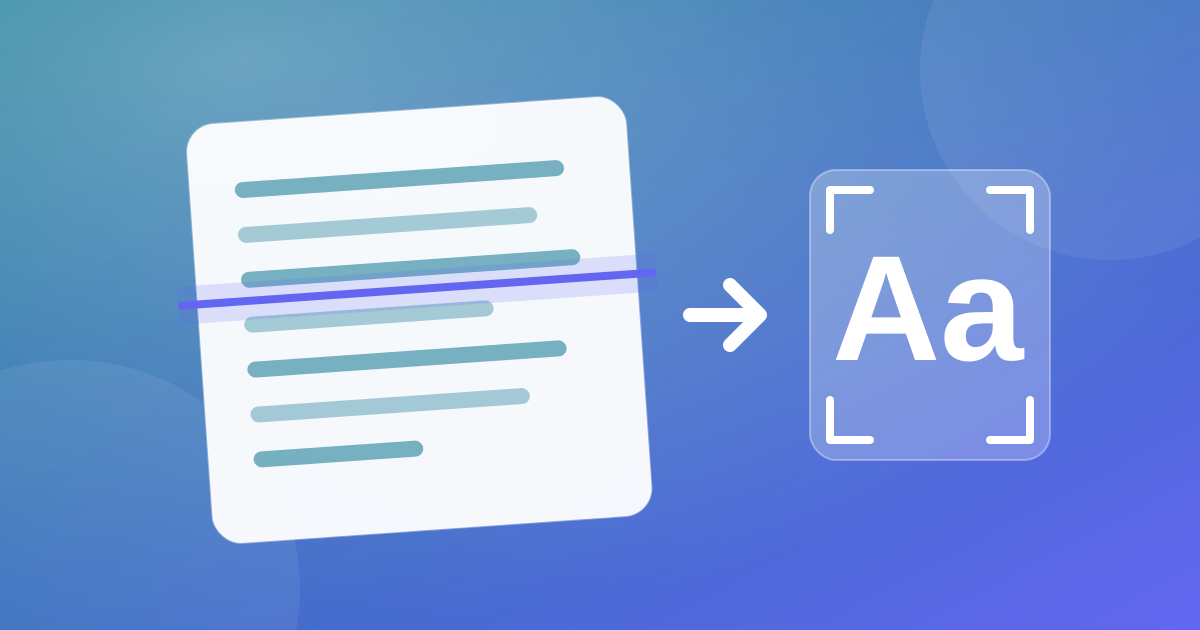
OCR (optical character recognition) is the technology that reads the text that appears in an image and gives it back as real text, which you can copy, search and edit. It solves an annoying problem: documents that only exist as a photo or a scanned PDF. But it depends a lot on the quality of the image, and that is where you can improve the result.
How OCR works, in a few words
The program analyzes the image, locates text regions, separates lines and characters and compares each shape with what it knows about the letters and words of the chosen language. That is why indicating the right language improves the result, especially with accents and common words.
On WebFaz, the default mode of OCR runs in your browser, without sending the image. There is also an optional AI mode for handwriting and difficult photos; it is only used if you tick the option, and in that case the image is sent to an outside service, which the page warns you about first.
Why OCR makes mistakes
Almost always the problem is in the image, not in the program:
- Shaky, out-of-focus or low-resolution photo.
- Uneven lighting, shadows and glare on the paper.
- Document tilted or photographed at an angle.
- Very small letters, decorative fonts or text over colored backgrounds.
- Handwriting, which varies a lot from person to person.
Checklist to photograph better
- Place the document on a flat surface and photograph it from above, with the camera parallel to the sheet.
- Use natural light or uniform light; avoid direct flash, which creates glare.
- Get close enough for the text to fill a good part of the image, but keep everything sharp.
- Crop to leave only the area with text.
- On colored or faded documents, an image with good contrast helps more than a high-resolution one.
Step by step in WebFaz OCR
- Upload the image or the scanned PDF.
- Choose the language of the text.
- Keep the local mode; consider the optional AI only if the document is not sensitive.
- Review the text and export as TXT, Word or Excel.
Always review what cannot be wrong
OCR can swap a 0 for an O, a 1 for an l or omit a comma, and in numbers that changes the meaning. Check values, dates, tax IDs, codes and names carefully. For important documents, compare the text with the original image before using it.
If the PDF already has text
Not every PDF needs OCR. If you can select and copy the text, it is already searchable. OCR is for PDFs that are just images of pages, such as those produced by a scanner. To merge, split or compress PDFs before or after recognition, use the PDF tool.
When OCR is not the best way out
Documents with complex tables, several columns or many graphic elements can come out with the text order mixed up. In those cases, use the result as a draft and reorganize it by hand. For the text already extracted, the Text Editing tool helps clean up lines, remove duplicates and standardize.
Tools mentioned in this article
Keep reading
- Why processing files in the browser is more private (and what that does not guarantee)
- Is your photo giving away where you live? How to remove location (GPS) from photos, PDFs and Office files
- How to reduce the size of a PDF and a video to send by email
- WhatsApp voice message or recorded meeting: how to turn it into text in minutes (and what not to send to AI)
- PNG, JPEG or WebP: which image format to use in each situation
- How to create a Pix QR Code and test it before printing
- MP3, WAV or FLAC: which audio format to choose
- Countdown for a launch or live stream: how to build one and take people to the link at the right moment
- The Pomodoro technique: how to use focus and break cycles without getting tangled up
- Scanned an object with your iPhone and can’t print it? How to convert USDZ to STL
- iPhone photo won’t open on Windows? How to convert HEIC to JPG without uploading your photos
- PDF turned into a mess in Word? Why it happens and how to convert with less rework
- How to record your computer screen for free, with no watermark, nothing to install and your camera in the corner
- Subtitles early, late or in the wrong format? How to fix, convert and translate SRT, VTT and ASS
- How to calculate hours worked, overtime and time bank without errors (8h30 is not 8.3 hours)
- Is your text readable for everyone? How to check color contrast (WCAG) and convert HEX, RGB and HSL
- How to extract images from a PDF, Word, PowerPoint or Excel file without losing quality
- How to send files from iPhone to Android, Windows or Mac with no cable and no sign-up