Make a photo collage online, your way
Your best photos, in a single frame. Drop in your images and watch the collage come to life in seconds: frames, shapes, tapes and backgrounds that match you. Roll a new look with every click and take it to the feed, stories or video. Free, and your photos never leave your device.
Format
Landscape · 1920 × 1080 px
How to arrange the photos
Grid, mosaic and ready-made templates: the photos fill the whole collage. Drag the line between two photos to resize each one.
Automatic layouts
Ready-made templates
About Collage
Makes photo collages for social networks, invitations, albums, printing or to use as a layer in a video. You choose the format, how the photos are arranged (grid, mosaic, overlapping, repeating pattern, cutouts of people or photo mosaic) and the background, then download it as PNG, JPG or WebP, with a transparent background if you like, or as an animated video.
What makes Collage different
More freedom than a fixed template: what the tool really does.
Background from your own photo
The enlarged, blurred photo becomes the background, with blur and brightness controls. There is also a solid color, gradient, photo color, transparent and ready-made backgrounds of watercolors and colorful blots: click the same button again to change the background; the image rotates by itself to fill the chosen format better.
Draggable dividers
Grid, mosaic, columns, highlight and ready-made templates are all adjustable: drag the line between two photos to resize each one.
Four ways to arrange
Tiles, scatter (random overlap), repeating pattern (tile or brick) and free, with move, rotate and resize for each photo.
Many sizes at once
The layout adapts to each proportion, and a ZIP brings the same collage in feed, stories, 16:9 and A4.
Framing by face
The AI finds faces and keeps everyone in view when the photo is cropped into its tile. In the scatter and cutouts modes, no face leaves the frame and no photo covers another photo’s face: photos can overlap and hang over the edge, but faces stay clear.
Cutouts and photo mosaic
The AI cuts out people like stickers with a white outline, and a main photo can become a mosaic made from your other photos.
Themes with your photos
A gallery of complete templates (layout, background, frame and decorations) shown with your own photos, with filters and a photo counter, in the style of a photo app’s Templates tab.
Animated collage
Generates a video where the photos come in one after another, to use in the Video Editor or Slideshow.
Save and continue
My designs keeps your collages with their photos in this browser, and Continue where you left off reopens the last one. Touch screens get two-finger zoom and rotate, and long-press layer ordering.
Part of the suite
It receives photos from Studio and other apps and sends the finished collage, with a transparent background, to the Video Editor and Slideshow. A photo that comes back from Studio enters as a new version: Undo brings the original back, and a button on the photo bar, held down, shows the before and after.
How to use it
- Choose or drop your photos (up to 60). They can also come straight from Studio or other apps in the suite through the Send to button.
- In the Themes tab, see 18 ready-made templates already built with your photos (grid, film, polaroids, decorations…) and tap one to apply it; the Random style button rolls a new look with every click. Or, in the Layout tab, choose the format (feed, stories, video, A4…) and how to arrange the photos: automatic layout, ready-made template for 2 to 6 photos, scatter, pattern, free, cutouts of people or photo mosaic.
- Adjust by hand: one click on a photo shows its tools (edit in Studio, rotate, swap, delete); drag to reposition, use the mouse wheel to zoom and double-click to go back to automatic. Drag the lines between photos to resize them. On a phone, two fingers zoom and rotate, and a long press on a free tile changes the layer order. The Background tab sets the background; the Style tab sets spacing, corners, border and shadow.
- In the Download tab, pick PNG, JPG or WebP and the size. To publish in several places, check several formats and download everything in a ZIP. You can also generate a video where the photos come in one by one.
Limits and cautions
- Up to 60 photos per collage. Each photo is used as a working copy of up to 2,000 pixels on the longest side, which is enough for social media sizes and for A4 at 150 dpi.
- The final file is limited by your device’s pixel limit (about 16 megapixels on iPhone and iPad; 64 on a computer). The app tells you when it reduces the size.
- The collage is kept only in this browser: use My designs to save up to 12 collages with their photos, and Continue where you left off reopens the last one. Nothing is sent to a server or to another device, so download the PNG for anything you need elsewhere.
- Cutouts of people depend on the AI and only cut out photos where it finds a face; the others go in whole. The cutout is not perfect with loose hair or backgrounds close to skin tone.
- Photo mosaic works best with 20 or more photos of varied colors. The animated video comes out without sound, as MP4 (or WebM, depending on the browser).
- Framing by faces depends on the AI, which downloads models only once (about 8 MB). Without it, the app frames each photo by its center; you can adjust by hand.
- JPG does not keep transparency: with a transparent background, the JPG comes out with a white background. Use PNG or WebP.
The tool in one image
The click points are numbered. Tap the image to see it at full size. The other screens, step by step, are in the “How it works” guide.
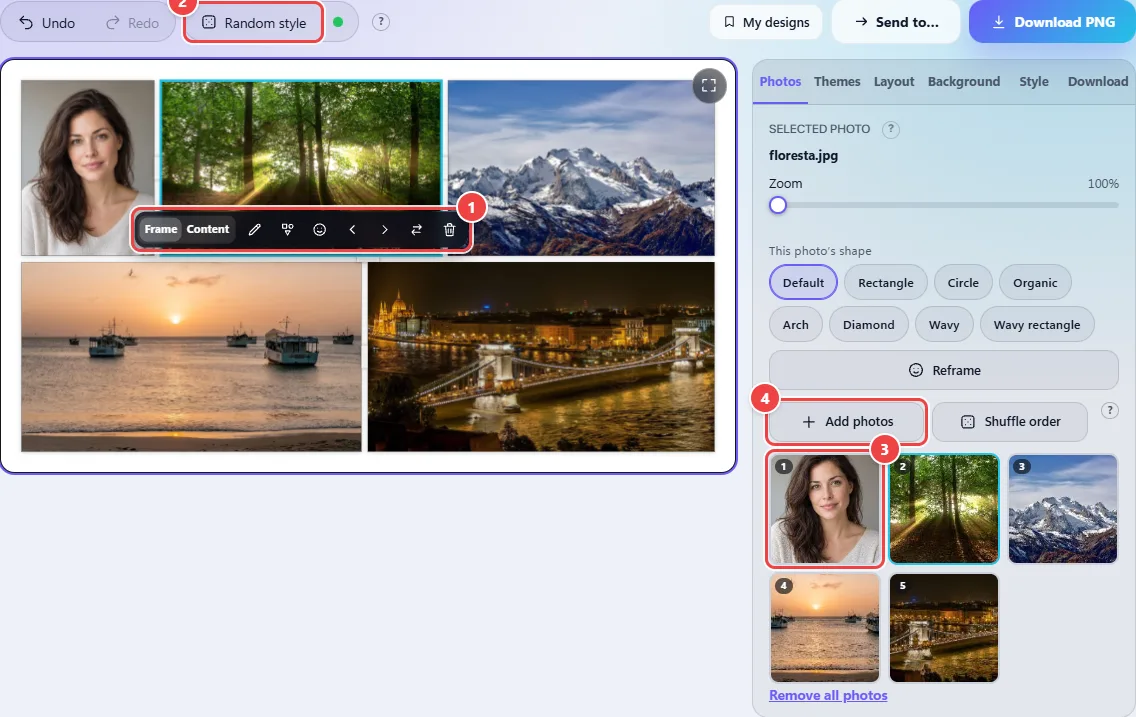
- Point 1: The photo bar: Frame or Content (what dragging moves), edit in Studio, a shape for this photo only, reframe by face, swap places and delete.
- Point 2: Rolls a new look (arrangement, background, frame and decorations). The app already does it once when the photos arrive, so you can see how it works.
- Point 3: Thumbnails follow the photo order. Drag one to change the order or drop it on a tile to swap that tile’s photo.
- Point 4: You can add more photos at any time: the collage rebuilds itself.
Read the full guide: real-world use cases, tips and limits →
Privacy: Collage runs entirely in your browser and no photo is sent to a server. To find faces and frame each photo without cutting anyone off, it downloads Google AI models once — MediaPipe, about 8 MB, served from jsDelivr and Google Cloud Storage. Only those files are downloaded; each one is checked with SHA-256 and kept in the browser. You can turn it off at any time with the "AI" button; without it the app frames each photo by its center. Learn more.
Frequently asked questions
- Are my photos sent to a server?
- No. The collage is built in your browser. Only the public Google AI models used to find faces (about 8 MB) are downloaded, once, without sending any photo.
- How do I make the blurred background with my own photo?
- In the Background tab, choose Blurred photo. The app enlarges one of the photos, blurs it and puts it behind the collage, so the background is never plain black or white. Adjust the blur and brightness, or pick another photo for the background.
- How do I save the collage with a transparent background?
- In Background, choose Transparent and, in Download, PNG (or WebP). The checkerboard that appears in the preview does not go into the file.
- Can I use the same collage in several sizes?
- Yes. In Download, check the formats you want (square, stories, 16:9…) and download the ZIP. The automatic layout is rebuilt for each proportion.
- How do I combine photos edited in Studio?
- In Studio, edit the photos and use Send to → Make a collage. They arrive here already in the photo list. The opposite direction also works: the finished collage can go to Studio, Slideshow or the Video Editor.
- Is my collage saved?
- In this browser only. Use My designs to save collages with their photos (up to 12), and Continue where you left off to reopen the last one. Clearing the site data removes them.