To send and post
WhatsApp, email, iPhone, Reels and TikTok
Make the video light enough to send by message, email or to publish.
Your video is compressed in the browser and is not uploaded. Learn more
Reduce the size of MP4, MOV, WebM and MKV videos with automatic aspect-ratio detection — ideal for Reels, TikTok and Feed. Everything is processed in your browser, with no files sent to servers.
MP4, MOV, WebM and MKV — any aspect ratio (Reels, TikTok, Feed, Widescreen)
Each situation has its own page, with the step by step, tips and the limits of what the reduction does.
WhatsApp, email, iPhone, Reels and TikTok
Make the video light enough to send by message, email or to publish.
720p and 480p
Reduce the video by choosing a lower resolution.
Quality, bitrate and FPS
Reduce the size while caring for quality or adjusting bitrate and FPS.
Reduce screen recordings and MKV videos.
The compressor helps reduce the size of videos to make them easier to send, share and store. You can also change the format and adjust the video’s dimensions.
1. Choose the video. Drag the file to the marked area or click to select it on your device.
2. Adjust the result. Choose the output format and use simple mode to balance size and quality. Stronger compression can reduce the detail in the image. If you prefer, advanced mode offers individual picture and sound settings.
3. Check the framing. Use “Keep original” to keep the video’s aspect ratio, including when it is vertical. You can also choose another aspect ratio and a lower resolution to help reduce the file. Check the dimensions and the size estimate before continuing; the final size may vary.
4. Compress and download. Click “Compress video now”, wait for it to finish and check the size comparison. Then use “Download video” to save the result. The original file stays on your device.
Reduces the size of videos so you can send them by email or messaging app, keeping the original aspect ratio.
A 180 MB video recorded on your phone does not fit your company’s email limit. You select the file, choose the “Smallest size (WhatsApp)” level, compress and compare: the result is a fraction of the original size, with enough quality to watch on a phone.
Os pontos de clique estão numerados. Toque na imagem para vê-la em tamanho original. As demais telas, passo a passo, estão no guia “Como funciona”.
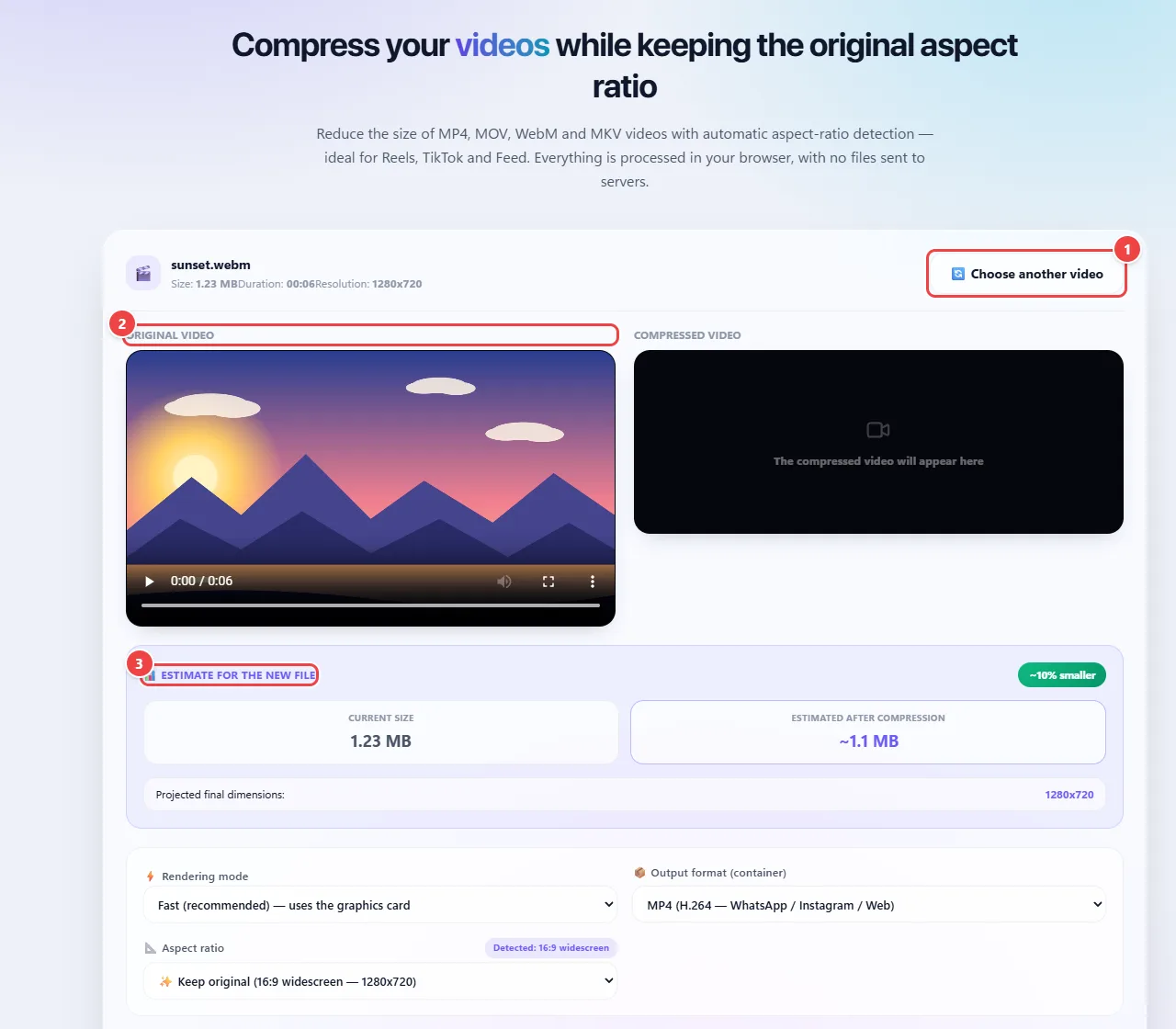
Compression re-encodes the video in your browser using the native encoding feature, at a target bitrate. The levels go from the smallest size, at about 500 kbps, to high fidelity, at about 3,500 kbps; the audio follows, from 64 to 192 kbps.
In advanced mode you directly choose the video and audio bitrates and the output resolution (original, 1080p, 720p, 480p or 360p). Lowering the resolution greatly reduces the size, but also the sharpness.
The final size is roughly the bitrate multiplied by the duration. That is why a long video weighs more than a short one at the same quality, and the page shows an estimate of the new file’s size before you download it.
Read the full guide: real-world use cases, tips and limits →
Privacy: This tool runs entirely in your browser: your files and data are not sent to any WebFaz server. Learn more.