How to reduce the size of a video to send by email or WhatsApp
A video recorded on a phone can be hundreds of megabytes and be rejected by email, a form or a messaging app. This guide shows how to shrink the file while keeping the original aspect ratio of the picture, and how to judge whether the final quality is still good enough for your use.
Guide written by Marcelo Amantino · updated on October 19, 2026 · about us
Where your data is processed
This tool runs entirely in your browser: your files and data are not sent to any WebFaz server.
Compression happens in your browser: the video is never sent to WebFaz. That matters because videos tend to be large and personal, and uploading them to an outside service takes time and exposes the content. In practice, the heavy work is done by your device, so long videos take more time on phones.
See the full list on the Privacy page.
Real-world use cases
Make a video fit an email attachment
Situation: The email service rejects your video because of its size and you need to send it as it is.
- Select the video and note its original size.
- Choose the output format (MP4 is usually the most compatible) and a compression level.
- Compress and compare the final size with the original.
- Watch the result and, if it looks bad or is still too large, adjust the level and try again.
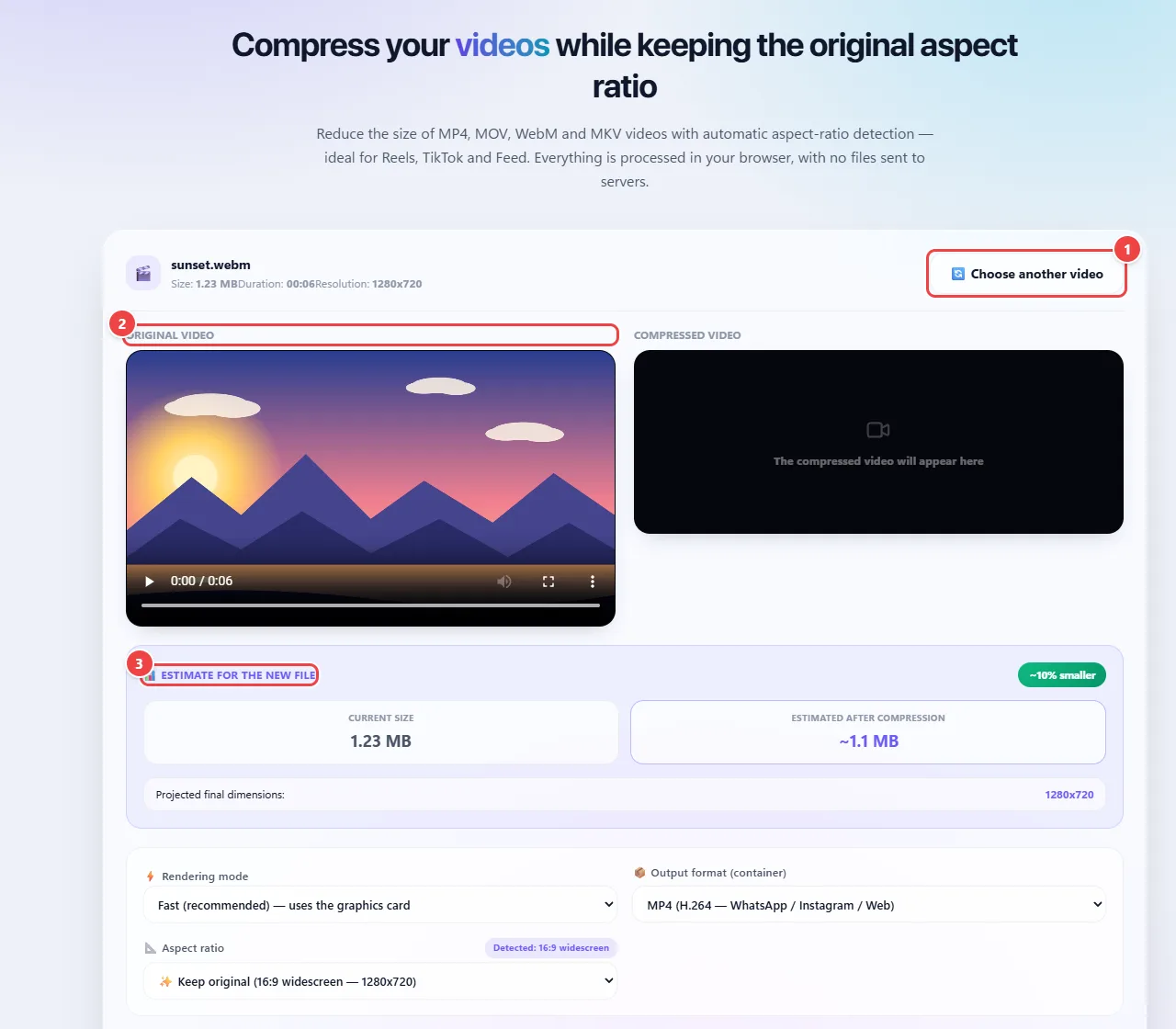
- Point 1: Choose the video (MP4, MOV, WebM or MKV). It is read by the browser and is not uploaded.
- Point 2: Check the original: size, duration and resolution appear at the top.
- Point 3: The estimate shows the size before and after compression, so you can decide whether it is worth it.
Result: A smaller video, with the same screen proportions as the original.
Send a video through a messaging app without waiting forever
Situation: Sending the original file from your phone is slow and uses a lot of data.
- Compress the video before sending.
- Choose a level that keeps the picture legible on a phone screen, which is where most people will watch it.
- Send the compressed file.
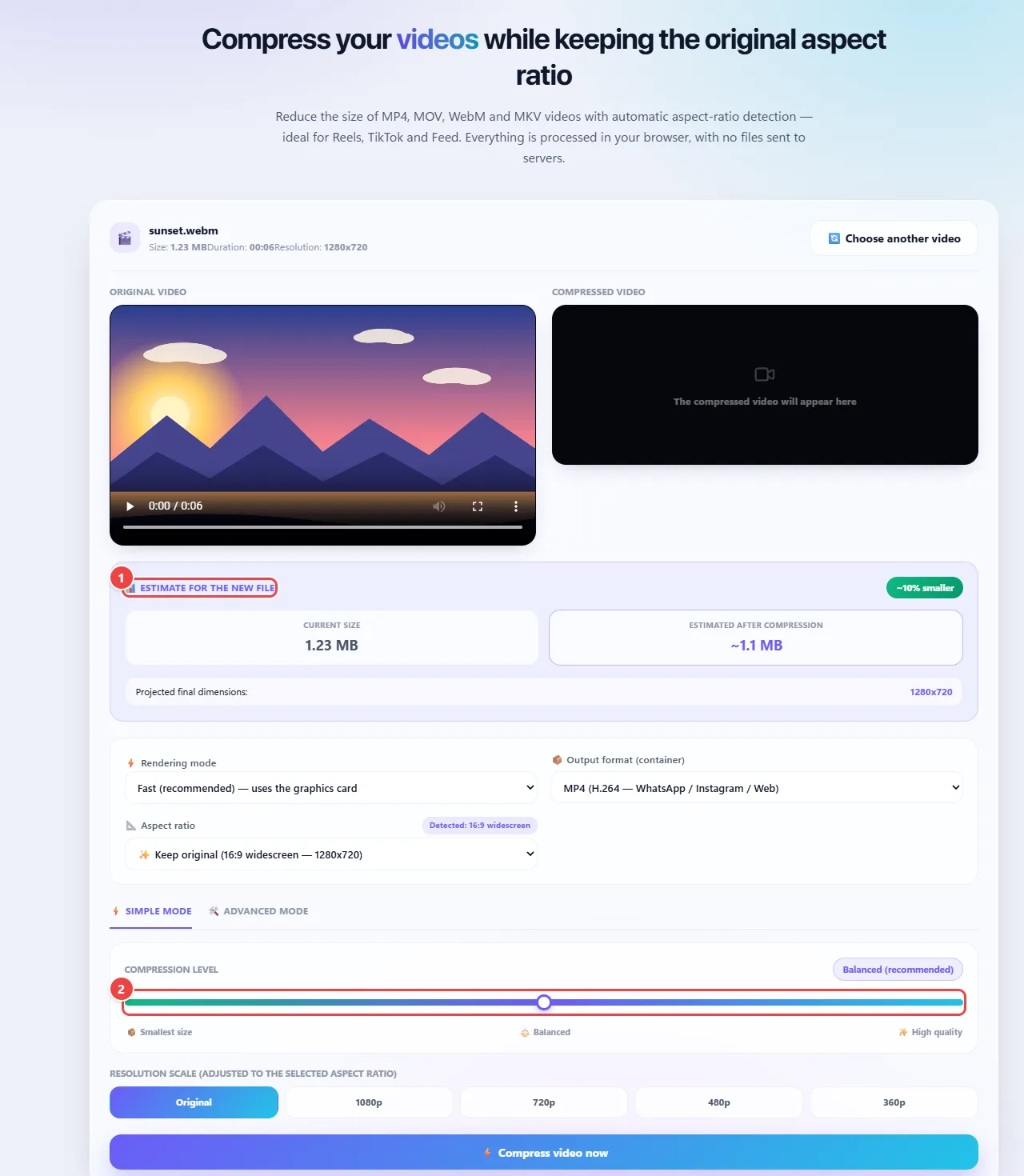
- Point 1: The estimate shows the size before and after compression: adjust the level until it is the size you need.
- Point 2: Choose the compression level. For messengers, a level that keeps the picture readable on a phone screen is usually enough.
Result: Faster sending and less data used, with enough quality to watch on a phone.
Convert to another format while compressing
Situation: A program or website only accepts one specific video format.
- Select the video.
- Choose the accepted output format (MP4, WEBM, MOV or MKV).
- Compress and download.
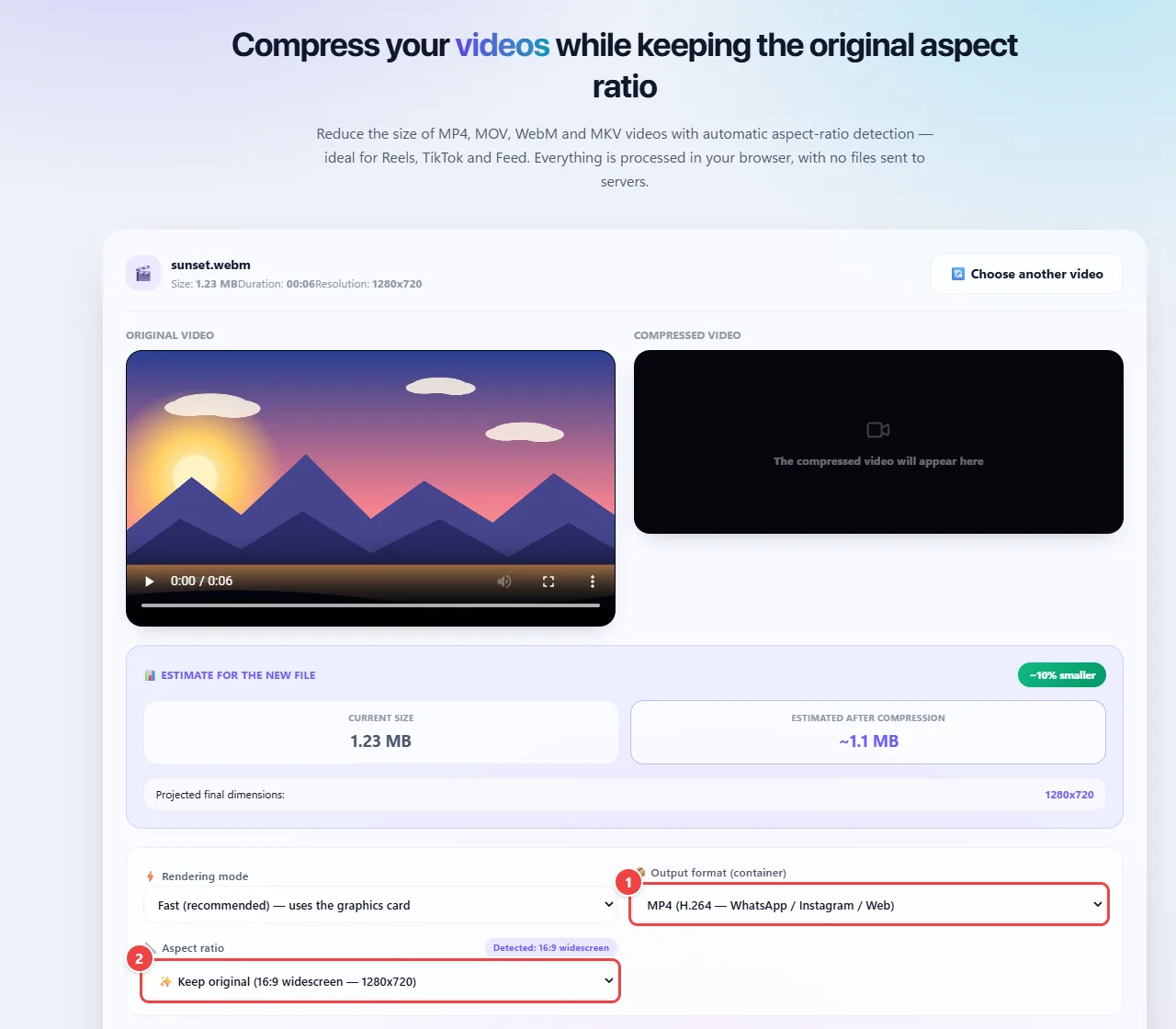
- Point 1: Choose the output format accepted by the destination: MP4, WEBM, MOV or MKV.
- Point 2: If needed, change the aspect ratio (for example, for vertical videos).
Result: A smaller file in the format the destination requires.
Tips for a better result
- Always test on a short clip before compressing a long video, to find the ideal level.
- Keep the original: compression loses quality and you cannot recover it later.
- For small screens, stronger compression usually goes unnoticed; for a projector or TV, be more conservative.
- MP4 and WEBM usually give good results; compare both with your video.
Limits, and when this is not the best option
- The stronger the compression, the lower the visual quality; scenes with a lot of motion show it first.
- Long videos take a while, because the work is done by your device. Keep the tab open.
- If the video has already been heavily compressed (downloaded from a social network, for example), the gain will be small.
Frequently asked questions
- Is the video uploaded to a server?
- No, the compression happens in your browser.
- Which format compresses best?
- MP4 and WEBM usually give good results. Try both with your video and compare.
- Does the picture’s aspect ratio change?
- No: the tool detects and keeps the original aspect ratio.
- Why does it take so long?
- Your device does the processing. On computers, compression is usually much faster than on phones.