To MP3
WAV, M4A, FLAC, OGG, OPUS and AAC
Turn audio into MP3, the format that plays on practically any device.
Your audio is converted in the browser and is not uploaded. Learn more
Convert MP3, WAV, AAC, OGG, FLAC, M4A and OPUS, one file or in batches. Adjust the quality, trim clips and download everything at once — without leaving your browser.
MP3, WAV, AAC, OGG, FLAC, M4A or OPUS — one file or several at once
Each conversion has its own page, with the step by step, tips and the limits of what it does.
WAV, M4A, FLAC, OGG, OPUS and AAC
Turn audio into MP3, the format that plays on practically any device.
WAV, M4A and FLAC
Switch between WAV, FLAC, M4A and MP3 according to what you need.
Trim a clip or shrink the audio file.
Convert several audio files together.
The converter turns your audio files into other formats and lets you adjust the quality or keep only a clip. You can convert one file or several at once.
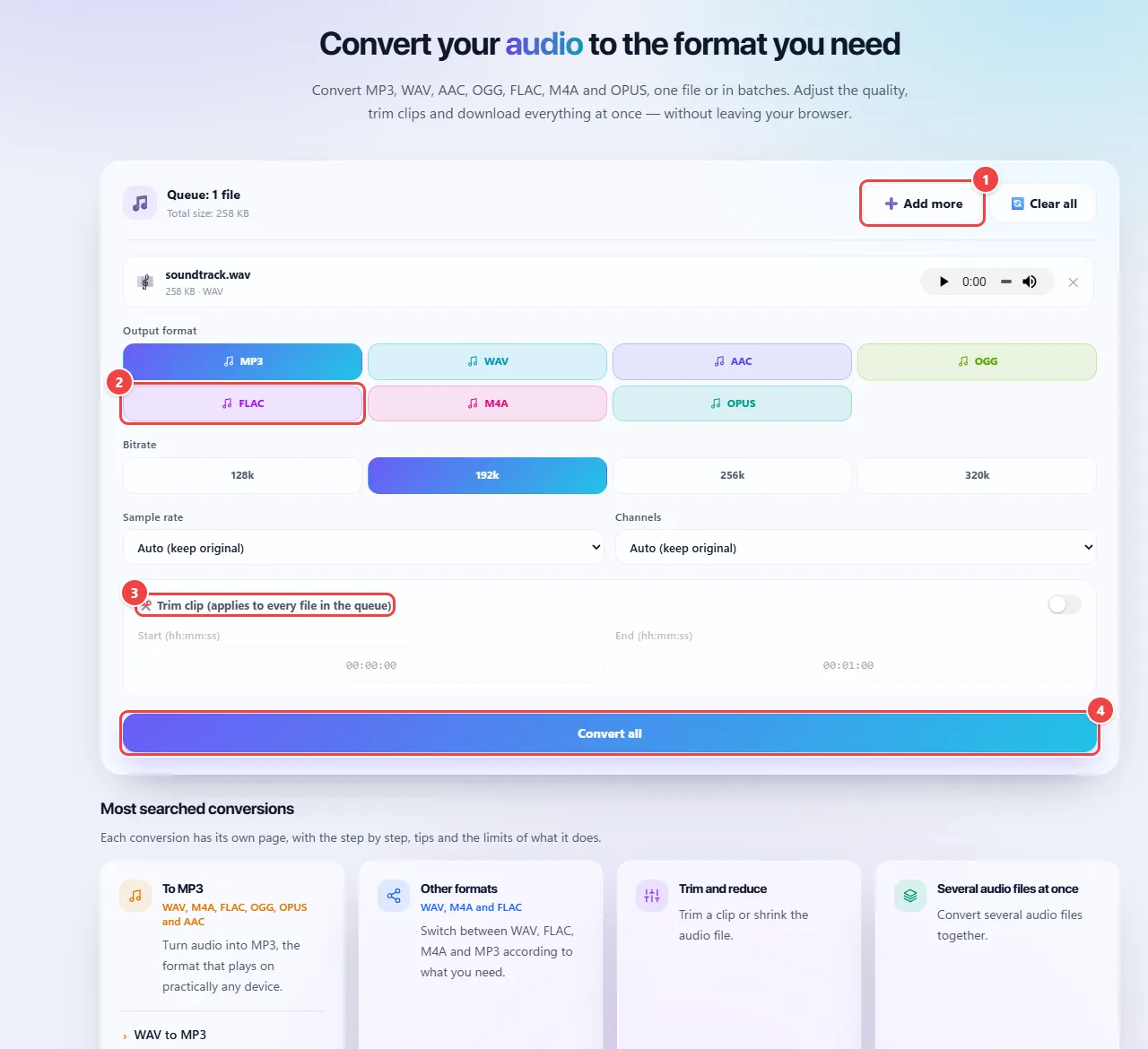
1. Build your queue. Drag the audio files to the marked area or click to choose them. Use “Add more” to include other files and remove from the queue the ones you do not want to convert.
2. Choose the format. Select the output format you want. When the bitrate option is available, lower values favor small files and higher values keep more detail. Converting audio does not recover detail that was already lost in the original recording.
3. Adjust if needed. You can keep the sample rate and channels on “Auto”. To save only part of the audio, turn on “Trim clip” and enter the start and end in hours:minutes:seconds. The same range is applied to every file in the queue.
4. Convert and save. Click “Convert all” and follow the progress. When it finishes, download the results one by one or use “Download all”.
Converts audio between MP3, WAV, AAC, OGG, FLAC, M4A and OPUS, in batches, so it works with your devices and programs.
You have 12 WAV recordings of a rehearsal, each 80 MB, and need to email them. You add all 12 files at once, choose MP3 at medium quality and convert. You download everything in a ZIP with much smaller files.
Os pontos de clique estão numerados. Toque na imagem para vê-la em tamanho original. As demais telas, passo a passo, estão no guia “Como funciona”.
The conversion uses your browser’s own audio features plus lightweight encoders for MP3, AAC and FLAC. The files never leave your device.
Lossy formats (MP3, AAC, OGG, OPUS) discard information the ear barely notices, to reduce the size. Lossless formats (WAV, FLAC) keep everything: FLAC is compressed, WAV is not.
Converting from a lossy format to another does not bring back quality that is already gone; each new lossy compression only tends to make the audio worse. That is why it is better to convert from the original.
Read the full guide: real-world use cases, tips and limits →
Privacy: This tool runs entirely in your browser: your files and data are not sent to any WebFaz server. Learn more.