How to convert audio between MP3, WAV, AAC, FLAC and other formats in batches
Not every device or program plays every audio format. This guide shows how to convert many files at once to the right format, which one to choose in each situation and what the conversion cannot do.
Guide written by Marcelo Amantino · updated on October 19, 2026 · about us
Where your data is processed
This tool runs entirely in your browser: your files and data are not sent to any WebFaz server.
The conversion happens in your browser and your audio files are never sent to WebFaz. Meeting recordings, voice messages and personal music stay on your device. Because processing is local, speed depends on your device.
See the full list on the Privacy page.
Real-world use cases
Convert recordings to MP3 and play them on any device
Situation: You have recordings in a format your sound system or editor does not recognize.
- Add one or several files at once.
- Choose MP3 as the output format and the quality.
- Convert and download each file, or everything as a ZIP.
- Test one file on the target device before converting the rest.
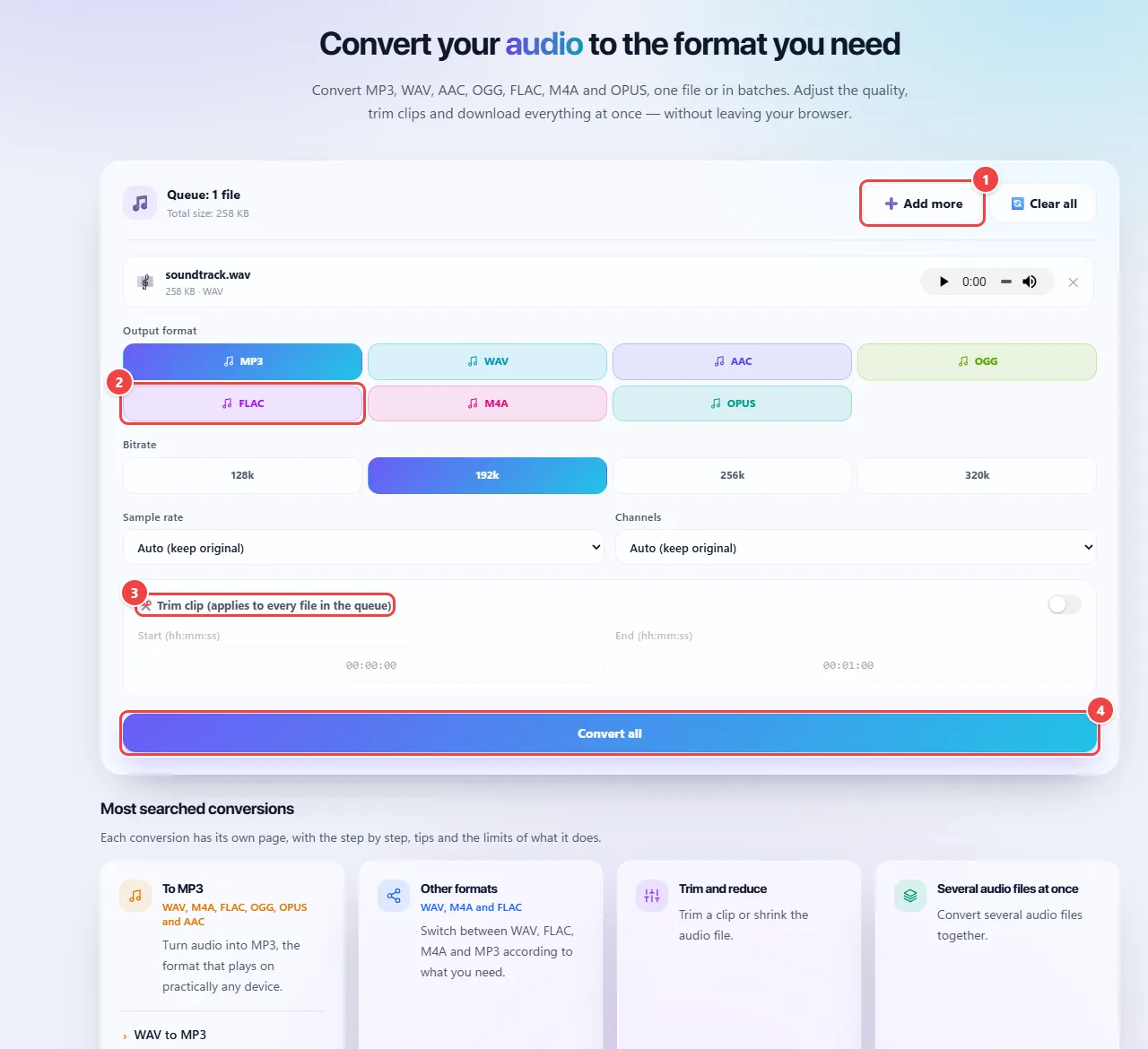
- Point 1: Add more files: the queue converts several audio files at once.
- Point 2: Choose the output format (MP3, WAV, AAC, OGG, FLAC, M4A or OPUS).
- Point 3: If you want, trim just a section: enter the start and the end.
- Point 4: Convert all generates the files in the browser.
Result: MP3 files, the most compatible format.
Prepare uncompressed audio for editing
Situation: You are going to edit the recording in an audio program and prefer a lossless format.
- Add the file.
- Choose WAV (or FLAC, if you want a smaller file with no loss of quality).
- Convert and download.
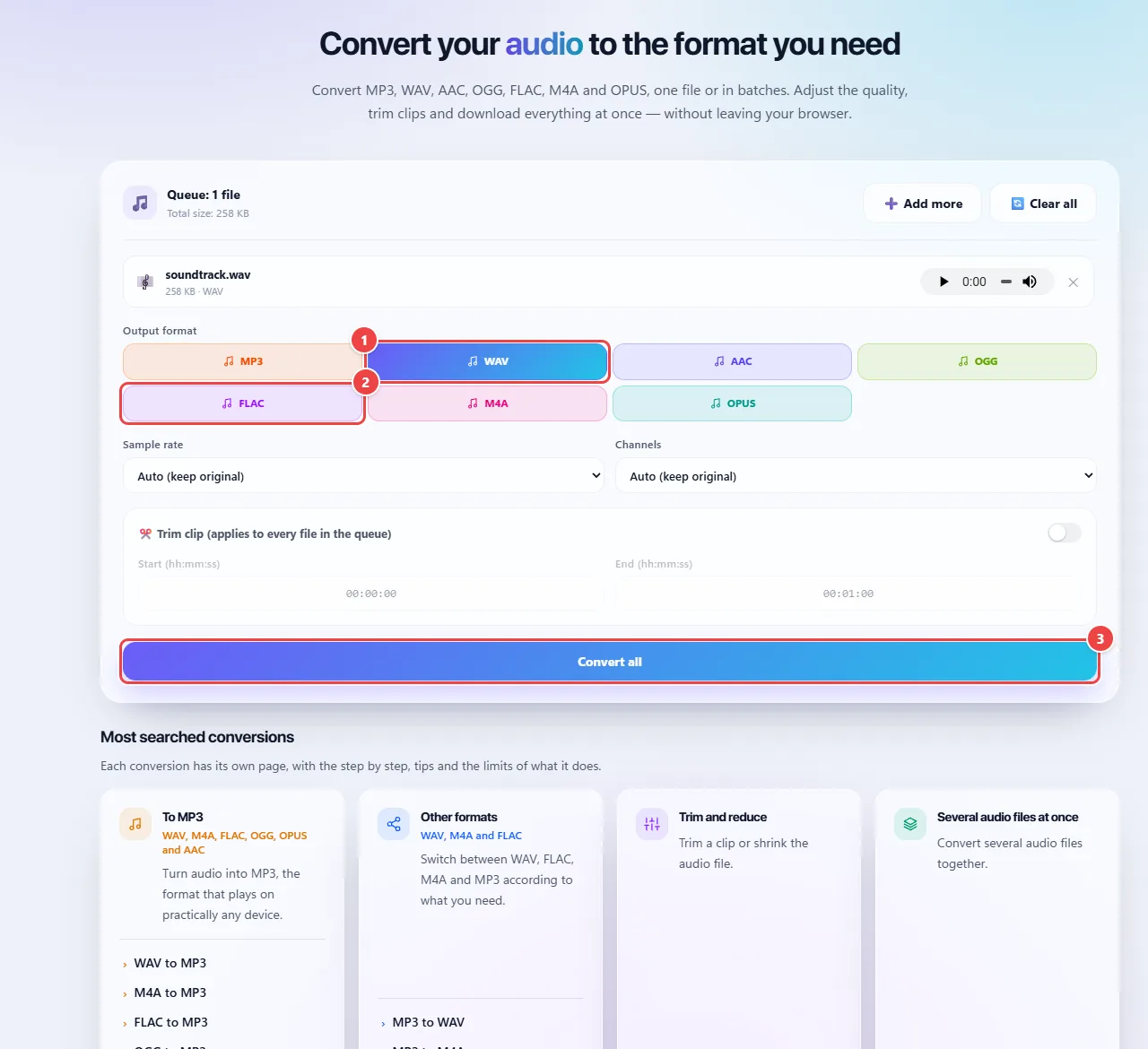
- Point 1: Choose WAV to edit without quality loss, or FLAC if you want a smaller file, also lossless.
- Point 2: FLAC keeps the same quality in less space.
- Point 3: Convert and download. Everything happens in your browser.
Result: A lossless file, suitable for editing.
Convert to M4A/AAC to use on an iPhone
Situation: A piece of audio needs to be accepted on Apple devices.
- Add the audio.
- Choose M4A/AAC and the quality.
- Convert and download.
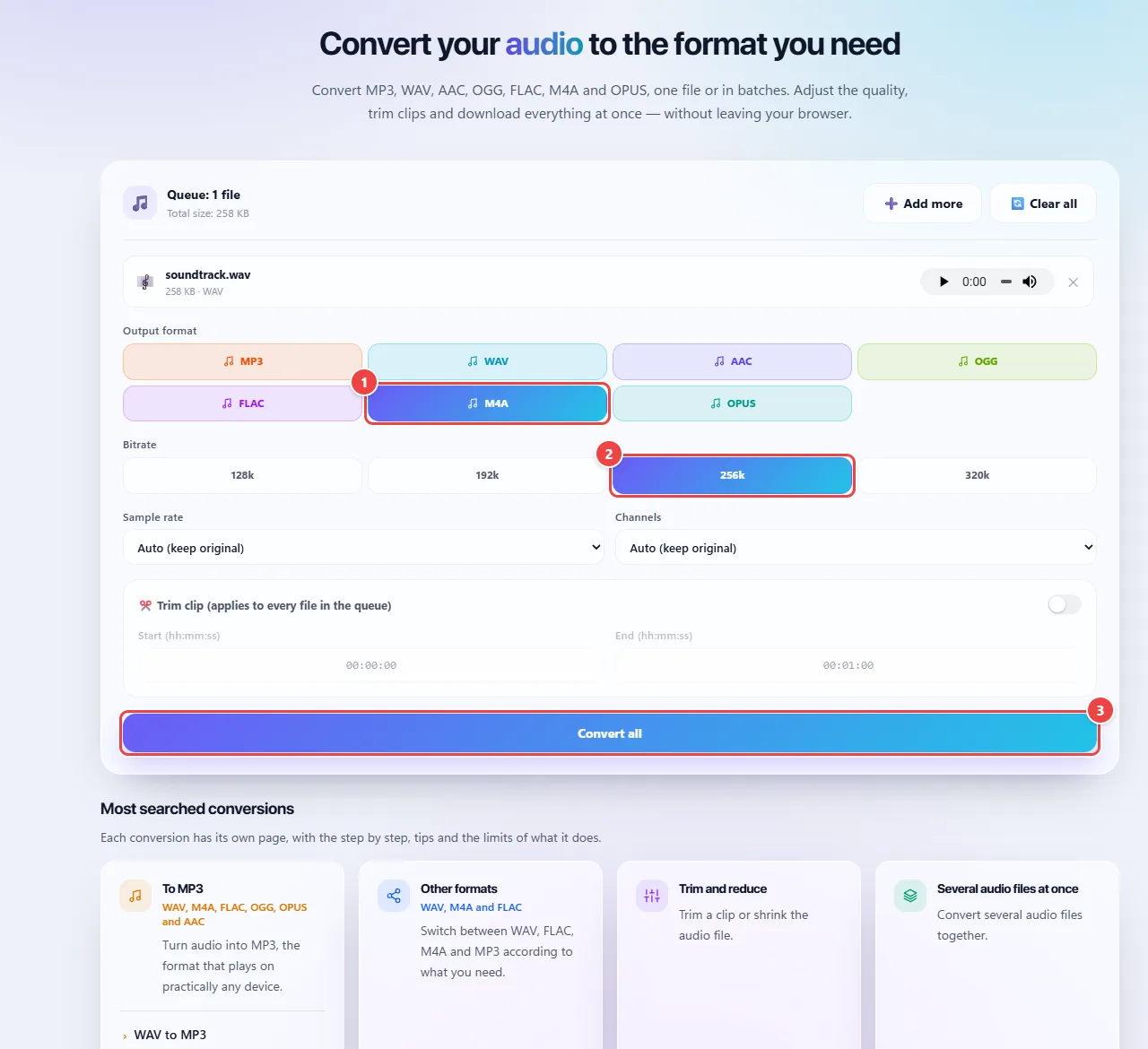
- Point 1: Choose M4A (AAC) to play without problems on the iPhone.
- Point 2: Choose the bitrate: higher values have more quality and larger files.
- Point 3: Convert and download the file.
Result: Audio in a format common on Apple devices.
Tips for a better result
- MP3 plays practically everywhere; M4A/AAC is common on Apple phones; OPUS and OGG are efficient for voice and the web.
- WAV and FLAC preserve quality; MP3, AAC, OGG and OPUS reduce the size with some loss.
- For voice (meetings, classes), moderate quality already sounds good and the file is much smaller.
- Convert from the most faithful file you have.
Limits, and when this is not the best option
- Converting from a lossy format (such as MP3) to another does not recover the quality that was lost; turning an MP3 into a WAV only makes a bigger file.
- The tool converts the format and can trim a clip, but it does not remove noise or change the volume.
- Very large batches depend on the device’s memory; split them up if it gets slow.
Frequently asked questions
- Which format is the most compatible?
- MP3 plays on practically any device; M4A/AAC is common on Apple phones.
- Do my files leave my computer?
- No, the conversion happens in your browser.
- Can I convert several files at once?
- Yes, in batches, and download them one by one or as a ZIP.
- Which formats are accepted?
- MP3, WAV, AAC, OGG, FLAC, M4A and OPUS.