iPhone and camera photos
HEIC, AVIF and TIFF
Open formats that not every program accepts and save as JPG or PNG.
Your images are converted in the browser and are not uploaded. Learn more
Convert iPhone photos (HEIC), TIFF and PSD to JPG, PNG or WebP, and also BMP or ICO. Choose the quality and download everything at once.
or click to select from your computer
Up to 50 images · 200 MB per queue
Your images stay on your device. All conversion happens in the browser.
Choose a format for each file and download them one by one or as a ZIP.
Use WebP and JPEG for photos, PNG for transparency, BMP or ICO for icons.
Turn on Advanced mode · AI images to export AVIF, use lossless WebP/AVIF and compare the images at their original size. The Archive profile includes the metadata read as JSON, available individually or alongside the image in the ZIP. New parameters can be inserted into PNG/WebP. The Publish profile discards the original metadata.
Select or drag your files. Choose the global format and click Apply to all, or change the format of each image. Adjust the quality for JPEG and WebP and click Convert all.
JPEG and BMP use a white background in transparent areas. PNG and WebP keep the transparency. ICO produces a 64 × 64 pixel icon, keeping the image’s proportions.
Animated images are converted into a still image. SVG is rasterized; fonts and external resources may not appear. AVIF and other input formats depend on the browser’s support. HEIC/HEIF photos from iPhone are accepted and decoded in the browser itself. TIFF (first page) and PSD (the final image saved in the file, with transparency) are also accepted; a PSD saved without “Maximize Compatibility” does not include that image.
Images can end up larger depending on the format. Conversion accepts up to 40 megapixels and 16,384 pixels per side. If a file fails, the others in the queue continue.
Each conversion has its own page, with the step by step, tips and the limits of what it does.
HEIC, AVIF and TIFF
Open formats that not every program accepts and save as JPG or PNG.
The most used formats
Switch between the formats most used on sites, messages and documents.
PSD, SVG and ICO
Take design files and vectors to PNG, or create an icon from an image.
Convert several images together to the same format.
Converts many images at once between PNG, JPEG, WebP, BMP and ICO, controlling the quality to reduce the size.
Besides swapping PNG for JPEG, it has a mode designed for people who work with AI-generated images and want to archive them with quality. The features that stand out:
Exports AVIF, uses lossless WebP and AVIF and compares the images at their original size before you download.
In PNG and WebP you can embed the prompt, seed, model or workflow. The Archive profile keeps the metadata read as JSON (per image or inside the ZIP), and the Publish profile removes the originals.
Convert many images at once: choose one format for all of them or one per image, and download each file or everything as a ZIP.
Control the quality of JPEG and WebP and see how much smaller each file got.
PNG and WebP keep transparency (JPEG and BMP use a white background), and ICO produces a 64 × 64 px icon.
Images are not sent to WebFaz. The limit is 40 megapixels and 16,384 px per side, and a file that fails does not block the others in the queue.
You have 30 PNG photos of 4 MB each to put in an online store. You drag them all into the tool, choose WebP at medium quality and convert. You check the size before and after and download everything as a ZIP: the set came out several times smaller, and the photos look the same.
Os pontos de clique estão numerados. Toque na imagem para vê-la em tamanho original. As demais telas, passo a passo, estão no guia “Como funciona”.
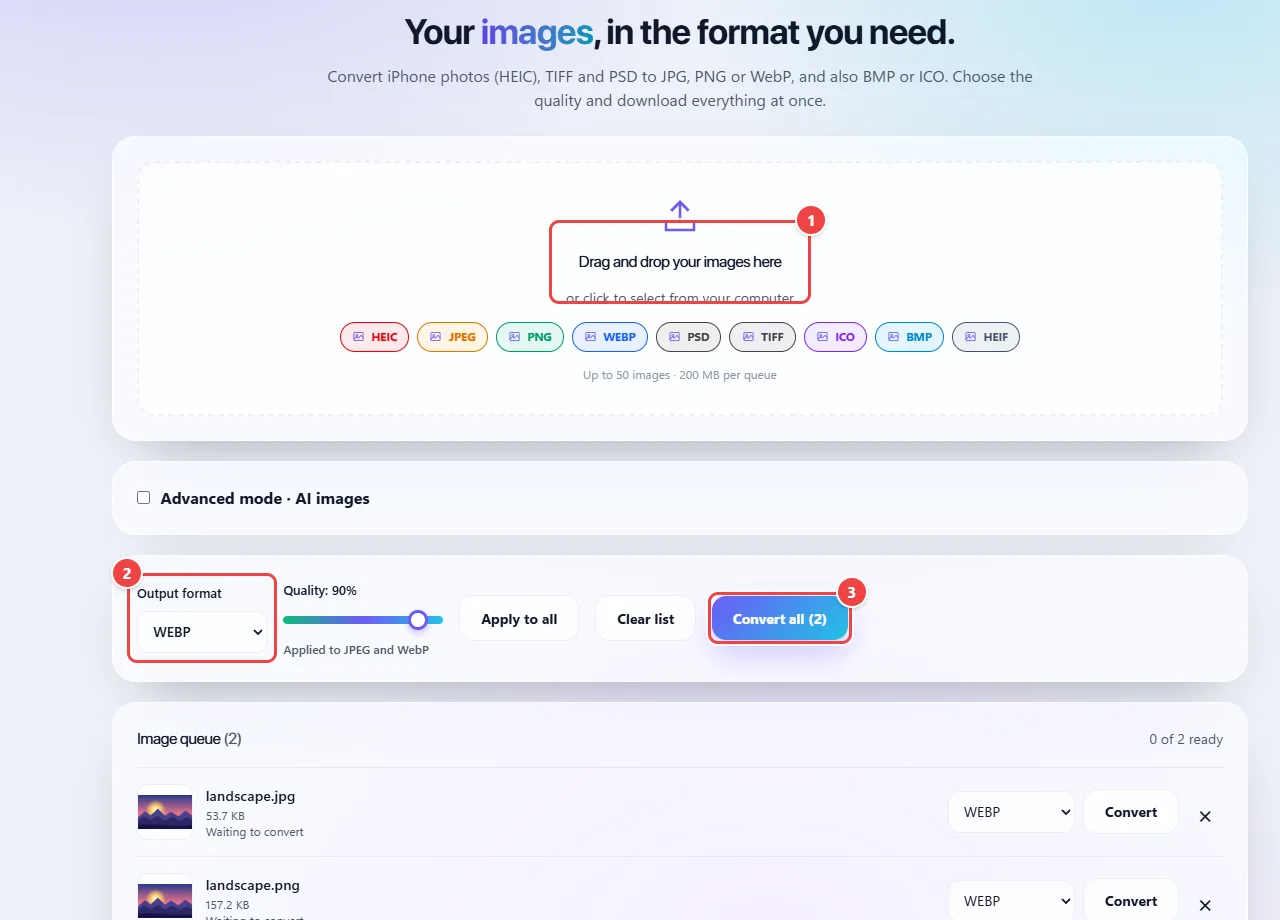
Each image is read by the browser, drawn onto a canvas and written again in the chosen format (PNG, JPEG, WebP, BMP or ICO), at the quality you set. Everything happens on your device, in batches.
PNG stores every pixel without loss and supports transparency; it is great for logos and screenshots, but it is heavy. JPEG compresses with loss and is good for photos, but has no transparency (transparent backgrounds become solid). WebP does both and usually makes smaller files than either.
Converting from JPEG to PNG does not bring back the quality the JPEG already lost: the file gets bigger, but not better.
Read the full guide: real-world use cases, tips and limits →
Privacy: This tool runs entirely in your browser: your files and data are not sent to any WebFaz server. Learn more.