How to convert images between PNG, JPEG and WebP and reduce their size in batches
Each image format has its purpose: PNG for graphics and transparency, JPEG for photos, WebP for lighter websites, ICO for icons. This guide shows how to convert many images at once, choose the quality and download everything as a ZIP.
Guide written by Marcelo Amantino · updated on October 19, 2026 · about us
Where your data is processed
This tool runs entirely in your browser: your files and data are not sent to any WebFaz server.
Images are converted in your browser and are never sent to WebFaz. Personal photos, photographed documents and client images stay on your device. In practice, the batch limit is your device’s memory, not a rule of the site.
See the full list on the Privacy page.
Real-world use cases
Make a website’s photos lighter with WebP
Situation: You have dozens of JPEG or PNG photos for a website and want to reduce the loading time.
- Drag all the images to the upload area.
- Choose WebP as the output format and a medium quality.
- Convert and compare the size before and after.
- Download everything as a ZIP and check a few images zoomed in before publishing.
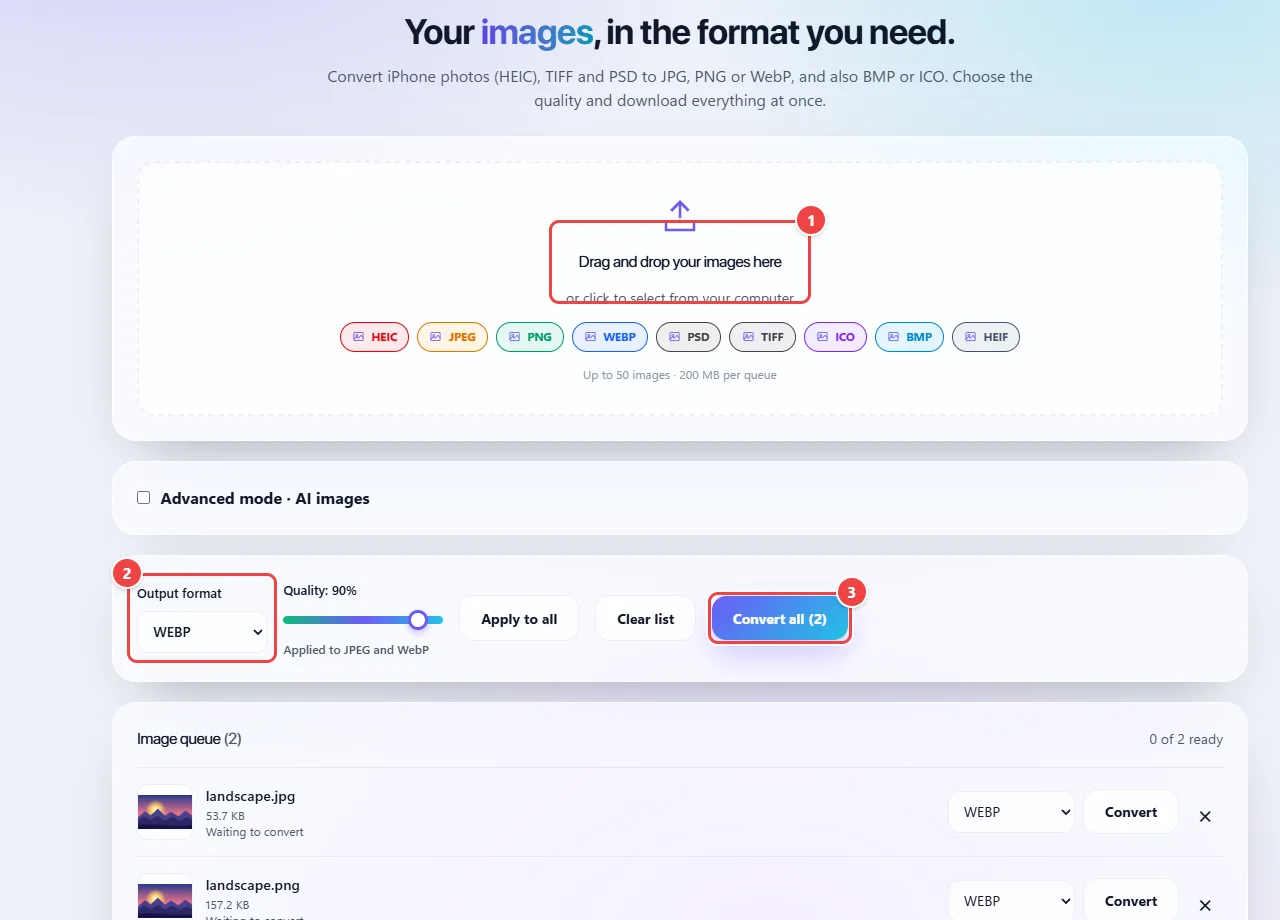
- Point 1: Add your images: drag them onto this area or click to choose. Several at once are accepted.
- Point 2: Choose the output format (WebP, PNG, JPEG, BMP or ICO).
- Point 3: Convert all processes the whole queue in your browser.
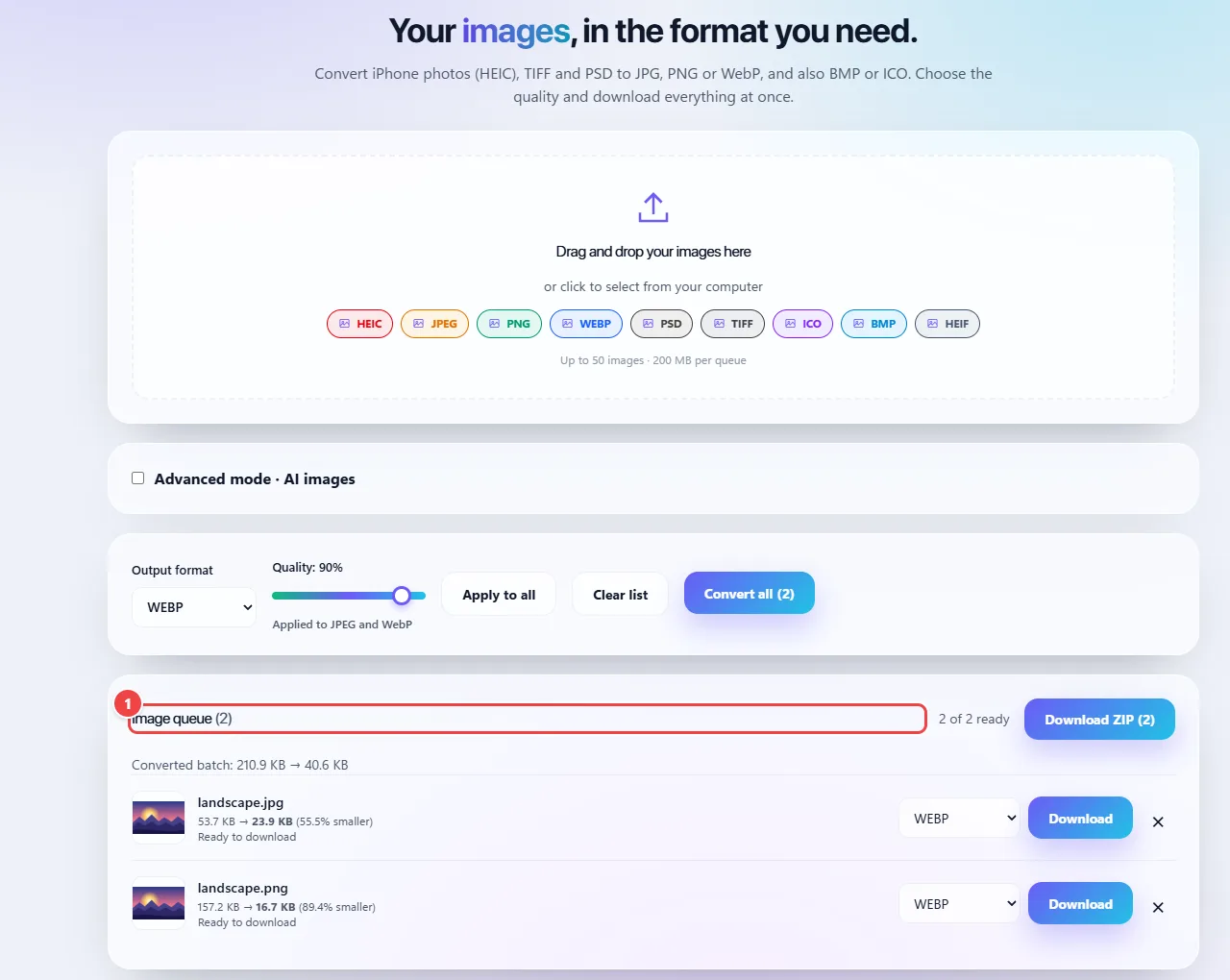
- Each row shows the converted file, how much it shrank and the download button.
Result: Smaller files, usually with similar visual quality for web use.
Convert to JPEG to upload in a form
Situation: A system only accepts JPEG and your images are PNG or WebP.
- Upload the images.
- Choose JPEG and the quality you want.
- Convert and download. Remember that transparent backgrounds become solid.
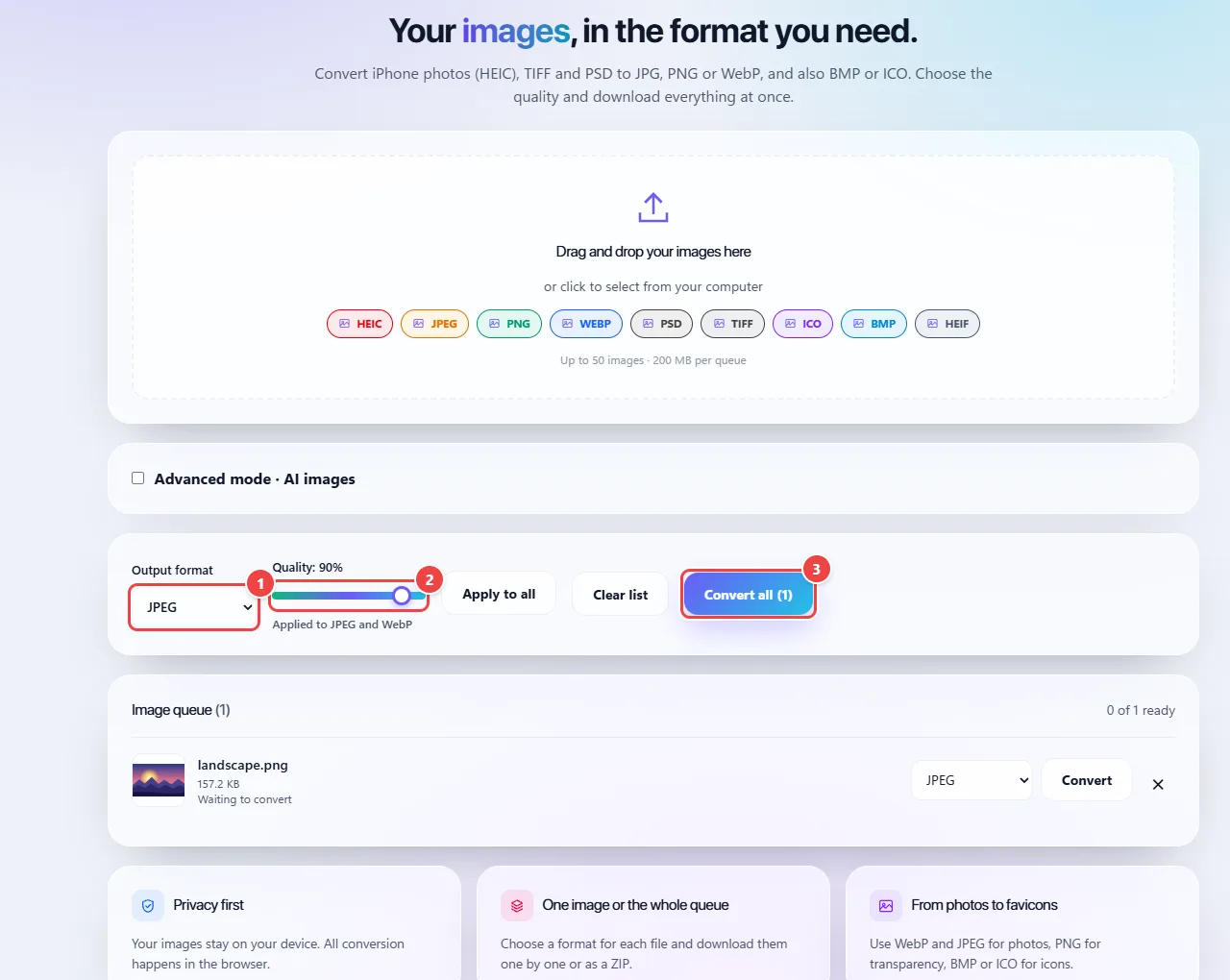
- Point 1: Choose JPEG as the output format and click Apply to all to pass the choice to the queue. Transparent backgrounds become solid, because JPEG does not store transparency.
- Point 2: Quality applies to JPEG and WebP: lower values give smaller files, with more loss of detail.
- Point 3: Convert all processes the queue in your browser; then download the JPEG.
Result: JPEG images accepted by the system.
Create an ICO icon from an image
Situation: You need an icon for a program or website from a PNG logo.
- Upload the logo, preferably square.
- Choose ICO as the output format.
- Convert and download.
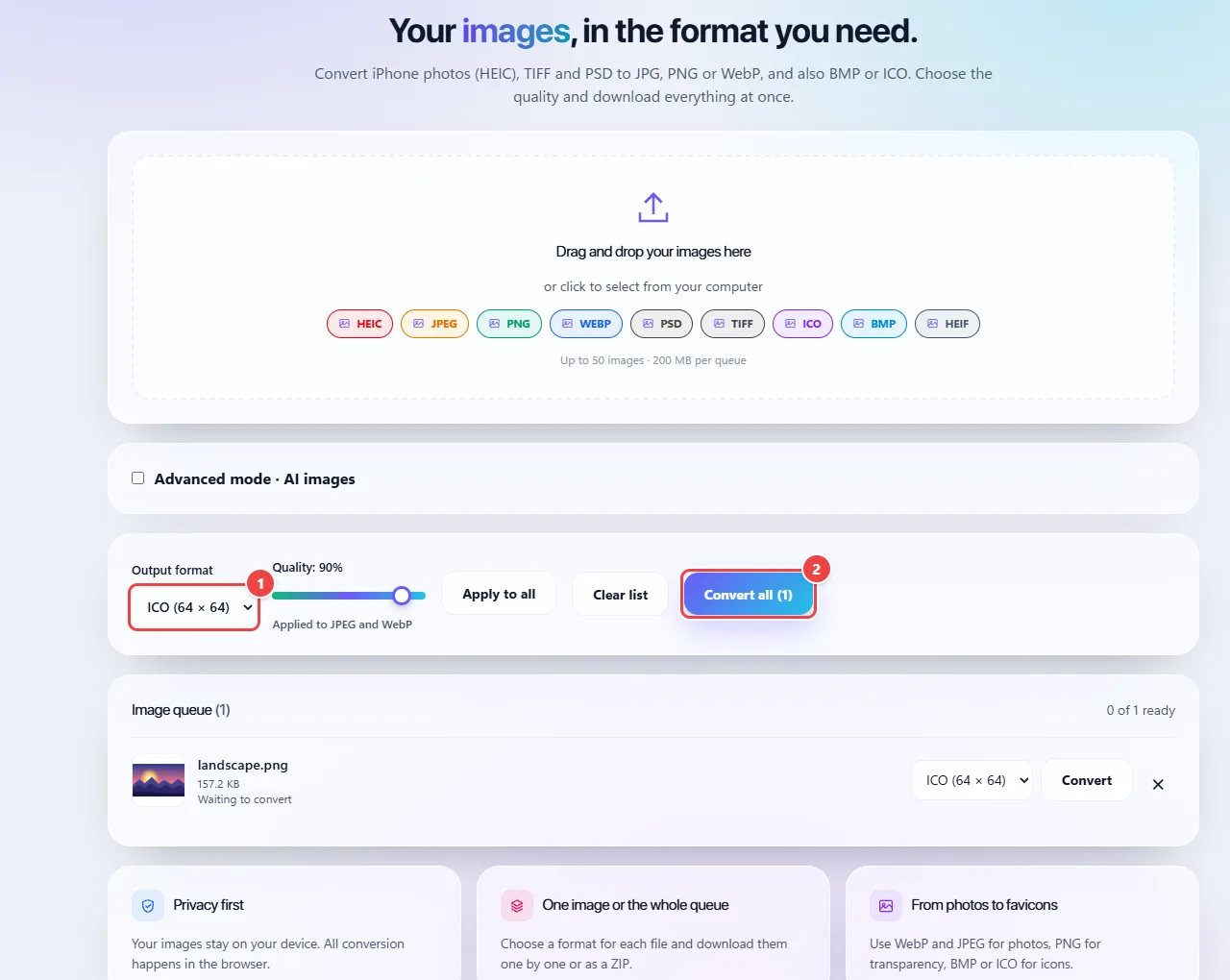
- Point 1: Choose ICO and click Apply to all. Preferably, upload a square image, so the icon does not come out squashed.
- Point 2: Convert and download the .ico file.
Result: An ICO file made from your image.
Tips for a better result
- For photos, WebP or JPEG at medium quality usually give the best balance between size and appearance.
- For logos, screenshots and graphics with text, prefer PNG: edges and letters stay sharp.
- Convert from the original whenever you can; converting several times between lossy formats degrades the image.
- For large batches, split them into parts so you do not run out of the device’s memory.
Limits, and when this is not the best option
- JPEG has no transparency: transparent backgrounds become solid.
- Converting JPEG to PNG does not bring back quality that was already lost; the file just gets bigger.
- It does not resize or edit the image: the focus is on format conversion and quality.
Frequently asked questions
- Which format makes the file smaller?
- Usually WebP and JPEG at medium quality. PNG is better for graphics and transparency, but is usually larger for photos.
- Is there a limit on files?
- The practical limit is your device’s memory; huge batches work better when split up.
- Are my images sent to any server?
- No. The conversion happens in your browser.
- Which output formats are available?
- PNG, JPEG, WebP, BMP and ICO (and AVIF in advanced mode).