To MP4
MOV, MKV, WebM, TS and others
Turn videos into MP4 to open on any device.
Your video is converted in the browser and is not uploaded. Learn more
Convert MP4, WEBM, MOV and MKV. Choose the quality, trim a clip if you like, and download the result — without leaving your browser.
MP4, MOV, WEBM or MKV — one file at a time
Each conversion has its own page, with the step by step, tips and the limits of what it does.
MOV, MKV, WebM, TS and others
Turn videos into MP4 to open on any device.
WebM and MOV
Take an MP4 to WebM or to MOV.
Trim a clip or convert preserving the picture whenever the format allows.
The converter turns your video file into another format (container). Video demands much more processing than audio, so this app works with one file at a time, to keep it stable.
1. Choose the video. Drag the file to the marked area or click to select it on your device.
2. Choose the format. Select the output format you want (MP4, WEBM, MOV or MKV). When the output format accepts the same codec as the original file, the conversion is practically instant and lossless; otherwise, the video is re-encoded.
3. Adjust if needed. With “Auto”, the original quality is preserved whenever possible. To save only a part, turn on “Trim clip” and enter the start and end in hours:minutes:seconds.
4. Convert and download. Click “Convert video” and wait for it to finish. Then use “Download video” to save the result. The original file stays on your device.
Converts videos between MP4, WEBM, MOV and MKV so they are compatible with the target device or program.
A video recorded in MOV on an iPhone will not open in the subtitle program on your computer. You upload the file, choose MP4 as the output format, convert and download the result. The new MP4 opens in the program and can also be posted on social networks with no format complaints.
Os pontos de clique estão numerados. Toque na imagem para vê-la em tamanho original. As demais telas, passo a passo, estão no guia “Como funciona”.
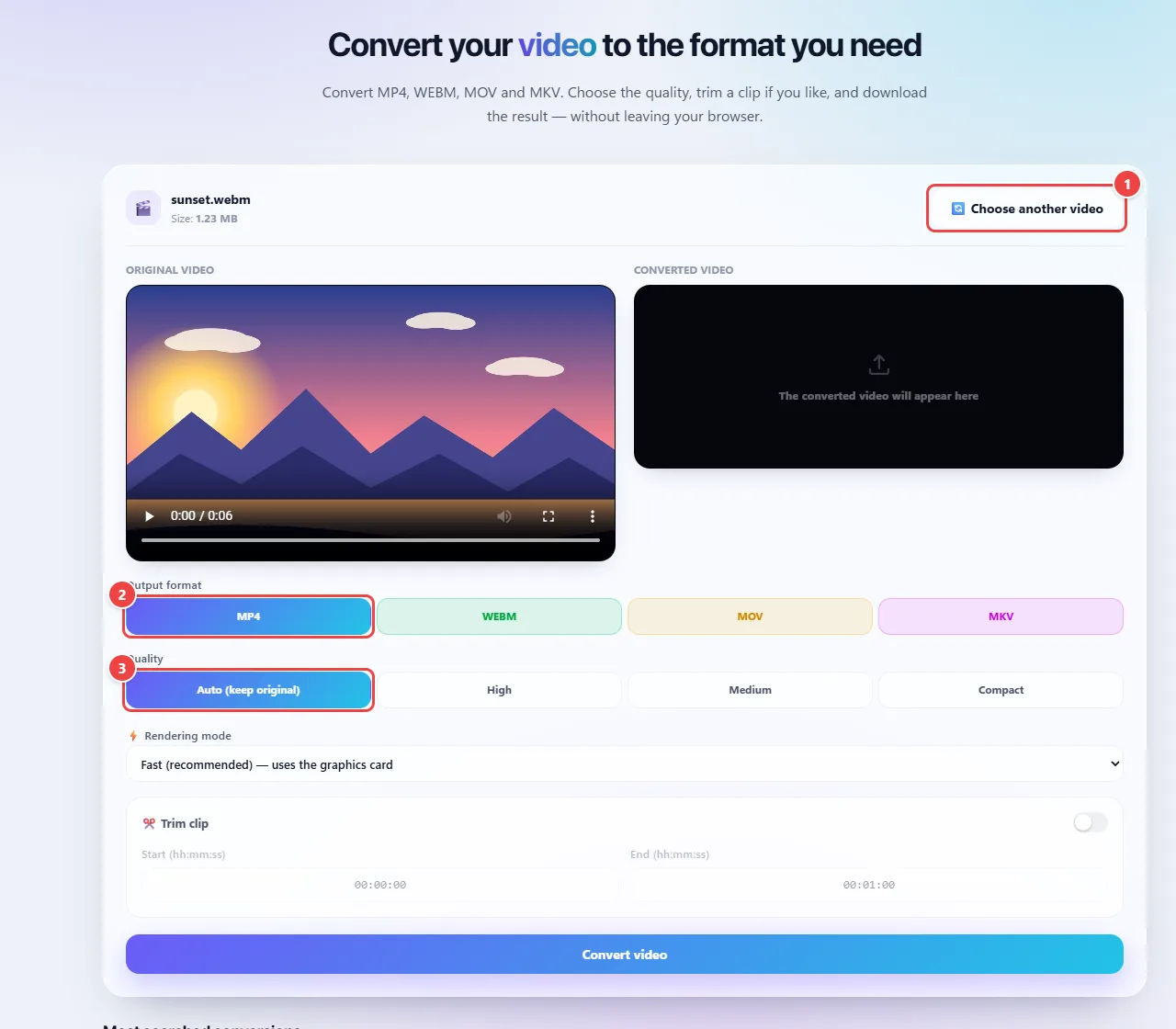
The video is read and re-encoded by the browser itself, using its native video and audio features (WebCodecs) with container-packaging libraries. There is no server involved.
Format is one thing and codec is another. MP4, WEBM, MOV and MKV are containers; inside them go the video and the audio, compressed by codecs such as H.264 or VP9. Converting changes the container and, when needed, re-encodes the content.
Because the work is done by your device, the time depends on the video’s size and the machine’s power. The tab needs to stay open until it finishes.
Read the full guide: real-world use cases, tips and limits →
Privacy: This tool runs entirely in your browser: your files and data are not sent to any WebFaz server. Learn more.