How to convert video between MP4, WebM, MOV and MKV without uploading the file
A video that opens on your phone may not open on your TV, in your editor or on a website. Almost always the problem is the file’s format, not its content. This guide shows how to change a video’s format in the browser, when the conversion is practically instant and lossless, and what to do when it takes longer.
Guide written by Marcelo Amantino · updated on October 19, 2026 · about us
Where your data is processed
This tool runs entirely in your browser: your files and data are not sent to any WebFaz server.
The conversion happens in your browser, with your device’s own video features: the file is not sent to WebFaz and the original stays intact on your device. The app works with one video at a time, to keep it stable, and the speed depends on your computer or phone. When the output format accepts the same codec as the original file, the video is simply repackaged into another “container”: that is fast and loses no quality. When the target format requires another codec (WebM asks for VP9 and Opus, for example), the video must be re-encoded, which takes longer.
See the full list on the Privacy page.
Real-world use cases
Make a MOV video open on any device
Situation: A video recorded on your phone is in MOV and the target program, website or TV does not recognize it.
- Drag the video onto the upload area or click to choose the file.
- Choose MP4 as the output format, the most widely accepted on devices and social networks.
- Leave the quality on “Auto (keep original)”.
- Click “Convert video” and, when it finishes, “Download video”.
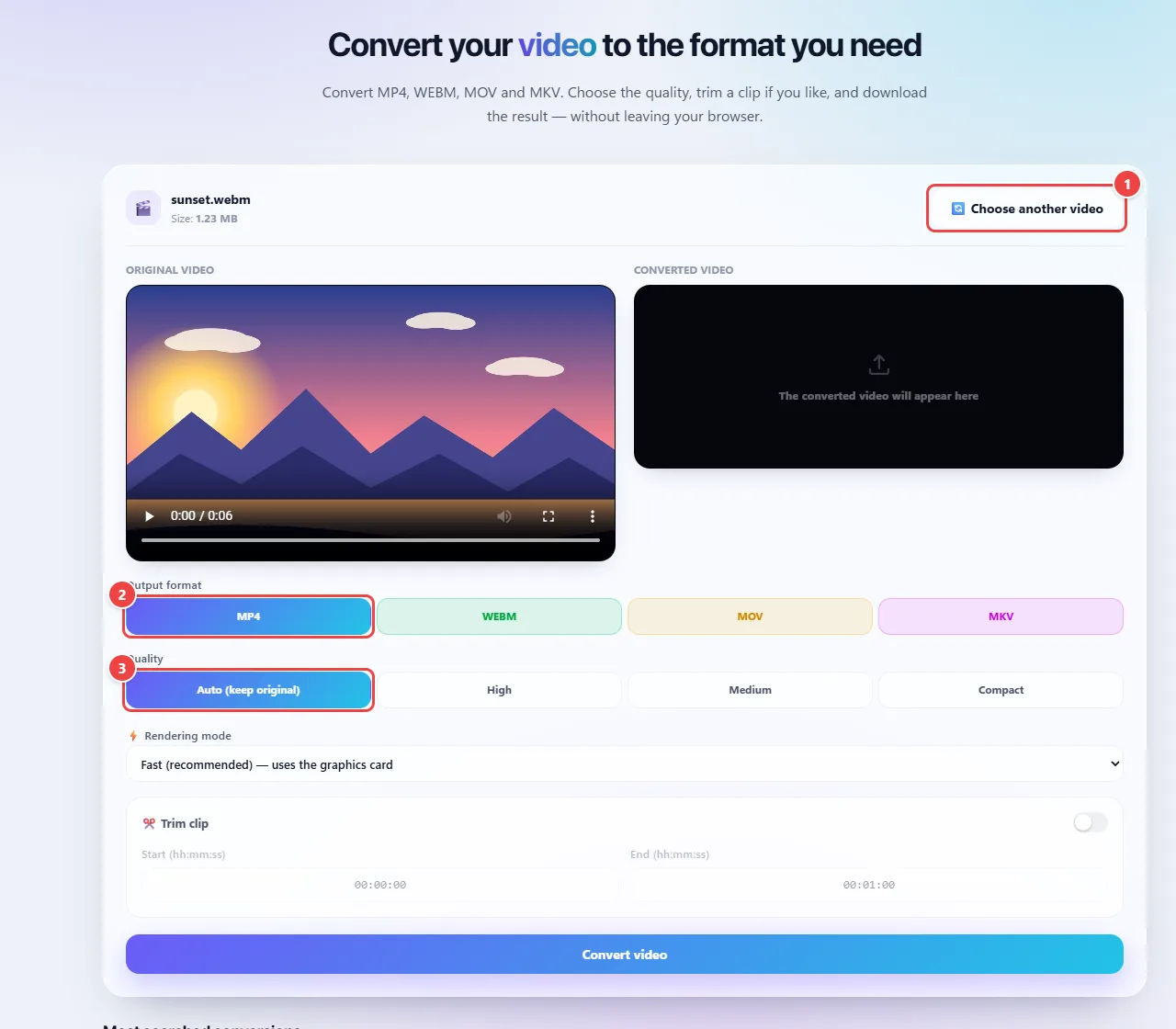
- Point 1: Choose the video to convert.
- Point 2: Output format: MP4 works on most devices; WebM, MOV and MKV are the alternatives.
- Point 3: Quality: keep the original or choose High, Medium or Compact.
Result: An MP4 file of the same video. If the original codec fits in MP4, the swap is fast and lossless.
Open an MKV in your editor or on your TV
Situation: You downloaded or received a video in MKV and your video editor or TV does not accept it.
- Upload the MKV file.
- Choose MP4 (or MOV, if your program prefers it).
- Convert and download the result.
- Test the file on the target device or program before deleting the original.
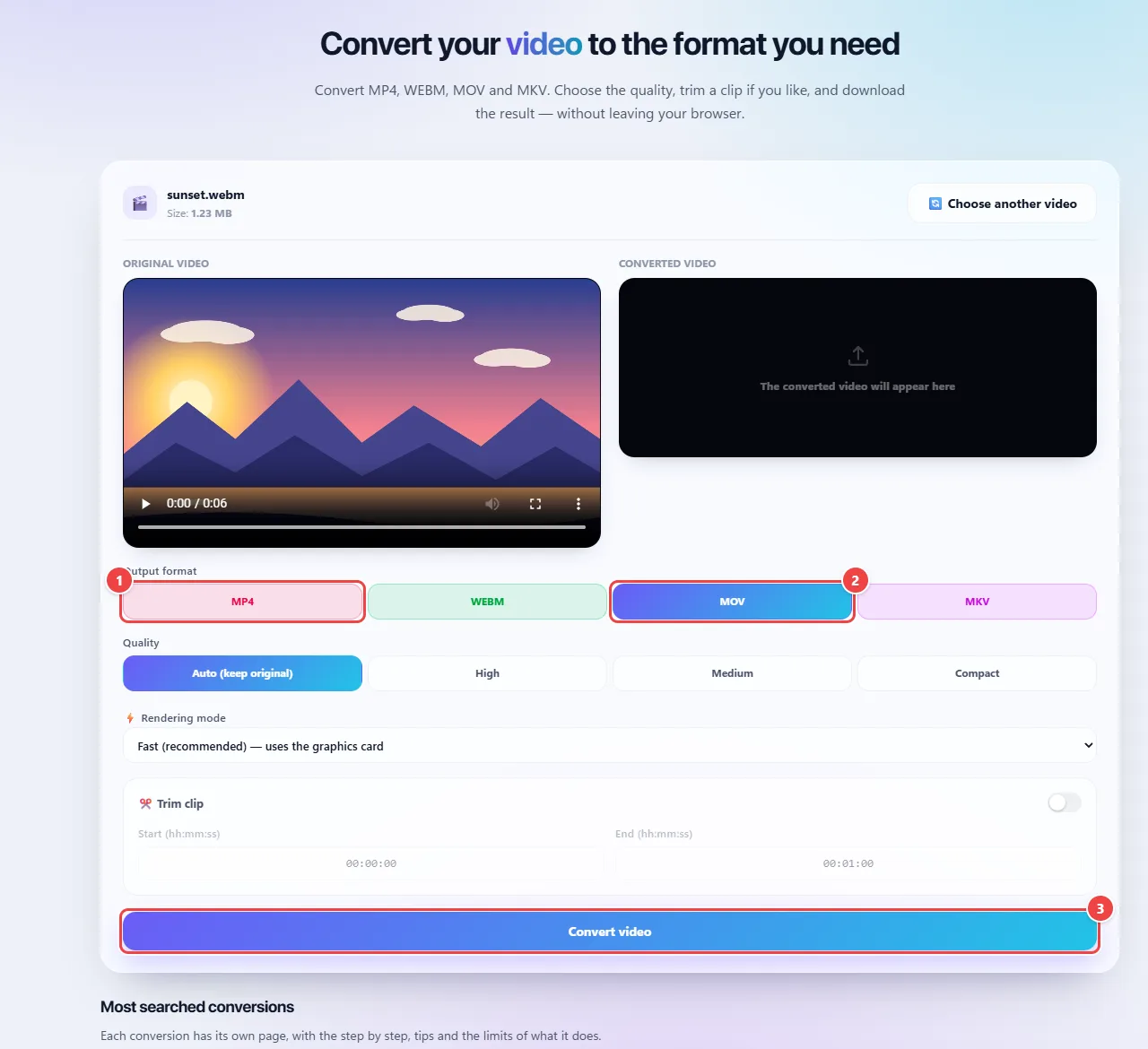
- Point 1: To open an MKV on a TV or in an editor, choose MP4, the most accepted format.
- Point 2: Choose MOV if your editing program prefers it.
- Point 3: Convert and test the file at its destination before deleting the original.
Result: The same video in a more compatible format.
Convert only part of the video
Situation: You only need a part of a long recording and do not want to open an editor for that.
- Upload the video and turn on “Trim clip”.
- Enter the start and the end in hours:minutes:seconds (for example, 00:01:30 and 00:02:45).
- Choose the output format and convert.
- Download the video, already trimmed.
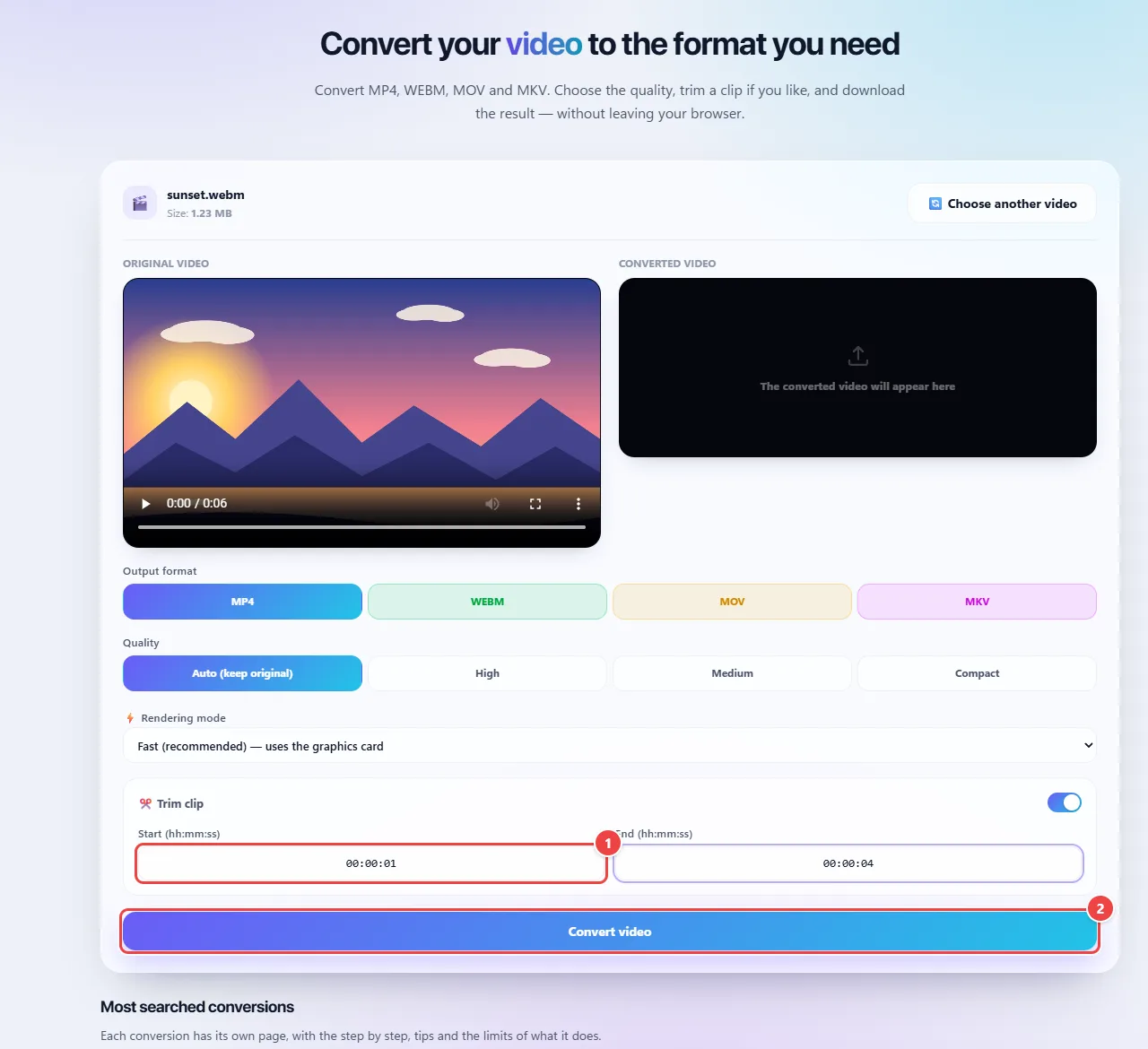
- Point 1: Turn on Trim and enter the start and the end as hours:minutes:seconds (for example, 00:01:30 and 00:02:45).
- Point 2: Convert and download the already trimmed video.
Result: A new file with only the chosen clip, in the format you want.
Tips for a better result
- Keep the quality on “Auto”: it preserves the original whenever possible. “High”, “Medium” and “Compact” are for re-encoding when you want to control the size.
- MP4 is the most universal format; use WebM when the destination is a website that recommends it.
- The Fast “Rendering mode” uses the graphics card and is the recommended one. If it errors or the result comes out odd, try the Precise mode, slower and with maximum compatibility.
- Test with a short clip before converting a very long video.
- Keep the original until you have checked the result.
Limits, and when this is not the best option
- The app converts one file at a time.
- It accepts MP4, M4V, MOV, WebM, MKV and TS as input; some rare codecs may not be supported by the browser.
- Large videos depend on your device’s memory and processing and can take a good while if they are re-encoded.
- Re-encoding can cause a small loss of quality; changing the “container” without re-encoding does not.
Frequently asked questions
- Do I lose quality when converting?
- It depends. If the new format accepts the same codec as the video, it is only repackaged and there is no loss. If re-encoding is needed, there can be a small loss; that is why you should keep the original.
- Why does converting to WebM take longer?
- WebM requires VP9 and Opus. If the original video uses other codecs, it must be re-encoded, and that takes longer than simply changing the format.
- Can I reduce the file size when converting?
- The “Compact” quality option helps, but for more control over the final size use WebFaz Video Compressor.
- Is my video sent to a server?
- No. The conversion happens in the browser and the file stays on your device.