How to convert colors (HEX, RGB, HSL, OKLCH), build a palette and test contrast online
Taking a color from a website or an image, converting it to the format your code asks for, generating the shades, combining it with other colors and checking that the text stays legible: this guide shows each step. All in the browser, with no sign-up and no program to install.
Guide written by Marcelo Amantino · updated on October 19, 2026 · about us
Where your data is processed
This tool runs entirely in your browser: your files and data are not sent to any WebFaz server.
Colors are calculated in your browser. No color or image is sent to WebFaz. The color history and the saved palettes are kept only in this browser, and clearing the browser data erases them. To keep a palette outside it, copy the CSS or use the palette link.
See the full list on the Privacy page.
Real-world use cases
Convert a color to the format you need
Situation: You have a HEX from the brand manual and need the value in RGB, HSL or OKLCH for the code.
- Paste the color in the “Type or paste a color” field. It accepts HEX, rgb(), hsl(), oklch() and names such as “coral”.
- See all formats in the card next to it and click “Copy” on the one you need.
- To adjust, use the lightness, chroma and hue controls, or the transparency one to get RGBA and HEX with alpha.
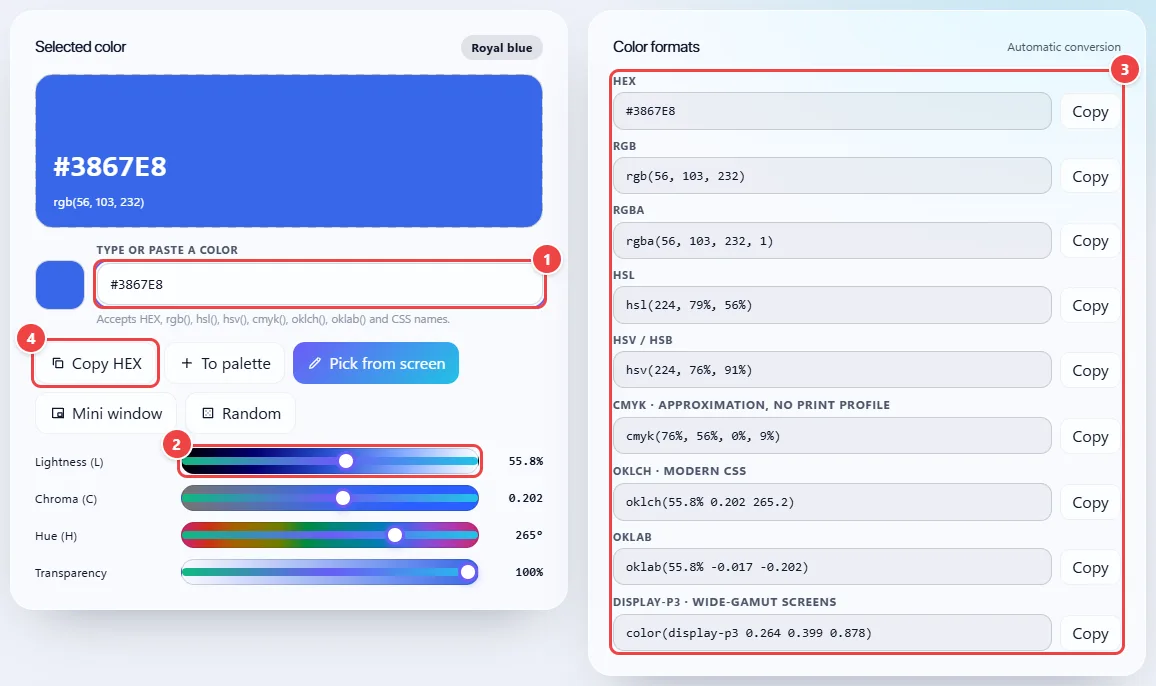
- Point 1: Paste or type the color in any format: HEX, rgb(), hsl(), hsv(), cmyk(), oklch(), oklab() or a name like “coral”.
- Point 2: Adjust the lightness, chroma and hue in OKLCH. Transparency generates RGBA and HEX with alpha.
- Point 3: All the formats update together. Click “Copy” on the one your code asks for.
- Point 4: Copy HEX copies the current color straight away and stores it in the history.
Result: The same color in every format, copied with one click.
Pick the color from anywhere on the screen or from an image
Situation: The color is in another program, on a client’s website or in a photo.
- In Chrome, Edge or Opera, click “Pick from screen”, point with the magnifier and click the color you want. The mini window shows the result on top of other apps.
- In other browsers, take a screenshot (on Windows, Win+Shift+S) and paste it with Ctrl+V in the “Colors from an image” section.
- On the image, click any point to pick that color, or use the dominant colors the app extracts on its own.
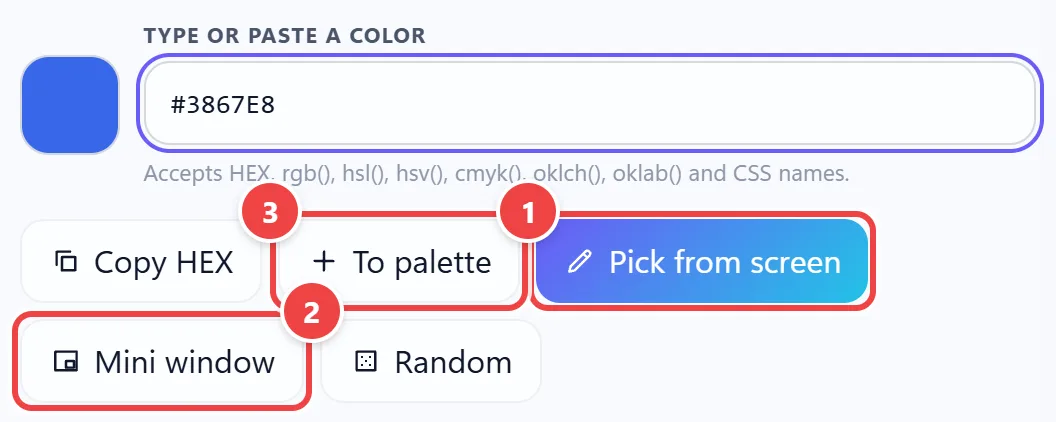
- Point 1: In Chrome, Edge or Opera, “Pick from screen” opens the browser’s magnifier: click any visible color, even in another program.
- Point 2: The mini window floats over the other apps and shows the chosen color with HEX, RGB, HSL and OKLCH to copy.
- Point 3: To palette stores the color to build a set.
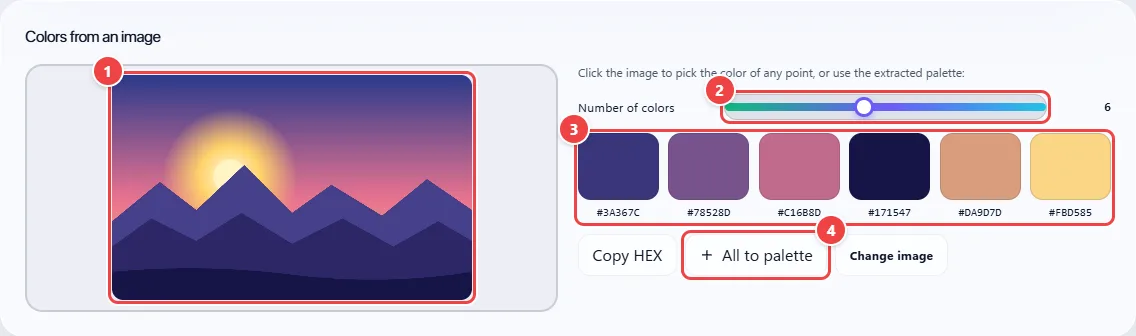
- Point 1: Click any point on the image to get the exact color of that pixel. The image does not leave your browser.
- Point 2: Choose from 3 to 10 dominant colors.
- Point 3: The colors appear in order of presence in the image. Click one to work with it.
- Point 4: All to palette gathers the extracted colors in your palette. For a screenshot, use Win+Shift+S and paste with Ctrl+V.
Result: The exact color of a pixel, or a palette taken from the whole image.
Generate the shade scale and the palette for the project
Situation: You have the main color and need the light and dark shades for buttons, backgrounds and borders.
- Select the color and open the “Shade scale (50–950)”. Your color sits at the nearest lightness step.
- Choose the export format (Tailwind v3 or v4, CSS variables, SCSS or JSON) and click “Copy code”.
- Under “Color harmony”, choose complementary, analogous, triad or another, and click the colors you want to gather.
- Use “To palette” to collect the colors and then copy them as CSS, save them in this browser or send the palette link.
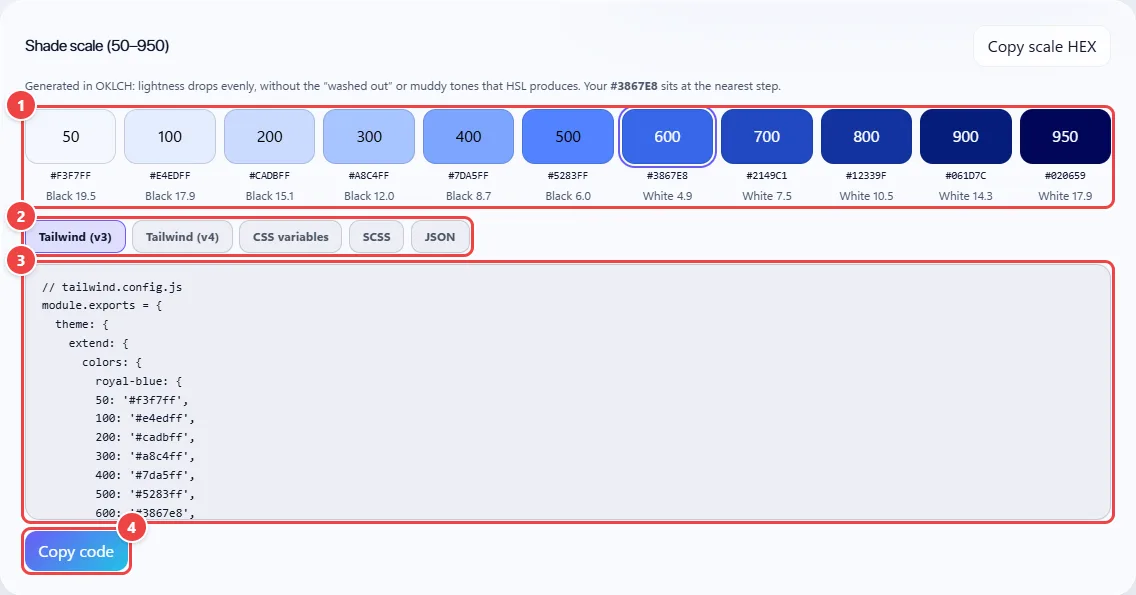
- Point 1: Eleven shades of uniform lightness. Your color sits at the closest step, and the suggested text (white or black) comes with the contrast.
- Point 2: Choose the format: Tailwind (v3 or v4), CSS variables, SCSS or JSON.
- Point 3: The code is generated with the approximate color name. Copy and paste into the project.
- Point 4: Copy code takes the whole scale to the clipboard.
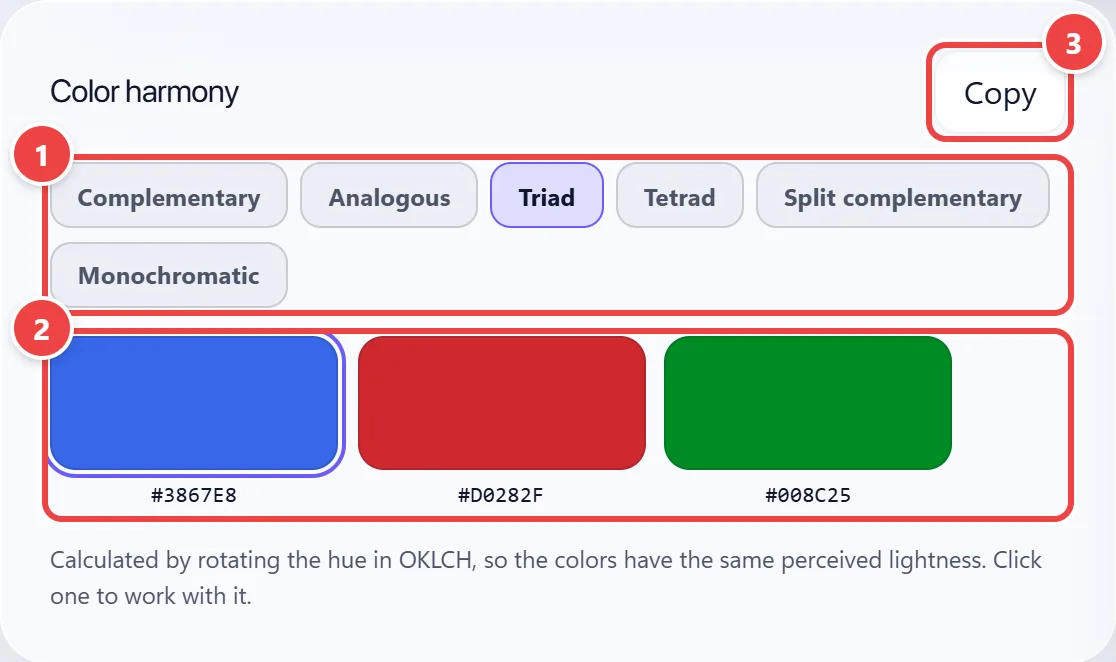
- Point 1: Choose the type: complementary, analogous, triadic, tetradic, split complementary or monochromatic.
- Point 2: Click a color to work with it. The colors keep the same perceived lightness.
- Point 3: Copy takes the harmony’s HEX codes.
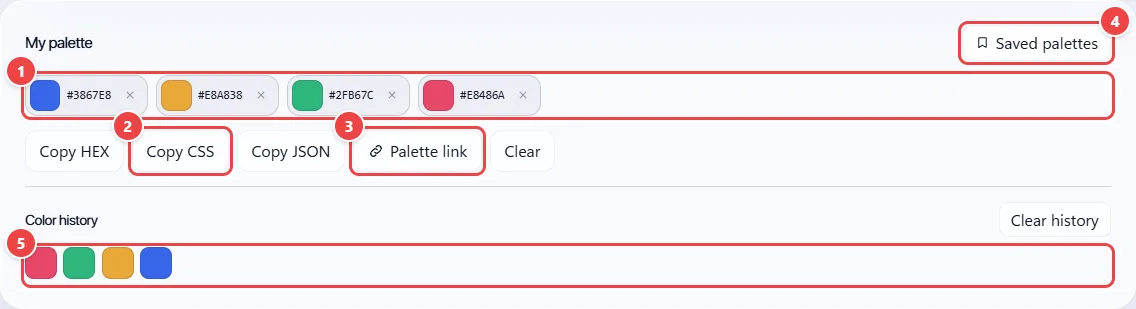
- Point 1: The palette’s colors (up to 24). Click one to use it or the X to remove it.
- Point 2: Copy the palette as HEX, as CSS variables or as JSON.
- Point 3: The link carries the whole palette in the URL itself, with no sign-up and no server.
- Point 4: Save named palettes in this browser (up to 40) and open them whenever you want.
- Point 5: The history keeps the last colors you copied.
Result: A scale ready to paste into the project and a palette saved or shareable.
Check contrast and color blindness
Situation: You want to be sure the text is legible and that the palette does not depend on color alone to be understood.
- Under “Contrast and legibility”, enter the background color and say whether the selected color is the text or the background.
- See the WCAG ratio (AA and AAA) and the APCA value. If it does not pass, click “Adjust to AA” or “Adjust to AAA”.
- In the “Color blindness simulator”, compare the rows: if two colors look alike on any of them, add another signal besides color (icon, text or shape).
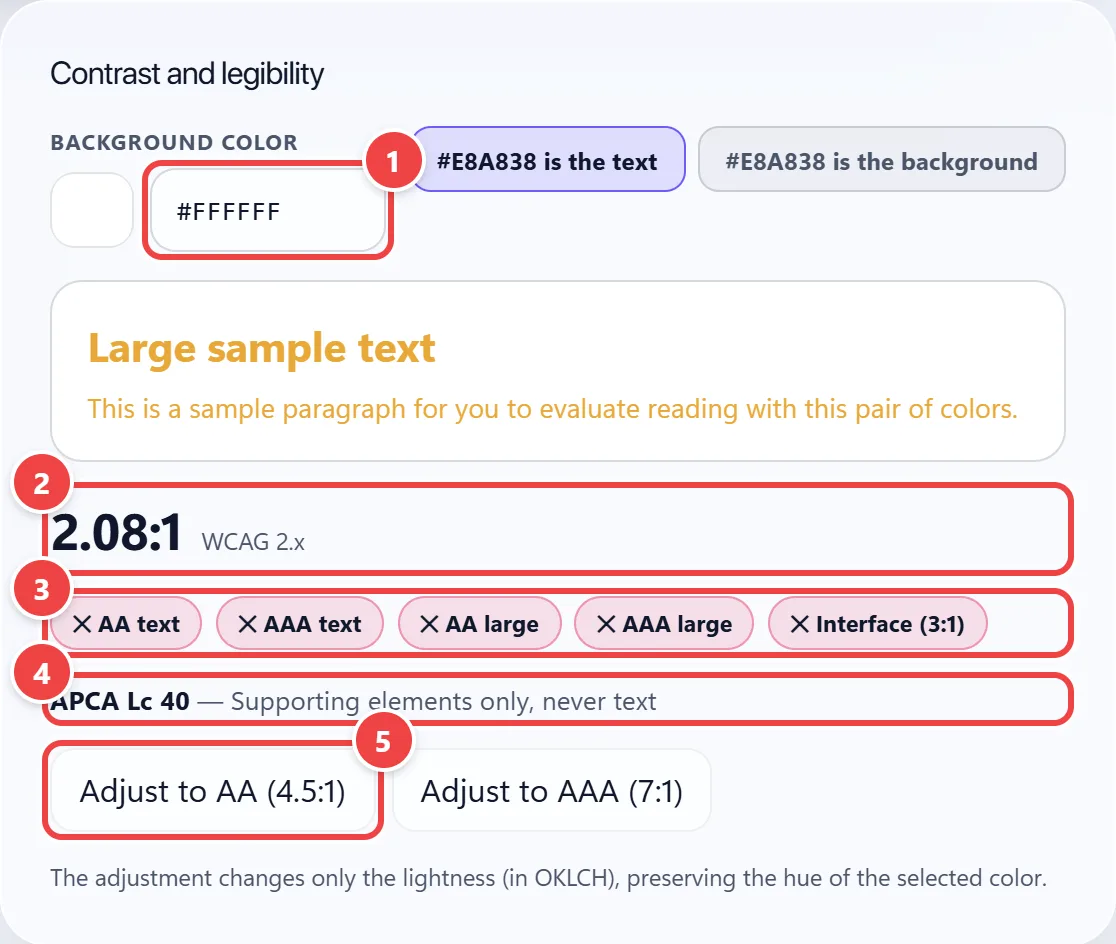
- Point 1: Enter the other color of the pair and say, with the buttons beside it, whether the selected color is the text or the background.
- Point 2: The WCAG 2.x ratio: 4.5:1 for regular text (AA), 7:1 for AAA and 3:1 for large text and interface elements.
- Point 3: Each badge shows whether the pair passes or not at each level.
- Point 4: APCA considers polarity and indicates for which text size the pair works.
- Point 5: Adjust changes only the lightness, preserving the hue, until the pair passes the chosen level.
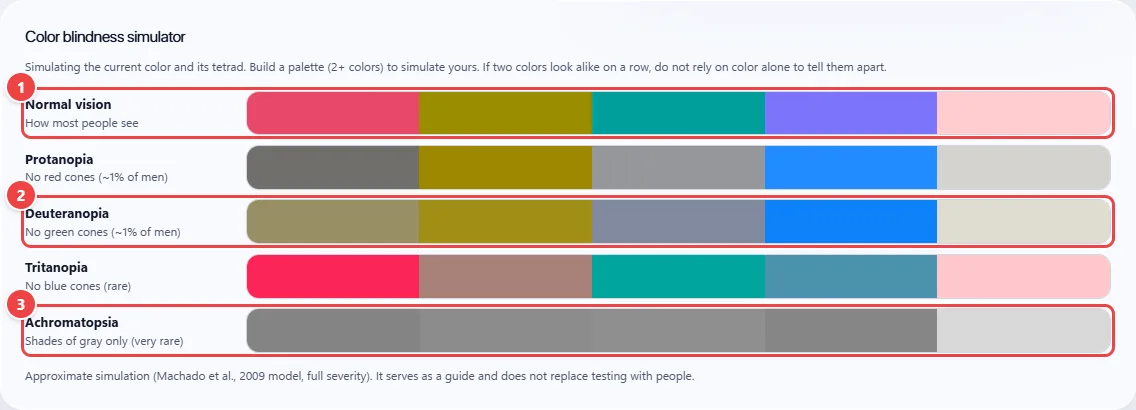
- Point 1: The first row is normal vision, used as the reference.
- Point 2: If two colors look alike in a row, do not depend on color alone: add an icon, text or shape.
- Point 3: Achromatopsia shows only shades of gray, which also helps check the lightness contrast.
Result: A color pair that passes contrast and a palette tested for people with color blindness.
Tips for a better result
- Prefer OKLCH to create variations: lightness changes without distorting the color, unlike HSL.
- For regular text, aim for 4.5:1 (AA); for buttons and icons, 3:1.
- If the color goes out of gamut, the app warns you and shows the closest one that fits in sRGB.
- Copy the CSS or the palette link: saved palettes stay only in this browser.
Limits, and when this is not the best option
- CMYK is an approximation with no ICC profile; for print, confirm with a color proof.
- The screen eyedropper and the mini window require Chrome, Edge or Opera on a computer.
- The color blindness simulator is an approximation, not a substitute for testing with people.
- The palette holds up to 24 colors and the app saves up to 40 palettes in this browser.
Frequently asked questions
- Are my colors and images sent to any server?
- No. Everything is processed in the browser.
- What is the difference between HSL and OKLCH?
- In OKLCH, lightness and hue are perceived uniformly, so scales and harmonies come out more balanced. It is also the format that reaches modern screens’ colors (Display-P3).
- How do I pick the color from another program?
- With “Pick from screen” in Chrome, Edge or Opera. In other browsers, take a screenshot and paste it with Ctrl+V in the image section.
- Do WCAG and APCA give the same result?
- No. WCAG 2.x is the criterion used for compliance today; APCA considers polarity (light or dark text) and better estimates readability, but it is still a proposal.