How to measure and improve your typing speed (WPM)
A job, an exam or everyday work can call for typing speed. This guide shows how to take the test by time or by words, choose the level, understand WPM and accuracy and track your progress, with no sign-up.
Guide written by Marcelo Amantino · updated on October 19, 2026 · about us
Where your data is processed
This tool runs entirely in your browser: your files and data are not sent to any WebFaz server.
The test runs in your browser, and the history is stored on this device. Nothing is sent to WebFaz; clearing the site’s data erases the history.
See the full list on the Privacy page.
Real-world use cases
Take a quick test to find out your speed
Situation: You want to find out how many words per minute you type today.
- On the “By time” tab, choose the language (Portuguese or English), the duration (from 15 seconds to 2 minutes) and the difficulty (beginner, intermediate or advanced).
- Click the text box and start typing the text shown, without looking at the keyboard.
- During the test, follow the time left, the speed in WPM and the accuracy.
- When it ends, check the result. Use “Restart Test” (or Tab + Enter) to try again.
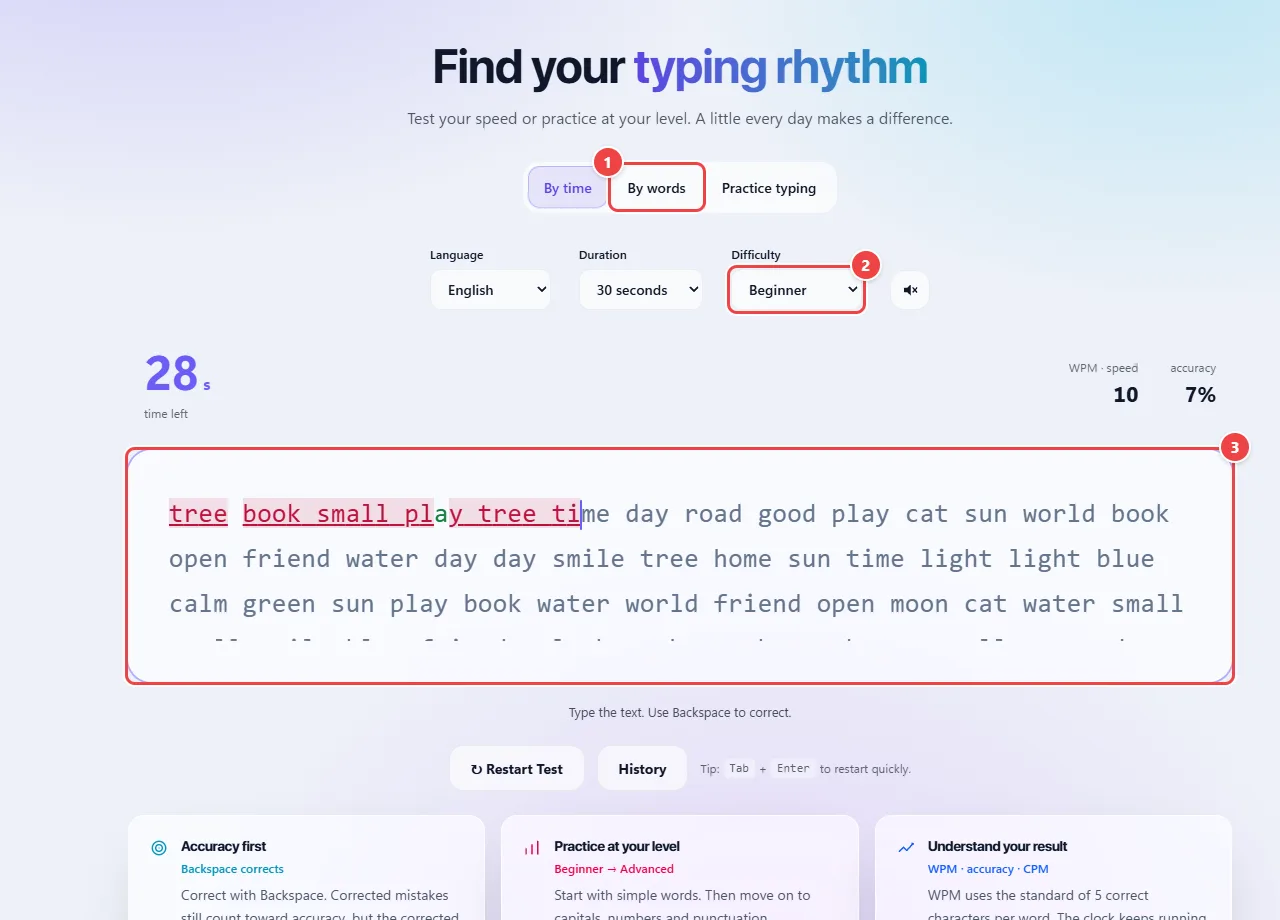
- Point 1: Choose the mode: by time, by number of words or practice.
- Point 2: Adjust language, duration and difficulty.
- Point 3: Type the text shown. The speed (WPM) and accuracy appear as you write.
Result: A result with WPM and accuracy, and a record of the test in the history.
Practice by number of words
Situation: Instead of racing the clock, you want to type a fixed number of words and see how long it takes.
- Open the “By words” tab and choose the level and language options.
- Type the text to the end. Mistakes count against your accuracy.
- Compare the time and WPM with those of previous tests.
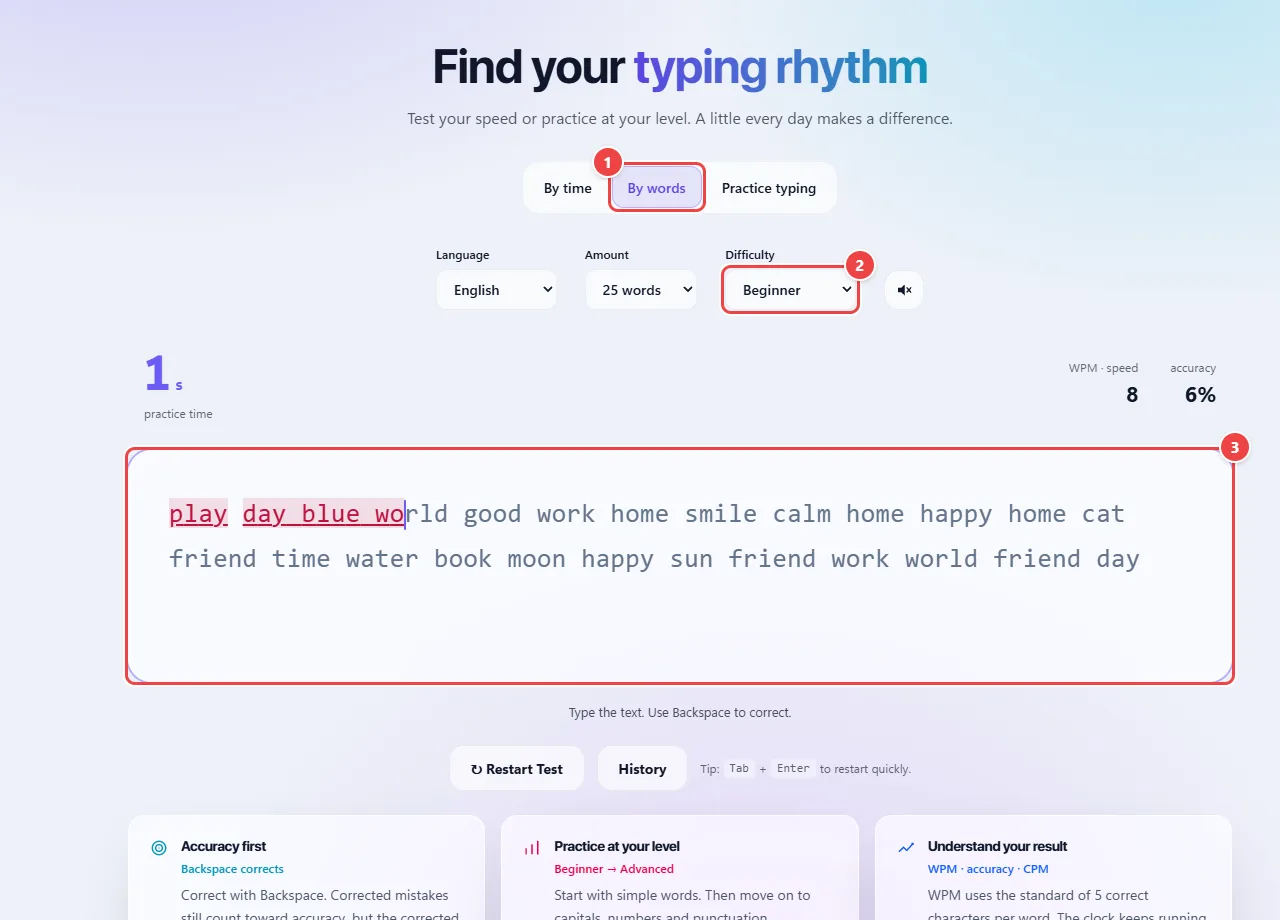
- Point 1: On the By words tab, the test runs to the end of the text, with no time limit.
- Point 2: Choose the language and the level. Mistakes count against your accuracy.
- Point 3: Type the text shown. When you finish, compare the time and the WPM with previous tests.
Result: A measure of speed that does not depend on a time limit.
Track your progress and train accuracy
Situation: You want to know whether you are improving over the weeks.
- Take one test a day, at the same level, and open the “History” to see previous results.
- Use the “Practice typing” tab to practice with attention to accuracy, without rushing.
- When your accuracy is high, raise the level or shorten the time.
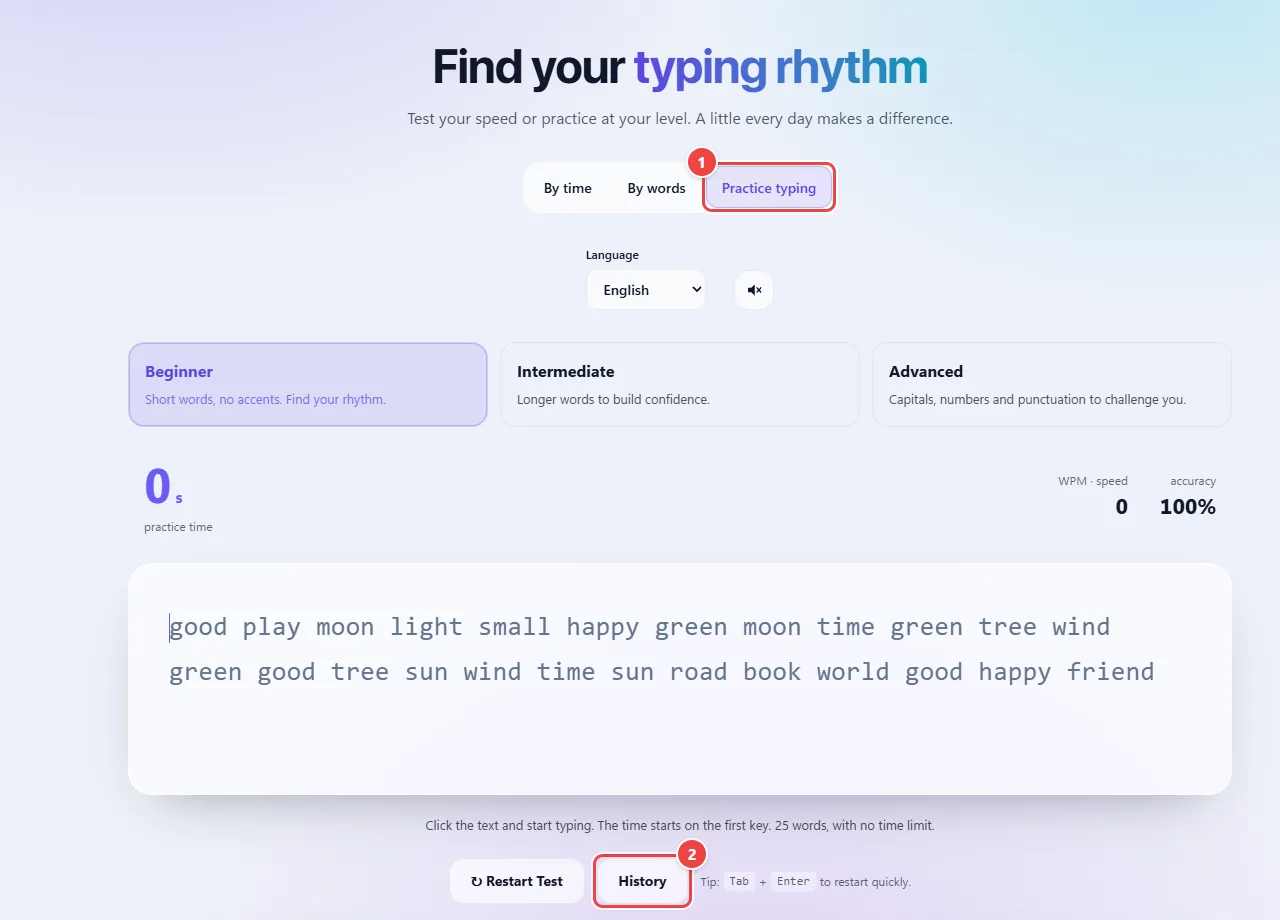
- Point 1: Use the Practice typing tab to train with attention to accuracy, with no rush.
- Point 2: Open the History to see previous tests. Take one test a day, at the same level, to see your progress.
Result: A progress curve with the speed and accuracy of each test.
Tips for a better result
- Prioritize accuracy: speed rises naturally when you make fewer mistakes.
- Keep your posture and wrists relaxed and take breaks in long practice sessions.
- Take several tests on different days to get a reliable average.
Limits, and when this is not the best option
- The result varies with the keyboard, tiredness and the type of text.
- The history stays only in this browser: clearing the site’s data erases it.
- There are two languages (Portuguese and English) and three difficulty levels.
Frequently asked questions
- What is WPM?
- Words per minute: every 5 correct characters count as one word, the standard used in typing tests.
- Do mistakes count against the result?
- Yes. Only the correct characters go into the calculation, so making fewer mistakes raises the WPM.
- What is a good speed?
- It depends on the goal. For general use, something between 40 and 60 WPM with good accuracy is already comfortable; jobs that require heavy typing usually ask for more.
- Is my history saved?
- Yes, in this browser. If you clear the site’s data, it is erased.