How to send files from iPhone to Android (and to PC) on the same network, with no cable and nothing to install
AirDrop only works between Apple devices. WebFaz Drop does the same between any phone, tablet or computer: you open the site on both devices, tap the other one and choose the files. They go straight from one device to the other over your network, with no sign-up and no program to install.
Guide written by Marcelo Amantino · updated on October 19, 2026 · about us
Where your data is processed
Files and texts go straight from one device to the other, over an encrypted connection (WebRTC), and do not pass through any WebFaz server. The server only helps the devices find each other: it uses an unrecognizable version of your network’s IP (the IP itself is not stored) and relays the device name and the connection signals. The file arrives with no changes at all.
See the full list on the Privacy page.
Real-world use cases
Send photos from iPhone to Android or to the computer
Situation: You want to move photos and videos from one phone to another, or to the computer, with no cable and without sending them through a messaging app.
- Connect both devices to the same Wi-Fi network and open webfaz.com/drop on each one.
- In a few seconds the other device appears on the screen, with a name like “Blue Fox”.
- Tap it and choose the files (on a computer, you can also drag files onto it).
- On the other device, tap “Accept”. The download starts by itself and the file appears in the “Received” list.
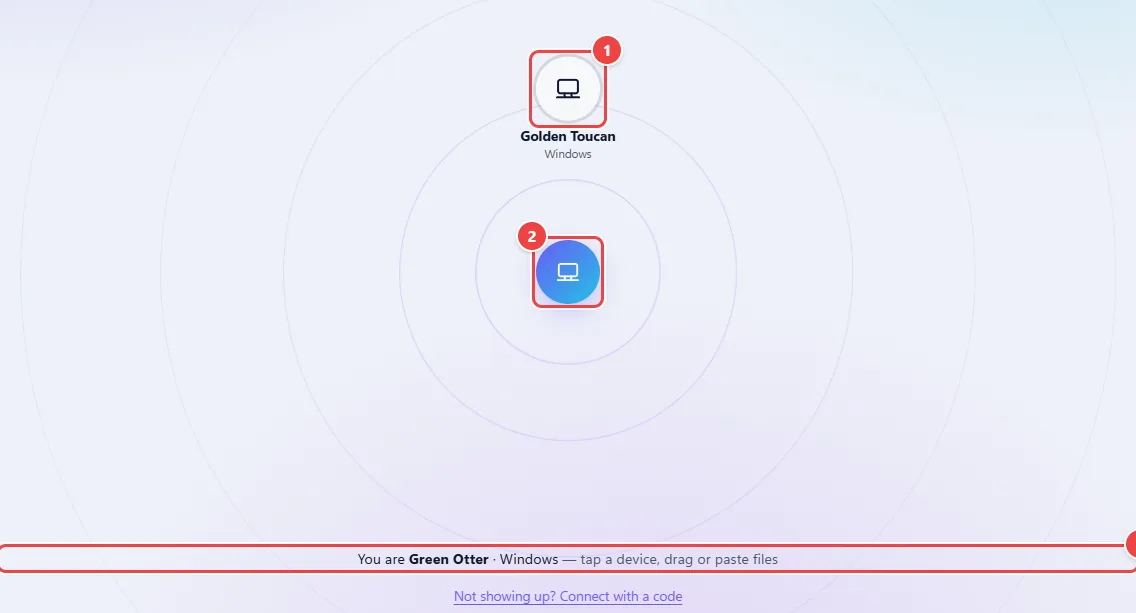
- Point 1: The other device appears on its own, with the name and the system (iPhone, Android, Windows, Mac). Tap it to choose the files; on the computer you can also drag files onto it.
- Point 2: This is your device, in the center of the radar.
- Point 3: Your name on this network. It is the name the other device sees.
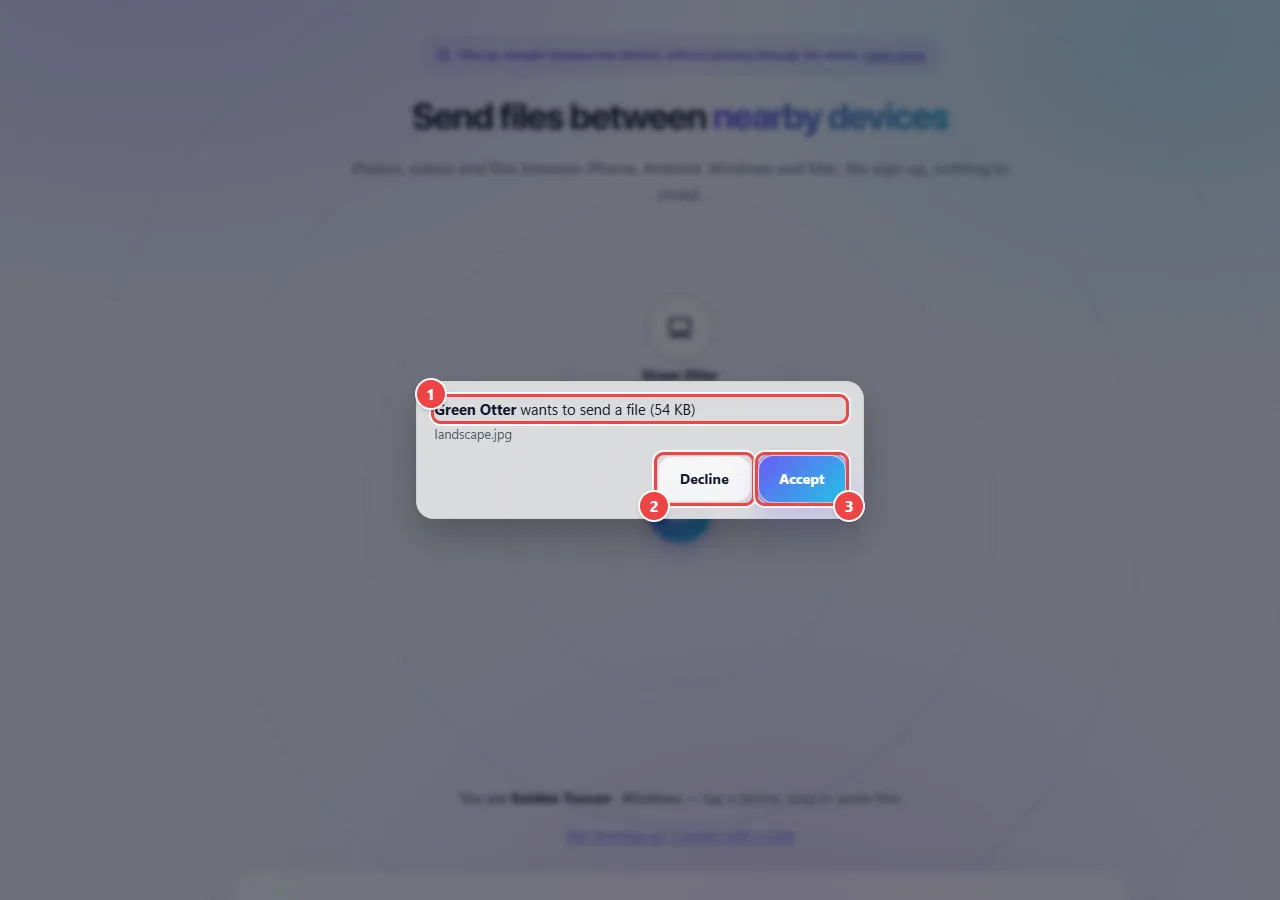
- Point 1: Who is sending, how many files and the total size. Nothing is downloaded before you accept.
- Point 2: Decline cancels the transfer and nothing reaches your device.
- Point 3: Accept starts the transfer. The download starts on its own when the file finishes arriving.
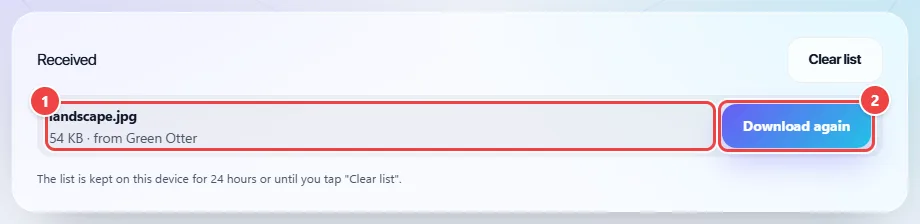
- Point 1: The file arrives identical to the original, with the same name. WebFaz does not alter, compress or mark the file.
- Point 2: The download starts on its own. If the browser blocks it, just tap here.
Result: The files arrive identical to the originals, with no compression and no WebFaz mark.
Connect when the other device does not show up
Situation: Both are on, but one does not appear on the other.
- Tap “Not showing up? Connect with a code”. Your device shows a 5-character code and a QR code.
- On the other device, point the camera at the QR (the link already carries the code) or type the code in the field.
- When the connection opens, “Connected to” appears and the device shows up on the screen.

- Point 1: Point the other device’s camera at the QR: the link already carries the code and the site opens connected.
- Point 2: Or type this 5-character code on the other device.
- Point 3: To enter the other device’s code, type it here: when you complete 5 characters the connection starts on its own.
Result: The devices find each other even when the site does not recognize that they are on the same network.
Send a text or link from one device to the other
Situation: You want to pass an address, a password or a piece of text without typing it again.
- Copy the text on the source device.
- With the Drop page open and only one device nearby, paste (Ctrl+V or Cmd+V).
- On the other device the text appears in the “Received” list, with the “Copy” button.
Result: The text arrives ready to copy.
Tips for a better result
- For fast sending, keep both devices with the screen on and the page open until it finishes.
- To cancel a transfer, tap the device again (it works for the sender and the receiver).
- With no Wi-Fi nearby, turn on a phone’s hotspot and connect the other device to it.
Limits, and when this is not the best option
- Both devices need to see each other on the same network. Hotel, school and company networks tend to block this, and in those cases the direct connection does not open.
- The code and the QR help the devices find each other, but do not make the connection cross different networks (for example, Wi-Fi and mobile data).
- The file is received in the device’s memory before being downloaded. Very large files (over 1 GB) may not work on phones with little memory.
- The “Received” list disappears when the page is reloaded or closed.
Frequently asked questions
- Does WebFaz Drop store my files?
- No. Files go straight from one device to the other and do not pass through any WebFaz server.
- Does it work between iPhone and Android?
- Yes. It works on any device with a current browser, including iPhone, Android, Windows, Mac and Linux.
- Do I need to install an app?
- No. Just open webfaz.com/drop on both devices.
- Does the file arrive altered?
- No. The file is delivered exactly as it was sent, with no compression, no mark and no metadata removed.
- Does it work with a phone’s hotspot?
- Yes, as long as both devices are connected to the same hotspot network.