Search, copy and download emojis as PNG
Find emojis by name or emotion, copy them into text or download them as PNG in the Twemoji, Google Noto and Microsoft Fluent styles. Credits: Twemoji (© Twitter/jdecked, CC-BY 4.0 license), Noto Emoji (Google, Apache 2.0) and Fluent Emoji (Microsoft, MIT).
1914 emojis found
About Emoji
Finds the right emoji by name or emotion, copies it into text or downloads it as a PNG image in the styles of different platforms.
A practical example
You are putting together a caption for a post and want a celebration emoji. You search for “party”, see the options, choose one of the available styles to see how the drawing looks and click to copy. For printed material, you download the same emoji as a PNG.
How to use it
- Search by name or feeling.
- Choose the style (Twemoji, Google Noto or Microsoft Fluent).
- Click to copy or download as PNG.
Limits and cautions
- Each platform draws the emoji its own way; the look may change at the destination.
A ferramenta em uma imagem
Os pontos de clique estão numerados. Toque na imagem para vê-la em tamanho original. As demais telas, passo a passo, estão no guia “Como funciona”.
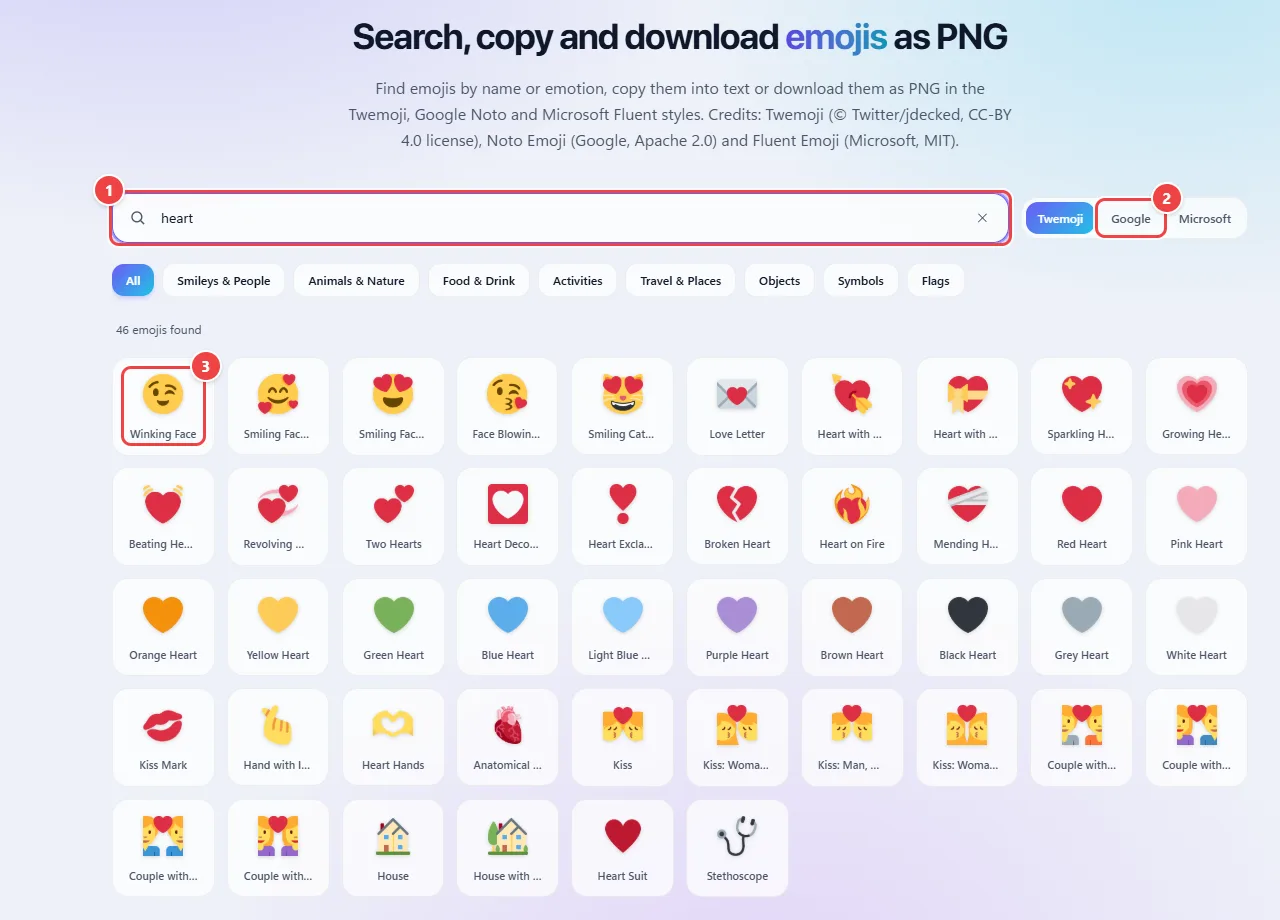
- Point 1: Search by name, emotion or animal.
- Point 2: Choose the visual style: Twemoji, Google Noto or Microsoft Fluent.
- Point 3: Click an emoji to see the details, copy it or download it as PNG.
When to use it
- Quickly finding the right emoji for posts, messages and documents.
- Downloading an emoji as an image for presentations, videos and graphic material.
- Comparing how an emoji appears in different styles.
Tips
- For text, copy the emoji; for graphic pieces, download the PNG.
- Check how the emoji appears on the destination platform before publishing, since the drawing changes.
- In professional texts, use few emojis: they work best when well chosen.
What happens in your browser
Emojis are Unicode characters: each one has a code defined by the standard, and each platform draws its own version. That is why the same emoji can look different from one device to another.
When copying, you take the character itself, which the destination draws in the style it uses. When downloading as PNG, you get a fixed image in the chosen style (Twemoji, Google Noto or Microsoft Fluent), useful when the destination does not accept the character.
The search runs in the browser, by name or by emotion.
Read the full guide: real-world use cases, tips and limits →
Privacy: This tool runs entirely in your browser: your files and data are not sent to any WebFaz server. Learn more.
Perguntas frequentes
- Can I use the images in projects?
- The images follow the licenses of each emoji set; check the terms before commercial use.
- Why does the emoji look different on my phone?
- Each system draws emojis its own way. The code is the same; the look belongs to each platform.
- How do I search by feeling?
- Type an emotion or idea, such as “joy” or “party”, and the list shows the related emojis.
- Which styles are available?
- Twemoji, Google Noto and Microsoft Fluent. They are sets of open drawings; WebFaz does not use the pictures of any messaging app.