How to search, copy and download emojis as PNG in the Twemoji, Google and Microsoft styles
Finding the right emoji and taking it to a text, a presentation or a graphic piece takes seconds when the search understands names and emotions. This guide shows how to search, compare the styles, copy the character or download the image as PNG.
Guide written by Marcelo Amantino · updated on October 20, 2026 · about us
Where your data is processed
This tool runs entirely in your browser: your files and data are not sent to any WebFaz server.
Search and download happen in your browser. WebFaz does not store what you search for and does not use the pictures of any messaging app: the styles are sets of open drawings.
See the full list on the Privacy page.
Real-world use cases
Find and copy the right emoji for a text
Situation: You are writing a post caption and want a celebration emoji.
- Type a name or an emotion in the search field, such as “party”, “heart” or “joy”.
- Use the categories (Smileys & People, Animals & Nature, Food & Drink, Activities and others) to browse without typing.
- Click the emoji you want to open the details and copy it.
- Paste it into your text: the destination draws the emoji in the style it uses.
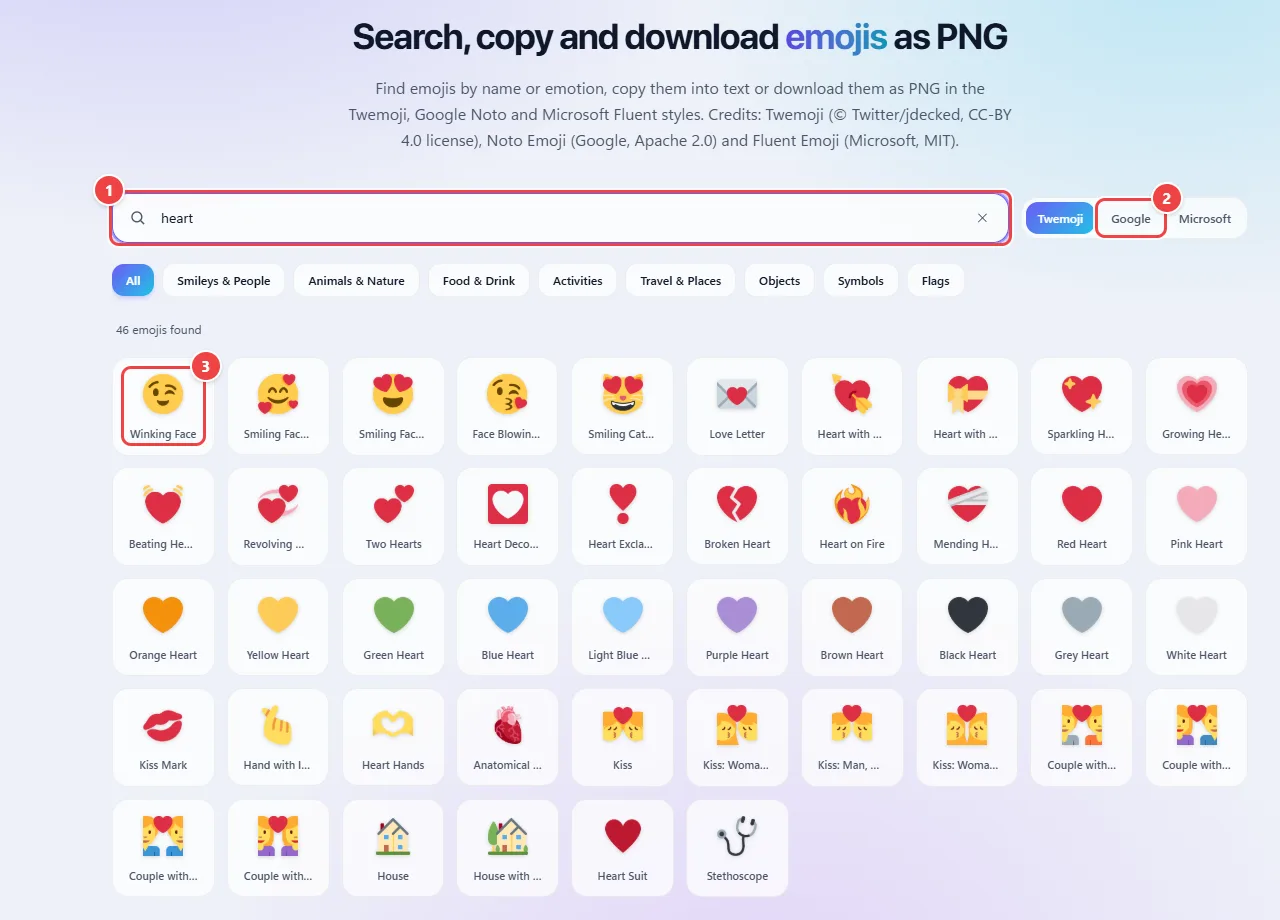
- Point 1: Search by name, emotion or animal.
- Point 2: Choose the visual style: Twemoji, Google Noto or Microsoft Fluent.
- Point 3: Click an emoji to see the details, copy it or download it as PNG.
Result: The emoji copied as a character, ready to paste into any text.
Compare the styles and download as PNG
Situation: You need the emoji as an image for a presentation, a video or printed material.
- Choose the style: Twemoji, Google or Microsoft. The grid changes to each set’s drawing.
- Click the emoji and download the image as PNG.
- Use the image where the destination does not accept the character or where you need a fixed drawing.
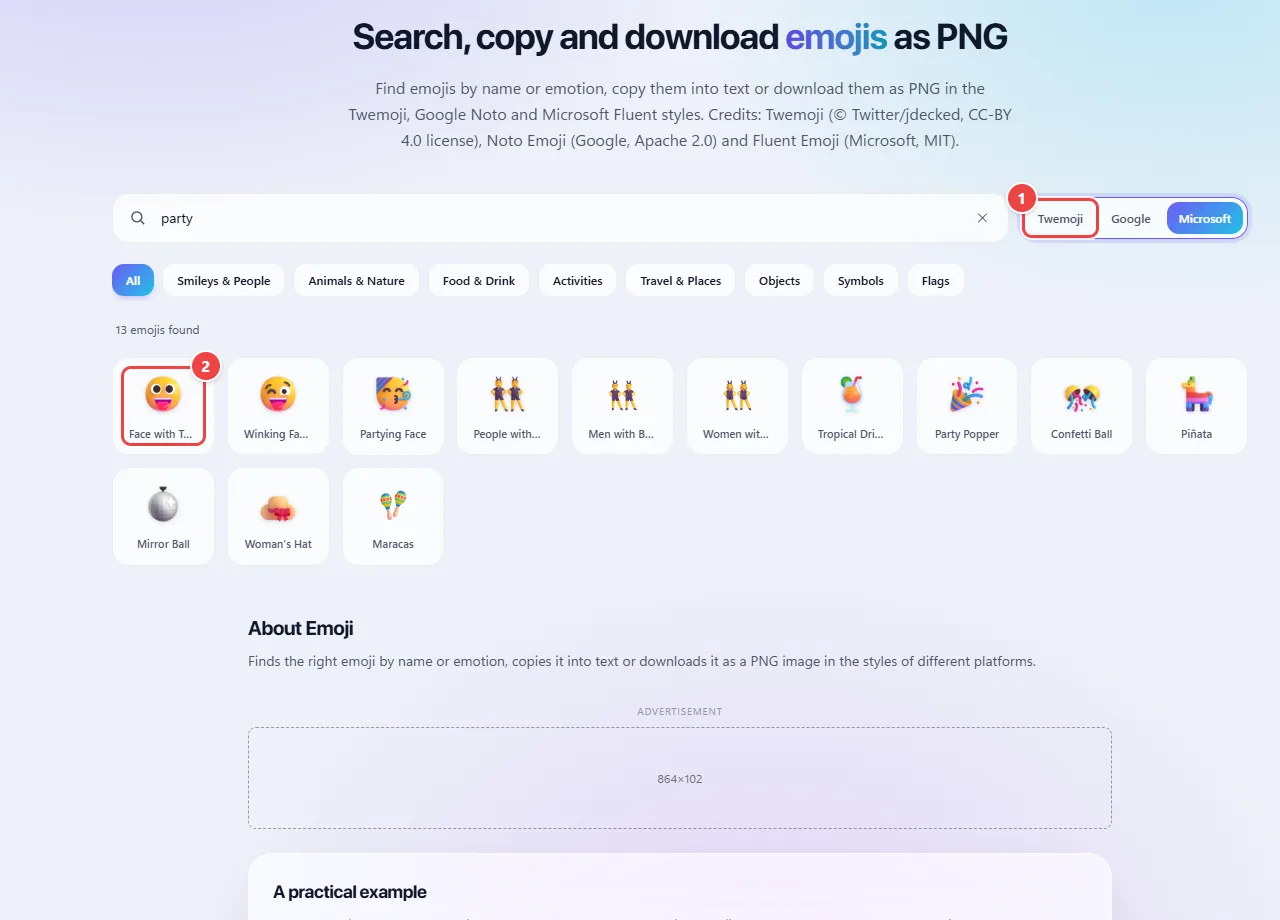
- Point 1: Choose the style: Twemoji, Google or Microsoft. The whole grid changes to each set’s drawing.
- Point 2: Click an emoji to open the details, copy the character or download the image as PNG.
Result: A PNG image of the emoji in the chosen style.
Check how the emoji will appear
Situation: You are going to publish on a platform and want to avoid surprises.
- Compare the same emoji in the three styles to see the differences in drawing.
- For text, prefer copying the character: it adapts to the destination platform.
- For graphic pieces, download the PNG in the style that matches your material.
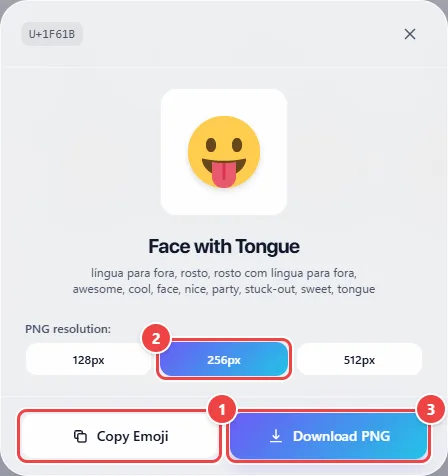
- Point 1: For text, prefer copying the character: it adapts to the destination platform.
- Point 2: For graphic pieces, choose the PNG size (128, 256 or 512 px).
- Point 3: Download PNG saves the drawing in the chosen style, for where the destination does not accept the character.
Result: More confidence that the emoji appears as you imagined.
Tips for a better result
- For text, copy the emoji; for graphic pieces, download the PNG.
- Check how the emoji appears on the destination platform before publishing, since the drawing changes.
- In professional texts, use few emojis: they work best when well chosen.
Limits, and when this is not the best option
- Each platform draws the emoji its own way; the look may change at the destination.
- The images follow the licenses of each emoji set: check the terms before commercial use.
Frequently asked questions
- Why does the emoji look different on my phone?
- Each system draws emojis its own way. The code is the same; the look belongs to each platform.
- How do I search by feeling?
- Type an emotion or idea, such as “joy” or “party”, and the list shows the related emojis.
- Can I use the images in projects?
- The images follow the licenses of each emoji set; check the terms before commercial use.