Free thermal label generator: build and print on Zebra (ZPL)
Build the label by dragging text, EAN, Code 128, QR Code, Data Matrix, lines and images. Import a spreadsheet to generate a batch, or open a ZPL you already have. Download the ready ZPL for Zebra or a PDF at actual size. Everything is done in your browser.
Label
Drag to move; drag on the background to select several (Shift+click adds); use the handles to resize (Shift keeps the proportion). Arrow keys move 0.1 mm (Shift: 1 mm), Delete removes, Alt turns snapping off. The text font in the preview is approximate; barcodes and QR use the actual width in dots.
Spreadsheet data (one label per row)
Import a CSV or spreadsheet (XLSX, XLS, ODS) with a header row. Each row becomes a label: write {{column}} in the texts and codes (or click the column name here) and each row’s value takes its place. {{sequencia}} numbers the labels. Up to 5,000 rows; the spreadsheet stays in your browser.
ZPL code and files
Print and export
How to use
Choose the roll size, the resolution and the language of your printer: ZPL (Zebra), TSPL (TSC and most generic ones) or EPL2 (older Zebras). Most desktop printers are 203 dpi; check the manual or the serial label. Add the objects and drag each one into place. Have a ZPL ready? Use Import → ZPL file. Have a list of products? Import the spreadsheet and use {{column}} in the texts and codes.
How to print
The Print button uses the printer installed on your computer (any model): the paper already goes at the label size, at 100% scale and with no margins. To send the code straight to the printer, bypassing the driver, send the downloaded file (.zpl or .prn) through the manufacturer’s utility (on Zebra, Zebra Setup Utilities) or, on Windows, with copy /b file.prn \\localhost\SharedName on a shared printer.
Before printing a batch
Print a test label and read the code with a scanner. The text font on the printer uses Zebra’s internal font, which differs slightly from the preview. When importing a ZPL, commands with no equivalent in the editor (such as special fonts and ^SN counters) are ignored and listed for you to check.
About Thermal Labels
Builds labels for thermal printers (Zebra and compatibles) by dragging text, barcodes, QR Codes, images and shapes, and generates the ZPL, TSPL or EPL2 code, the life-size PDF or the PNG, all in the browser. It works for shipping, product, stock and shelf labels.
What this thermal label editor does
A visual editor that generates the printer code for you, with no need to write ZPL by hand. The features that stand out most:
Visual editor with snapping
Drag objects, with a grid, snapping to the edges and center, zoom, undo and redo.
Nine code types
Code 128, EAN-13, EAN-8, UPC-A, Code 39, ITF, DUN-14 (ITF-14 with a frame, for boxes), QR Code and Data Matrix.
ZPL, TSPL and EPL2
Copy or download the code for Zebra and compatibles; TSPL and EPL2 are experimental.
Mail merge from a spreadsheet
One label per row of a CSV, XLSX, XLS or ODS, with {{column}} and {{sequence}}.
Imports existing ZPL
Open a ZPL you already have and turn it into editable objects.
PDF, PNG and direct printing
Life-size PDF, PNG of the preview or the Print button, at 100% scale and with no margins.
Saved projects
Keep labels in this browser or download the project as a file to open later.
How to use it
- Choose the roll size, the resolution (dpi) and the language of your printer.
- Add text, barcodes, QR Codes, images or shapes and drag each object into place.
- For many labels, import a spreadsheet and use {{column}} in the texts and codes.
- Print, download the PDF or the PNG, or copy and download the code for the printer.
Limits and cautions
- The text font on the printer is Zebra’s built-in one and differs slightly from the preview: print a test label before a batch.
- TSPL and EPL2 are experimental outputs; ZPL is the most complete.
- A project accepts up to 200 objects, and a spreadsheet up to 5,000 rows.
A ferramenta em uma imagem
Os pontos de clique estão numerados. Toque na imagem para vê-la em tamanho original. As demais telas, passo a passo, estão no guia “Como funciona”.
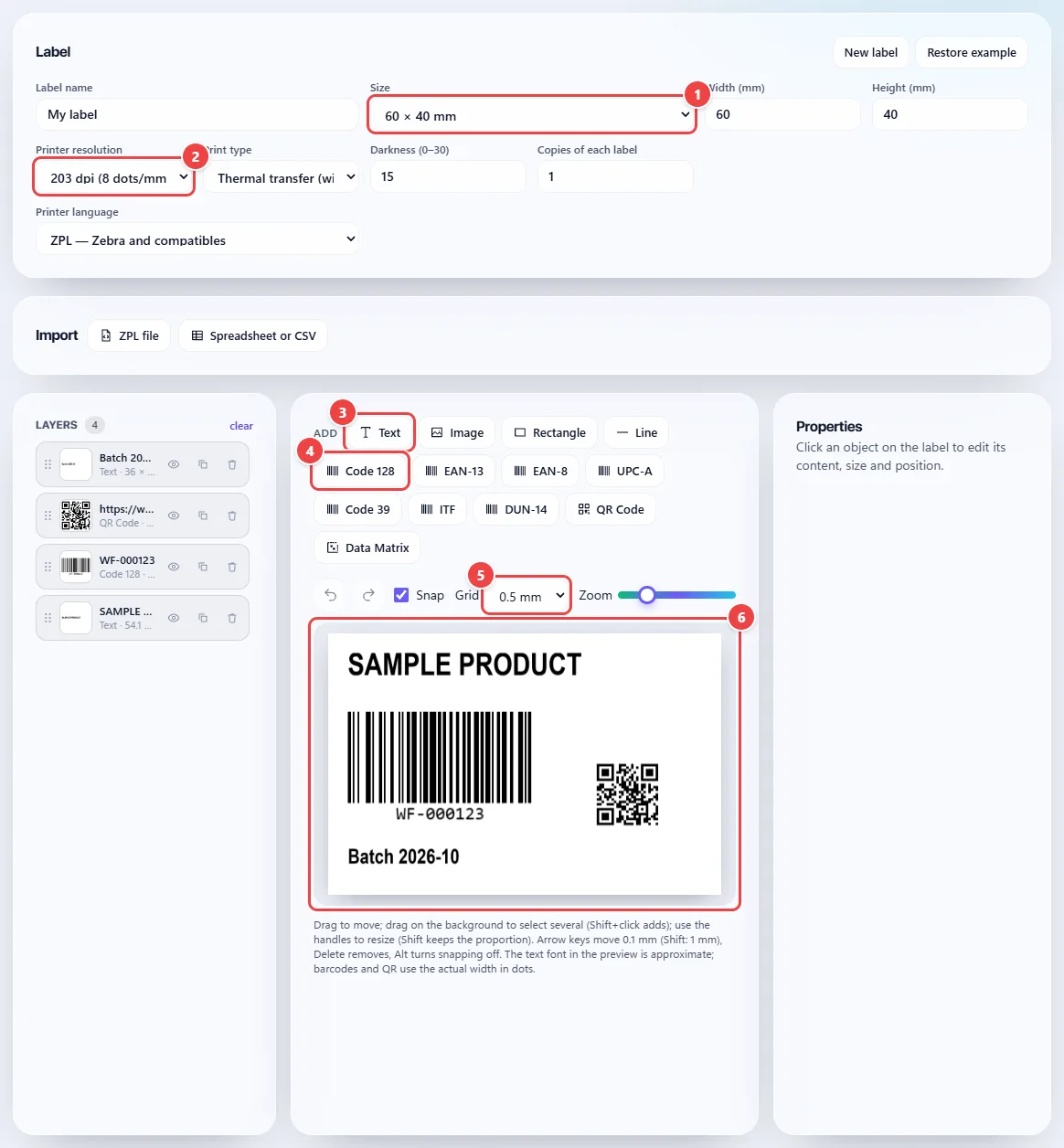
- Point 1: Choose the roll size (there are ready-made presets, such as 100 × 150 mm for shipping and 50 × 30 mm) or type the width and height.
- Point 2: Enter the printer resolution in dpi. Most desktop ones are 203 dpi.
- Point 3: Text, Image, Rectangle and Line go on the label with one click. Then just drag them into place.
- Point 4: Choose the barcode type (Code 128, EAN-13, EAN-8, UPC-A, Code 39, ITF, DUN-14, QR Code or Data Matrix) and type the number in the properties.
- Point 5: The grid and snapping help align to the edges and the center. Ctrl+Z undoes the last step.
- Point 6: The preview shows the label at proportional size, and the ZPL code is updated with every change.
Read the full guide: real-world use cases, tips and limits →
Privacy: This tool runs entirely in your browser: your files and data are not sent to any WebFaz server. Learn more.
Perguntas frequentes
- Are my labels sent to any server?
- No. The label is built and converted in the browser; the draft is saved only in this browser.
- Which resolution should I choose?
- Most desktop printers are 203 dpi. Check the manual or the printer’s serial label.
- I already have a ZPL file. Can I edit it?
- Yes: under Import, choose ZPL file. Commands with no equivalent in the editor are ignored and listed so you can check them.
- How do I print one label for each product in my list?
- Import the spreadsheet (CSV, XLSX, XLS or ODS) and use {{column name}} in the texts and codes. Each row produces one label.