How to create and print labels for a thermal printer (Zebra, ZPL) with barcodes and QR Codes
Shipping, product, stock or shelf label: this guide shows how to build the label by dragging elements, add barcodes and QR Codes, generate one label for each row of a spreadsheet and print from the computer or take the ZPL code to the printer. All in the browser, with no sign-up and nothing to install.
Guide written by Marcelo Amantino · updated on October 20, 2026 · about us
Where your data is processed
This tool runs entirely in your browser: your files and data are not sent to any WebFaz server.
The label is drawn and converted into ZPL, TSPL or EPL2 code in your browser. Nothing is sent to WebFaz: not the design, not the images, not the spreadsheet. The draft and the saved labels are kept in this browser, and clearing the browser data erases them. To keep a copy outside it, download the project as a file.
See the full list on the Privacy page.
Real-world use cases
Build a product label with a barcode
Situation: You need a 50 × 30 mm label with the product name, the price and the barcode to stick on the packages.
- In the Label area, choose the size (there are ready-made templates, such as 100 × 150 mm for shipping and 50 × 30 mm) and the printer resolution; most desktop ones are 203 dpi.
- Use “Text” for the name and the price and drag each one into place. In the properties, adjust height, alignment and font.
- Add the barcode (Code 128, EAN-13, EAN-8, UPC-A, Code 39 or ITF) and type the number.
- Use the grid and snapping to align to the edges and the center, and Ctrl+Z if you make a mistake.
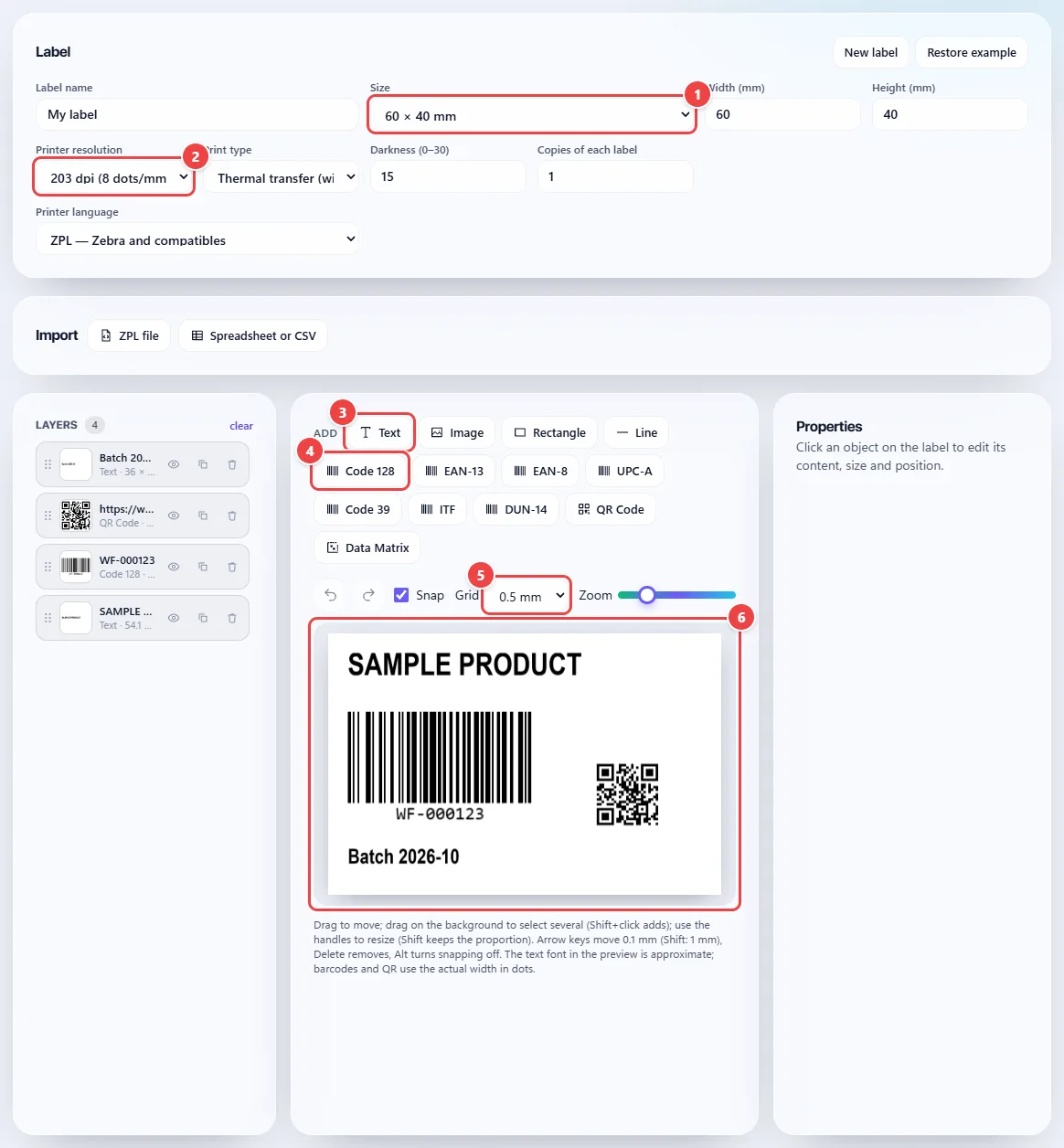
- Point 1: Choose the roll size (there are ready-made presets, such as 100 × 150 mm for shipping and 50 × 30 mm) or type the width and height.
- Point 2: Enter the printer resolution in dpi. Most desktop ones are 203 dpi.
- Point 3: Text, Image, Rectangle and Line go on the label with one click. Then just drag them into place.
- Point 4: Choose the barcode type (Code 128, EAN-13, EAN-8, UPC-A, Code 39, ITF, DUN-14, QR Code or Data Matrix) and type the number in the properties.
- Point 5: The grid and snapping help align to the edges and the center. Ctrl+Z undoes the last step.
- Point 6: The preview shows the label at proportional size, and the ZPL code is updated with every change.
Result: A finished label in the preview, with the code generated below and updated on every change.
Generate one label for each row of a spreadsheet
Situation: You have a list of products, orders or addresses and want one label for each.
- Click “Spreadsheet or CSV” under Import and choose the file (CSV, TSV, XLSX, XLS or ODS). With no spreadsheet at hand, use “Use example”.
- Under “Mail merge”, choose the column and whether it becomes text, a barcode or a QR Code. You can also type {{column name}} in any text or code. {{sequence}} becomes 1, 2, 3…
- Use the preview arrows to check each row. The editor warns when there are missing fields before printing.
- Set the copies of each label, if needed.
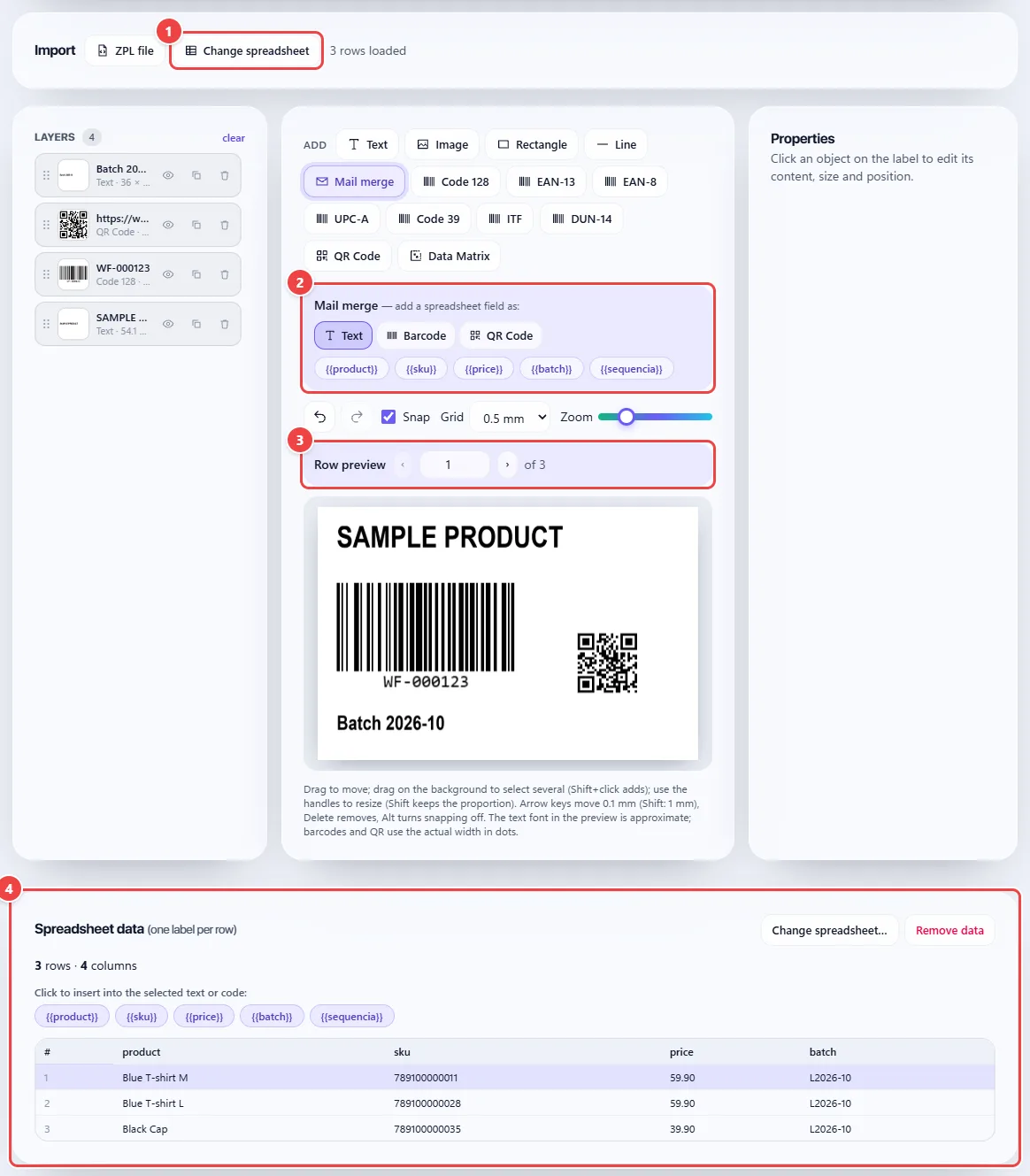
- Point 1: Import a CSV, TSV, XLSX, XLS or ODS. The first row of the spreadsheet becomes the column names.
- Point 2: Choose whether the field goes in as text, barcode or QR Code and click the column to insert it. You can also type {{column name}} in any text.
- Point 3: Use the arrows to see each label in the preview before printing. The editor warns when there are missing fields.
- Point 4: The data stays in the table, one label per row. {{sequence}} numbers 1, 2, 3… and the copies of each label are set up above.
Result: One label per spreadsheet row, with the PDF and the code including all of them.
Print, download the PDF or send the code to the printer
Situation: The label is ready and you want to print it on the thermal printer.
- Under Export, click “Print” to use the printer installed on the computer: the paper comes out at the label size, at 100% scale and with no margins.
- “Download PDF” generates the file at life size and “Download PNG” the image of the preview.
- To send the code straight to the printer, copy or download the ZPL (or the .prn file for TSPL and EPL2) and send it through the manufacturer’s utility.
- Print a test label and read the code with a scanner before running the batch.
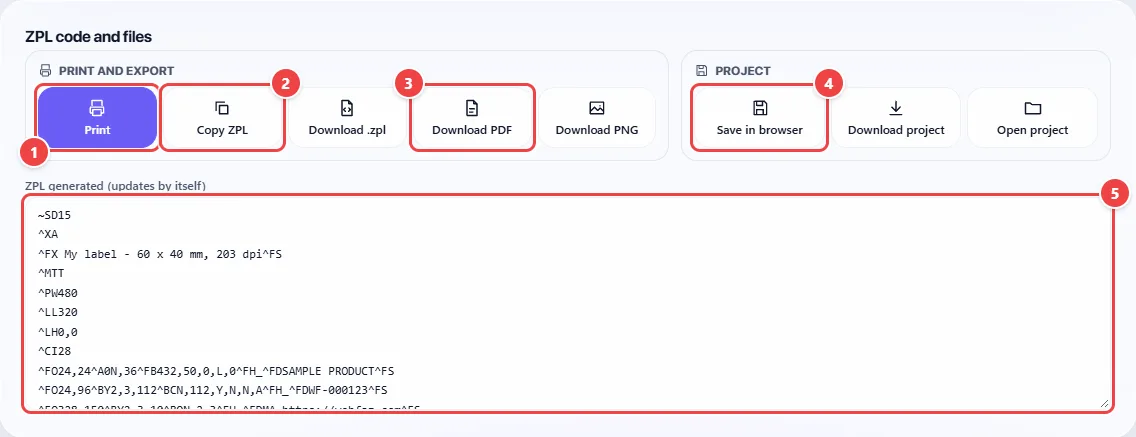
- Point 1: Print uses the printer installed on the computer: the paper comes out at the label size, at 100% scale and with no margins.
- Point 2: Copy the code to paste into the manufacturer’s utility or download the .zpl file (TSPL and EPL2 generate .prn).
- Point 3: The PDF comes out at actual size, with all the labels from the spreadsheet. The PNG is only of the label shown in the preview.
- Point 4: Keep the project in this browser or download it as a file to open later.
- Point 5: The generated code appears here and follows every change to the label. Print a test one and read the code before running a batch.
Result: Labels printed at the right size, or the code ready for your printer.
Edit a ZPL you already have and keep the project
Situation: You received a ZPL file from another system and want to adjust it, or you want to keep the label to use later.
- Under Import, click “ZPL file” and provide the code. It becomes editable objects.
- Check the list of ignored commands: those with no equivalent in the editor (such as special fonts and ^SN counters) are not imported.
- Adjust what you need and use “Save in this browser” to keep it in My labels.
- To take it to another computer, use “Export project” and then “Open project”.
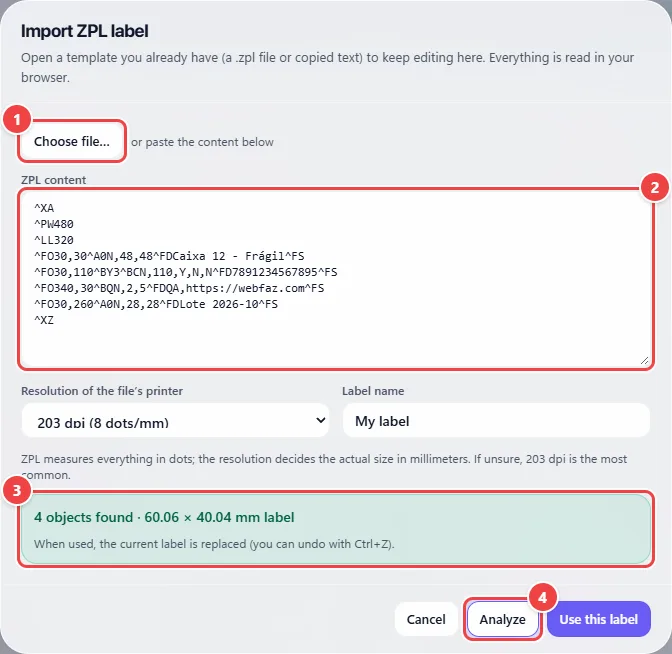
- Point 1: Choose a .zpl, .txt or .prn file from your system, or paste the code in the box below.
- Point 2: Paste here the ZPL you received from another system.
- Point 3: The summary shows what was recognized. Commands with no equivalent in the editor (such as special fonts and ^SN counters) are listed and do not come in.
- Point 4: Analyze and check the summary. Then click “Use this label” to edit the objects and save the project in “Save in browser”.
Result: An old ZPL that is editable and a project you reopen whenever you want.
Tips for a better result
- Confirm the printer resolution (152, 203, 300 or 600 dpi) before building: it defines the real size of the elements.
- If the barcode does not scan, increase the module width or the height and print the test again.
- For labels with a variable date or batch, use a spreadsheet column instead of editing them one by one.
- Download the project after an important label: clearing the browser data erases the saved ones.
Limits, and when this is not the best option
- The text font on the printer is Zebra’s built-in one and differs slightly from the preview; print a test before a batch.
- TSPL and EPL2 are experimental outputs; ZPL is the most complete.
- A project accepts up to 200 objects and a spreadsheet up to 5,000 rows.
- WebFaz does not send the code to the printer by itself: printing uses the system dialog, or you take the file through the manufacturer’s utility.
Frequently asked questions
- Are my labels sent to any server?
- No. The label, the images and the spreadsheet are processed in the browser.
- Does it work with printers that are not Zebra?
- The Print button works with any installed printer. To send code directly, use TSPL (TSC and generic) or EPL2 (older Zebras), both still experimental.
- Which barcodes can I use?
- Code 128, EAN-13, EAN-8, UPC-A, Code 39, ITF, DUN-14 (ITF-14 with a frame, for boxes), QR Code and Data Matrix.
- Can I edit a ZPL I already have?
- Yes, through Import → ZPL file. Commands with no equivalent are listed for checking.