Free online screen recorder
Record the entire screen, a window or a browser tab, with the computer’s sound, your microphone and the camera bubble. Nothing to install, no watermark and no time limit — the video stays on your computer.
- F9 pauses and resumes · F10 stops and saves — they work with this tab, or the floating bar, in focus.
- When recording another window the focus stays on it, so the safest way is to turn on the floating bar above: it stays on top and has the buttons.
- The media keys ⏯ ⏹ on the keyboard or headset also work from any window (when the browser forwards them).
- You can always end it with the browser’s own “Stop sharing” button.
The browser will ask what to share (entire screen, window or tab). Nothing is sent to a server — the video is put together here, on your computer.
Choose what to record
Tick sound, microphone and camera, click start and choose the screen, window or tab in the browser. A 3-second countdown gives you time to go back to what you want to show.
Pause when you need to
Pause and resume without cutting the file, follow the timer and finish with the app’s button or the browser’s “Stop sharing”.
Download or edit
Review the video right away, download it as WebM or MP4 or send it straight to WebFaz Video Editor to cut, caption and add effects.
How do I record my computer screen online with WebFaz Screen Recorder?
WebFaz Screen Recorder is a free screen recorder that runs in your computer’s browser. The video is put together right there: no image, audio or file is sent to a server.
Step by step. Tick what you want to record along with the screen (computer sound, microphone, camera), click “Start recording” and, in the browser window, choose Entire screen, Window or Chrome tab. After the countdown, recording starts. To finish, click “Stop and save”.
Shortcuts. F9 pauses and resumes and F10 stops and saves. They are function keys on purpose, so they do not get in the way of anyone typing. Because of browser limitations, a site only receives keys when the tab (or the floating bar) is in focus: when recording another window, turn on the “Floating recording bar” to have buttons always in view, or use the media keys ⏯ ⏹ on the keyboard or headset.
Computer sound. It is only recorded when sharing a tab or the entire screen (on Windows and ChromeOS) and with the “Share audio” option ticked in the browser picker. When recording a single window, the browser does not provide the sound. On macOS, only tab audio is captured.
Formats. The recording comes out as WebM (VP9/Opus). If you need MP4, use “Download as MP4” — the conversion also happens in your browser. For cuts, text and effects, use “Edit in WebFaz Video Editor”.
Does it work on a phone? No. Phone and tablet browsers do not allow recording a web page’s screen. Use a computer (desktop or laptop) with Chrome, Edge or Firefox.
Tips. Close notifications before recording, prefer 30 fps for tutorials and 60 fps for games, and remember that the video lives only in the open tab: download it before closing the page.
About Screen Recorder
Records the computer screen (entire screen, window or tab) with system sound, microphone and camera, without installing programs.
What this screen recorder does
A complete recorder that runs in the browser, with nothing to install, no watermark and no time limit. The features that stand out:
Camera bubble
Your face in a circle in the corner of the video, for lessons and tutorials with presence.
Floating recording bar
A small bar that stays over the other windows, with a timer, pause and stop, to control the recording without going back to the app’s tab.
F9 and F10 shortcuts
F9 pauses and resumes; F10 stops and saves. They are function keys on purpose, so they do not get in the way of anyone typing.
Computer sound and microphone together
Capture the system sound (when sharing a tab) mixed with your voice.
No imposed time limit and no watermark
The limit is your device’s space and memory. The video stays on your computer.
Entire screen, window or tab, with adjustable quality
Choose what to record, the quality and the frames per second, and download as WebM or MP4.
A practical example
A teacher wants to record a lesson showing a spreadsheet. They choose to record the browser tab with its audio and turn on the microphone to speak. When done, they download the video and, if they want to trim the start, send it to the site’s video editing, with nothing to install.
How to use it
- Choose what to record and the audio sources.
- Allow sharing in the browser.
- Record and finish.
- Download as WebM/MP4 or send it to editing.
Limits and cautions
- Computer sound is only captured in compatible browsers and systems, usually when sharing a tab.
- Phones have limited support for browser screen recording.
A ferramenta em uma imagem
Os pontos de clique estão numerados. Toque na imagem para vê-la em tamanho original. As demais telas, passo a passo, estão no guia “Como funciona”.
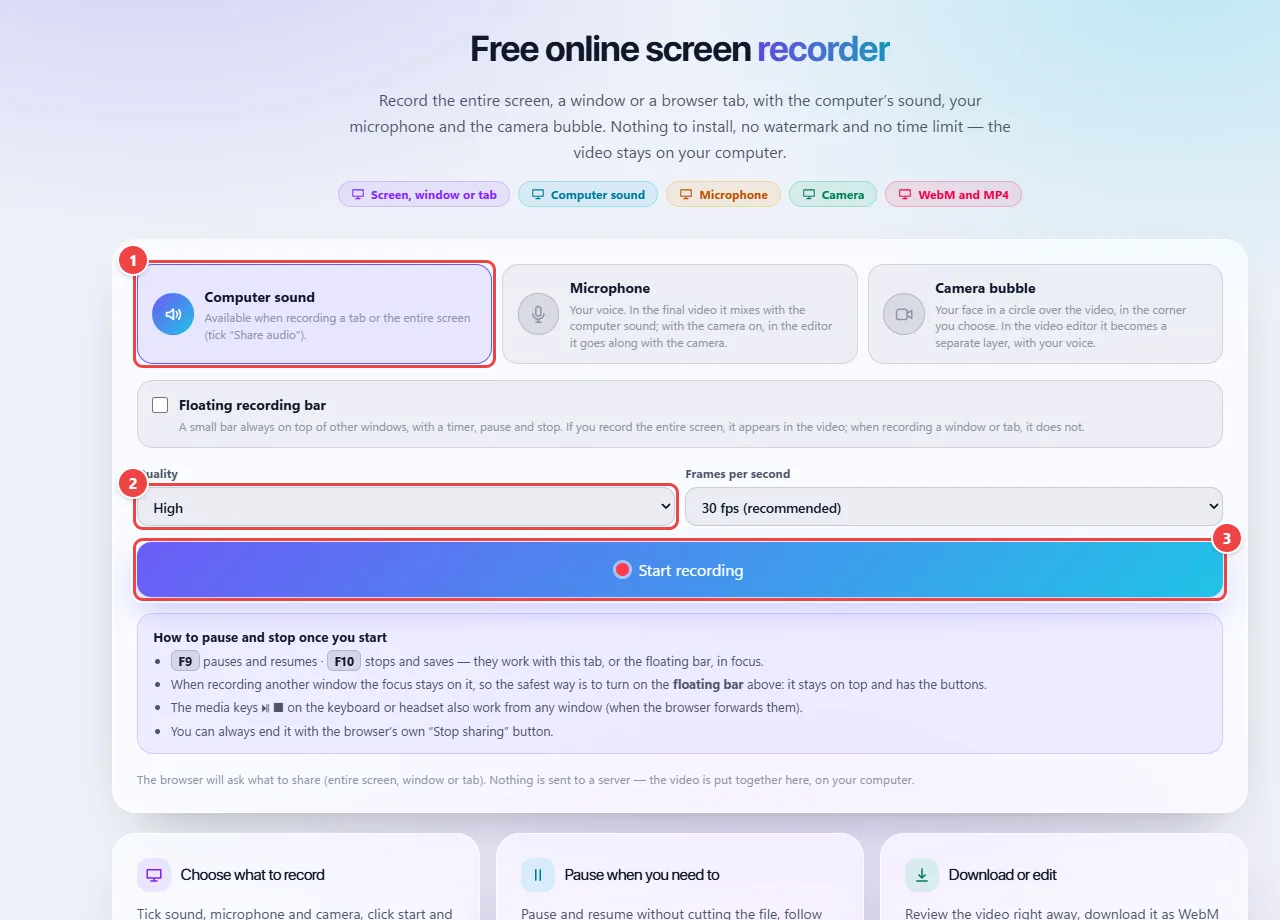
- Point 1: Choose the sources: computer sound (when sharing a tab), microphone and bubble camera.
- Point 2: Quality and frames per second: 30 fps is recommended; static screens can use less.
- Point 3: Start recording: the browser asks what to share (entire screen, window or tab). The video stays on your device.
When to use it
- Recording lessons, tutorials and demonstrations of programs or websites.
- Recording an error in a system to send to support.
- Recording a presentation with the camera and voice, as in work meetings.
Tips
- Close notifications and personal tabs before recording: they may show up in the recording.
- Do a short 10-second test to check the sound before recording something long.
- For system sound, share the browser tab and tick the option to share audio.
What happens in your browser
The recording uses the browser’s native screen capture feature (the screen sharing API). The browser itself asks for your permission and shows what is being shared: without that consent, nothing is recorded.
The video is put together on your device and stays in memory until you download it. Nothing is sent to WebFaz during the recording.
Computer sound depends on the browser and the system: in general, it is only captured when sharing a tab. The microphone and the camera are separate sources that you turn on or off before you start.
Read the full guide: real-world use cases, tips and limits →
Privacy: This tool runs entirely in your browser: your files and data are not sent to any WebFaz server. Learn more.
Perguntas frequentes
- Is the recording sent to any server?
- No, the video is generated and stays only on your device.
- Is there a time limit?
- WebFaz imposes no limit; the limit is your device’s space and memory.
- Can I record just one window?
- Yes. You choose between the entire screen, a window or a tab.
- Why is the computer sound not recorded?
- Not every browser and system allows it. Sharing a Chrome tab and ticking the audio option usually works.
- Does it work on a phone?
- Support is limited: most phone browsers do not allow recording the screen with this feature.