How to record your computer screen online, with audio and camera, with nothing to install
To teach a step-by-step, show a problem to support or record a presentation, recording the screen is often all you need. This guide shows how to do it right in the browser, how to include the computer sound, the microphone and the camera, and which limits depend on the browser and the system.
Guide written by Marcelo Amantino · updated on October 19, 2026 · about us
Where your data is processed
This tool runs entirely in your browser: your files and data are not sent to any WebFaz server.
The video is put together in your browser: no image, audio or file is sent to a server. The recording comes out as WebM and, if you need MP4, the conversion also happens in your browser. A practical caution: the video exists only in the open tab, so download the recording before closing the page.
See the full list on the Privacy page.
Real-world use cases
Record a narrated tutorial
Situation: You want to teach how to use a program or website by showing the screen and explaining with your voice.
- Tick the microphone (and “Camera bubble”, if you want to appear in a circle in the corner of the video).
- Click “Start recording” and, in the browser window, choose what to share: entire screen, window or tab.
- Wait for the countdown and do the demonstration, speaking normally.
- Finish the recording, review the video right away and download it as WebM or MP4.
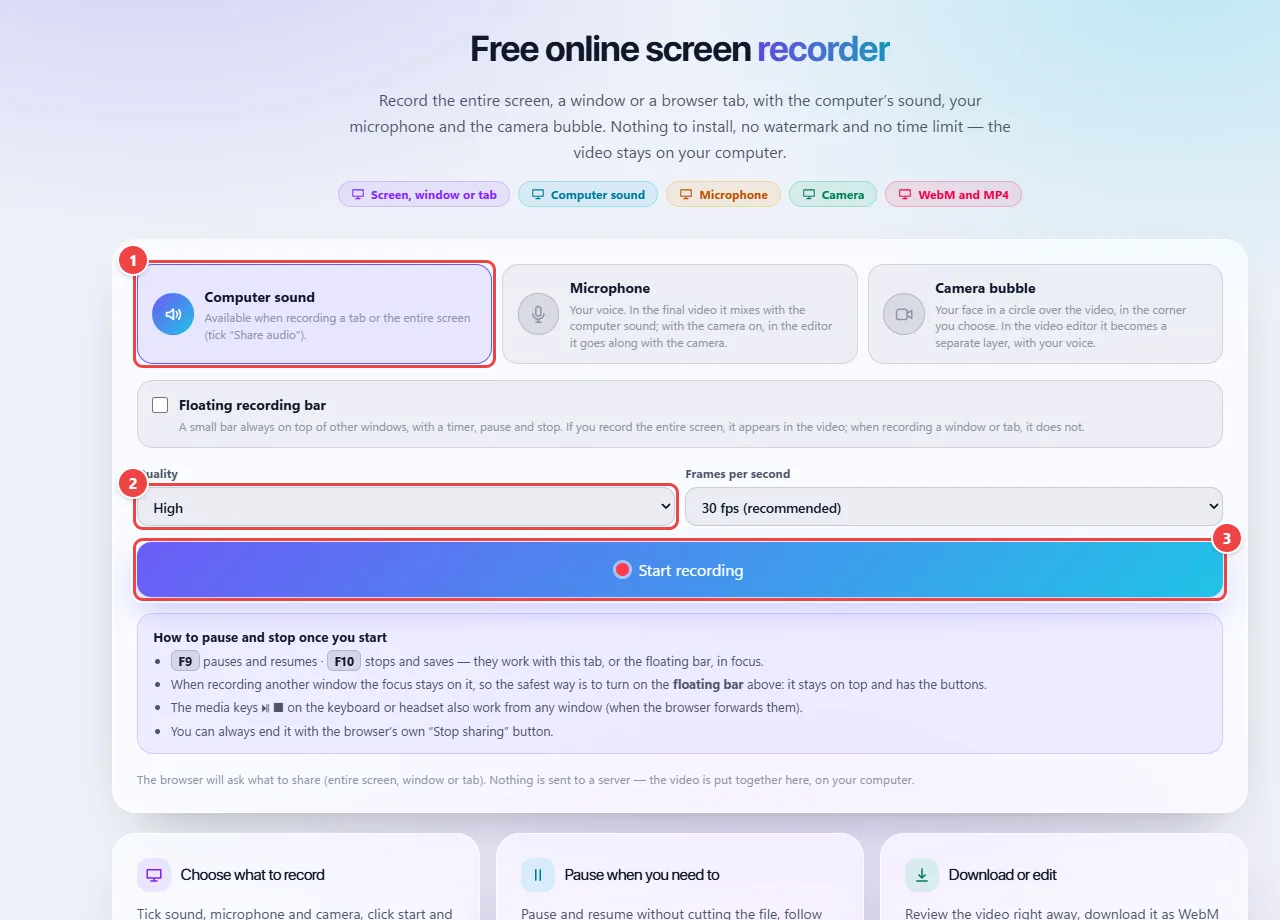
- Point 1: Choose the sources: computer sound (when sharing a tab), microphone and bubble camera.
- Point 2: Quality and frames per second: 30 fps is recommended; static screens can use less.
- Point 3: Start recording: the browser asks what to share (entire screen, window or tab). The video stays on your device.
Result: A tutorial video with the screen and your voice, ready to publish or to cut in the editor.
Show a problem to support
Situation: Describing an error in writing is hard and you want to show exactly what happens.
- Record the window or tab where the problem occurs.
- Reproduce the error calmly, in the order it happens.
- Finish and download the video.
- Send the file along with a short description of what you expected to happen.
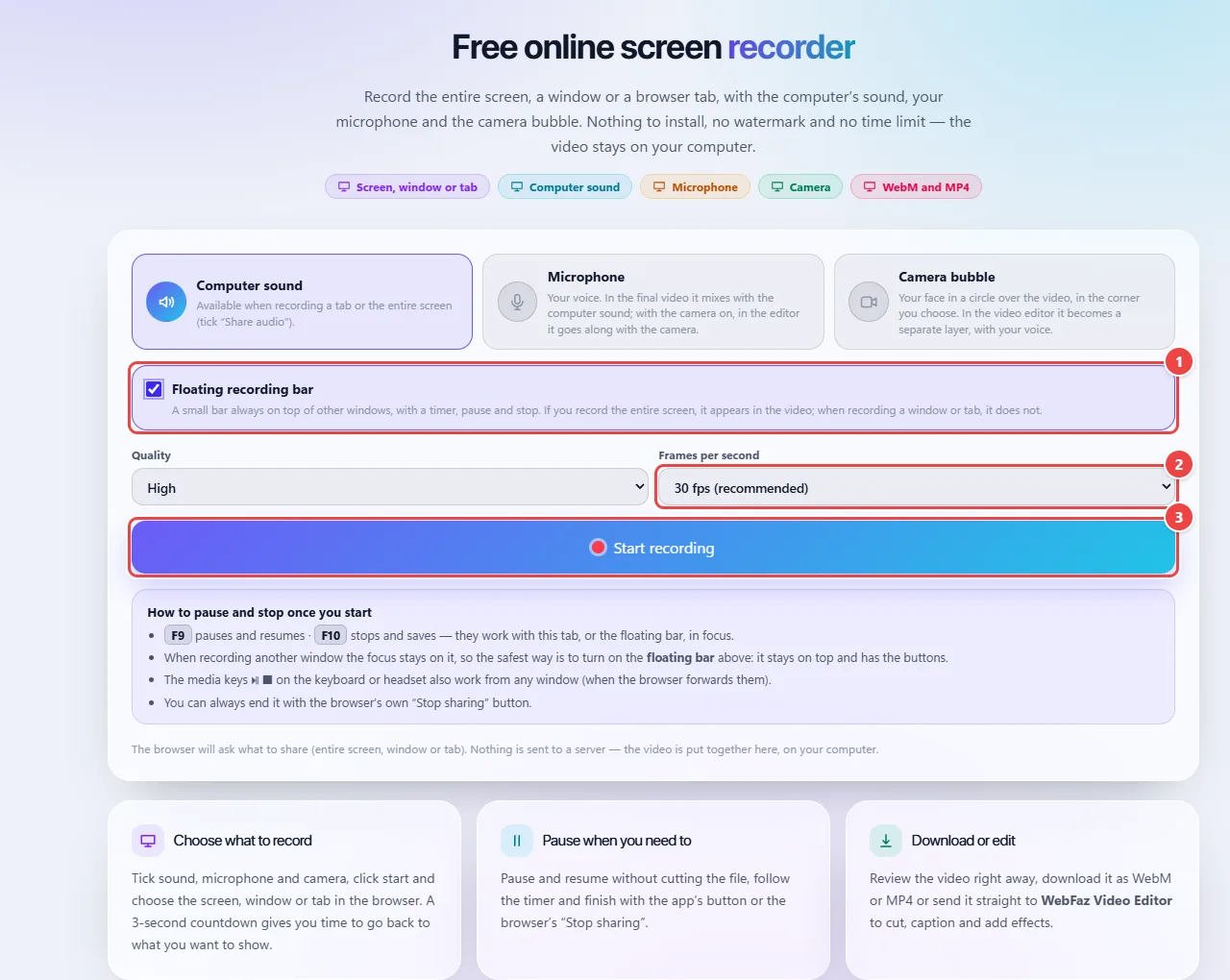
- Point 1: The floating bar keeps the recording controls at hand while you reproduce the problem.
- Point 2: 15 fps is enough for static screens; use 30 fps if there is motion.
- Point 3: When you start, choose in the browser the window or tab where the problem happens. Reproduce the error calmly, in the order it happens.
Result: A clear record of the problem, which usually settles the conversation in a single message.
Record a lesson or presentation with the tab’s sound
Situation: You want to record a presentation, lesson or video that plays in the browser, with the audio.
- Tick “Computer sound” before starting.
- When choosing what to share, select a tab (or the entire screen, on Windows) and tick “Share audio” in the browser window.
- Record and finish.
- To cut the start and end or add text, use “Edit in WebFaz Video Editing”.
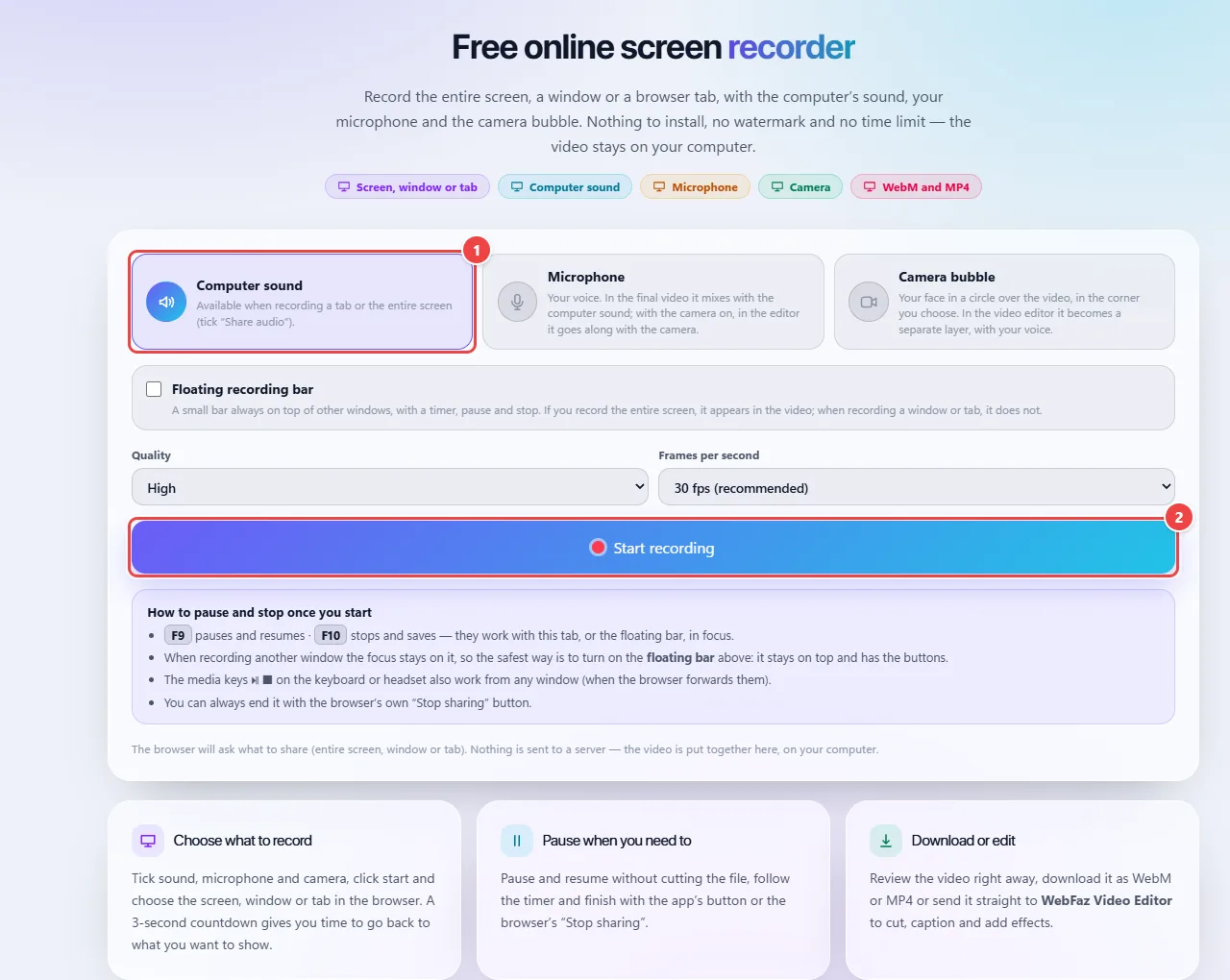
- Point 1: Check Computer sound before starting. When choosing what to share, select a tab and check “Share audio”.
- Point 2: Record and finish. To trim the start and end or add text, use “Edit in WebFaz Video Editing”.
Result: A recording with the picture and sound of the content, which you can trim and caption in the editor.
Tips for a better result
- Close notifications and personal tabs before starting: they show up in the recording.
- Use 30 frames per second for tutorials and 60 for games or fast animations.
- Make a test recording of a few seconds to check that the audio was captured.
- The F9 (pause and resume) and F10 (stop and save) shortcuts work when the WebFaz tab or floating bar is in focus, because of browser limitations.
- Download the video before closing or reloading the page.
Limits, and when this is not the best option
- Computer sound is only captured when sharing a tab or the entire screen (on Windows and ChromeOS) with the “Share audio” option ticked. When recording a single window, the browser does not provide the sound.
- On macOS, only a tab’s audio can be captured.
- It does not work on phones and tablets: their browsers do not allow recording a web page’s screen. Use a computer with Chrome, Edge or Firefox.
- The duration limit is your device’s space and memory; WebFaz imposes no time limit.
Frequently asked questions
- Is there a watermark?
- No. The recording comes out without a watermark.
- Why did the recording come out without the computer sound?
- You probably shared a single window or did not tick “Share audio” in the browser window. Record a tab or the entire screen and tick that option.
- In what format is the recording saved?
- As WebM (VP9/Opus). If you need MP4, use “Download as MP4”; the conversion happens in your browser.
- Is my video sent to any server?
- No. It is generated and stays only on your device.