How to create a WhatsApp link with a ready-made message (wa.me) and a QR code
A wa.me link opens a conversation with your number directly, with the message already written. This guide shows how to generate the link, format the message with bold and italics, test it and turn the address into a QR code, with no sign-up and without sending the number to a server.
Guide written by Marcelo Amantino · updated on October 19, 2026 · about us
Where your data is processed
This tool runs entirely in your browser: your files and data are not sent to any WebFaz server.
The link is built in your browser. The number and the message are not sent to or stored by WebFaz.
See the full list on the Privacy page.
Real-world use cases
Create the “Contact me” button for your bio or website
Situation: You want customers to click and open a conversation with the message “I would like to book an appointment”.
- Enter the number with the country code (for example 1 415 555 0100).
- Write the first message, short and with the reason for the contact (it is optional).
- Click “Generate WhatsApp link”.
- Use “Copy link” and paste it into your social media bio, your website or your email signature.
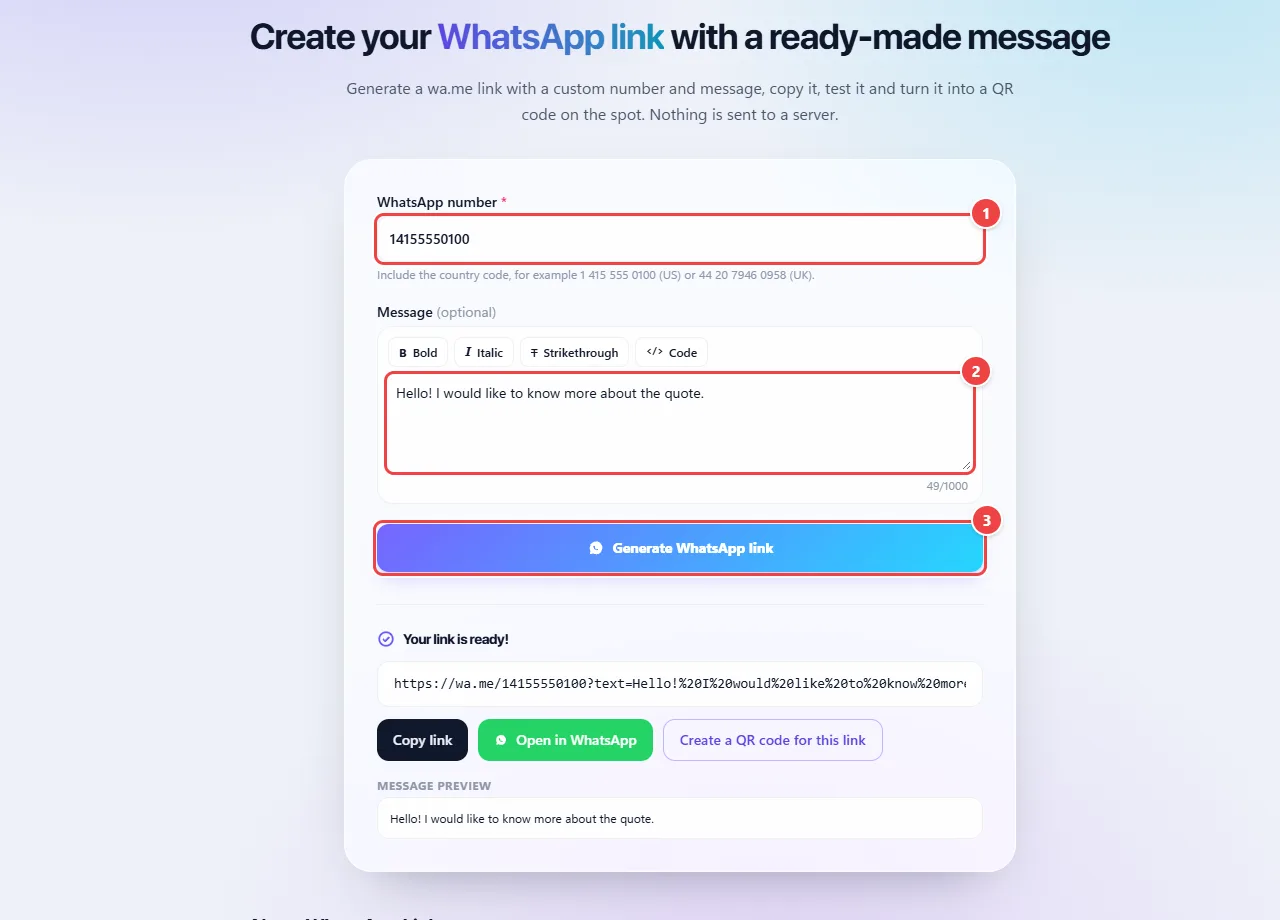
- Point 1: Type the number with country and area code. It stays only in your browser.
- Point 2: Write the message that will already appear ready for whoever clicks. The buttons above apply bold, italic, strikethrough and code.
- Point 3: Generate WhatsApp link creates the wa.me address, which you can copy, test or turn into a QR Code.
Result: A wa.me link that opens the conversation with the message ready.
Format the message and check the preview
Situation: You want to highlight a word or split the message into lines.
- Select the text in the message box and use the Bold, Italic, Strikethrough or Code buttons, which apply WhatsApp’s own syntax.
- Check how the text will look under “Message preview”.
- Generate the link again to include the changes.
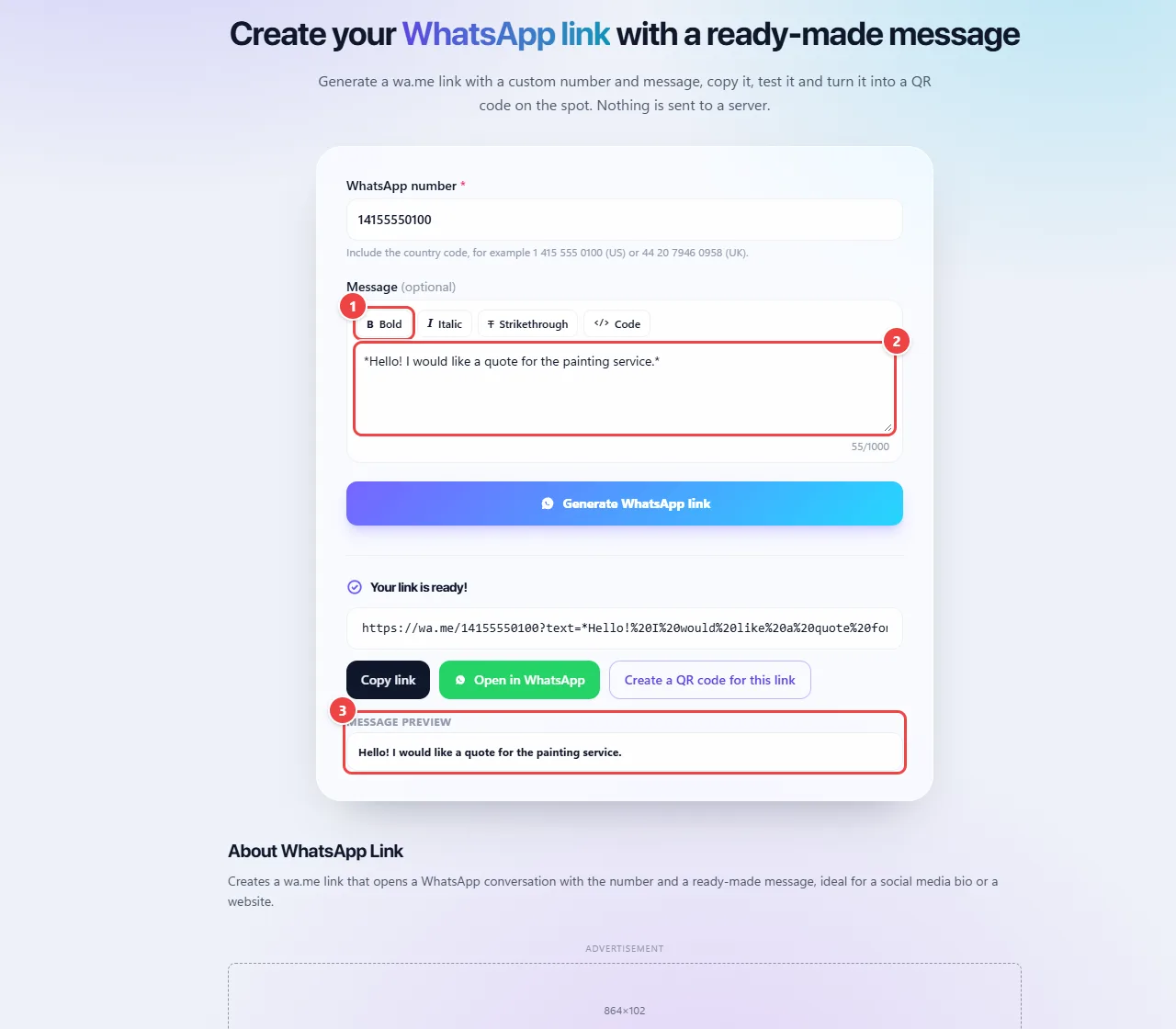
- Point 1: Select a piece of text and use Bold, Italic, Strikethrough or Code: the buttons apply WhatsApp’s syntax.
- Point 2: Write a short message with the reason for contact.
- Point 3: See here how the text will appear. Generate the link again to include the changes.
Result: A formatted message, with a preview faithful to what the person will see.
Test it and take the link to the physical world with a QR code
Situation: You want to promote your service on cards, flyers and shop windows.
- With the link generated, click “Open in WhatsApp” to test the conversation.
- Click “Create a QR code for this link” to take the same address to the QR code generator.
- Download the QR code as an image or a vector and use it on printed material.
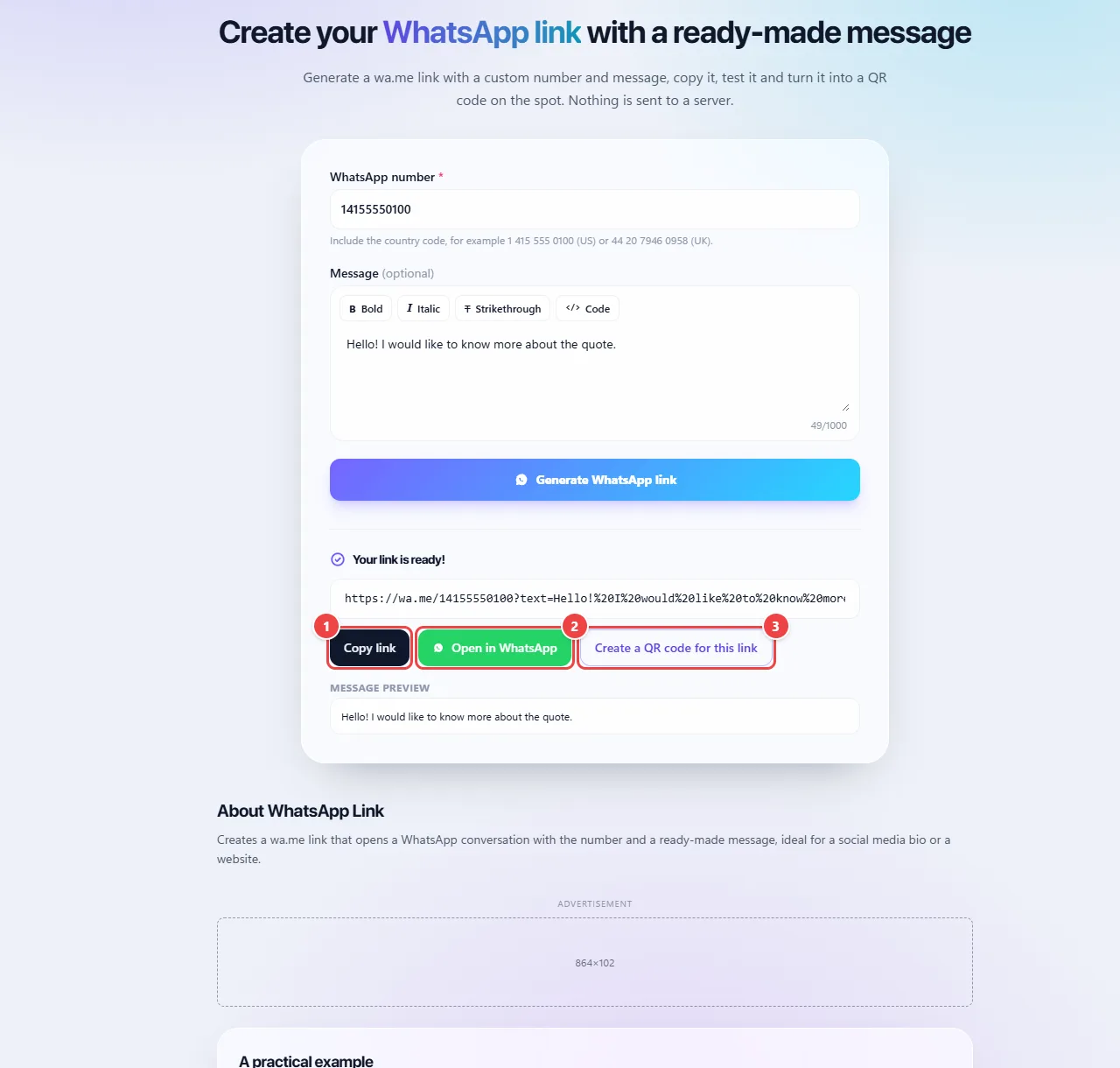
- Point 1: Copy the link to your bio, site or email signature.
- Point 2: Open in WhatsApp tests the chat with the message already filled in.
- Point 3: Generate QR Code for this link takes the same address to the QR Code generator, to use on printed material.
Result: A tested link and a QR code ready to print.
Tips for a better result
- Write a short first message that explains the reason for the contact.
- Use the full number, with the country code, and no spaces or symbols.
- Test the link on your phone and on your computer before sharing it.
Limits, and when this is not the best option
- The number must be in international format (country code + number).
- The link only opens the conversation: whoever clicks still needs to send the message.
Frequently asked questions
- Do I need WhatsApp Business?
- No. The link works with regular WhatsApp and with Business.
- Is the number sent to a server?
- No. The link is built in the browser.
- Does the person need to have my number saved?
- No. The link opens a conversation with the number you entered, even if it is not in their contacts.
- Does the link expire?
- No. It keeps working as long as the number exists on WhatsApp.