Sharper image, better accuracy
Use straight, well-lit images with printed text. Handwriting and blurry photos can produce errors.
Local by default. Only if you turn on AI is the image or PDF page being analyzed sent to Groq (vision model). Learn more
Extract, review and export the text from images and PDFs. All in one place.
On the first extraction, the recognition engine and the languages are downloaded. The file’s content stays on your device.
Use straight, well-lit images with printed text. Handwriting and blurry photos can produce errors.
Select a range of up to 100 pages. PDFs with selectable text are read directly, which speeds up the extraction.
Excel separates columns by tabs or two spaces. The structure is approximate: review complex tables. Word exports editable text, without reproducing the original layout.
For copying the text from photos, screenshots and scanned PDFs without typing anything: receipts, book pages, old documents.
It works in your browser by default and only uses AI if you ask for it. The features that stand out:
Recognition runs in the browser, without sending the image. For handwriting and difficult photos, the “Try with AI” box sends the image to an AI service, and the page warns you first.
Copy the text or download it as TXT, DOCX or XLSX. Excel separates columns by tabs or two spaces (the structure is approximate) and Word carries the editable text, without reproducing the layout.
Choose a page range. PDFs with selectable text are read directly, which speeds up the extraction.
An option keeps the original’s spaces, useful for tables, receipts and lists in columns.
Portuguese, English, Spanish, French and German, plus a combination of Portuguese, English and Spanish.
Correct numbers and names in the text box itself before copying or downloading.
You took a photo of a receipt to enter its data into a spreadsheet. You upload the image, choose the language and let the recognition run. The text appears; you fix a number that came out swapped and export to Excel or copy it into the spreadsheet.
Os pontos de clique estão numerados. Toque na imagem para vê-la em tamanho original. As demais telas, passo a passo, estão no guia “Como funciona”.
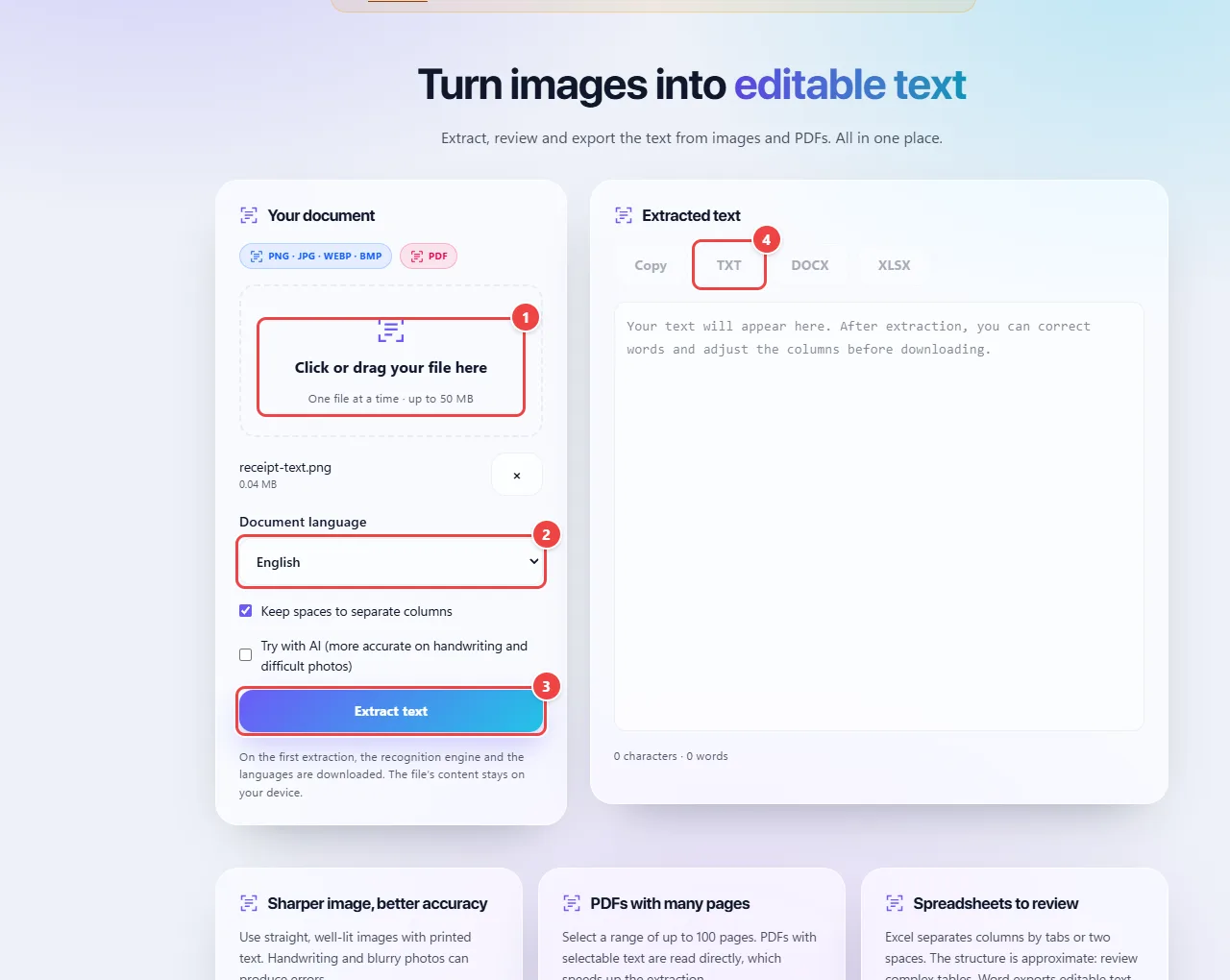
OCR (optical character recognition) is the technique that turns the image of a text into real text. In local mode, recognition runs in your browser, with an engine that identifies the letters and words in the image and uses the chosen language to get more right.
Accuracy depends on the image: sharp, straight text with good contrast and good resolution gives much better results. Shaky, dark or tilted photos reduce the hits.
There is also an optional AI mode, which helps with handwriting and hard cases. When you turn it on, the image is sent to an outside service; that is why the page warns you first. Without it, nothing leaves your browser.
Read the full guide: real-world use cases, tips and limits →
Privacy: It works locally by default. Only if you turn on the AI feature is the image or PDF page being analyzed sent to Groq (vision model). The standard mode runs 100% locally (Tesseract.js, in the browser). The image only leaves the device if you tick the “Try with AI” box — meant for handwriting and difficult photos. Learn more.