How to extract text from a photo, screenshot or scanned PDF (OCR) and when to use AI
OCR is the technology that reads the text in an image. This guide shows how to copy the text from a photo of a document or a scanned PDF, what improves accuracy and when it is worth turning on the optional AI mode (which sends the image to an outside service).
Guide written by Marcelo Amantino · updated on October 19, 2026 · about us
Where your data is processed
It works locally by default. Only if you turn on the AI feature is the image or PDF page being analyzed sent to Groq (vision model).
The standard mode runs entirely in your browser (Tesseract.js): the image does not leave your device. There is an optional AI mode, meant for handwriting and difficult photos; it is only used if you tick the option, and in that case the image is sent to Groq to be read. The page warns you before you use it. If the document is sensitive, stay in local mode.
See the full list on the Privacy page.
Real-world use cases
Copy the text from a photographed receipt or proof of payment
Situation: You have a photo of a receipt and need the data as text, without typing it.
- Upload the photo, preferably straight, well lit and free of glare.
- Choose the text’s language (English, for example) and stay in local mode.
- Wait for the recognition and review the text, especially numbers, dates and amounts.
- Copy the text or export it as TXT, Word or Excel.
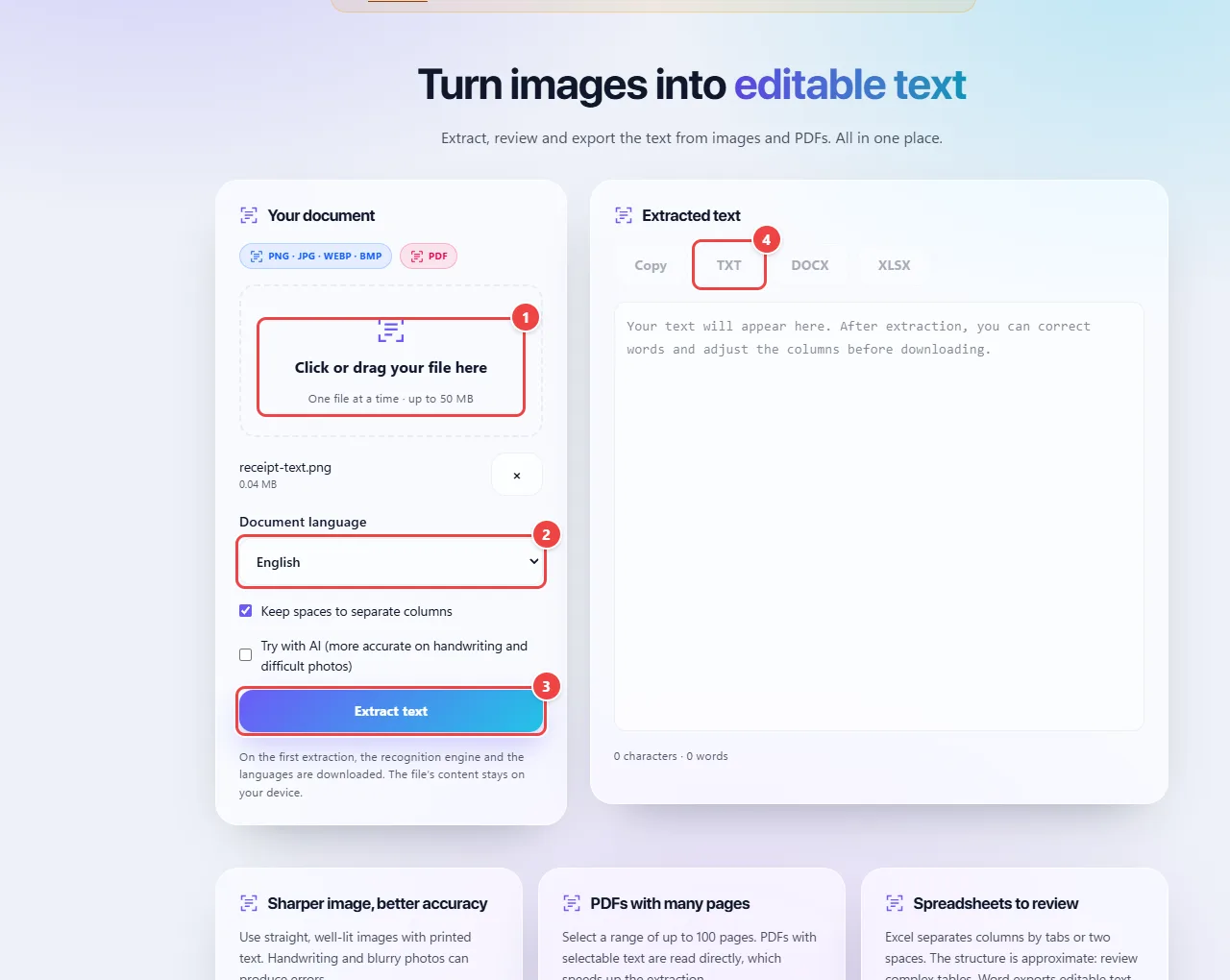
- Point 1: Upload the image or PDF: click the area or drag the file (PNG, JPG, WEBP, BMP or PDF up to 50 MB).
- Point 2: Choose the language of the text: it changes the result a lot, especially with accents.
- Point 3: Extract text: in local mode, recognition runs in your browser.
- Point 4: After reviewing the text, copy it or export it as TXT, DOCX or XLSX.
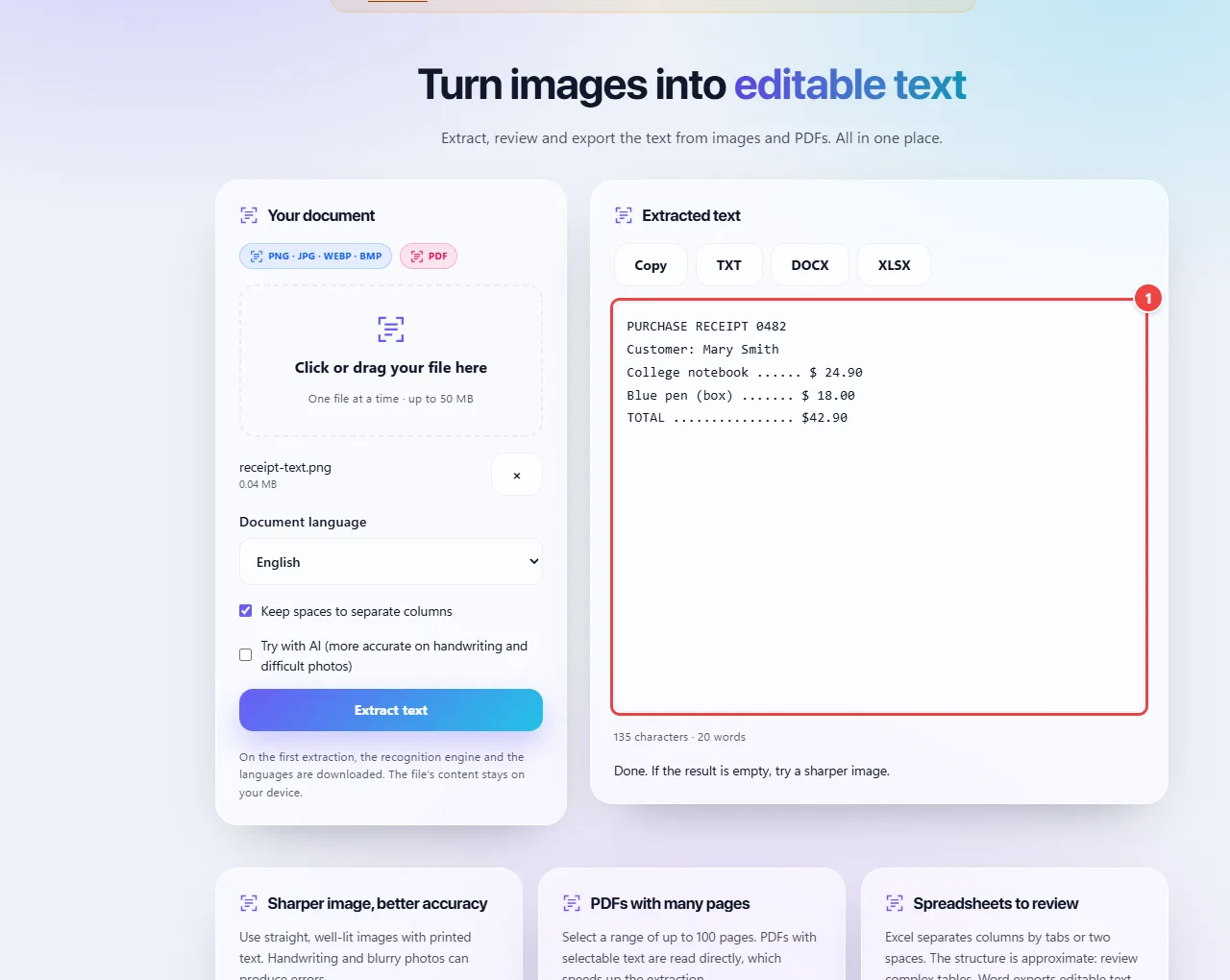
- The recognized text appears here and can be corrected in the box itself. Review numbers and proper names, which are where OCR makes the most mistakes.
Result: The image’s text ready to copy, with possible small errors that you fix during the review.
Make a scanned PDF searchable and copyable
Situation: A PDF that came from the scanner is just an image: you cannot select or search the text.
- Upload the scanned PDF.
- Choose the correct language, since it improves the reading of accents and words.
- Run the recognition and review the result.
- Export the text in the format you prefer.
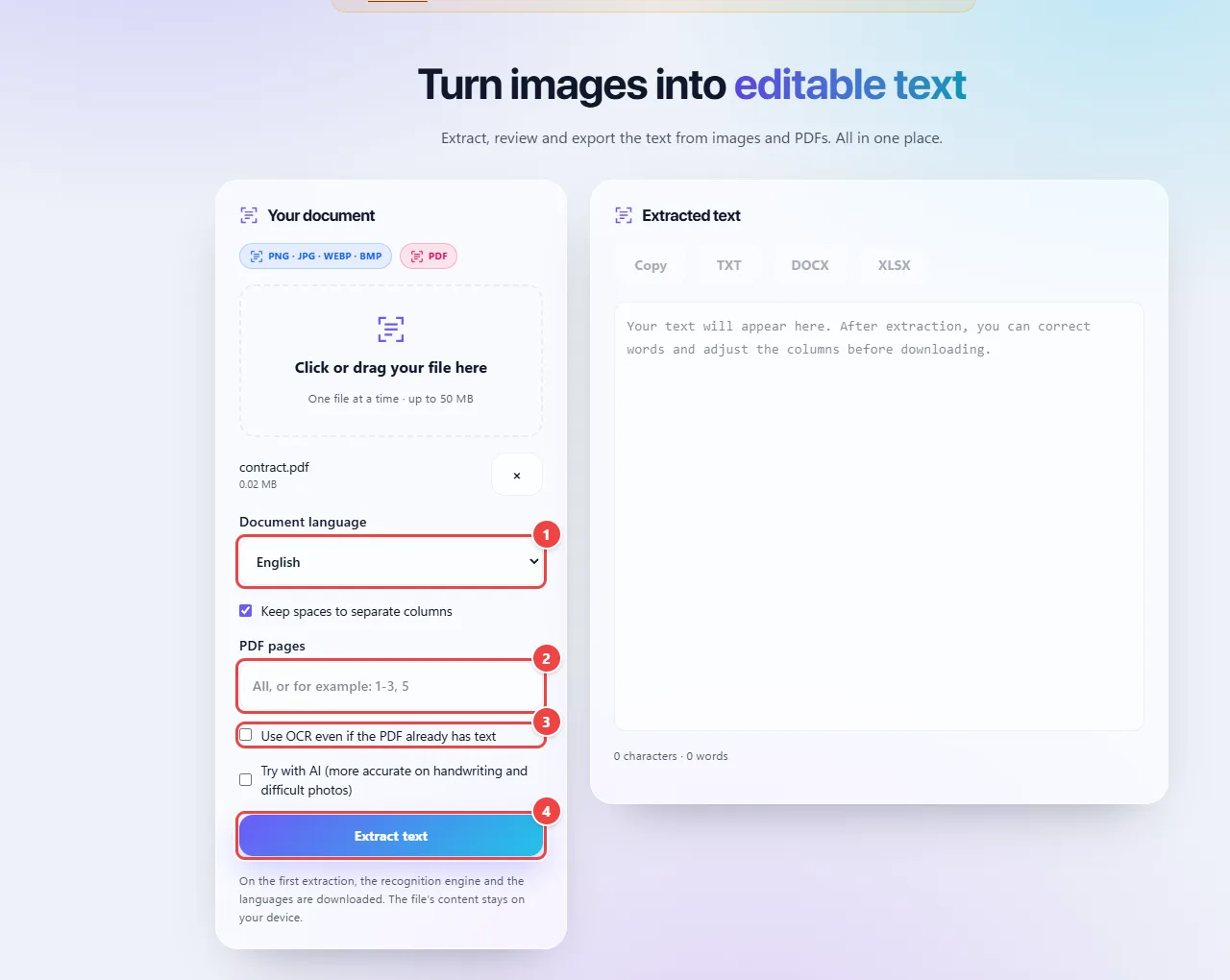
- Point 1: Choose the language: it improves the reading of accents and words.
- Point 2: For a large PDF, enter only the pages that matter (for example, 1-3, 5).
- Point 3: Check it if the PDF already has a poor text layer and you want to re-read the pages as an image.
- Point 4: Extract text: in local mode, recognition runs in your browser.
Result: The content as text, which you can search, copy and edit.
Try to read handwriting with the optional AI
Situation: Local OCR makes many mistakes with handwriting. You accept sending the image to the AI service to try for a better result.
- Upload the image and tick the option to try with AI, knowing that the image will be sent to the service named on the page.
- Wait for the result.
- Review it carefully: even with AI, handwriting can have incorrect passages.
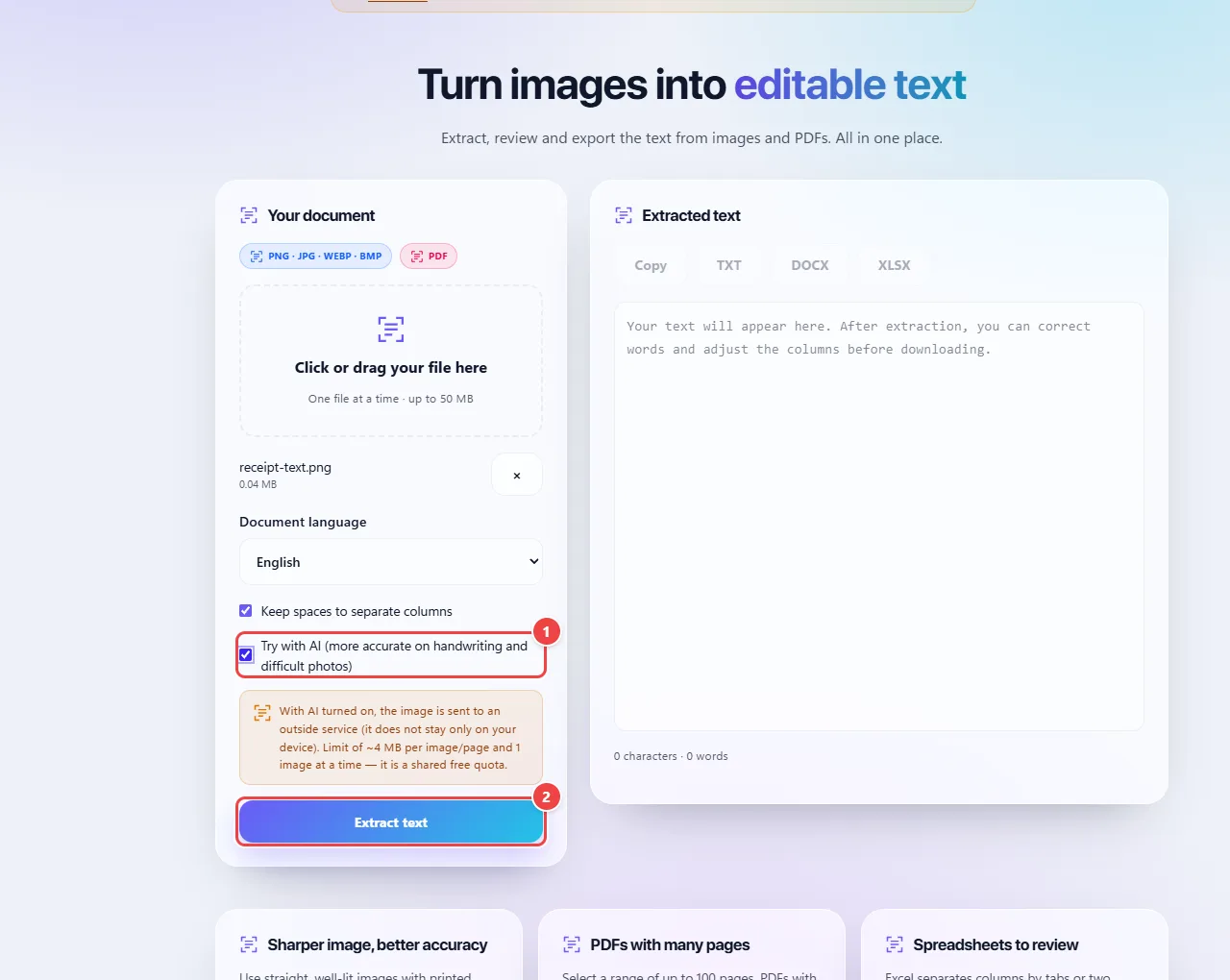
- Point 1: Check “Try with AI” only if you accept sending the image to an external service. Without the check, everything stays in your browser.
- Point 2: Extract text uses AI on this image. Review the result: handwriting can still have incorrect parts.
Result: A text closer to the original than local mode usually delivers for handwriting.
Tips for a better result
- Photograph from above, with the document flat and the camera parallel to the sheet; tilt reduces accuracy.
- Good light matters more than high resolution: avoid shadows and glare.
- Crop the image to leave only the area with text.
- Always review numbers, ID numbers, amounts and dates; one swapped digit changes the meaning.
Limits, and when this is not the best option
- Shaky, dark or low-resolution photos greatly reduce accuracy.
- Tables and multi-column layouts may come out with the text order mixed up.
- Handwriting works better with the AI mode, which sends the image to an outside service. Do not use it with documents that cannot leave your device.
Frequently asked questions
- Is my document sent to a server?
- In local mode, no. Only if you tick the AI option is the image sent, and the page warns you before.
- Why did the text come out with errors?
- Image quality weighs more than any other factor. Improve the lighting, photograph it straight, increase the resolution or crop the text area.
- Which formats can I export to?
- TXT, Word and Excel.
- Does it work with languages other than English?
- Yes: choose the text’s language before processing to improve the reading.