How to create and print word searches and crosswords on any theme
An activity for the class, a puzzle for the trip or an event giveaway: this guide shows how to play the ready puzzles, build your own in the editor, generate a game on any theme with AI (optional) and print it on an A4 sheet or save it as a PDF.
Guide written by Marcelo Amantino · updated on October 19, 2026 · about us
Where your data is processed
It works locally by default. Only if you turn on the AI feature is the theme you type (a word or short phrase, never the game itself) sent to Google Gemini.
Puzzles played on screen, those you edit and the PDF for printing are made in your browser. The only exception is the optional feature of generating a game with AI: in it, only the theme you type (a word or short phrase) is sent to an AI service, never the game itself.
See the full list on the Privacy page.
Real-world use cases
Play a ready puzzle
Situation: You want to pass the time with a word search or crossword, without building anything.
- Open the “Gallery & Play” tab.
- Choose a ready theme (for example, movie classics or general knowledge) and click “Word Search” or “Crossword”.
- Play right on the screen.
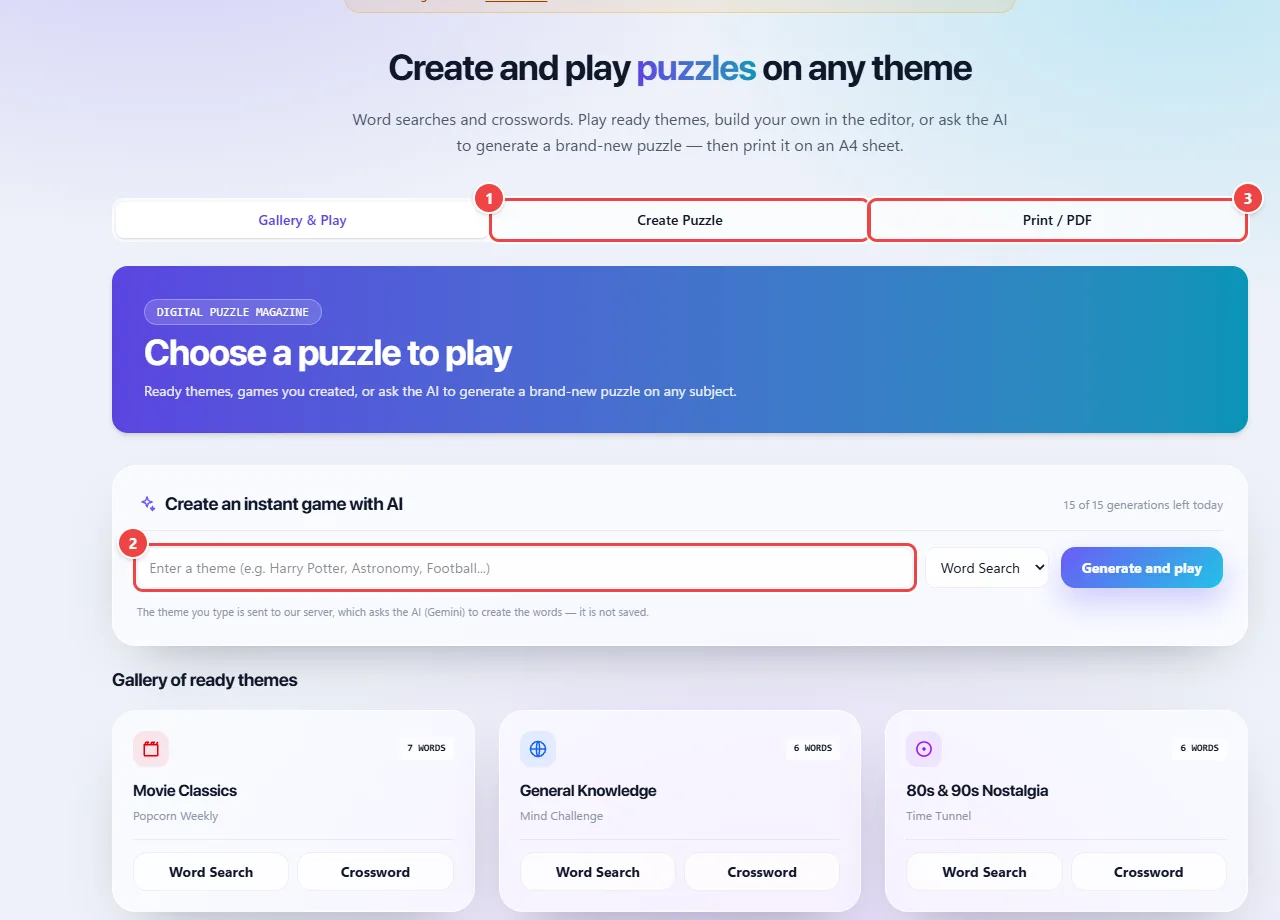
- Point 1: Create your word search or crossword in the editor.
- Point 2: Or type a topic and generate a game with AI (optional: only the topic you type is sent).
- Point 3: Print on an A4 sheet or save as PDF.
Result: A puzzle you can play right away, with no sign-up.
Create your own puzzle and print it
Situation: A teacher wants an activity about animals for third grade.
- Open the “Create Puzzle” tab and enter your words (or start from a ready theme).
- Choose between word search and crossword and adjust whatever you need.
- Open the “Print / PDF” tab, use “Save PDF” to download the A4 file or “Print” to send it straight to the printer, with the word list. For classes, also print a copy with the answers.
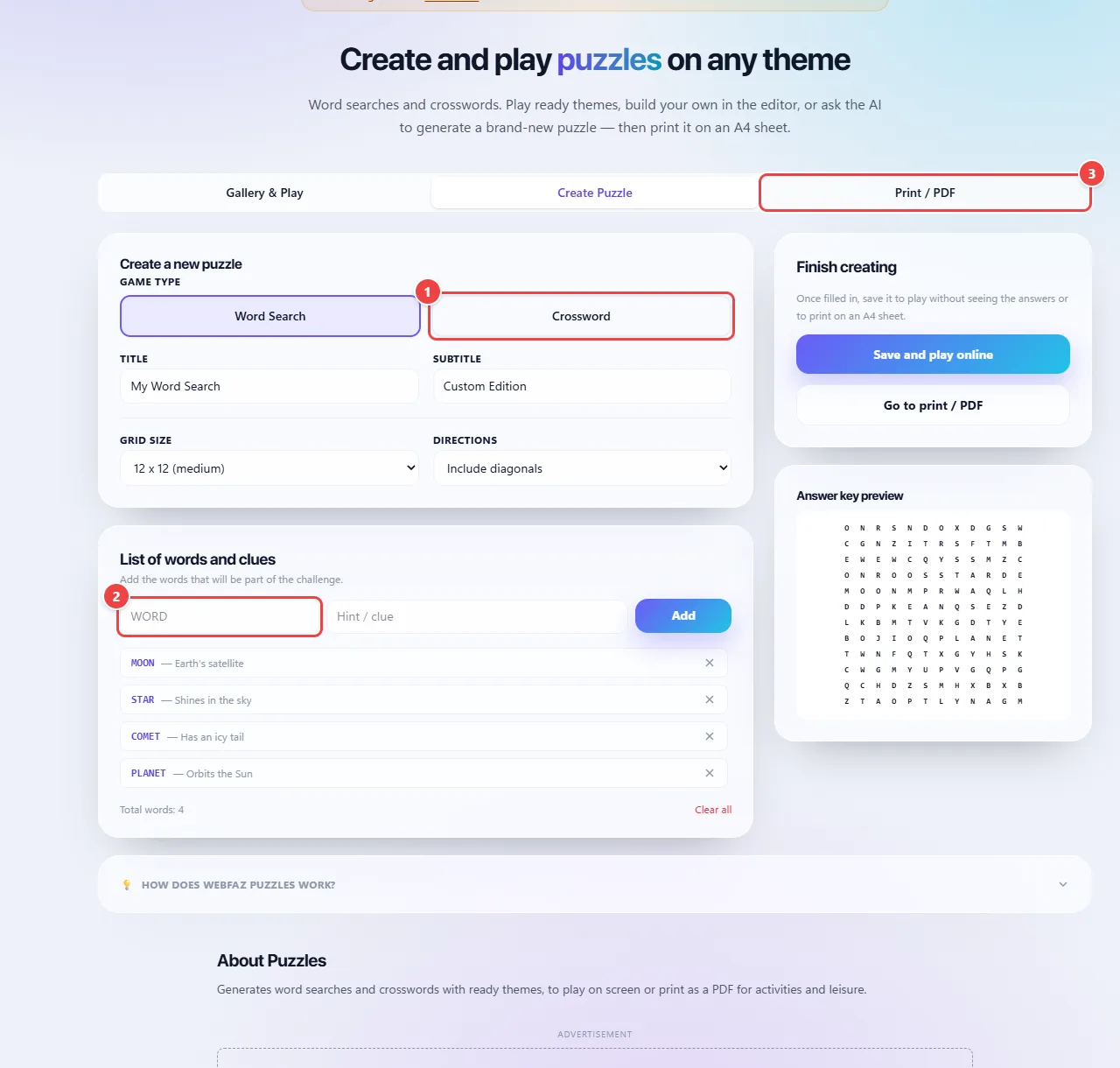
- Point 1: Choose between word search and crossword and adjust the title, grid size and directions.
- Point 2: Type a word (and a clue, for crosswords) and click Add.
- Point 3: On the Print / PDF tab, use Save PDF to download the A4 file or Print to send it straight to the printer.
Result: A sheet ready for the class, made with the words you chose.
Generate a game on any theme with AI (optional)
Situation: You want a puzzle on a subject that is not in the gallery.
- Under “Create an instant game with AI”, type a theme (for example, “Astronomy” or “Football”) and choose the game type.
- Click “Generate and play”. Only the theme you typed is sent to the AI service, and there is a daily limit of generations, shown on the page.
- Review the words before using them: the generated content may contain mistakes.
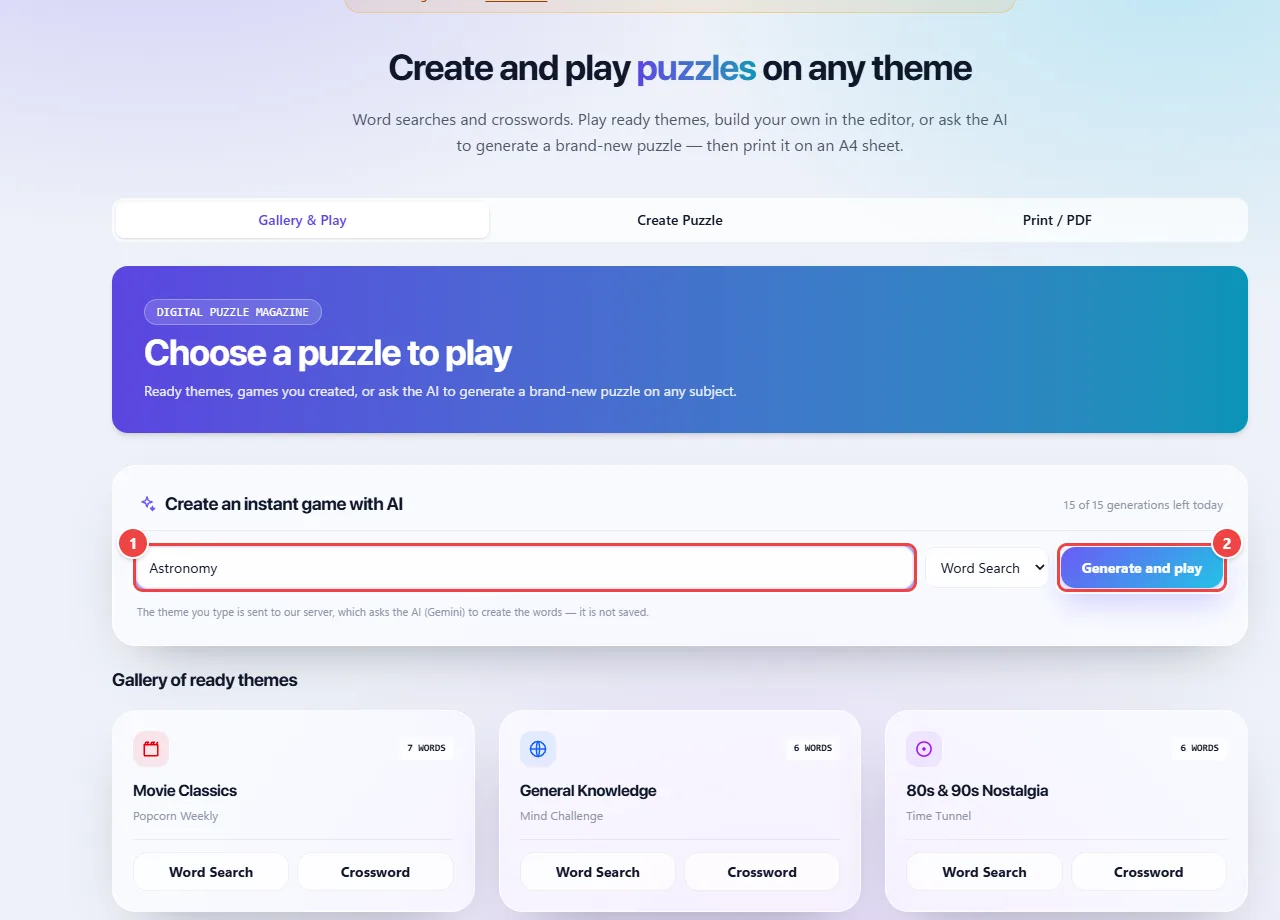
- Point 1: Type a topic (for example, “Astronomy” or “Soccer”). Only the topic is sent to the AI service.
- Point 2: Click Generate and play. There is a daily limit of generations; review the words before using them, since the content may contain mistakes.
Result: A brand-new game on the theme, which you can play, edit and print.
Tips for a better result
- Use words without confusing accents and of varied lengths for a more balanced word search.
- Review the list before printing, especially for AI-generated themes.
- For classes, print a copy with the answers for yourself.
Limits, and when this is not the best option
- AI-generated themes are optional, have a daily limit and may contain mistakes: review them before using in the classroom.
- The PDF is made for printing on an A4 sheet.
Frequently asked questions
- Can I create my own theme?
- Yes. Open the editor and enter your words.
- Can I print for a class?
- Yes. Generate the PDF and print as many copies as you need.
- What is the difference between a word search and a crossword?
- In a word search, the words are hidden in a grid of letters. In a crossword, you find the words from clues and write them crossing each other.
- Do I need to sign up?
- No.