All the PDF tools, in one place.
Merge, split, compress, organize, rotate, crop and convert PDFs — right in your browser, without sending your files to a server.
How to use WebFaz PDF
Choose a tool, select or drag your files and adjust the options when there are any. Everything runs in your browser — nothing is sent to a server.
Conversions to and from Word, Excel and PowerPoint work by extracting text (or images, in the case of PDF to PowerPoint) and do not preserve complex layouts. To keep the PDF faithful to the original, prefer the organizing tools: merge, split, rotate, organize and crop.
OCR and conversions of large PDFs can take a few seconds per page — follow the progress bar.
About PDF
A set of PDF tools: merge, split, compress, organize, rotate, crop, convert to and from Word, Excel, PowerPoint and JPG, and run OCR.
What this PDF suite does
Nineteen tools in one place, without sending the document to any server, instead of one website for each task. The features that stand out:
Converts to and from Word, Excel and PowerPoint
PDF to Word, Excel and PowerPoint, and the way back (PPTX to PDF conversion is experimental). Complex documents may change layout.
OCR on scanned PDFs
Recognizes the text of PDFs that are only images and gives you a .txt file you can search and copy from.
A photo of a document becomes a PDF
Scan and turn photos of documents into a PDF, plus convert JPG to PDF and PDF to JPG.
Compress, normalize and repair
Reduce the size to fit a portal’s limit, rewrite the file with a clean structure (it is not a certified PDF/A) or try to rewrite a PDF with a damaged structure.
Organize pages visually
Merge, split, rotate, reorder, delete and crop pages by looking at the thumbnails, with no program to install.
Everything in the browser
Your PDFs are processed on your device and are not sent to WebFaz. Password-protected PDFs need to be unlocked first.
A practical example
You need to send a scanned contract split into three files, and the portal accepts a single PDF of up to 5 MB. Merge the three files in the right order, rotate the page that came out sideways, compress and compare the final size. In a few minutes you have a single light PDF, and no document left your computer.
How to use it
- Choose the operation you want.
- Upload one or more PDFs.
- Adjust the options (pages, order, quality).
- Process and download the result.
Limits and cautions
- Password-protected PDFs need to be unlocked first.
- Conversions to Word/Excel can change the layout of complex documents.
A ferramenta em uma imagem
Os pontos de clique estão numerados. Toque na imagem para vê-la em tamanho original. As demais telas, passo a passo, estão no guia “Como funciona”.
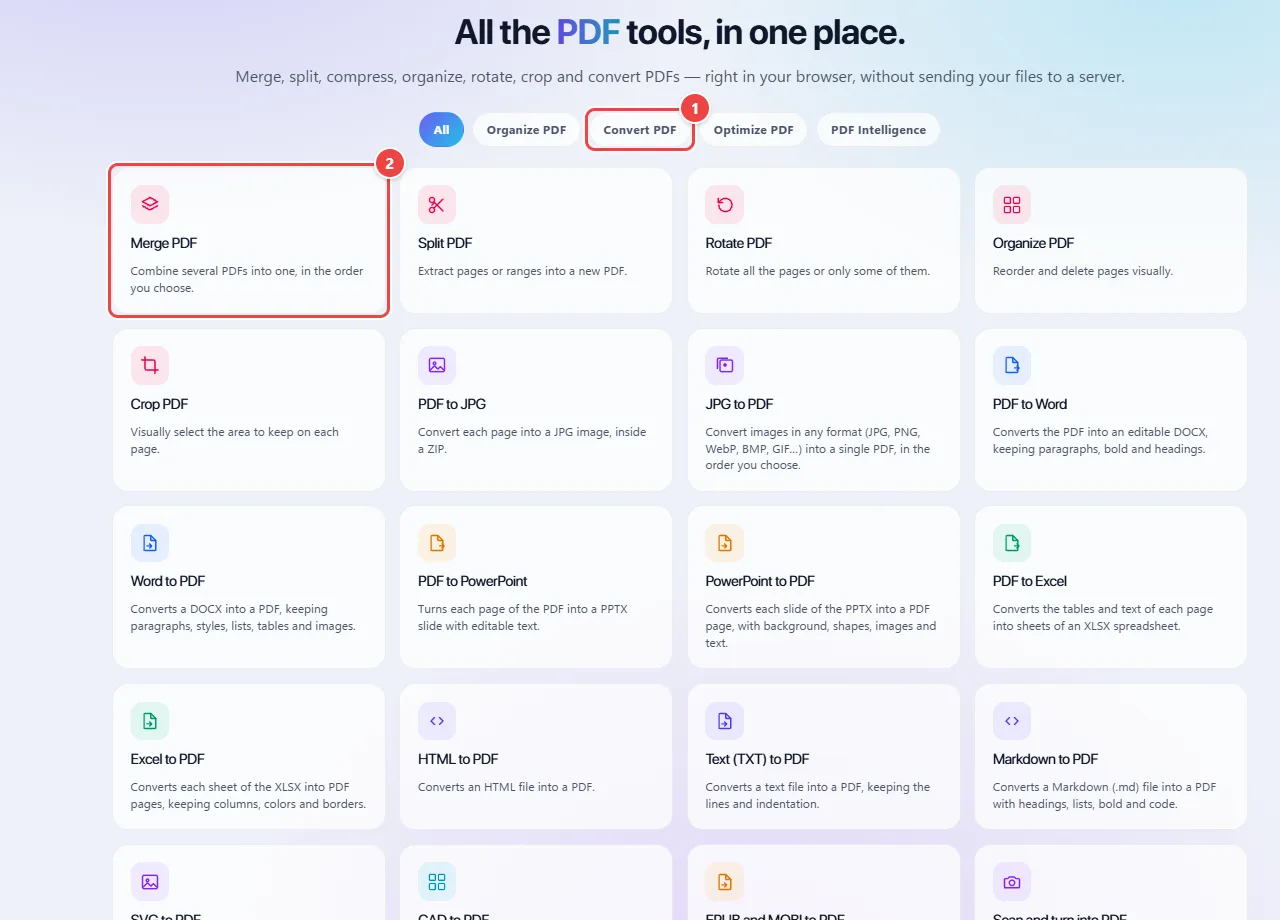
- Point 1: Use the tabs to filter by type of task: organize, convert, optimize or intelligence features.
- Point 2: Click the card of the task you need: each tool opens its own screen.
- Point 3: Compress PDF reduces the file size to fit the limit of an email or portal.
When to use it
- Merging documents to submit in job applications, loans and registrations.
- Extracting a few pages from a large PDF, instead of sending the whole file.
- Reducing the size of a PDF to attach to an email or a portal with a size limit.
Tips
- Compress last and compare legibility before sending.
- If the PDF is password-protected, remove the protection in the original program before using the tool.
- In conversions to Word or Excel, check the result: complex layouts may need manual adjustments.
What happens in your browser
The merge, split, organize, rotate and crop operations rewrite the PDF’s structure in the browser, which is why the page content stays sharp. Compression is different: it reduces the weight of the document’s images, and the stronger it is, the smaller the file and the greater the loss of sharpness.
In converting a PDF to Word, Excel or PowerPoint, the program rebuilds the text and structure from positions on the page. Because a PDF does not really store paragraphs or tables, documents with many columns, tables or special fonts may change appearance.
OCR is for scanned PDFs: the document is an image, and character recognition turns it into text. All the processing is local; no document is sent to WebFaz.
Read the full guide: real-world use cases, tips and limits →
Privacy: This tool runs entirely in your browser: your files and data are not sent to any WebFaz server. Learn more.
Perguntas frequentes
- Do my documents go to a server?
- No, the processing happens in your browser.
- How do I reduce the size of a PDF?
- Use the compression tool and compare the quality before sending it.
- What is the best order to merge and compress?
- Merge and organize first; compress last, with the complete document.
- Why did the converted Word file come out different from the PDF?
- A PDF stores the position of each element on the page, while Word works with flowing text. Layouts with columns and tables suffer the most.
- Can I convert Word, Excel or PowerPoint to PDF?
- Yes, the tool goes the other way too, and also converts to and from JPG.
- Does OCR work on a scanned PDF?
- Yes: it recognizes the text of image pages and delivers a .txt file with the text (the original PDF does not get a text layer).
- Is there a page or size limit?
- The limit is what your device can handle. Very large files can take a while or run out of the browser’s memory.