How to merge, split and compress a PDF without sending the file to anyone
Contracts, receipts, bills and résumés almost always go through a PDF. This guide shows, in everyday situations, how to merge several files into one, separate only the pages that matter and reduce the size to fit an attachment limit, all without installing software and without signing up.
Guide written by Marcelo Amantino · updated on October 19, 2026 · about us
Where your data is processed
This tool runs entirely in your browser: your files and data are not sent to any WebFaz server.
When you choose a PDF, the file is read by the browser itself and processed right there, in your computer’s or phone’s memory. Nothing is sent to WebFaz. In practice this matters for sensitive documents such as contracts, medical exams and personal documents, which you do not need to hand over to an unknown service just to merge two pages. A practical consequence: very large files depend on your device’s memory, not on a server.
See the full list on the Privacy page.
Real-world use cases
Merge a contract and its attachments into a single file
Situation: You have the signed contract in one PDF and three receipts in other files, and whoever will receive them asked for everything in a single attachment.
- Open the PDF tool and choose the merge operation.
- Upload the files and drag them until they are in the order they should appear.
- Check the order of the pages and run it.
- Download the single file and open it quickly to check it before sending.
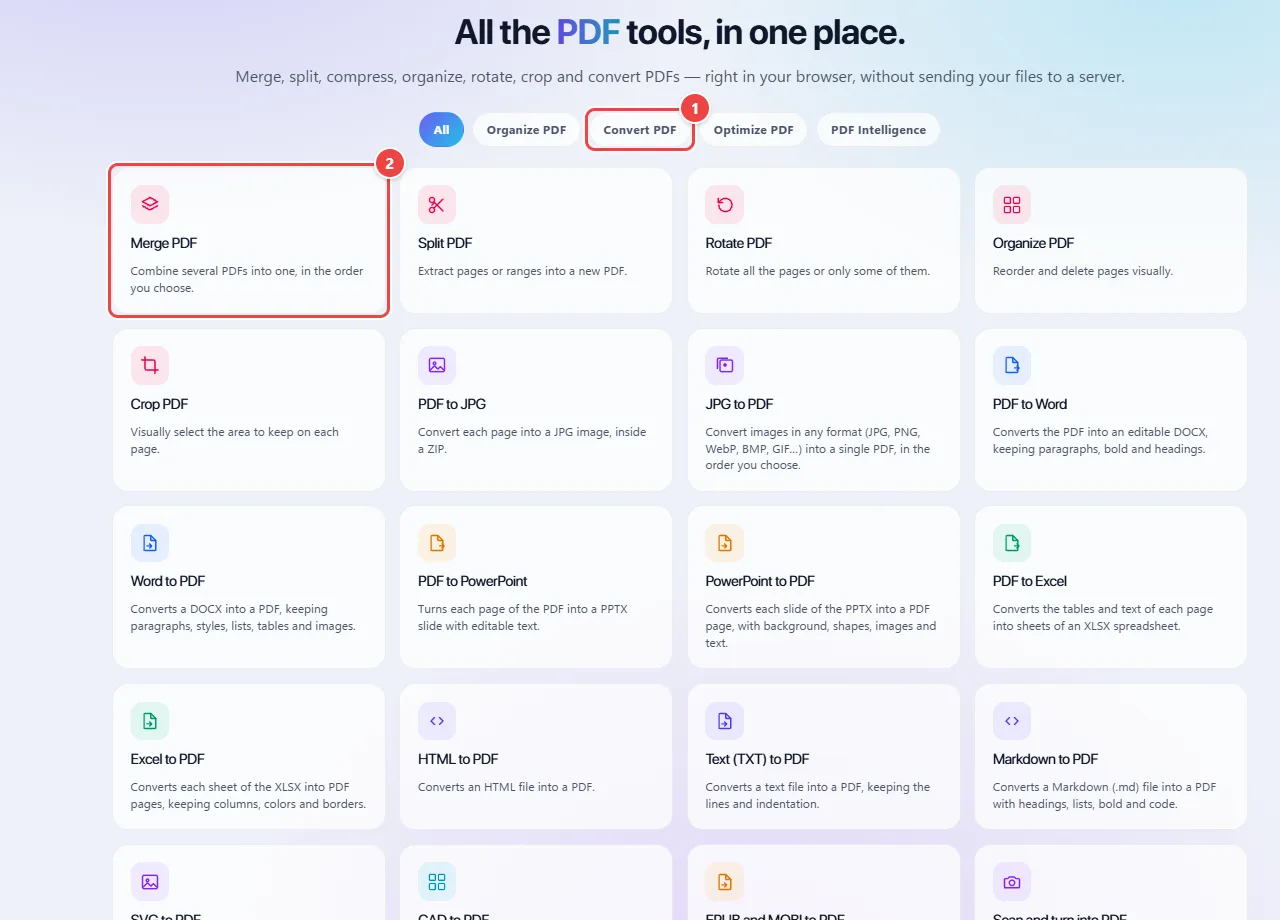
- Point 1: Use the tabs to filter by type of task: organize, convert, optimize or intelligence features.
- Point 2: Click the card of the task you need: each tool opens its own screen.
- Point 3: Compress PDF reduces the file size to fit the limit of an email or portal.
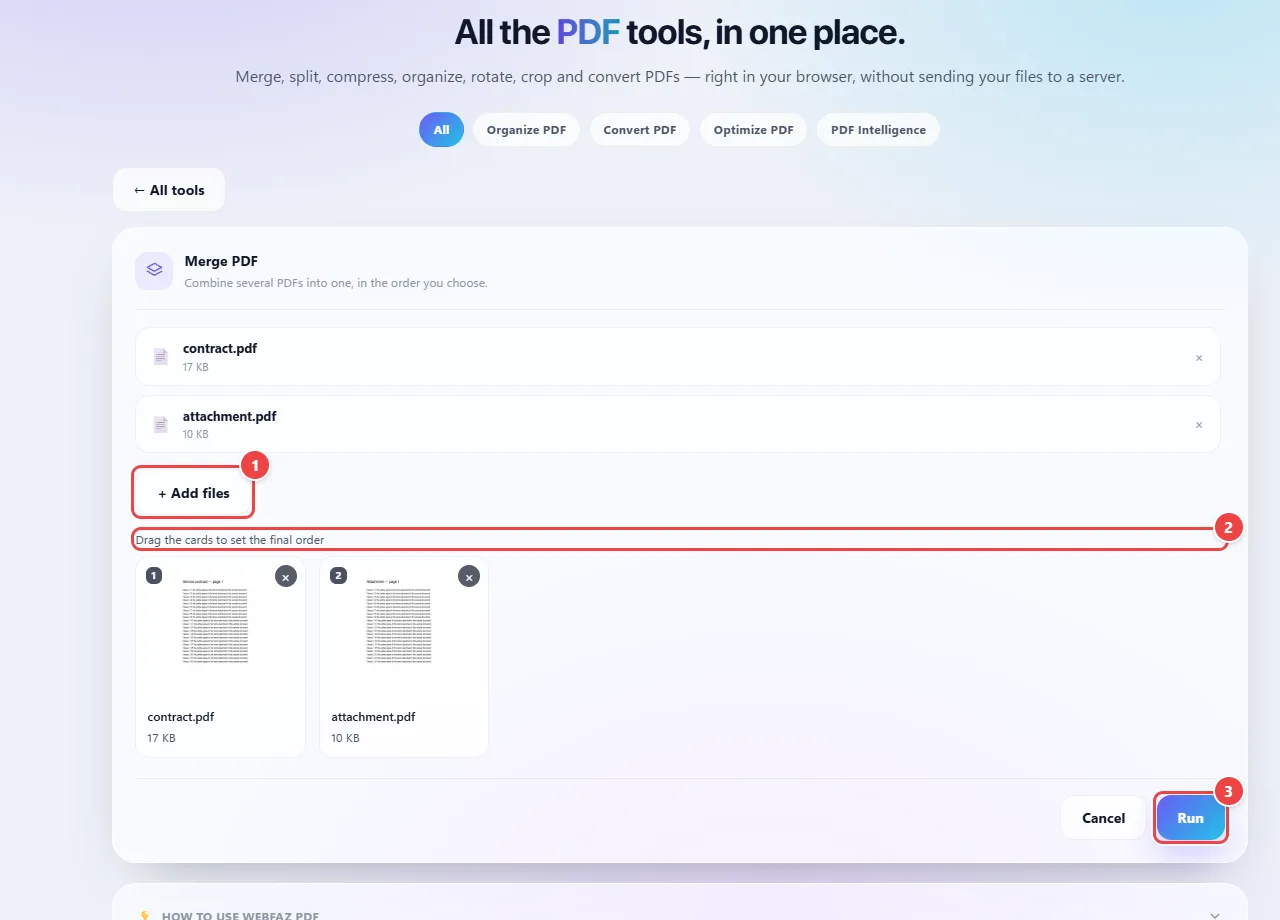
- Point 1: Add the PDFs (one by one or several at once). The file is read by the browser and is not uploaded.
- Point 2: Drag the cards to set the final order: the number in the corner shows each file’s position.
- Point 3: Run merges the files and offers the final PDF to download.
Result: A single PDF, with the pages in the order you chose, ready to attach to an email or a portal.
Reduce the size to fit a portal’s limit
Situation: An application or HR portal rejects your PDF because it is over the maximum allowed size.
- Choose the compression operation and upload the PDF.
- Select the quality level: the stronger the compression, the smaller the file and the greater the loss of image sharpness.
- Run it and compare the final size with the original.
- Open the result and check that the text and images are still legible. If not, repeat with a lighter level.
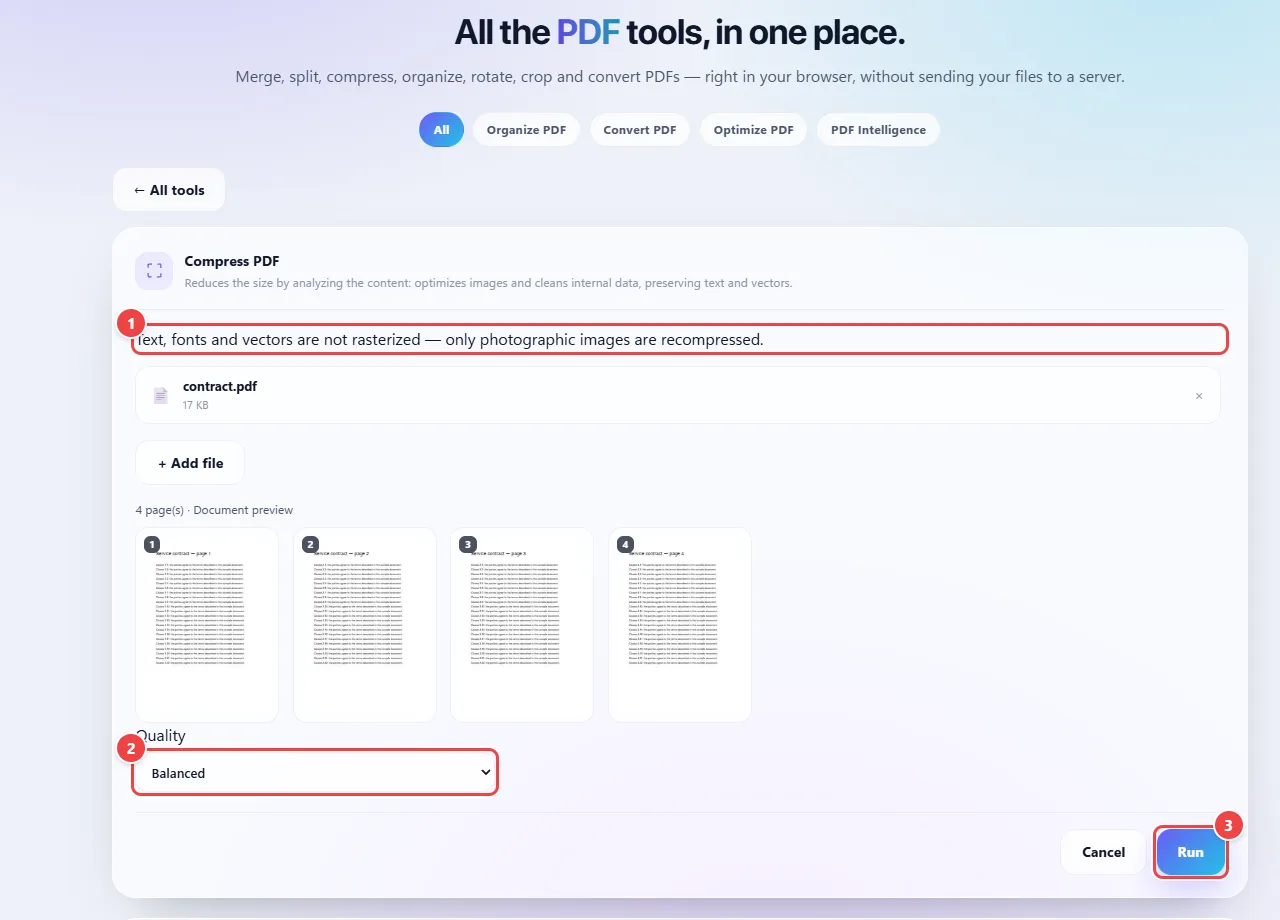
- Point 1: Compression optimizes the images and cleans internal data, preserving text and vectors: what is text stays selectable.
- Point 2: Choose the compression level (from high compression to higher quality). Compare the final size before sending the file.
- Point 3: Run compresses the PDF in your browser, with no upload.
Result: A smaller file, usually with a bigger gain on PDFs full of photos or scans, and little difference on PDFs that are only text.
Extract only a few pages from a large document
Situation: You need to send only pages 3 to 5 of a 40-page report, without exposing the rest.
- Choose the split or extract-pages operation.
- Enter the range of pages you want to keep.
- Run it and download the new file.
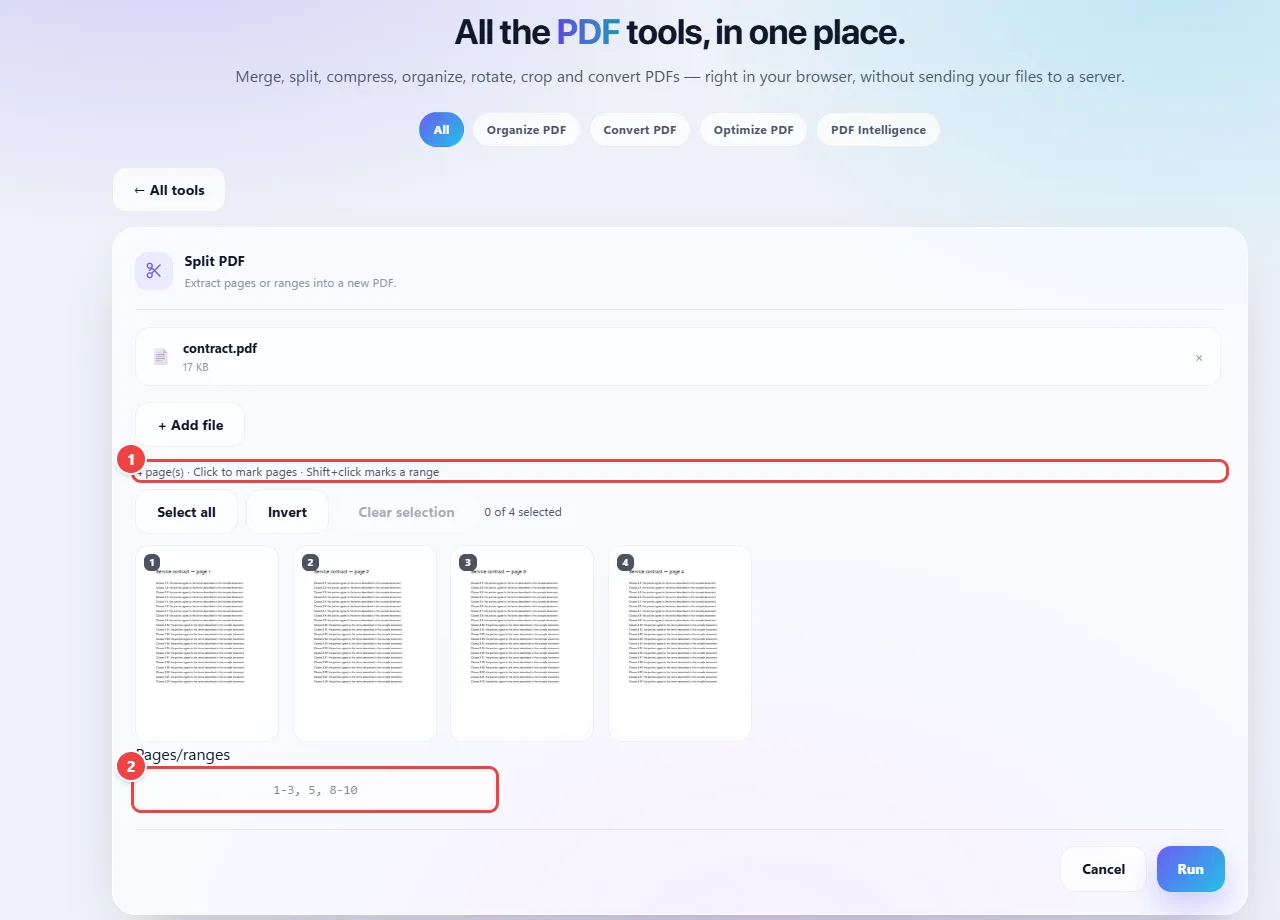
- Point 1: Click the thumbnails to choose the pages that will be extracted to a new PDF.
- Point 2: Or type pages and ranges, such as 1-3, 5, 8-10.
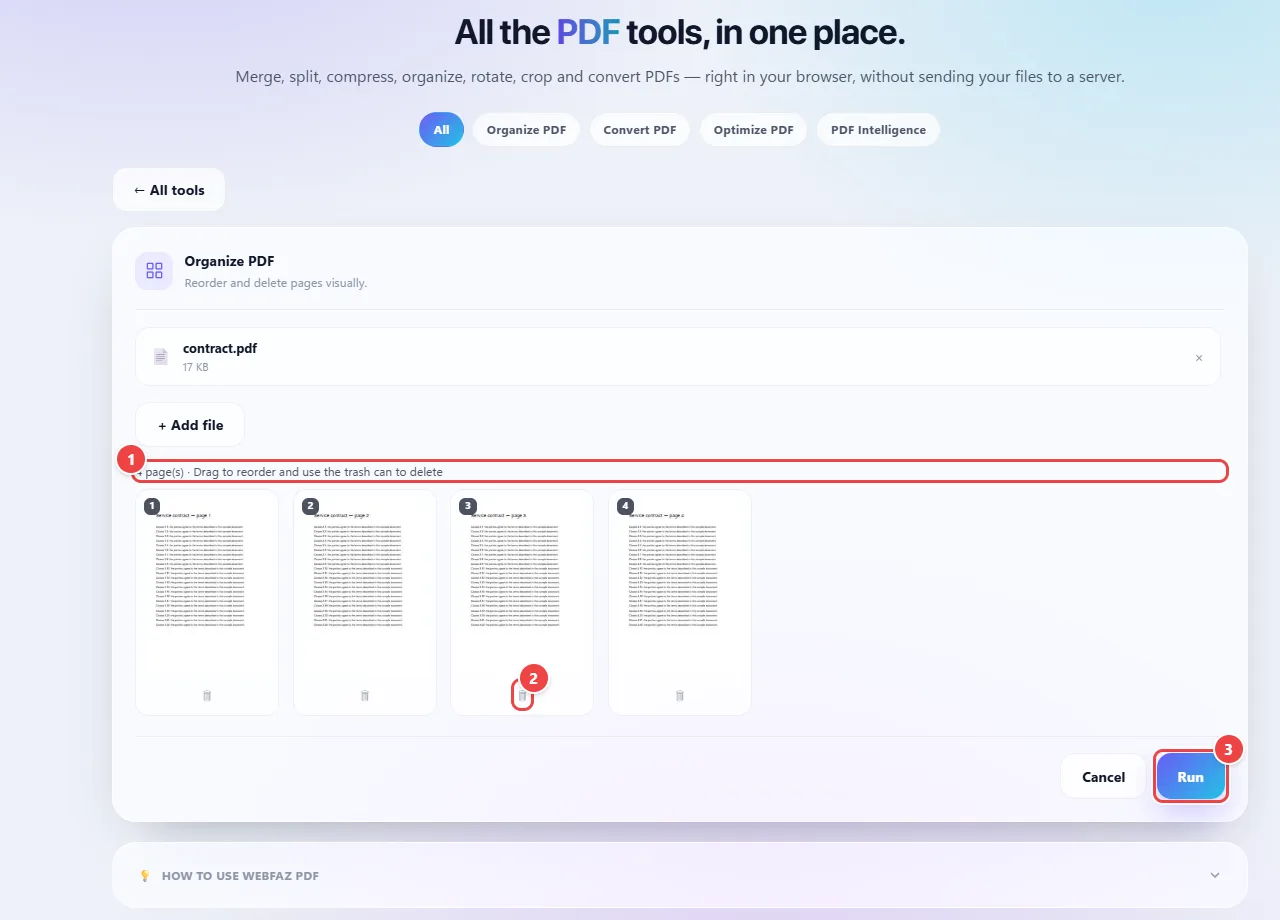
- Point 1: Drag the thumbnails to change the order of the pages.
- Point 2: The trash can on each thumbnail deletes that page.
- Point 3: Run generates the new PDF in your browser, with the pages in the new order.
Result: A new PDF with only the chosen pages. The original stays intact on your computer.
Tips for a better result
- Give the files clear names before merging (01-contract.pdf, 02-receipt.pdf): alphabetical order is usually the starting order.
- To save more space, compress photos before putting them into the PDF; huge images are what weigh the most.
- Always keep the original: compression cannot bring back the quality that was lost.
- Scanned documents in grayscale or black and white compress much better than color ones.
Limits, and when this is not the best option
- Password-protected PDFs need to be unlocked before any operation.
- Conversions to Word or Excel can change the layout in documents with complex tables, columns or unusual fonts; review the result.
- Files with hundreds of pages or very heavy images can be slow on phones with little memory; prefer a computer.
Frequently asked questions
- Is my PDF sent to any server?
- No. The processing happens in your browser. You can confirm by opening your browser’s developer tools on the Network tab and seeing that the file does not travel.
- Is there a size limit or a watermark?
- WebFaz adds no watermark. The practical limit is your device’s memory, since it is the one doing the processing.
- Can I use it on my phone?
- Yes, but heavy operations (compressing large PDFs, converting many files) are more comfortable on a computer.
- Why did the compressed PDF show little difference in size?
- PDFs that are only text are already light. Compression pays off more when the file has photos or scanned pages.