Contact and connection
Link, text, phone, email, SMS, WhatsApp, Wi-Fi and card
QR Codes to open an address, call, write, connect to the internet or save a contact.
Your QR code’s content is generated in the browser and is not uploaded. Learn more
Create QR codes for links, Wi-Fi, WhatsApp, vCards, text and more. Choose colors, logo and frame and download as PNG, SVG, JPG or WEBP — your Wi-Fi password and payment details never leave your browser.
Choose the kind of information your QR code should carry.
Google Forms, Typeform or an internal survey.
Pick different shapes to create a unique QR code.
Visual examples. The final QR code will be generated with the content entered above.
Each type has its own page, with the step by step, tips and the limits of what the QR Code does.
Link, text, phone, email, SMS, WhatsApp, Wi-Fi and card
QR Codes to open an address, call, write, connect to the internet or save a contact.
Pix, crypto, location and map
QR Codes to receive a payment or point to a place.
Instagram, YouTube, Facebook, LinkedIn and Spotify
QR Codes that lead to your profile, channel or playlist.
Event, app, menu, coupon, review, PDF and form
QR Codes to promote an event, a menu, a coupon or a document.
Creates custom QR codes for links, Wi-Fi, WhatsApp, contact cards (vCard), free text and more.
More than a link turned into little squares: the QR code gets its own frame, logo and shape, and comes out as a vector for the print shop. The features that stand out:
Link, text, phone, SMS, email, WhatsApp, Wi-Fi, vCard, location, event, crypto, payments and more. The See all button shows the full list.
A dozen frame styles (card, bar, polaroid, ticket, phone and others) and a field to change the text that appears on it.
Besides PNG, JPG and WEBP, the SVG never loses sharpness at any size: ideal for print shops, stickers and signs. In image formats, the size goes from 512 to 4096 px.
Put an icon in the center and choose the shape of the modules and markers (square, rounded, dots, liquid and others), plus the colors.
Save your customization in this browser to generate the next code with the same look.
The code is generated on your device and nothing is sent to a server.
A café wants a poster with its menu. It generates a link QR code for the online menu, adds the brand colors and the logo in the center and tests it with a phone camera. It downloads the SVG to print at a large size without losing sharpness.
Os pontos de clique estão numerados. Toque na imagem para vê-la em tamanho original. As demais telas, passo a passo, estão no guia “Como funciona”.
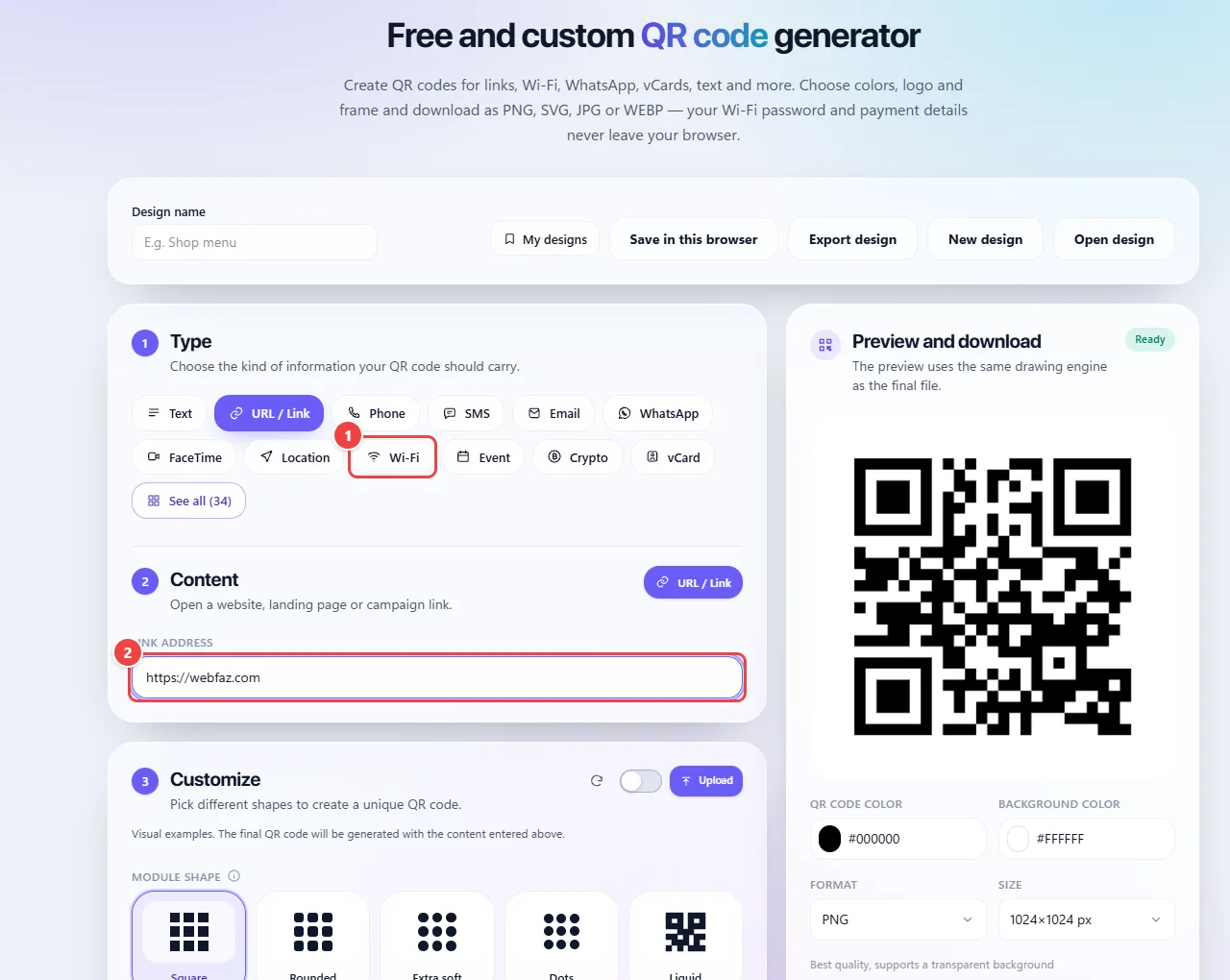
The QR code is generated in the browser from the text you enter. The data lives inside the image itself: no server looks the code up, so it does not “expire” and works without depending on WebFaz.
The code has error correction: part of it can be dirty or covered and still be read. That is why you can put a logo in the center, but large logos and low-contrast colors use up that margin and make it harder to read.
For Wi-Fi, WhatsApp and contact cards (vCard), the tool builds the text in the format apps recognize, and the phone opens the right action when it reads the code.
Read the full guide: real-world use cases, tips and limits →
Privacy: This tool runs entirely in your browser: your files and data are not sent to any WebFaz server. Learn more.