How to create a QR code for a link, Wi-Fi or WhatsApp that really works
A QR code is just an image that holds a piece of text: an address, a payment key, a Wi-Fi password. This guide shows how to generate codes for each case, customize them without ruining the scan and test before printing.
Guide written by Marcelo Amantino · updated on October 19, 2026 · about us
Where your data is processed
This tool runs entirely in your browser: your files and data are not sent to any WebFaz server.
The QR code is generated in your browser. What you type (a payment key, a Wi-Fi password, a WhatsApp number) is not sent to WebFaz or saved on a server. That matters because this data tends to be sensitive. One thing to understand: once it is done, the QR code contains that information in a form any camera can read, so the care shifts to where you display it.
See the full list on the Privacy page.
Real-world use cases
Share the Wi-Fi with visitors
Situation: Instead of dictating a long password, you leave a code so visitors can connect with one tap.
- Choose the Wi-Fi type.
- Enter the network name (SSID), the password and the network’s security type.
- Download the image and print it or save it on your phone.
- Test it on another device before leaving it on display.
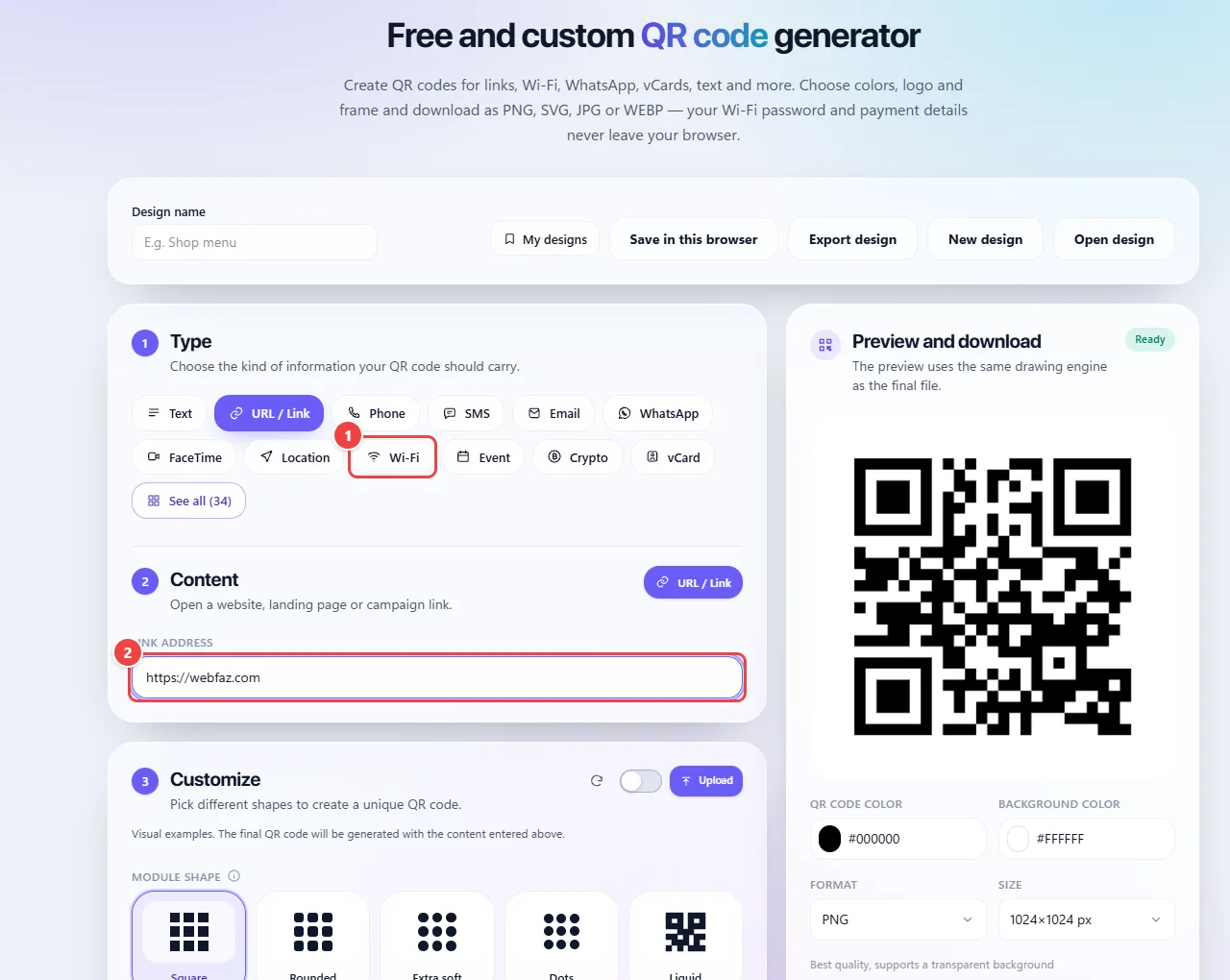
- Point 1: Choose the QR Code type: link, text, phone, WhatsApp, Wi-Fi, vCard, Pix and others. The “See all” button shows the rest.
- Point 2: Fill in the content. The preview beside it updates instantly, and nothing is sent to servers.
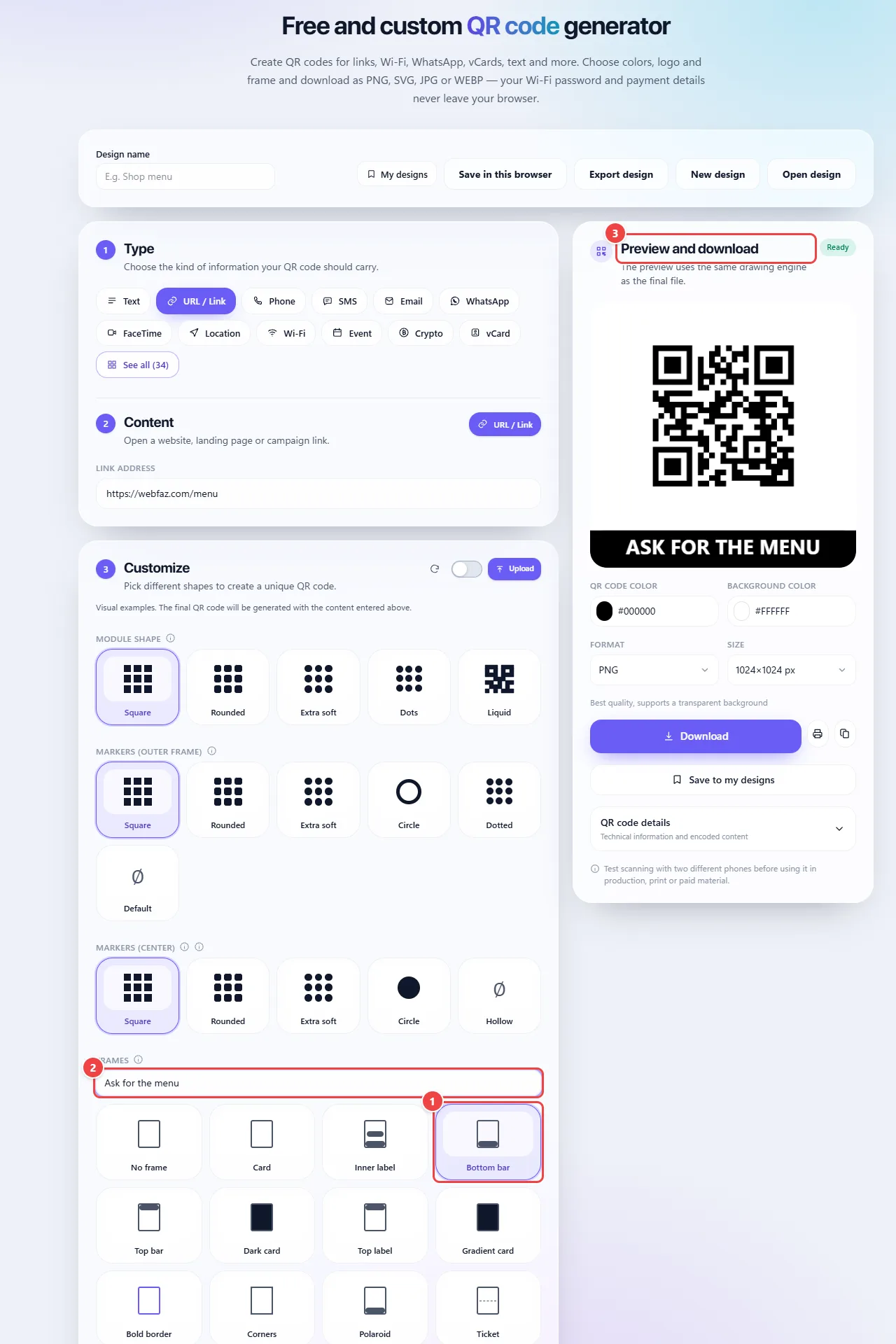
- Point 1: Choose the frame: card, label, bottom or top bar, dark or gradient card, strong border, corners, polaroid, ticket or phone. “No frame” leaves just the QR Code.
- Point 2: Change the frame text (for example, “Ask for the menu”). The preview updates as you type; the text appears in capital letters and fits better if it is short.
- Point 3: The preview shows the QR Code with the frame and the text exactly as it will be downloaded.
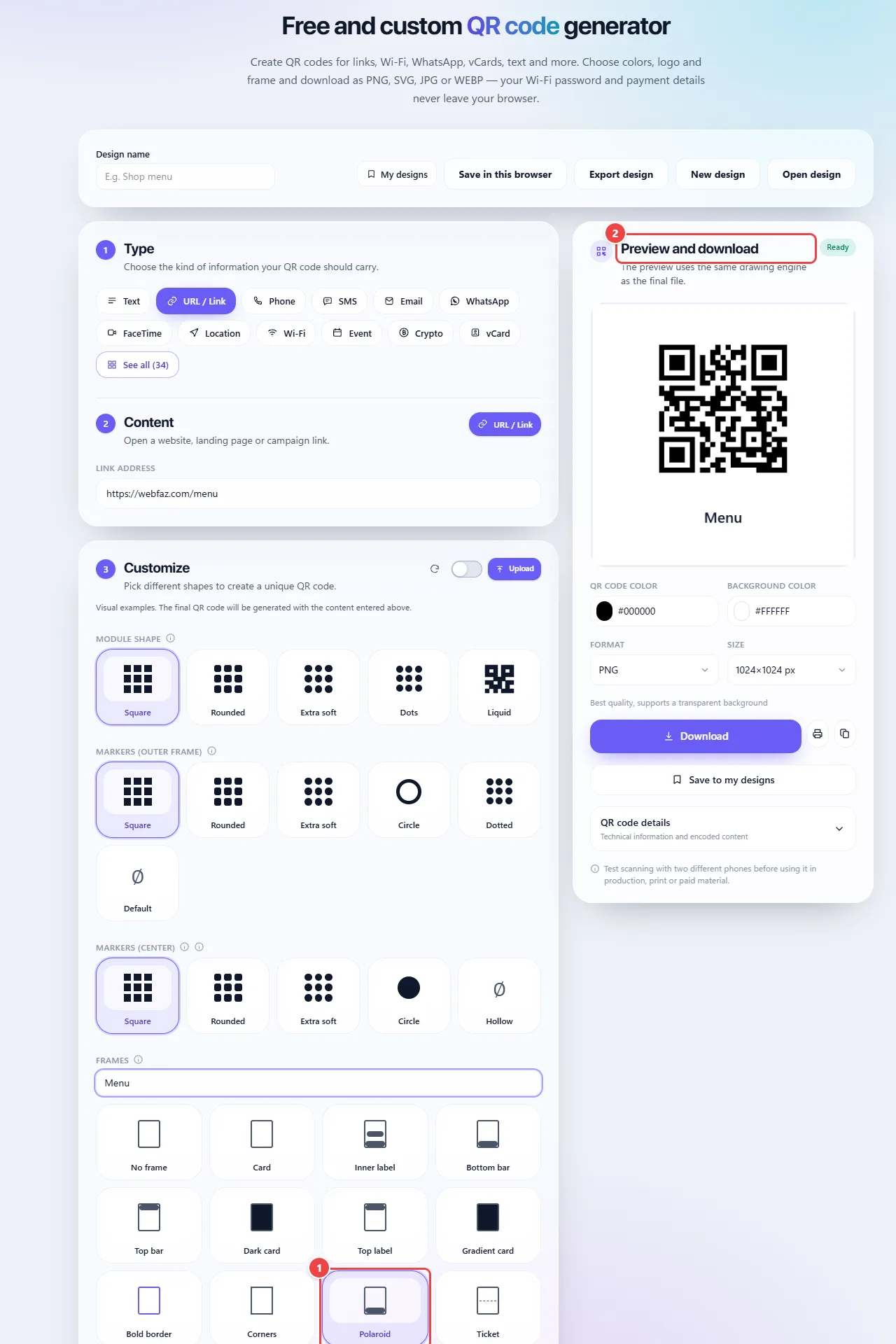
- Point 1: Changing the frame does not change the QR Code content: only the framing around it.
- Point 2: The same QR Code with the Polaroid frame and the new text.
Result: Anyone who scans it can join the network without typing the password.
A direct link to your business’s WhatsApp
Situation: You want customers to start a conversation with a message already filled in.
- Choose the WhatsApp type.
- Enter the number with the country code and, if you like, the first message.
- Add your logo, if you have one, and check the scan.
- Download it and use it on a card, a shop window or packaging.
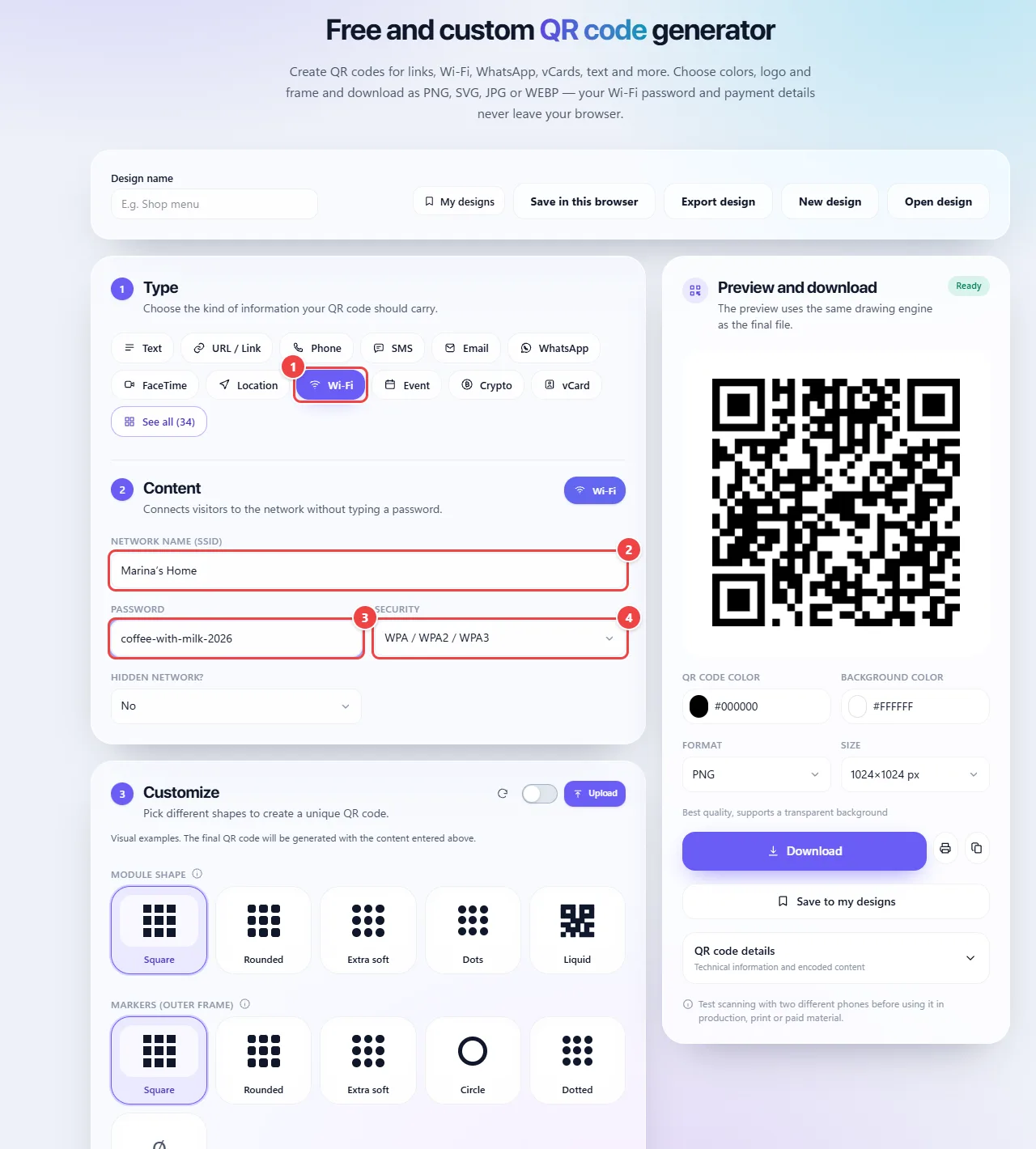
- Point 1: Choose the Wi-Fi type.
- Point 2: Enter the network name exactly as it appears on devices.
- Point 3: Type the password. It stays in the QR Code, in your browser, and nothing is sent to servers.
- Point 4: Choose the network’s security type (most use WPA/WPA2/WPA3). Test on another device before leaving it on display.
Result: A code that opens the conversation with your number and the message ready.
Send people to your menu, page or profile
Situation: You want a poster or card that takes people to your online menu, website or social profile.
- Choose the URL / Link type (or a social network type) and paste the address.
- Customize the colors, keeping strong contrast between the background and the modules, and add a frame with a caption such as “Scan me”.
- Test the scan with your phone’s camera.
- Download it as PNG for screens or as SVG for large prints.
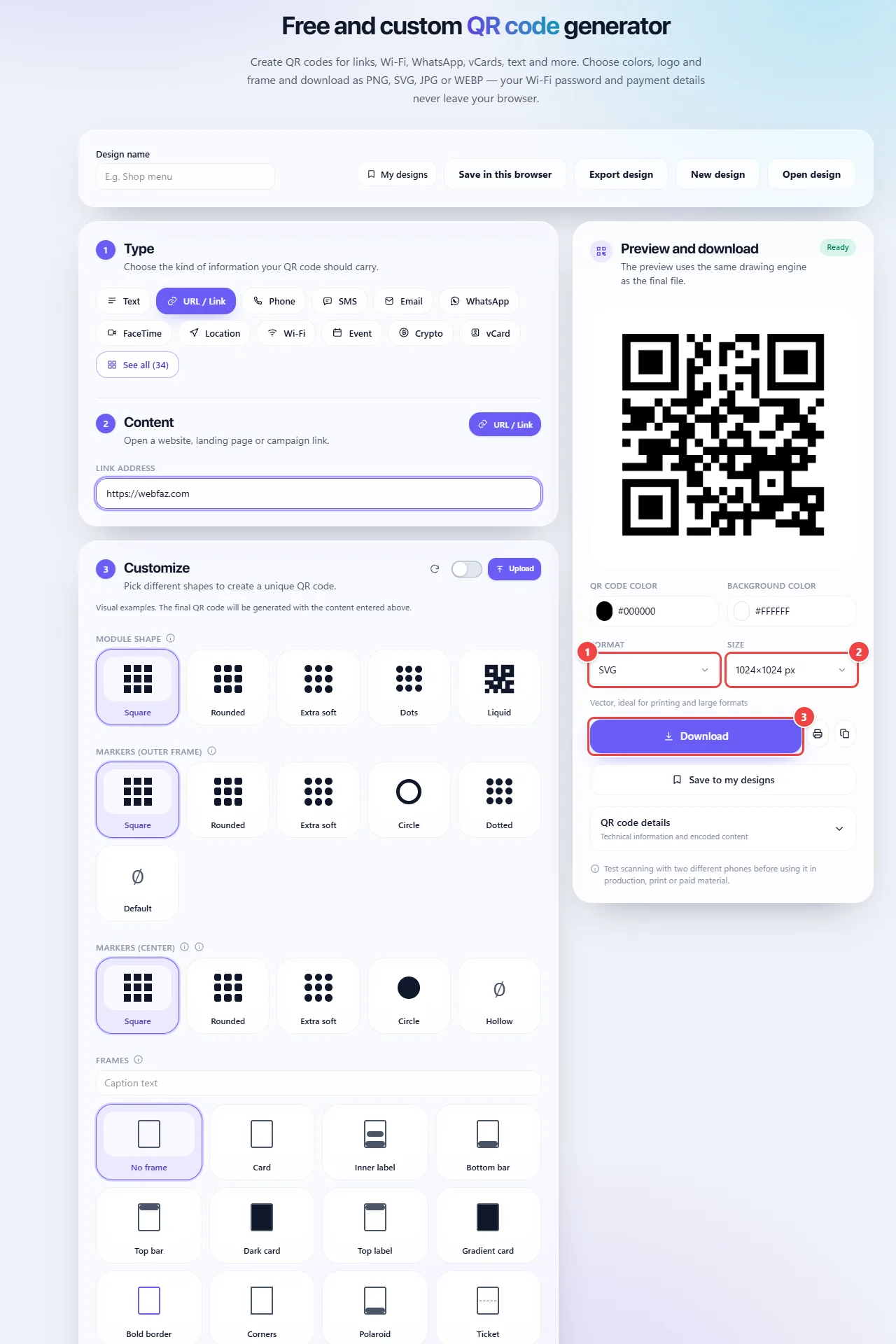
- Point 1: Choose the format: SVG is vector and stays sharp at any size (ideal for print shops, stickers and signs). PNG, JPG and WEBP are images.
- Point 2: For image formats, choose the size (from 512 to 4096 px).
- Point 3: Download saves the file in the chosen format. You can also print or copy the image.
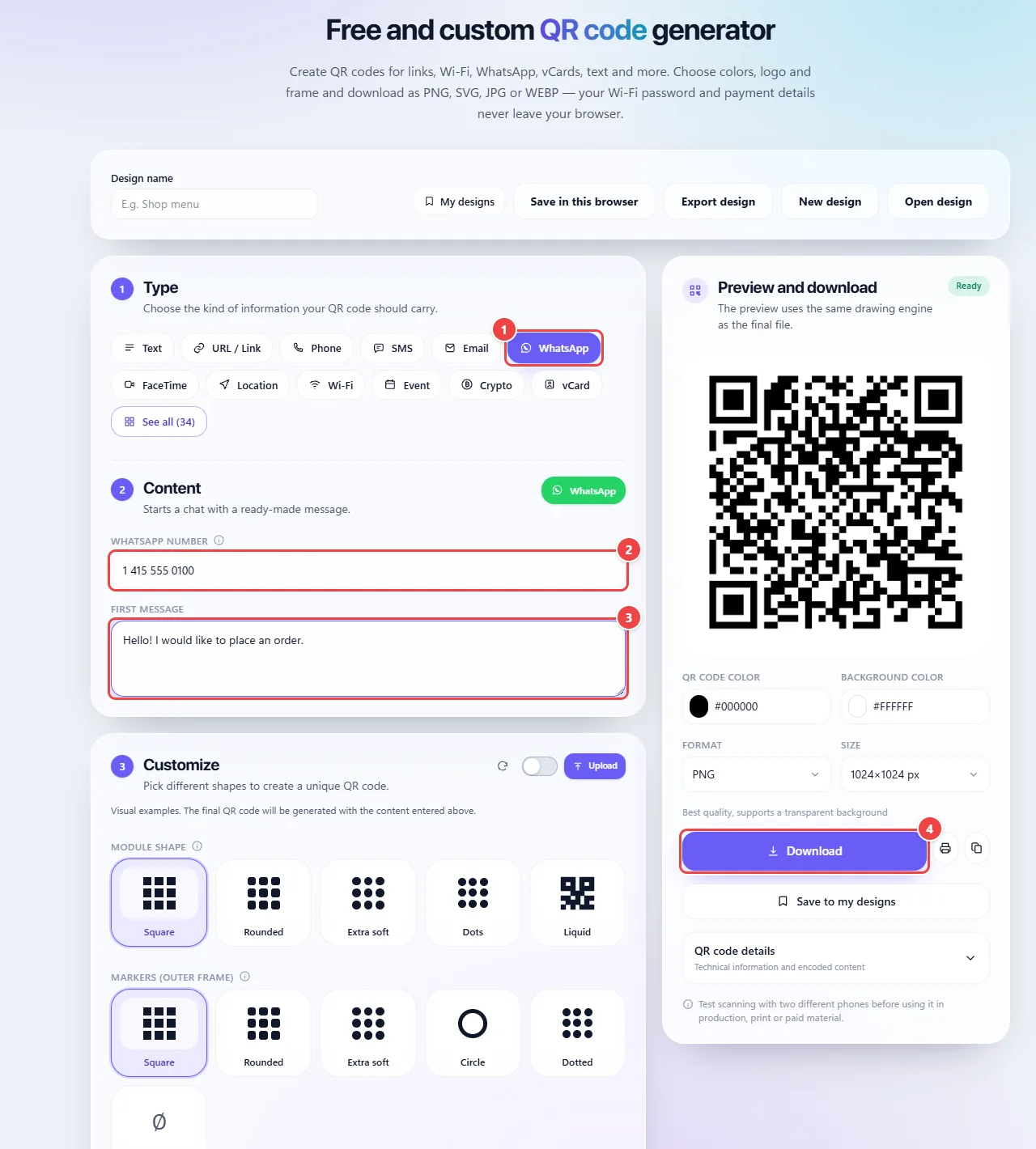
- Point 1: Choose the WhatsApp type.
- Point 2: Enter the number with country and area code.
- Point 3: If you want, write the initial message: it already appears ready in the chat of whoever scans.
- Point 4: Check the reading in the preview and download the image to use on a card, shop window or packaging.
Result: A ready-to-print code that takes anyone who scans it straight to the right place.
Tips for a better result
- Keep contrast high: dark modules on a light background read best. Inverting the colors or using similar shades can prevent reading on some devices.
- Small logos in the center usually work; large logos cover the code’s data and break the scan.
- Keep a blank margin around the code when printing.
- For large prints (banners, posters), prefer SVG.
- Always test on at least two different phones before printing a batch.
Limits, and when this is not the best option
- A link’s code points to the address you typed: if the website changes or goes offline, the code stops leading to the destination. If you need to change the destination later, use a link that you control.
- Anyone who has the QR code’s image can see its content (a Wi-Fi password, for example). Do not leave sensitive codes in public places.
- The QR code generated here is static. It does not count how many times it was scanned.
Frequently asked questions
- Does the QR code expire?
- No. It is a fixed image with the content encoded in it. It only stops working if the destination (website, link) stops existing.
- Is my Wi-Fi password saved anywhere?
- Not on WebFaz. The code is built in your browser and the content is not sent to a server.
- Which format should I download?
- SVG for large sizes and professional printing; PNG for general use on screens, documents and small prints.
- Why will my QR code not scan?
- The most common causes are low contrast, a logo that is too big, a small margin or a code printed too small. Increase the contrast, reduce the logo and print it larger.