How to see your IP, query DNS, test ports and measure internet speed
When a site will not open or the connection is slow, you need to tell your own problem apart from the server’s. This guide shows how to find your public IP, locate an IP or domain, query DNS records, test a port and measure speed.
Guide written by Marcelo Amantino · updated on October 19, 2026 · about us
Where your data is processed
These checks need to talk to network servers, as happens on any website, and the page tells you so. WebFaz does not save what you query. Test ports only on machines that are yours or that you are authorized to test.
See the full list on the Privacy page.
Real-world use cases
Find your IP and where it comes from
Situation: You need your public IP to set up remote access or an allowlist.
- Open the “My IP” tab: the public IP address is shown right away.
- Click “Copy IP” to take it with you.
- Next to it, check the approximate location, provider, time zone and query latency.
- To investigate another address, use “Go to IP Lookup”.
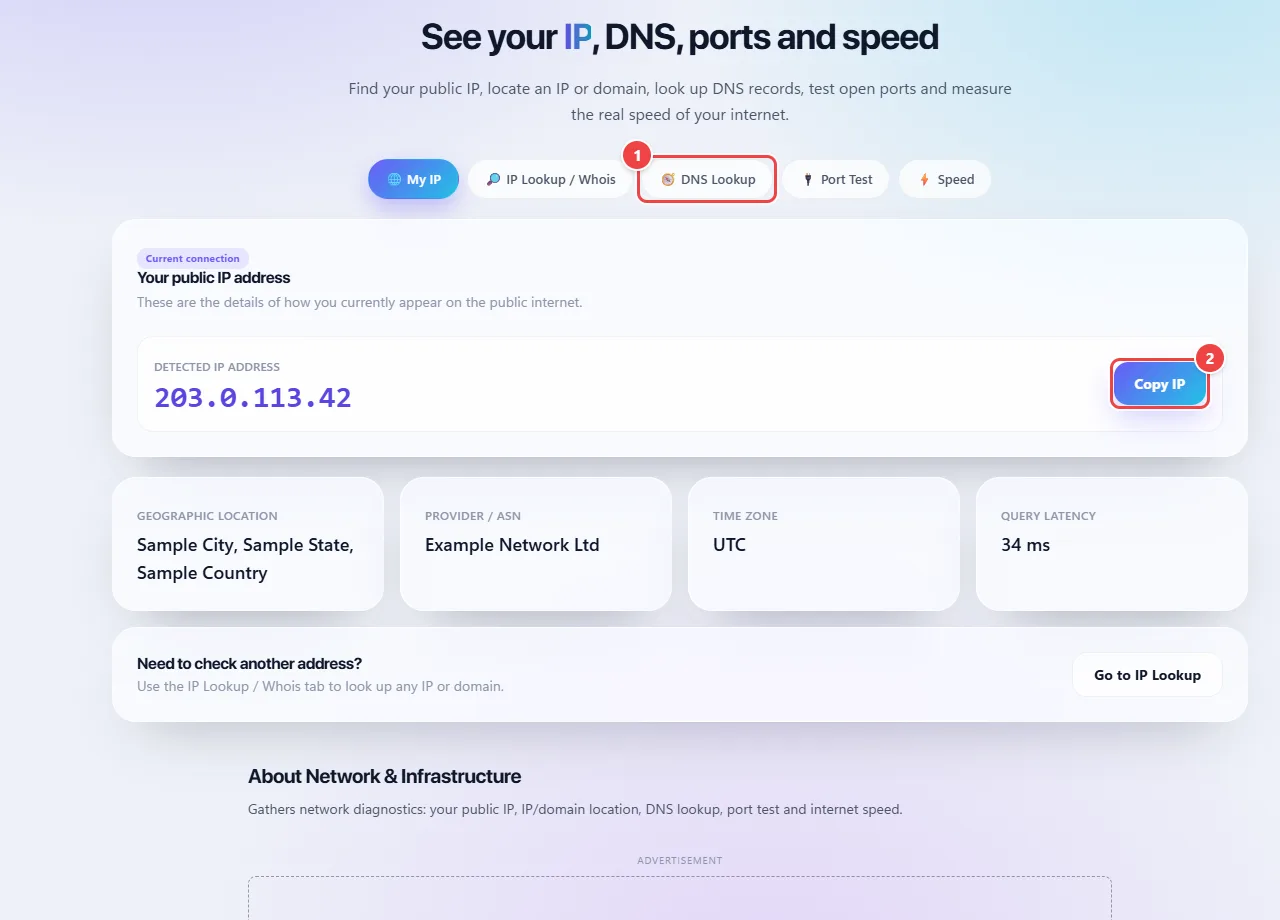
- Point 1: Choose the tool: your IP, location and Whois of an IP or domain, DNS records, port test or speed.
- Point 2: Copy your public IP with one click. To measure the connection, this app talks to network servers.
Result: Your public IP and the connection details, ready to copy.
Query DNS and test a port
Situation: Your shop’s website does not open for some customers and you want to know whether the address and the service are right.
- On the “DNS Lookup” tab, enter the domain and query the records: they say where the domain points and which records it has.
- On the “IP Lookup / Whois” tab, query an IP or domain to see the approximate location and registration data.
- On the “Port Test” tab, check whether a port (for example, 443) responds at the address you entered.
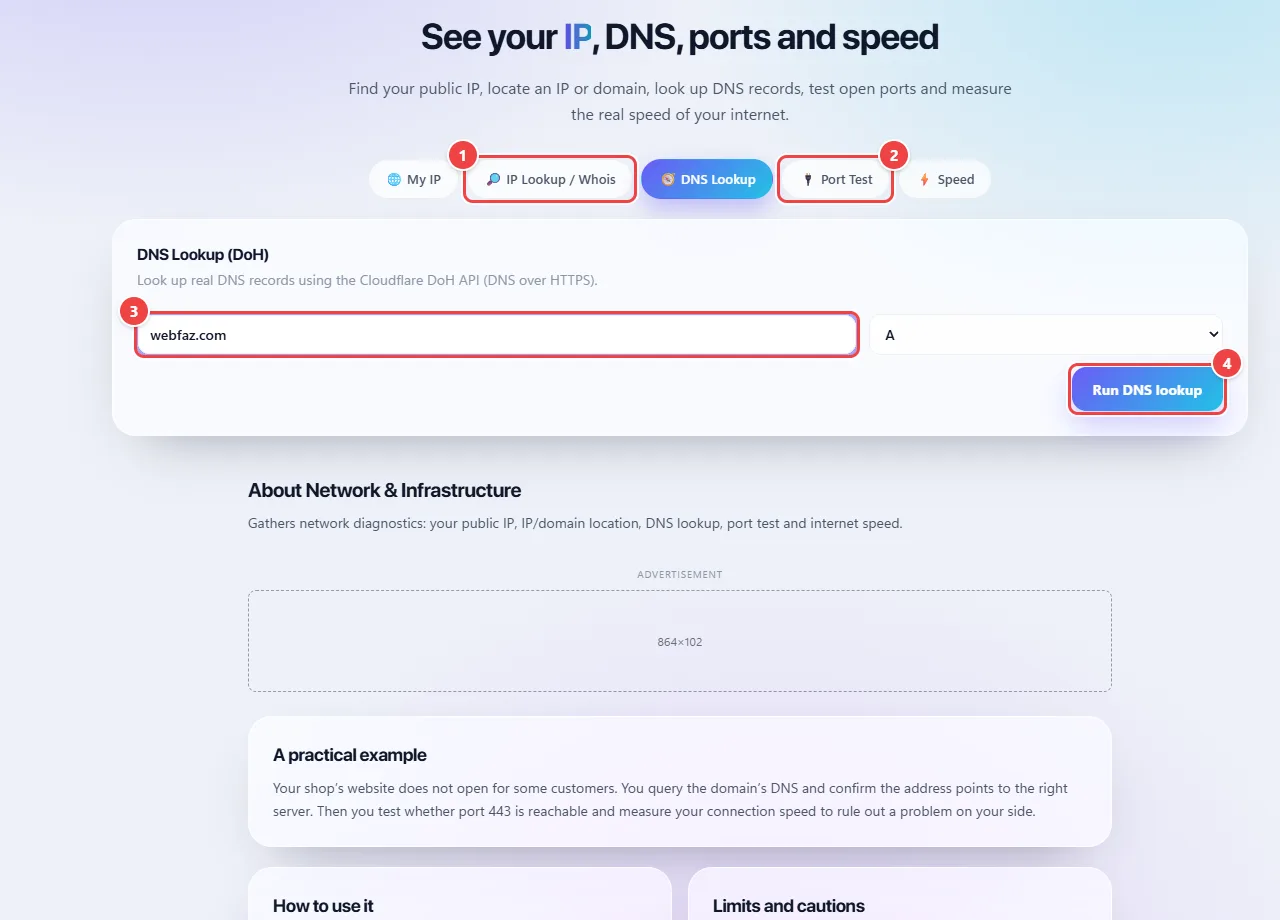
- Point 1: In IP Lookup / Whois, look up an IP or domain to see the approximate location and registration data.
- Point 2: In Port Test, check whether a port (for example, 443) responds at the address entered.
- Point 3: Type the domain. The records tell where it points and which services it uses.
- Point 4: Choose the type (A, AAAA, CNAME, MX, TXT or NS) and run the lookup.
Result: Confirmation that the domain points to the right server and that the service responds.
Measure internet speed
Situation: The internet seems slow and you want numbers.
- Pause downloads and other devices and, if possible, use a cable or stay near the router.
- Open the “Speed” tab and start the test.
- Repeat at different times: speed varies with the moment, the Wi-Fi and the distance to the test server.
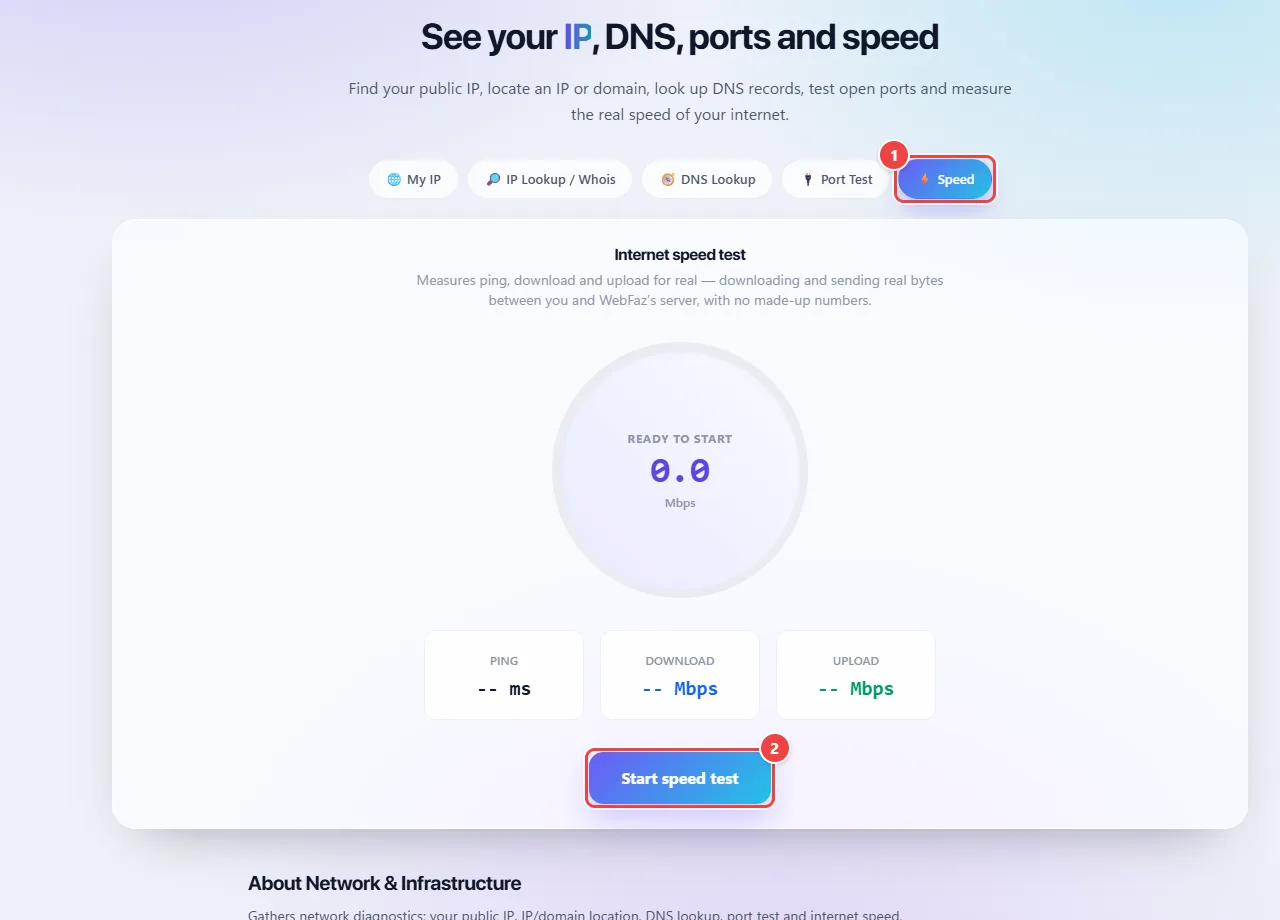
- Point 1: Open the Speed tab. Beforehand, pause downloads and other devices and, if possible, use a cable or stay close to the router.
- Point 2: Start the test and repeat at different times: speed varies with the moment, the Wi-Fi and the distance to the server.
Result: A measure of your speed that you can compare across times of day.
Tips for a better result
- DNS changes can take from minutes to hours to take effect everywhere: this is called propagation.
- If a port shows as closed even with the service running, check the firewall and the router’s port forwarding.
- To measure speed, run the test more than once.
Limits, and when this is not the best option
- IP location is approximate: it usually indicates the provider’s city, not the exact address.
- Test ports only on machines that are yours or that you are authorized to test.
- The speed result varies with the time of day, the Wi-Fi and the test server.
Frequently asked questions
- What is DNS?
- It is the internet’s address book: it translates a name such as example.com into the IP address of the matching server.
- Does my public IP change?
- Usually yes: most home providers use a dynamic IP, which can change when the router restarts.
- Why does a port show as closed if the service is running?
- Usually a firewall, missing port forwarding on the router, or the provider sharing one IP among many customers (CGNAT).
- Is IP location exact?
- No. It usually points to the provider’s region, not the exact address.