How to use a countdown with automatic redirect and the Pomodoro timer
WebFaz Clock brings together five time tools, and two of them solve very specific problems: the countdown, which can end by taking you straight to a link, and the Pomodoro, which organizes your day into cycles of focus and breaks. This guide shows how to set up each one, with real situations for presenters, content creators and people who study or work from home.
Guide written by Marcelo Amantino · updated on October 19, 2026 · about us
Where your data is processed
This tool runs entirely in your browser: your files and data are not sent to any WebFaz server.
Everything in the Clock runs in your browser. The event title, the date, the animations and the redirect link are saved only in this browser, and nothing is sent to WebFaz. A practical consequence: the setup is yours, on each device, and the countdown only triggers the redirect if the page is open at the moment the time runs out. When you generate a shareable link, the title, the date and the destination become part of the address, which you send yourself to whoever you want.
See the full list on the Privacy page.
Real-world use cases
Countdown for a campaign launch
Situation: You are going to launch a product, a course or a campaign at a set date and time and want to show the countdown on screen while presenting or waiting for the moment.
- Open the Countdown tab and give the event a title (for example, the launch’s name).
- Set the exact date and time of the launch.
- Write your messages: one phrase to appear below the title while the countdown runs (for example, “Enrollment opens in”) and another for the moment it reaches zero (for example, “We are live!”). If you leave it blank, the second one uses “The time has come!”.
- Choose one or more animations and sounds for the moment it reaches zero. You can click each option to preview it.
- If you like, customize the full-screen background: upload an image of your own or use a background created in WebFaz Backgrounds, static (gradient with texture) or moving. Then open the countdown in full screen.
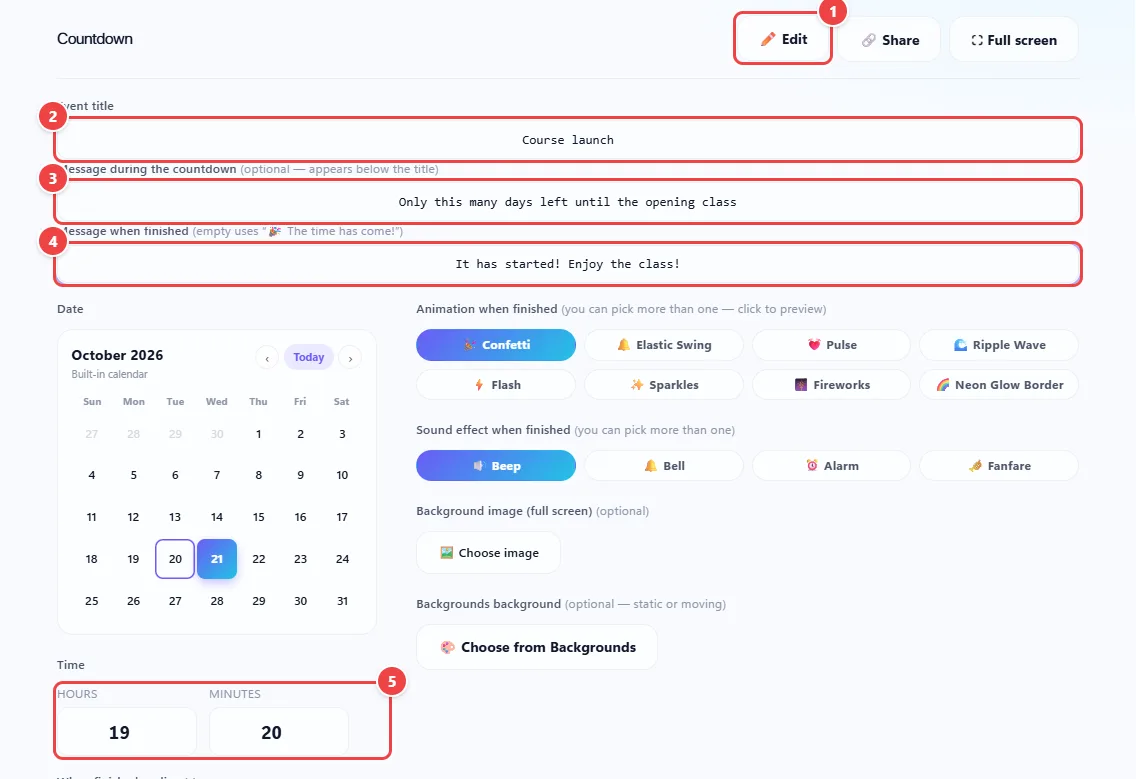
- Point 1: Click Edit to open the countdown options. They stay hidden until you open them.
- Point 2: Give the event a title (up to 60 characters). It appears above the counter.
- Point 3: Message during the countdown: an optional text that appears below the title, like “The live starts in…”.
- Point 4: Message when finished: the text that appears when the counter reaches zero. If left empty, the default message is used.
- Point 5: Pick the date on the calendar and the time in hours and minutes.
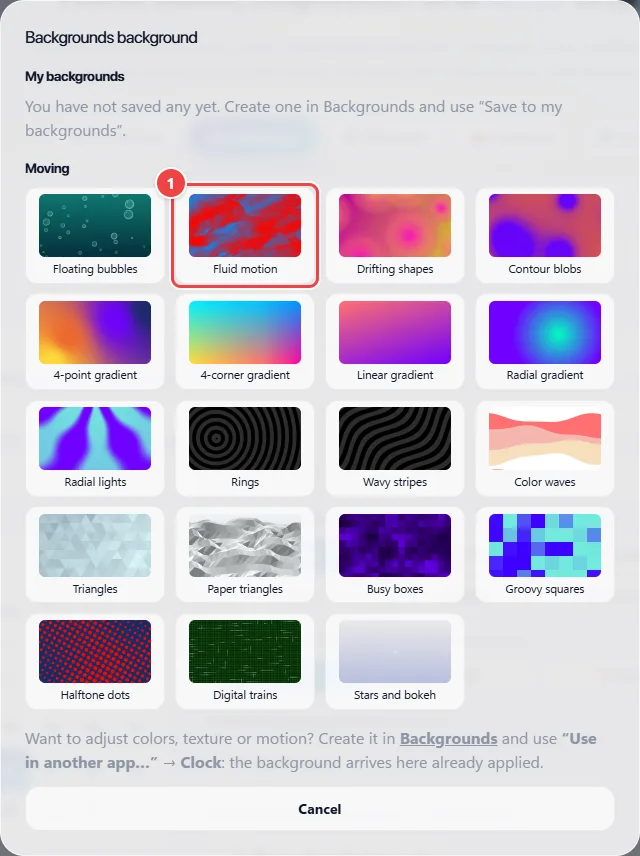
- Choose one of the moving templates (bubbles, waves, rings and others) or a background you saved in “My backgrounds”.
Result: A full-screen countdown, with your image, that triggers animation and sound when it reaches zero.
Open your livestream or the event link automatically at the end of the countdown
Situation: You want your screen to move on by itself to the right destination at the set time (the livestream page, a form, your social network), without depending on clicking at the moment.
- Set the countdown’s title, date and time.
- Under “When finished, redirect to”, choose “A link” and paste the destination address (YouTube, Instagram or any other). The https:// is completed if you forget it.
- Save and leave the page open.
- When it reaches zero, the animation and sound play and, right after, the same tab is taken to the link.
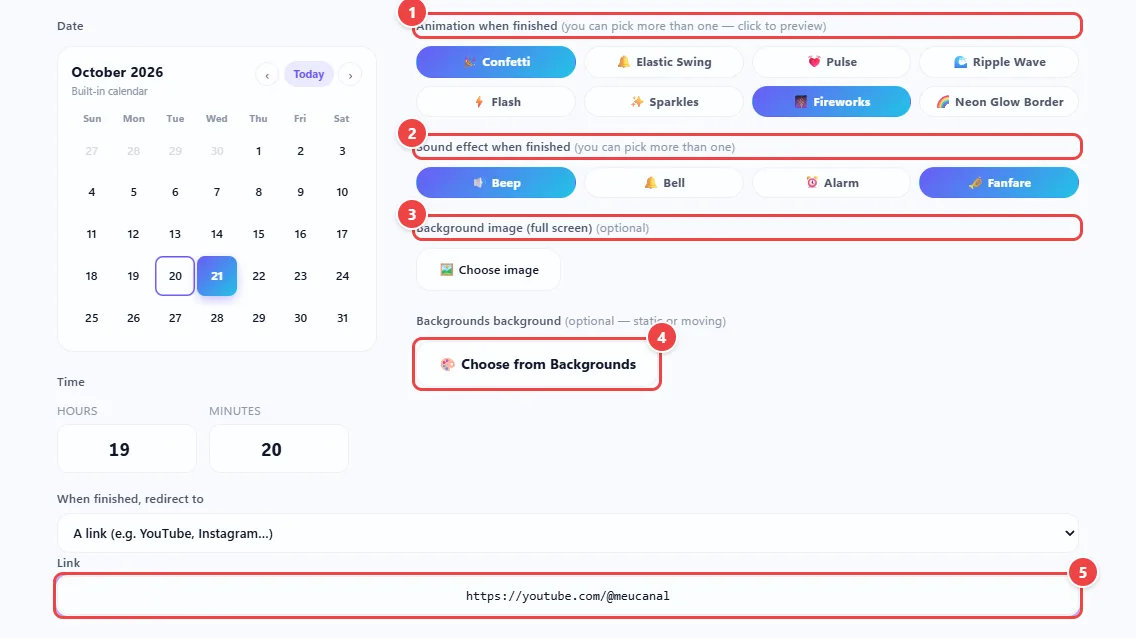
- Point 1: Animation when finished: confetti, fireworks, neon and others. You can check more than one, and clicking shows a preview.
- Point 2: Sound effect when finished: beep, bell, alarm or fanfare. It also accepts more than one.
- Point 3: Background image: use a photo of yours as the backdrop of the full-screen countdown.
- Point 4: Backgrounds background: choose a background created in the Backgrounds app, still or moving (animated background).
- Point 5: Redirect: when it reaches zero, take whoever is watching to a link (YouTube, Instagram, a sales page…) or to another tab of the app.
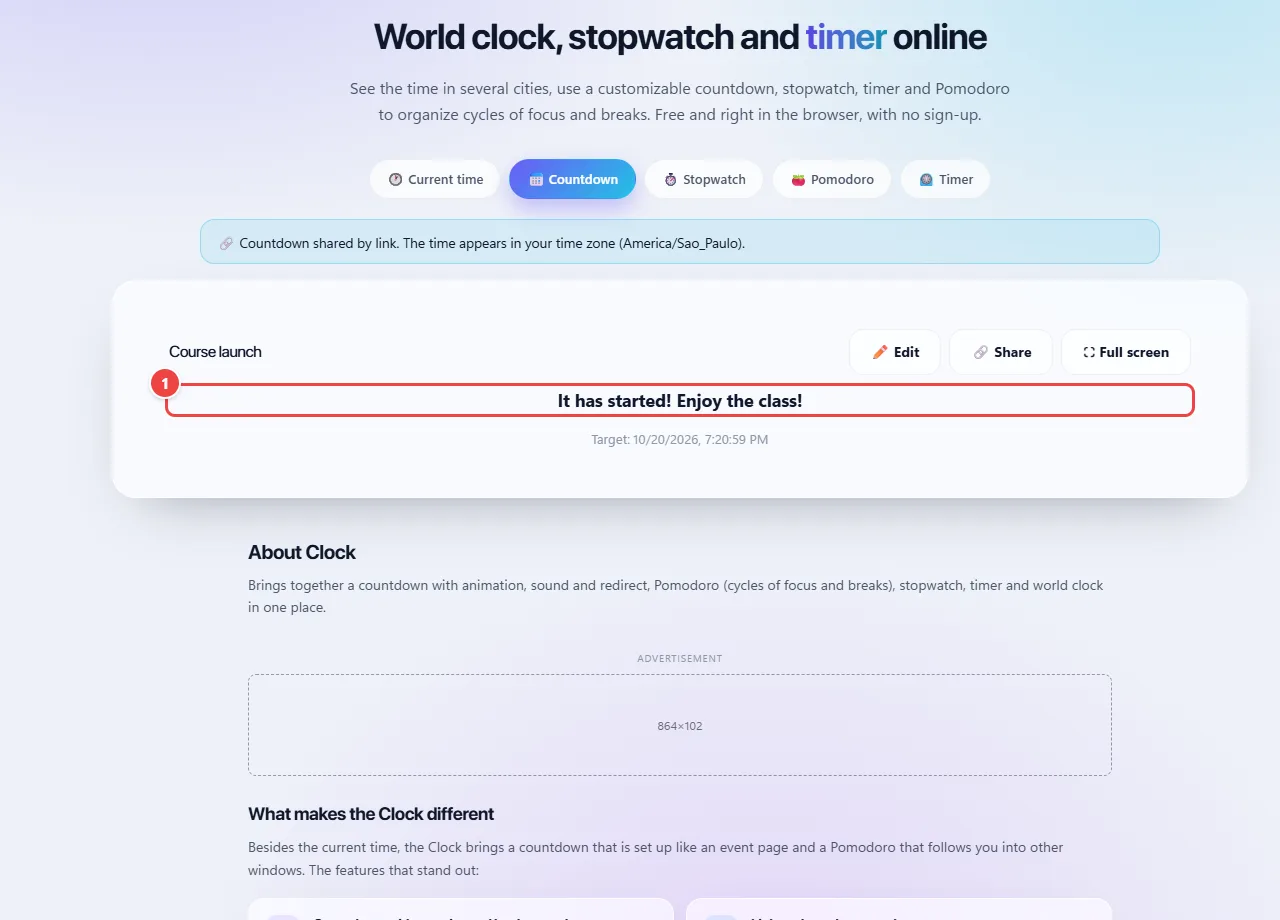
- The custom final message appears when the counter reaches zero, along with the animations and sounds you checked.
Result: No last-minute clicks: the transition from the countdown to the content happens by itself, without breaking the rhythm.
Share the countdown with your audience through a link
Situation: You want those who follow your livestream or launch to see the same countdown and be taken to the content at the right moment, without you needing to send a message at the time.
- Set up the countdown (title, date, time, animation, sound and the destination link) and save.
- Click “Share” to copy the countdown link.
- Send the link in the description, in the group or in the event announcement.
- Whoever opens the link sees the countdown, with your messages, in their own time zone. When it reaches zero, a 5-second warning appears with the destination address and the “Cancel” and “Go now” buttons, and then the person is taken to the destination.
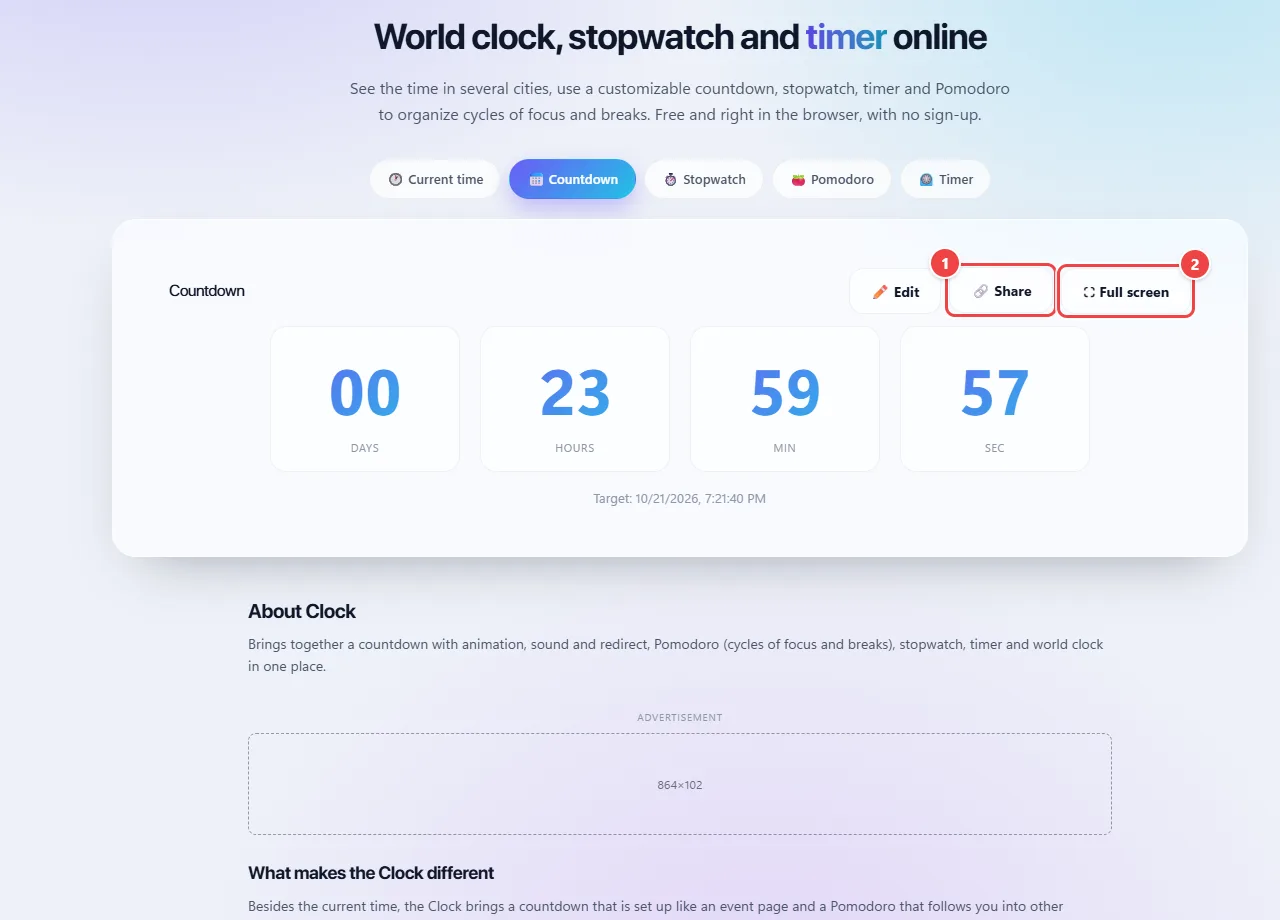
- Point 1: Share copies a link with title, date, messages, animations, sounds and redirect. Each person sees the countdown in their own time zone.
- Point 2: Full screen: shows the countdown large, with the background and image you chose, ideal for projecting at lives and events.
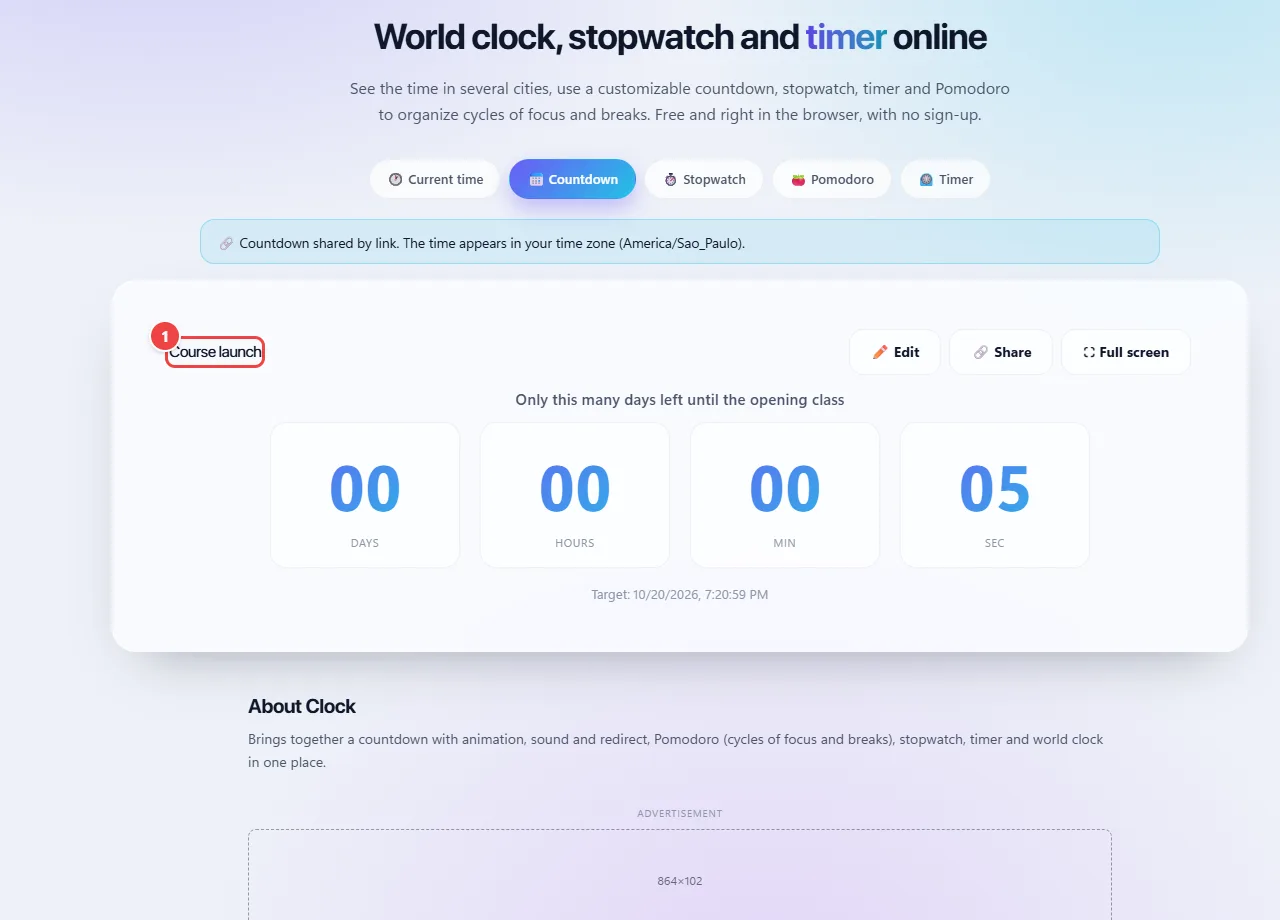
- The title and the message during the countdown that you chose.
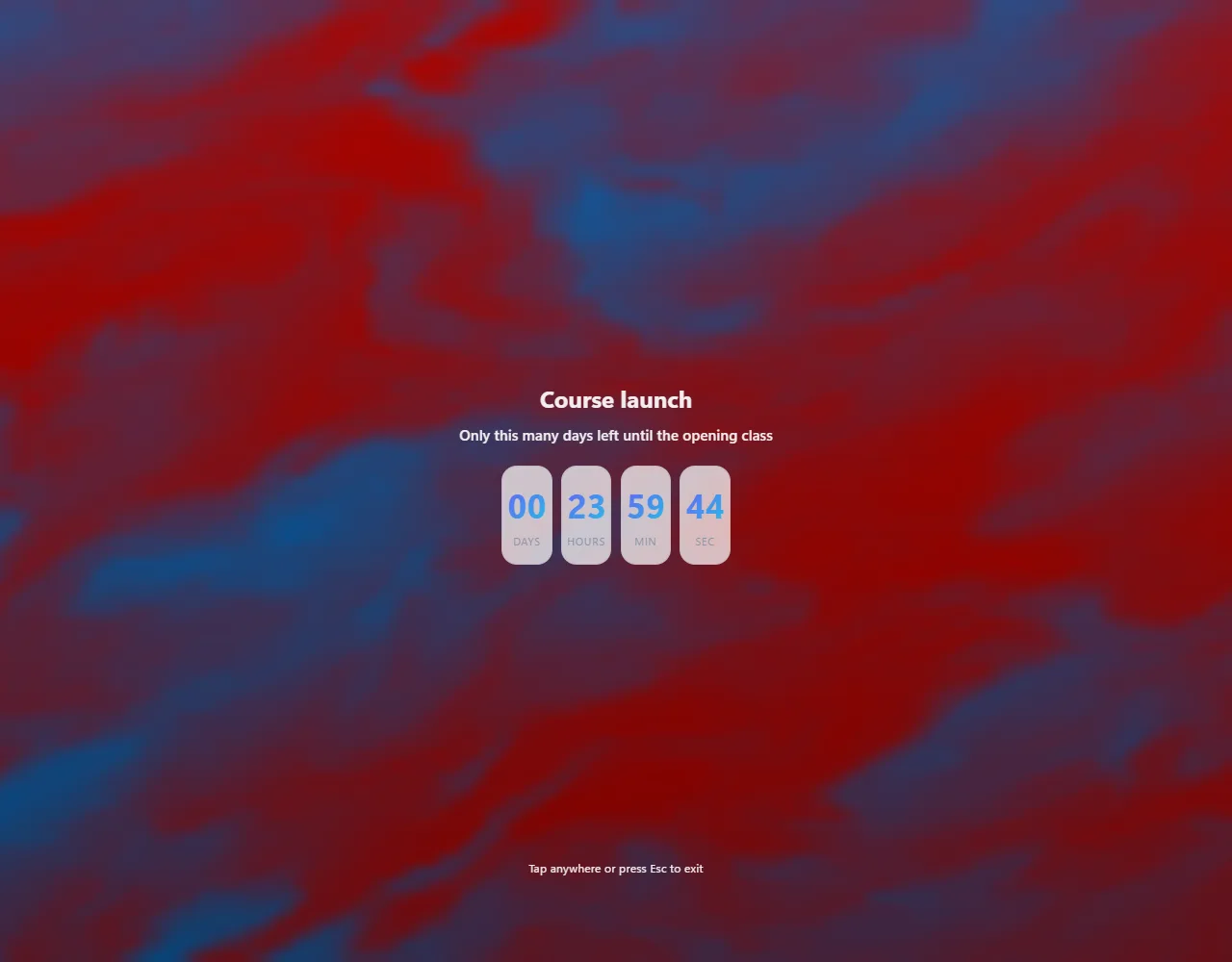
Result: Each person opens the same event in their own browser, with the right time for their time zone and the transition to your content at the set moment.
Chain the countdown with another Clock tool
Situation: You want a work cycle or a stopwatch to start automatically at the end of the countdown.
- In the countdown setup, choose to redirect to “Another tab of the app”.
- Select the destination tab (Pomodoro, Stopwatch, Timer or another).
- Save. When it hits zero, the page switches to the chosen tab, and you only need to start.

- Point 1: Under “When finished, redirect to”, choose “Another app tab”.
- Point 2: Choose the destination tab (Pomodoro, Stopwatch, Timer…). At zero, the page switches to it and you only need to start.
Result: The countdown ends and already leaves the next tool on screen.
Organize study or work with the Pomodoro
Situation: You have a long task, get distracted easily and want to work in short blocks with planned breaks.
- Open the Pomodoro tab. The starting values are 25 minutes of focus, 5 of short break, 15 of long break and 4 cycles until the long break.
- If you prefer other times, open “Adjust durations” and change each value.
- Choose a single task, start the cycle and work only on it until the focus ends.
- When the focus ends, take the break for real, away from the screen. Use “Skip” if you need to move to the next phase.
- To keep track of time while working in other programs, click “Open in floating window” (available in Chrome and Edge for computers). The window stays on top of everything, with the time, the phase, the cycle and the Skip and Pause buttons.
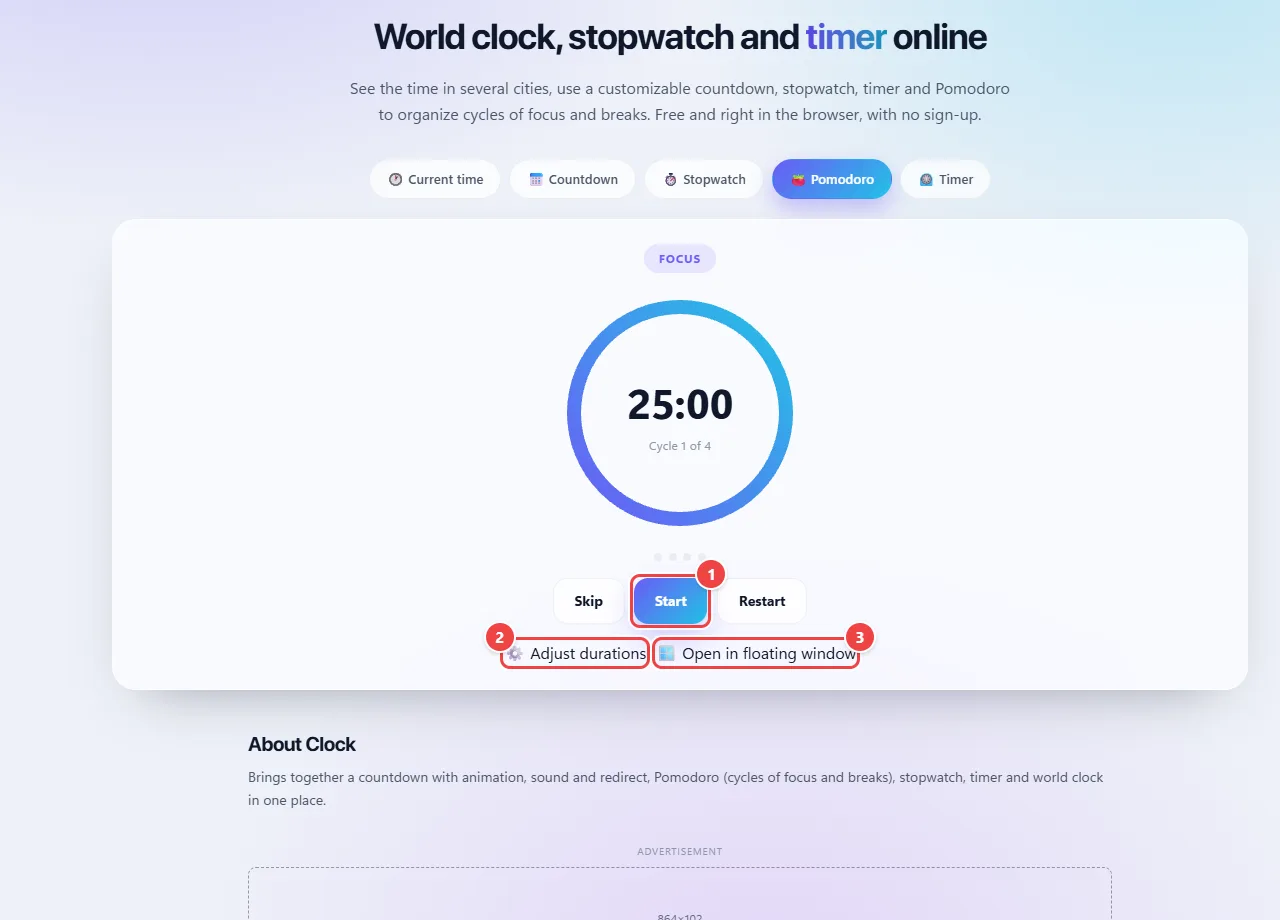
- Point 1: Start the cycle and work on a single task until the end of the focus. Use Skip to go to the next phase.
- Point 2: The initial values are 25 minutes of focus, 5 of short break, 15 of long break and 4 cycles until the long break. Here you change each one.
- Point 3: In Chrome and Edge, the floating window keeps the time, the phase and the buttons on top of other programs.
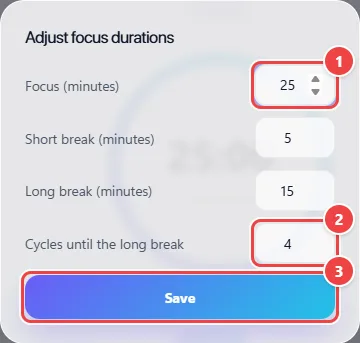
- Point 1: Change the focus time in minutes (the default is 25).
- Point 2: Set how many focus cycles happen before the long break.
- Point 3: Save to apply the new durations.
Result: A clear rhythm of focus and rest, with an indicator of which cycle you are on and, if you like, the timer always visible in a floating window.
Where to click, in practice
Images of the tool itself, with the click points numbered. Tap an image to see it at its original size.
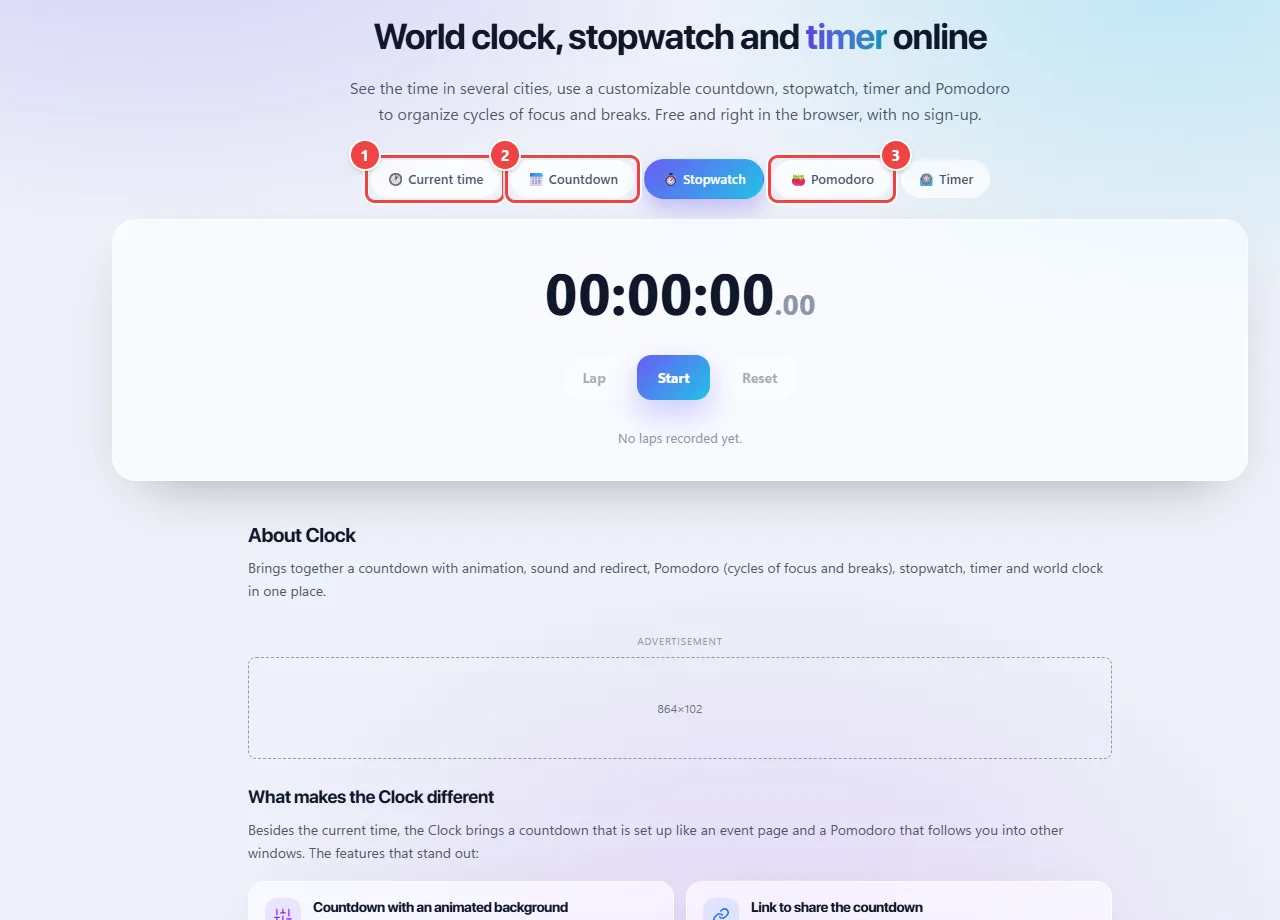
- Point 1: Current time: digital or analog clock, with the time zone of several cities and full screen.
- Point 2: Countdown to a date and time you choose.
- Point 3: Pomodoro and Timer organize cycles of focus and breaks. The alarms work in the browser itself.
Tips for a better result
- Do a test before the day: create a countdown for 1 or 2 minutes from now and confirm animation, sound and redirect.
- Click the page at least once before the end: browsers may block the sound if you have not interacted with the page.
- Keep the computer from going to sleep. The Pomodoro calculates time from the end time, so it does not fall behind with the tab in the background, but the countdown is more accurate with the tab visible.
- In the Pomodoro, decide beforehand what the cycle’s task is; starting without knowing what to do wastes the focus.
- The classic times are only a starting point. If 25 minutes is too little or too much for you, adjust.
Limits, and when this is not the best option
- The shareable link carries title, messages, date, destination and, if any, the Backgrounds background settings in the address itself: do not put sensitive information in it. Messages are up to 80 characters. An image you uploaded does not go in the link.
- For safety, the redirect for whoever opens a shared link is always announced, with 5 seconds to cancel, and only accepts http or https destinations. If the event has already ended when the link is opened, there is no automatic redirect, only a button to go to the destination.
- The Pomodoro’s floating window depends on a feature that only exists in Chrome and Edge for computers; in other browsers the button does not appear.
- The redirect only happens with the page open when the time reaches zero. It is not a scheduler that runs with the browser closed.
- The redirect takes the same tab to the destination. If you need to keep the countdown visible, open the destination in another window.
- Very large background images may not fit in the browser’s storage and stop being saved. Backgrounds backgrounds do not have this problem: only the settings are stored.
- Moving backgrounds demand more from the device; on older computers or phones the animation may be less smooth.
Frequently asked questions
- Does the countdown open a link by itself at the end?
- Yes. Just choose “A link” under “When finished, redirect to” and enter the address. It is also possible to go to another tab of the Clock.
- Can I change the message that appears when the countdown ends?
- Yes. Under “Edit” there are two fields: the message during the countdown, which appears below the title, and the message when finished. They apply on the card, in full screen and in the shared link.
- Can I use a background created in Backgrounds?
- Yes. Under “Edit”, choose “Choose from Backgrounds” to use a saved background or one of the moving templates. You can also create and adjust it in Backgrounds and use “Use in another app…” → Clock: the background arrives applied to the countdown.
- Can I use more than one animation and sound?
- Yes. You can tick several animations (such as confetti, fireworks or neon) and several sounds (beep, bell, alarm or fanfare) at the same time.
- What is Pomodoro and how does it work here?
- It is a method that alternates blocks of focused work with breaks. Here you adjust the durations of focus, short break, long break and the number of cycles.
- Can I send the countdown to other people?
- Yes. The “Share” button copies a link that recreates the countdown in any browser, with the time converted to the time zone of whoever opens it.
- What is the Pomodoro floating window?
- A small window that stays on top of other programs, showing the time, the phase and the cycle, with the Skip and Pause buttons. It works in Chrome and Edge for computers.
- Do I need to leave the page open?
- Yes. Everything runs in the browser; closing the page interrupts the countdown and the redirect.