How to view and remove metadata from photos, PDFs and documents before sharing
Photos and documents carry information you cannot see: where the photo was taken, which device was used, who wrote the file. This guide shows what metadata is, why to remove it before publishing or sending, and how to do it without uploading the file to a server.
Guide written by Marcelo Amantino · updated on October 19, 2026 · about us
Where your data is processed
This tool runs entirely in your browser: your files and data are not sent to any WebFaz server.
The file is read and cleaned in your browser, and you download a new copy. Nothing is sent to WebFaz. This fits the tool’s purpose: it would be contradictory to send a file to a server precisely to protect your privacy.
See the full list on the Privacy page.
Real-world use cases
Publish a photo without revealing where you live
Situation: A photo taken at home carries the GPS coordinates. When you post or send the original file, anyone can extract the location.
- Upload the photo to the tool.
- See the list of metadata found (location, camera model, date).
- Remove the metadata and download the clean copy.
- Use the clean copy when publishing or sending.
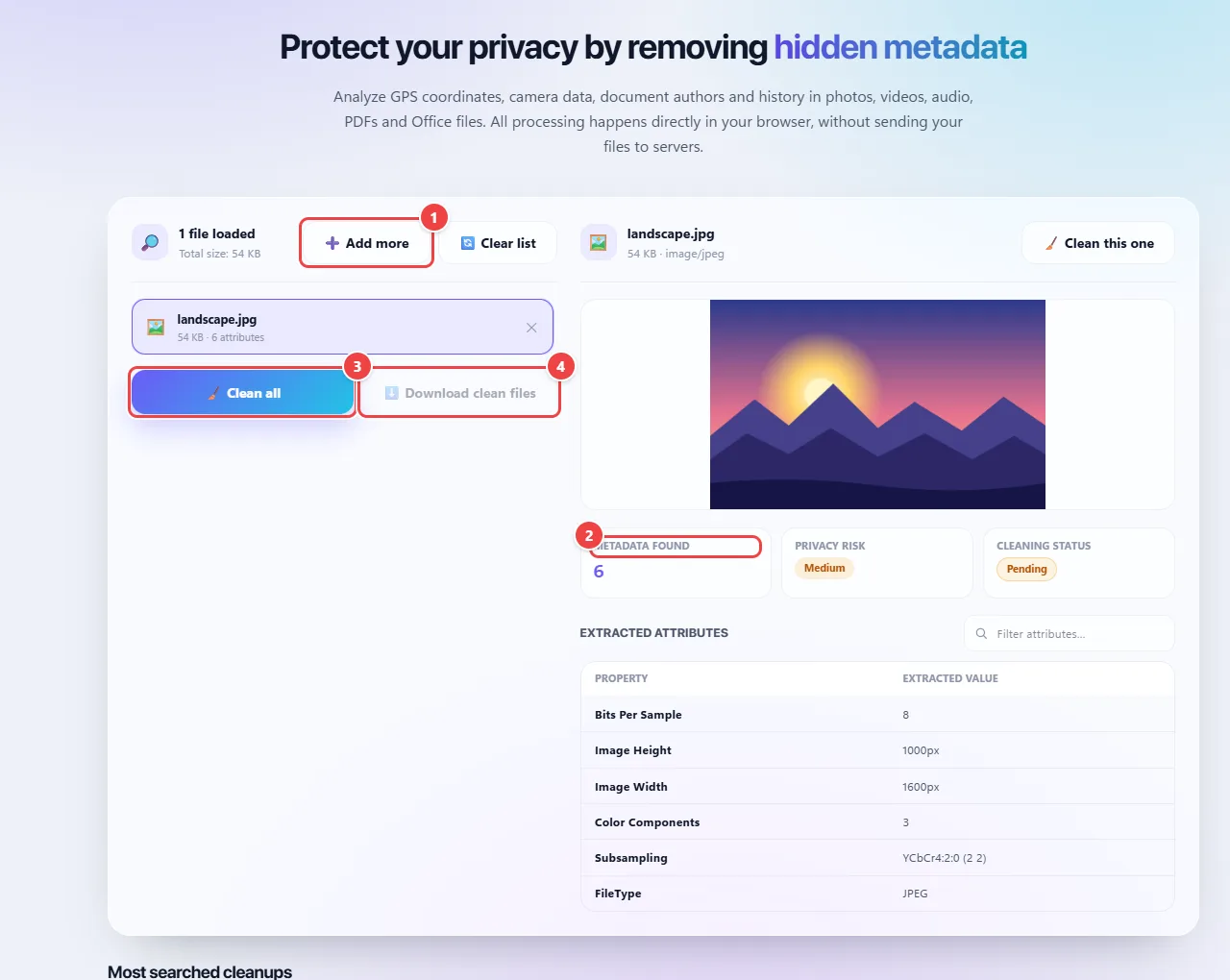
- Point 1: Add photos, PDFs or Office files. The analysis happens in the browser.
- Point 2: See how much metadata the file has and the privacy risk (GPS, camera, author).
- Point 3: Clean removes the metadata and generates a clean copy.
- Point 4: Download the clean files. The original is not changed.
Result: A visually identical photo, without the coordinates and device data.
Send a Word document without the authorship history
Situation: Office files keep the author’s name and other editing information. When sending a proposal to a client, you would rather not expose that.
- Upload the DOCX, XLSX or PPTX file.
- Check the metadata found, such as author and revision data.
- Remove it and download the clean copy.
- Open the copy to check that the content is intact.
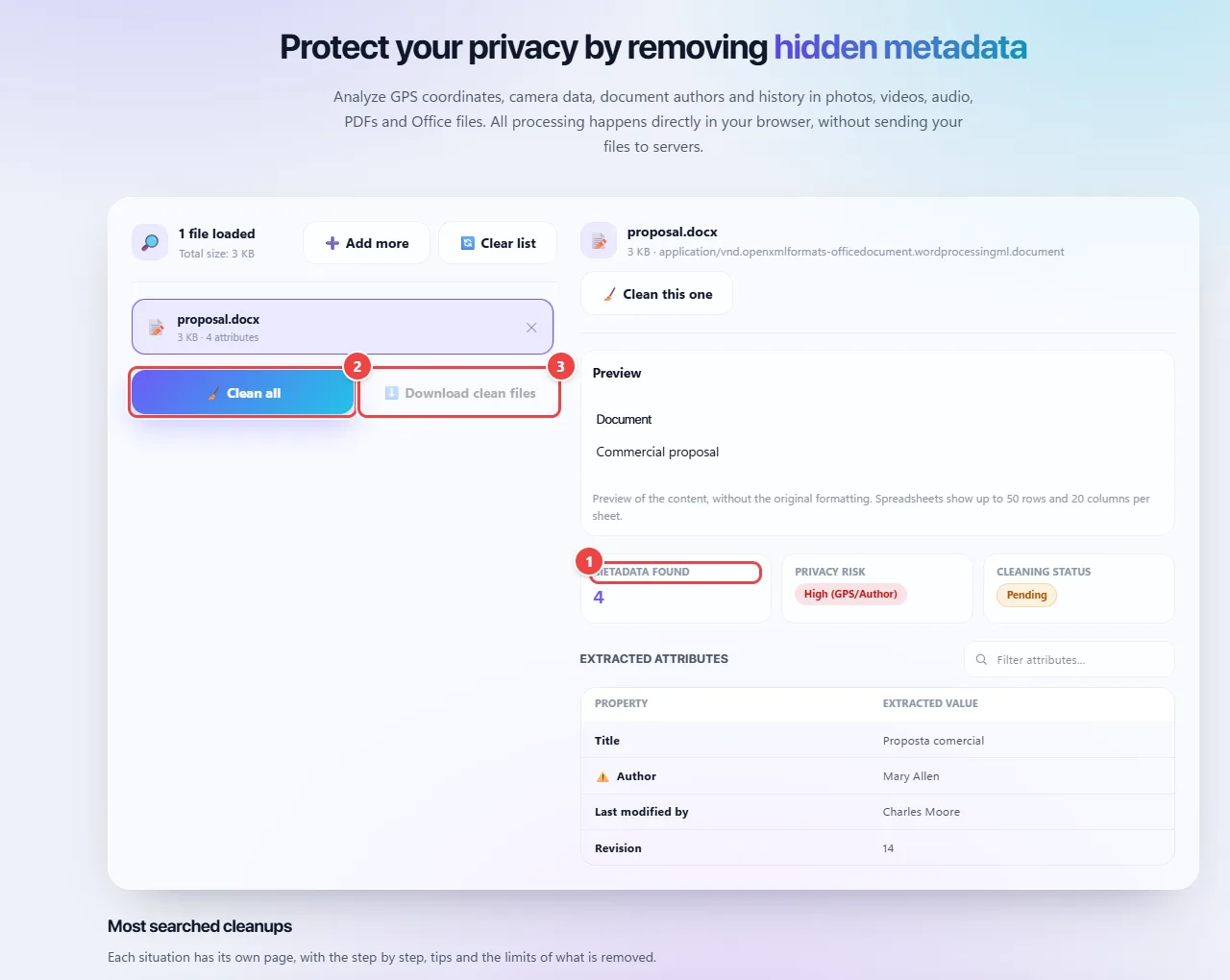
- Point 1: Check what the document reveals: author, who saved it last, dates, number of revisions and company.
- Point 2: Clean removes this data and prepares a clean copy. The document’s content stays the same.
- Point 3: Download the clean copy and open it to check. The original is not changed.
Result: A document with the same content and without the hidden authorship data.
Check what a PDF reveals before publishing it
Situation: Before putting a PDF on the company website, you want to know whether it holds data such as author or creation software.
- Upload the PDF.
- Read the listed metadata, without removing anything yet.
- Decide whether you want to remove it and download the clean copy.
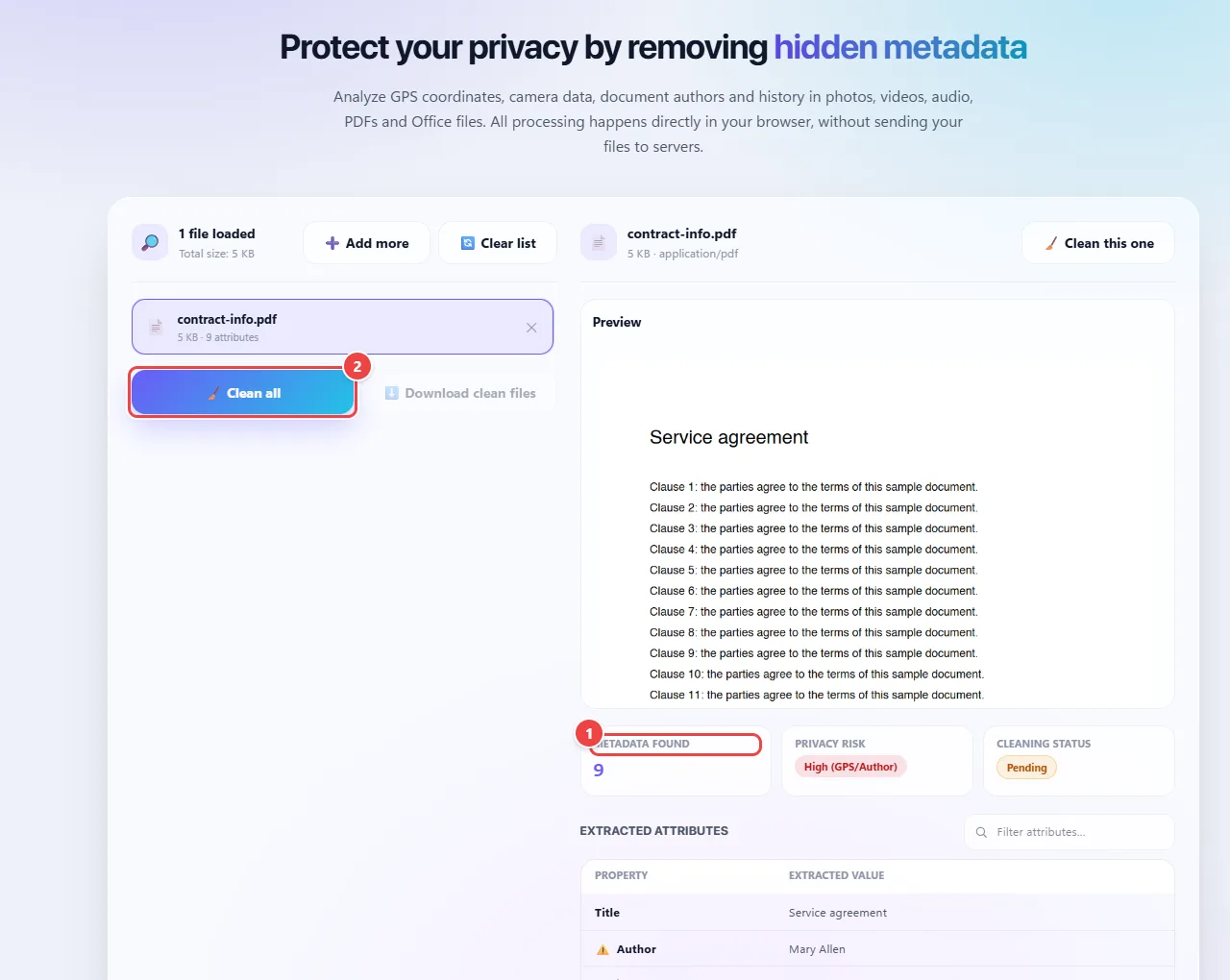
- Point 1: The list shows what the PDF carries: title, author, subject and the program that generated it. Nothing is removed until you ask.
- Point 2: If you decide to remove it, click Clean and download the clean copy.
Result: You know exactly what the file reports and decide what to do.
Tips for a better result
- Always use the clean copy to share and keep the original in a safe place.
- Social networks tend to remove part of the metadata when you publish, but not all platforms or channels do (email and file messengers send the original).
- Also review the visible content: an address on a sign, an envelope or a document shows up regardless of the metadata.
Limits, and when this is not the best option
- The tool removes structured metadata. It does not erase information visible in the content, such as a face, a license plate or text in the image.
- Digitally signed documents may have the signature invalidated if the file is changed.
Frequently asked questions
- Why remove metadata?
- Photos can carry the exact location where they were taken; documents can carry the author’s name and revision data.
- Is the original file changed?
- No. You download a new copy and the original stays as it was.
- Does the photo lose quality?
- The goal is to remove only the hidden data, not to change the image. Check the copy before using it.
- Which files are accepted?
- Photos, videos, audio, PDFs and Office files (DOCX, XLSX, PPTX).