From audio and video
Files of up to 30 minutes
Turn the speech of an audio or a video into text.
This tool sends the audio you upload or record with the microphone to Groq (Whisper Large-v3) in order to work. Learn more
Transcribe audio and video files or speak straight into the microphone, in real time. Choose the language, follow the text as it is generated and copy the result when it is done.
⏱️ Daily limit for this browser: 30 min of audio · ~30 min left today
MP3, WAV, M4A, OGG, MP4, MOV, WEBM… for video, the audio is extracted automatically
Each task has its own page, with the step by step, tips and the limits of what it does.
Files of up to 30 minutes
Turn the speech of an audio or a video into text.
Microphone
Speak into the microphone and watch the text appear.
Transcribe with the language already chosen.
The app turns speech from audio files, videos or the microphone into text, helping you record interviews, classes, meetings and notes.
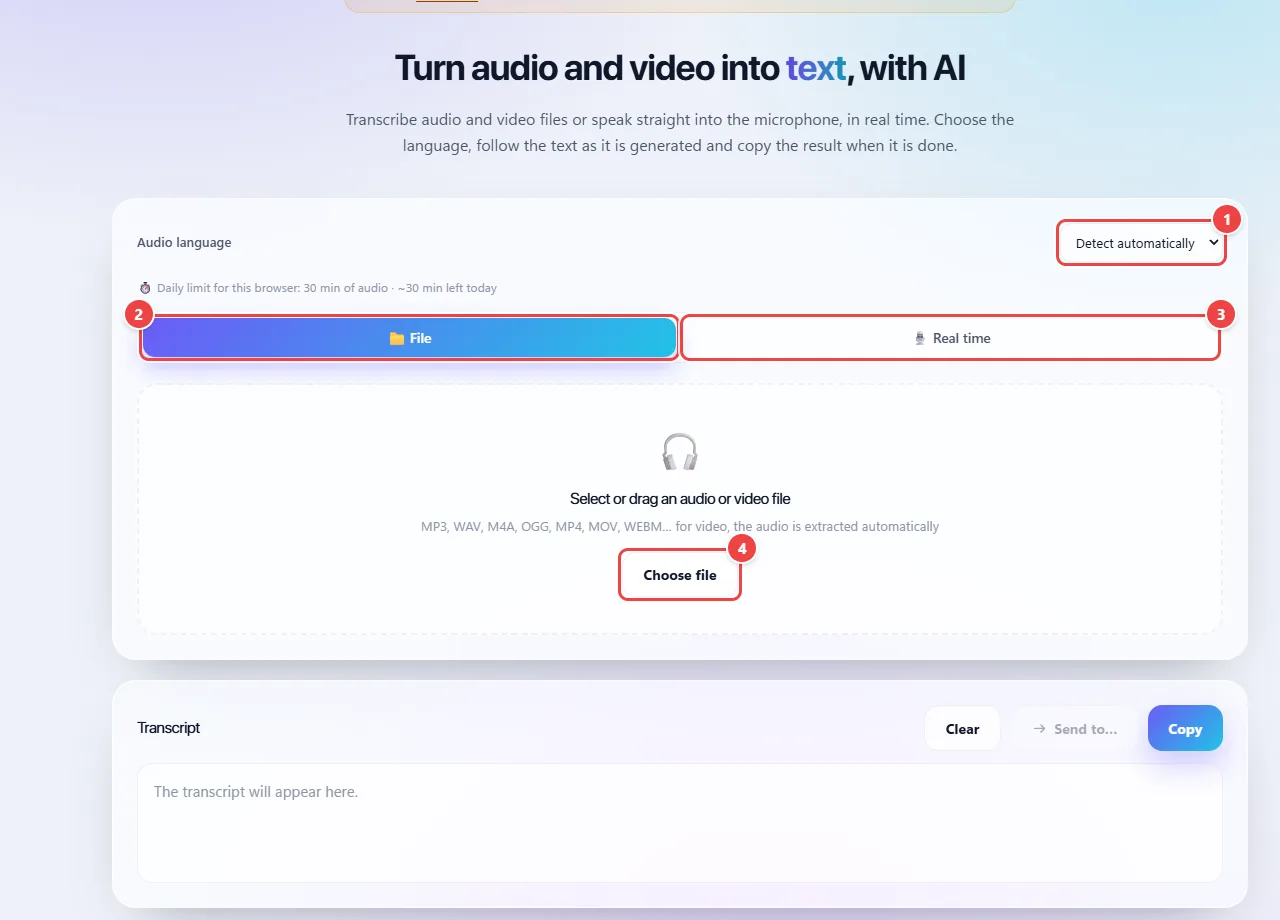
1. Choose the language. Select the spoken language or automatic detection before you start. Also check the time left on the daily limit indicator.
2. Transcribe a file. On the “File” tab, select or drag an audio or video file. Transcription starts after you select it, and the text appears in the “Transcript” area as processing advances.
3. Use the microphone. On the “Real time” tab, tap the microphone button and allow access when the browser asks. Speak clearly and tap again to stop. Wait for pending segments to finish before copying the result.
4. Review and copy. Check names, numbers and words, especially in recordings with noise or overlapping voices. Use “Copy” to take the text to your editor and make adjustments. “Clear” erases the displayed text.
Connection and use. Transcription needs internet: the audio is sent for processing and is not stored by WebFaz. The available daily limit is shown in the app itself.
Turns audio into text: meetings, interviews, classes and voice messages, by uploading a file or speaking into the microphone.
Turns speech into text in two ways, with no sign-up and no program to install. The features that stand out:
Speak and watch the text appear. In this mode, the text does not timestamp the speech.
Upload MP3, WAV, M4A, OGG, MP4, MOV, WEBM and more. For video, the audio is extracted automatically. Transcription starts as soon as you choose the file, so pick the language first.
Let the app detect the language or choose one. The Whisper model recognizes dozens of languages, including English.
Copy the result or use Send to… to take it to another WebFaz tool.
The page shows how many minutes of audio you still have today in this browser (30 minutes per day), before you upload.
You recorded a 40-minute meeting on your phone. You upload the audio file, choose the language and wait. The text appears with the conversation transcribed; you fix a proper name that came out wrong and download the result to write the minutes.
Os pontos de clique estão numerados. Toque na imagem para vê-la em tamanho original. As demais telas, passo a passo, estão no guia “Como funciona”.
This is one of the few WebFaz tools that does not run entirely in the browser. A good-quality speech recognition model does not run well on ordinary phones and computers; that is why the audio is sent to the transcription service (Groq, with the Whisper Large-v3 model), which returns the text.
WebFaz does not store the audio, and the page warns you that the upload happens before you use it. To learn what is sent and how it is handled, read the Privacy Policy.
Accuracy depends on audio quality: a clean recording, a voice close to the microphone and little overlap of voices give much better results.
Read the full guide: real-world use cases, tips and limits →
Privacy: To work, the audio you upload or record with the microphone is sent to Groq (Whisper Large-v3). There is no 100% local mode: transcribing always requires sending the audio for processing. The file is not stored by WebFaz or by Groq beyond the time of the call. Learn more.