How to transcribe audio to text: meetings, interviews and voice messages
Transcribing a meeting or interview by hand takes hours. This guide shows how to turn an audio recording (or your voice on the microphone) into text, how to improve the result and, transparently, what happens to your audio, since this tool depends on an external AI service.
Guide written by Marcelo Amantino · updated on October 19, 2026 · about us
Where your data is processed
To work, the audio you upload or record with the microphone is sent to Groq (Whisper Large-v3).
Unlike most WebFaz tools, this one does not run 100% in the browser: a model like Whisper Large-v3 is too big to run on your device with good quality. To work, the audio is sent to the Groq service, which returns the text. WebFaz does not store the audio. That is why the page tells you this before use. Avoid uploading recordings that contain information that must not leave your control.
See the full list on the Privacy page.
Real-world use cases
Transcribe a recorded meeting
Situation: You recorded a meeting on your phone and need written minutes.
- Choose the spoken language (or leave it on “Detect automatically”) and, on the “File” tab, choose the recording’s audio or video. Transcription starts as soon as you choose the file.
- Wait for the processing; longer audio takes more time. The page shows how much of the daily limit (30 minutes in this browser) is left.
- Read the text and fix proper names, acronyms and technical terms.
- Copy or download the result to write the minutes.
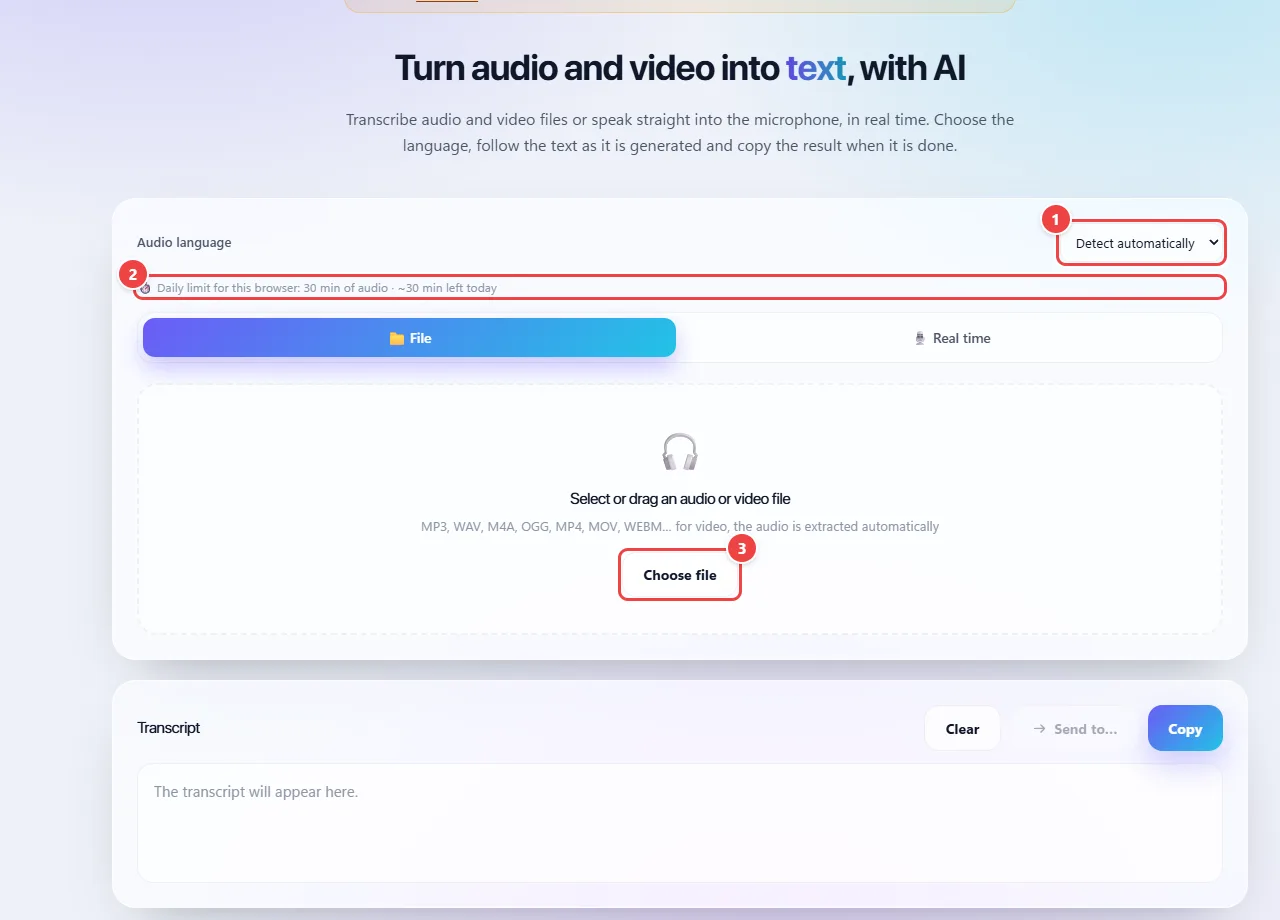
- Point 1: Choose the spoken language or leave it on Detect automatically, before choosing the file.
- Point 2: See how much of the daily limit (30 minutes in this browser) is still left.
- Point 3: Choose an audio or video (MP3, WAV, M4A, OGG, MP4, MOV, WEBM…). If it is a video, the audio is extracted by itself. As soon as you choose the file, the audio is sent to the speech recognition service.
Result: A running text of the meeting that serves as the basis for the minutes, ready for review.
Dictate a text by speaking into the microphone
Situation: You prefer speaking to typing a draft, email or note.
- Open the “Real time” tab and tap the microphone. Allow its use when the browser asks.
- Speak at a natural pace in a quiet place: the text appears while you speak. In this mode, the text does not timestamp the speech.
- Stop when you are done.
- Review and use “Copy” (or “Send to…” to take the text to another app).
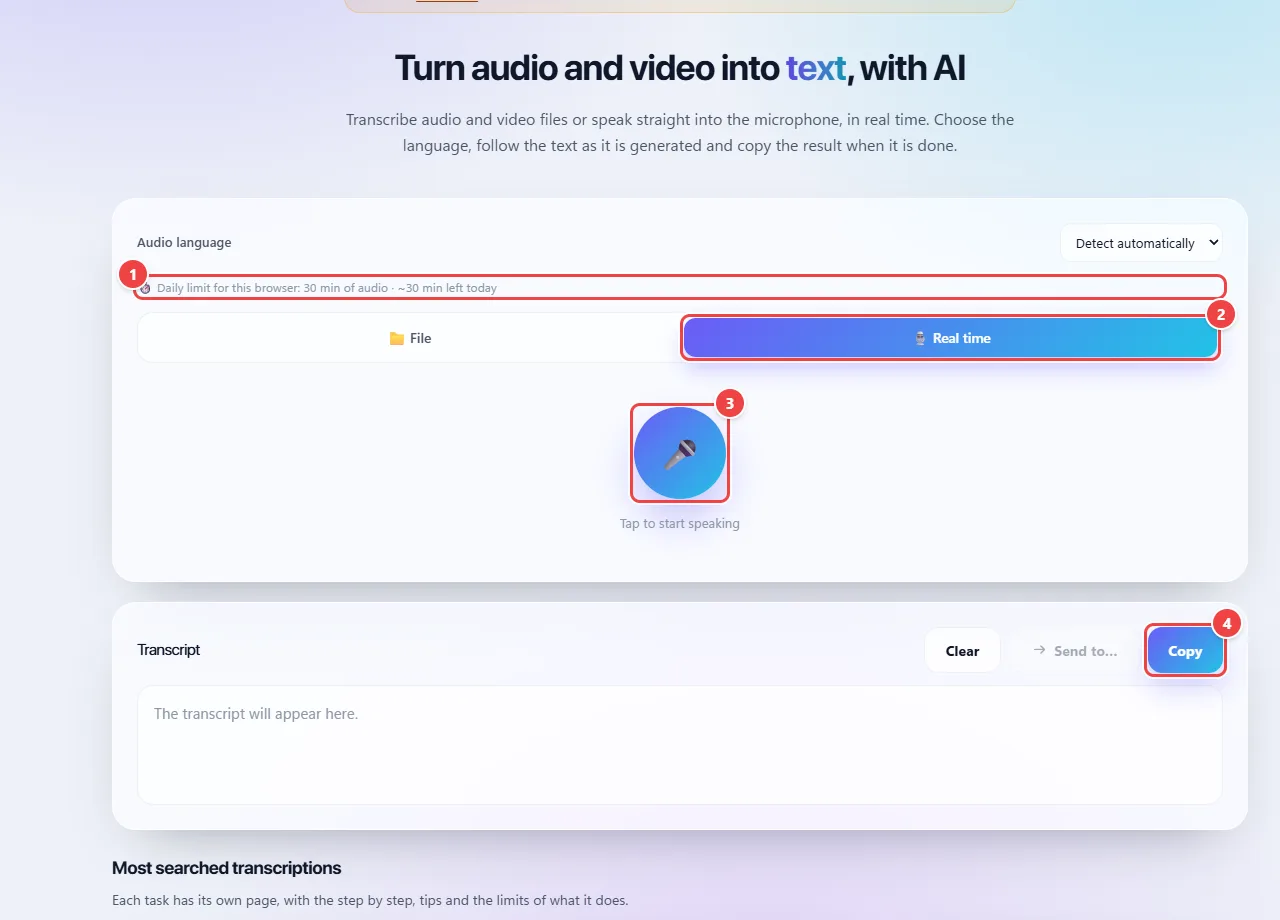
- Point 1: The page shows how many minutes of audio are still left today in this browser (30 per day).
- Point 2: On the Real time tab, the text appears as you speak. This mode does not timestamp the speech.
- Point 3: Tap the microphone to start: the browser asks for your permission. The audio is sent to the speech recognition service (Groq/Whisper) to generate the text.
- Point 4: Copy the result or use Send to… to take it to another app.
Result: A text draft from your voice, which you adjust before using it.
Transcribe an interview to quote passages
Situation: A 30-minute interview needs to become text so you can find and quote passages.
- Upload good-quality audio, without background music.
- Wait and review the text, listening to the passages you will quote.
- Confirm important statements by listening to the original audio before quoting them.
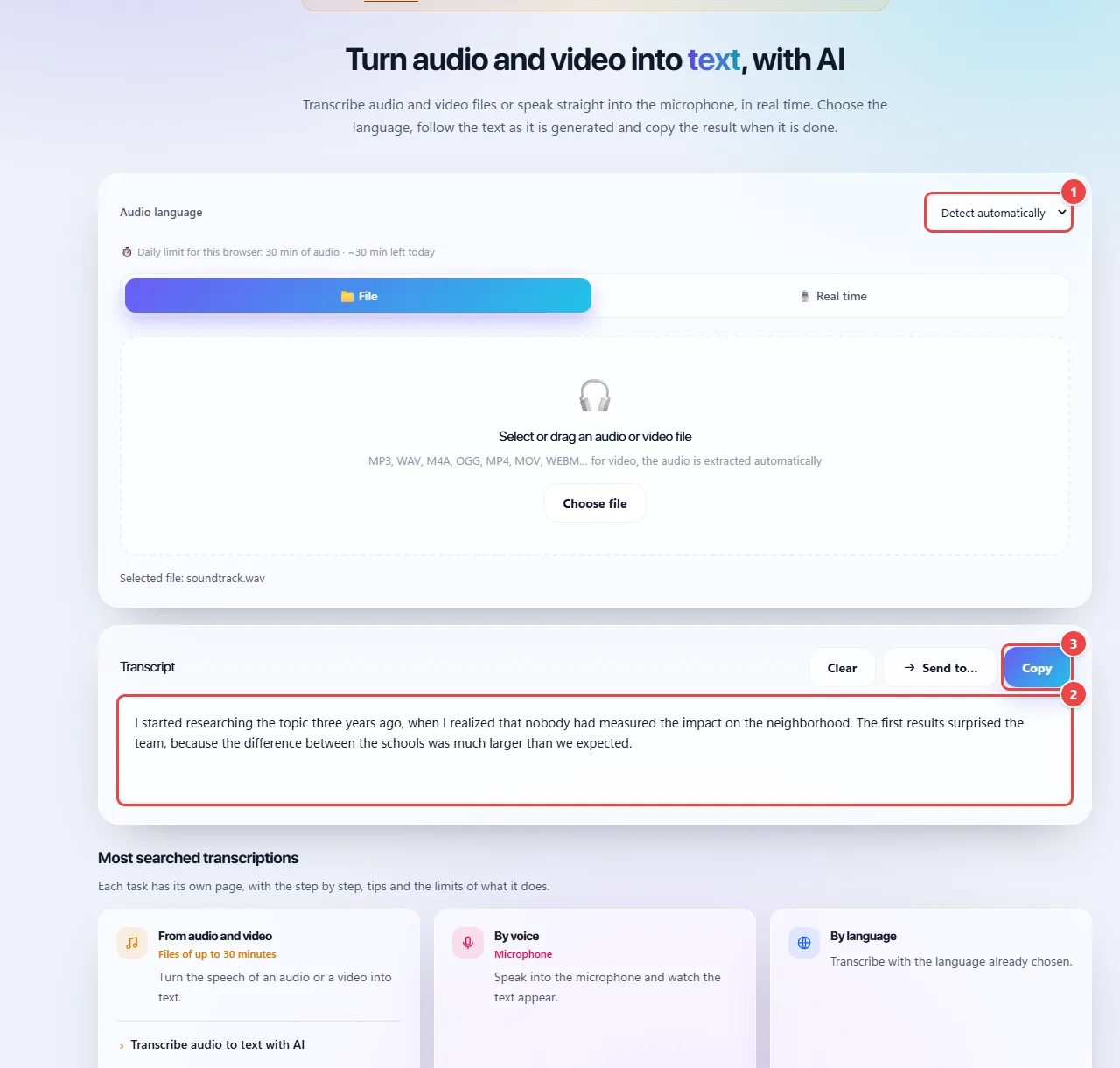
- Point 1: Choose the spoken language. Use good-quality audio without background music.
- Point 2: Review the text by listening to the parts you will quote. Confirm the important quotes in the original audio before citing them.
- Point 3: Copy the text or use Send to… to take it to another app.
Result: A searchable text to quickly find statements, which you confirm against the audio before publishing.
Where to click, in practice
Images of the tool itself, with the click points numbered. Tap an image to see it at its original size.
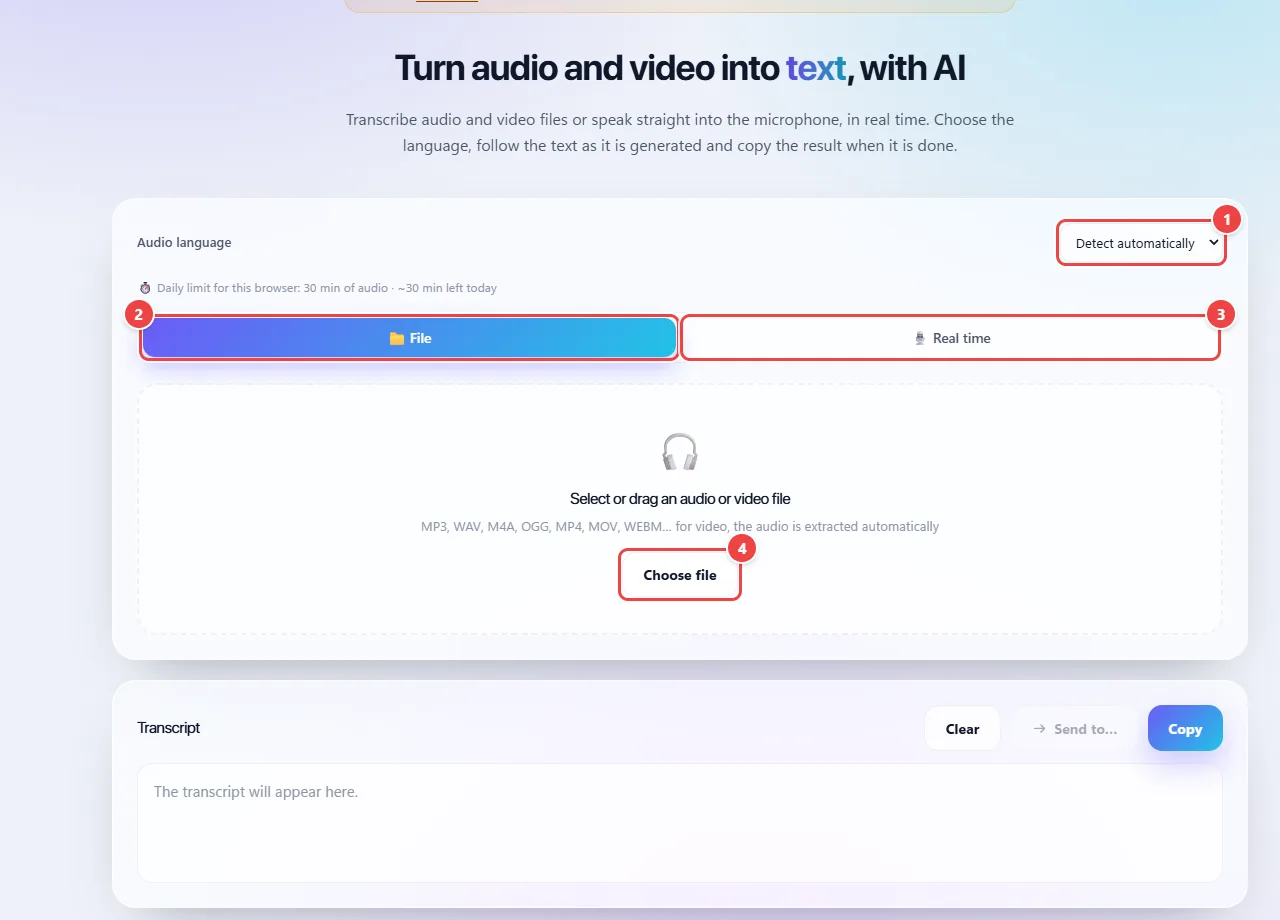
- Point 1: Choose the spoken language or let it detect automatically.
- Point 2: File tab: transcribes a recorded audio or video (MP3, WAV, M4A, OGG, MP4, MOV, WEBM…).
- Point 3: Real time tab: transcribes what you say into the microphone, as you speak.
- Point 4: Choose file: the audio is sent to the speech recognition service (Groq/Whisper) only to generate the text. The daily limit appears above.
Tips for a better result
- Audio quality matters more than any setting: record close to the source and in a quiet place.
- Avoid overlapping voices; the model transcribes what it hears but does not separate who spoke.
- Always review proper names, numbers and technical terms.
- For long files, split the audio into smaller parts if the tool points to a size limit.
Limits, and when this is not the best option
- Noise, overlapping voices, background music and strong accents can cause errors; the transcript is a starting point, not an official record.
- Very long files may exceed the service’s size limit.
- Because the audio is sent to an AI service, it is not suitable for confidential or privileged recordings.
Frequently asked questions
- Is the audio stored?
- WebFaz does not store the audio. It is sent to the AI service only to generate the text.
- Why does this tool not run in the browser like the others?
- The AI model used needs more capacity than an ordinary browser offers. That is why it is one of the exceptions described on the Privacy page.
- Which languages work?
- The Whisper model recognizes dozens of languages, including English.
- Does the transcription identify who is speaking?
- No. The result is the text of the speech, without separating the speakers.