How to view and convert 3D models (GLB, OBJ, STL, FBX) in the browser
Receiving a 3D model in the wrong format is common: the printing slicer asks for STL, the website asks for GLB. This guide shows how to open the model, rotate it, check vertices and dimensions, change the view mode, save an image and convert to another format, with no program to install.
Guide written by Marcelo Amantino · updated on October 19, 2026 · about us
Where your data is processed
This tool runs entirely in your browser: your files and data are not sent to any WebFaz server.
The model is read and drawn in your browser with WebGL, which uses the device’s graphics card. The conversion is also local: the file is not sent to WebFaz.
See the full list on the Privacy page.
Real-world use cases
Open and inspect a model
Situation: A friend sent a model and you want to see whether it is complete.
- Click “Open 3D model” or drag the file into the central area. With no file, the demo model is already open.
- Rotate, zoom in and out of the model with the mouse. The Front, Top, Side and Iso buttons go to ready views, and “Frame model” centers it.
- On the right, check the statistics: vertices, triangles, meshes, materials, textures, animations and dimensions.
- In the object tree on the left, hide or show parts of the model.
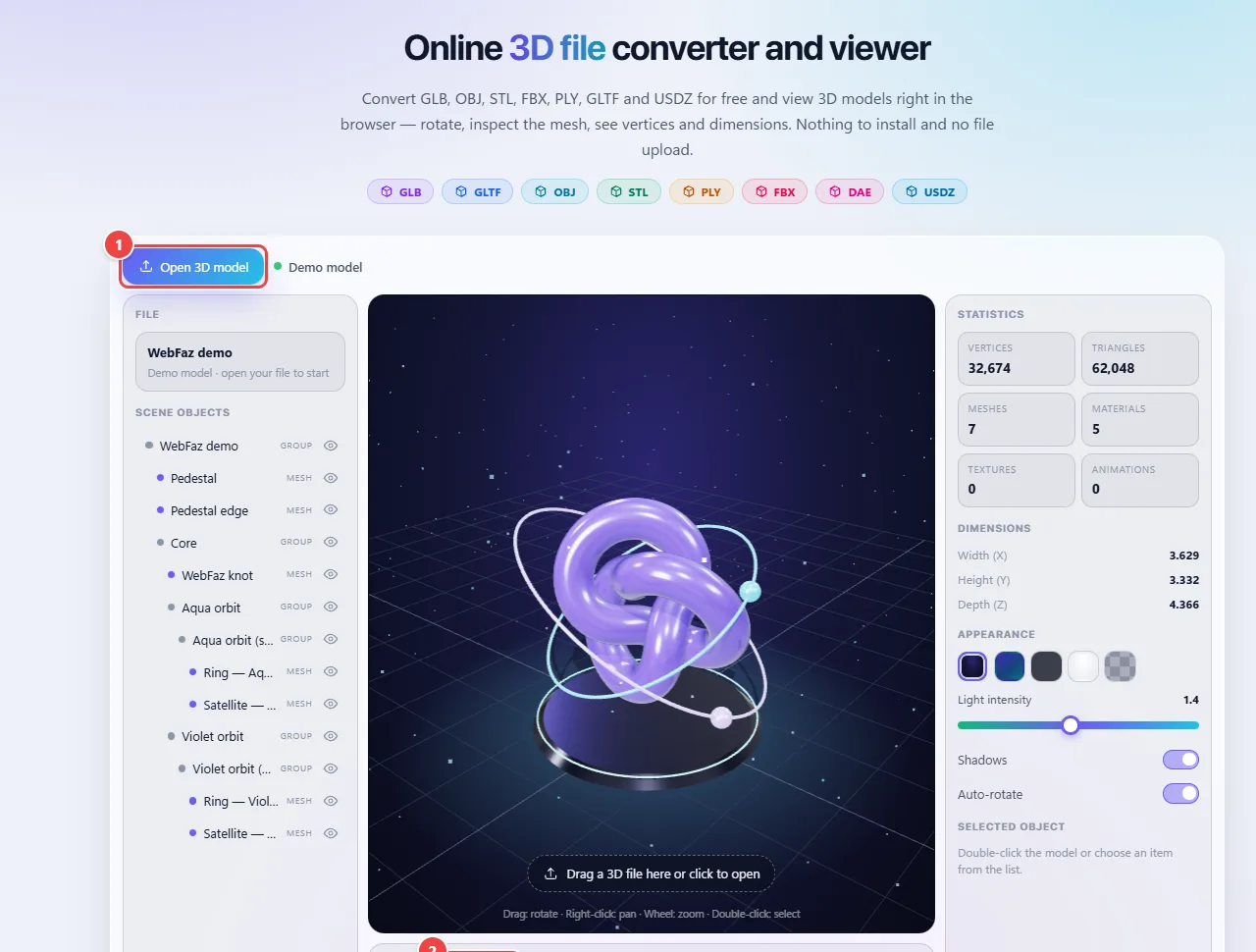
- Point 1: Open a model (GLB, glTF, OBJ, STL, PLY, FBX, DAE…) or drag the file onto the central area.
- Point 2: Switch the display mode (solid, wireframe, clay, normals) and the views (front, top, side, isometric).
- Point 3: Save a PNG image of the current view.
- Point 4: Convert the model to another format by choosing the output one.
Result: You know whether the model is complete and what its size is.
Change the view mode and save an image
Situation: You want to see the mesh or record the model in an image.
- Switch between Solid, Wireframe, Clay and Normals to see the surface in different ways.
- Turn on the grid, the XYZ axes, the bounding box or the orthographic camera, if you need them.
- Click “Save PNG image” to download the current view.
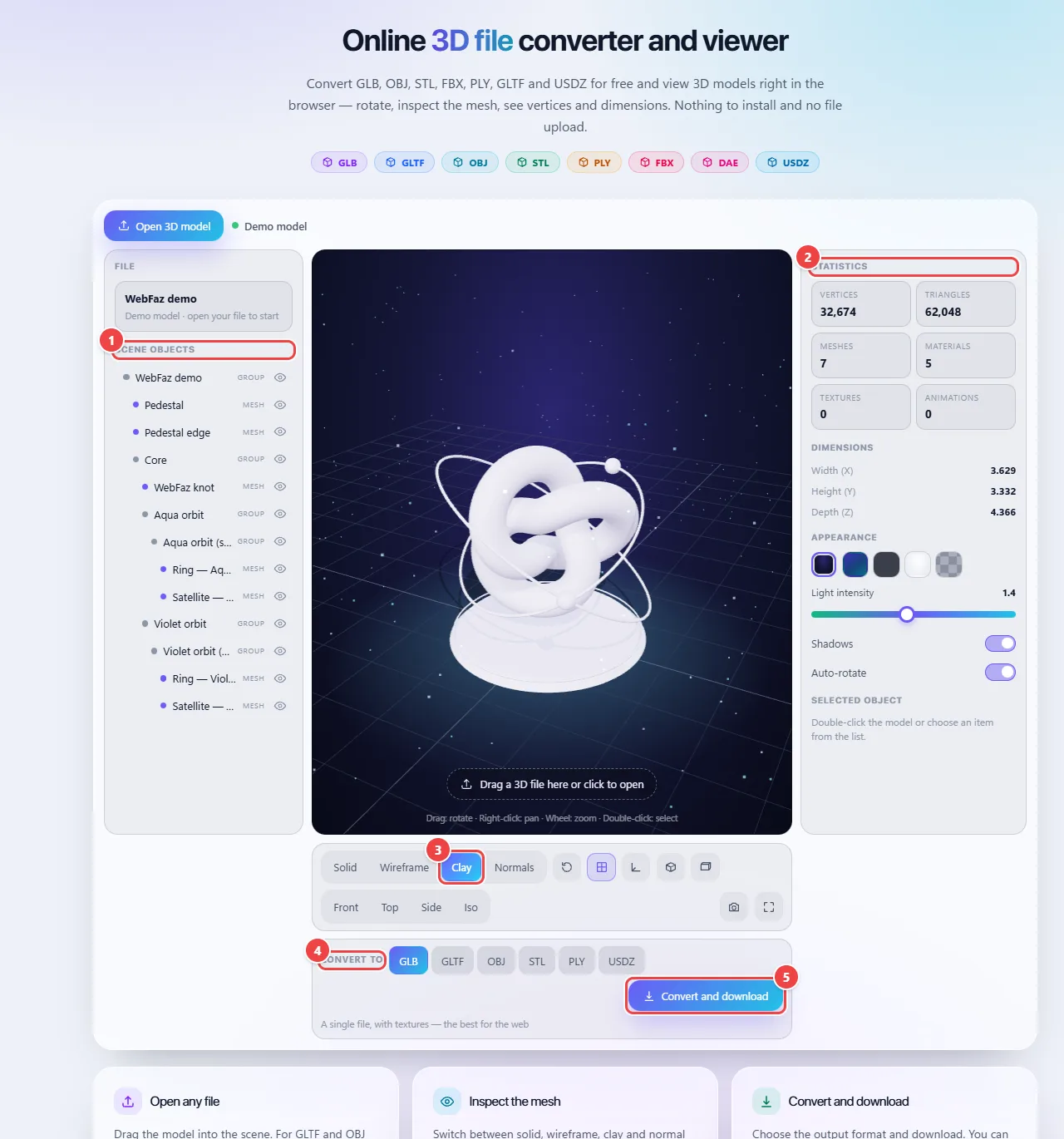
- Point 1: The object tree lists the model’s groups and meshes. Use the eye next to each item to hide or show a part.
- Point 2: Vertices, triangles, meshes, materials, textures, animations and the model’s dimensions, to check the scale before printing or publishing.
- Point 3: Switch between Solid, Wireframe, Clay and Normals to analyze the surface. The Front, Top, Side and Iso views take you to ready-made angles.
- Point 4: Choose the output format: GLB, GLTF, OBJ, STL, PLY or USDZ. GLB gathers everything (including textures) in a single file, the best for the web.
- Point 5: Convert and download generates the file in your browser. The camera icon beside it saves a PNG image of the scene.
Result: A PNG image of the model in the chosen view.
Convert to another format
Situation: The printing slicer asks for STL, but you received an OBJ.
- Open the OBJ and check that the mesh and dimensions are right (models exported in different units arrive very large or very small).
- Choose the output format: GLB, GLTF, OBJ, STL, PLY or USDZ (Apple’s augmented reality format). The app opens FBX and DAE, but does not generate them.
- Download the converted file.

- Point 1: Choose the output format: GLB, GLTF, OBJ, STL, PLY or USDZ. The app opens FBX and DAE, but does not generate them.
- Point 2: Convert and download generates the file in your browser, without sending the model to any server.
Result: The model in the format your program accepts.
Tips for a better result
- For the web, prefer GLB: it embeds textures and is well supported by viewers.
- Check the dimensions shown before 3D printing.
- Keep the original file: some conversions discard textures and animations.
Limits, and when this is not the best option
- Not every conversion preserves textures, colors and animations: STL, for example, stores only the geometry.
- Very heavy models depend on the device’s graphics card and memory.
Frequently asked questions
- Which format should I use for the web?
- GLB is the best format for displaying 3D models on websites.
- What is the difference between GLB and GLTF?
- They are the same standard. GLTF usually comes as several files; GLB gathers everything in a single binary file.
- Why did my model lose its colors?
- The target format may not store colors and textures, like STL. Choose GLB or GLTF if you need them.
- Is my model sent to any server?
- No, the conversion is local.