How to open a DXF drawing and export it to PDF, SVG or PNG without CAD software
Receiving a technical drawing as a DXF and not having CAD software is common. This guide shows how to open the file, navigate, turn layers on and off and export to PDF (with the paper and orientation you choose), SVG or PNG.
Guide written by Marcelo Amantino · updated on October 19, 2026 · about us
Where your data is processed
This tool runs entirely in your browser: your files and data are not sent to any WebFaz server.
The DXF is read and turned into a drawing in your browser, and the exported files are also generated there. The drawing is not sent to WebFaz.
See the full list on the Privacy page.
Real-world use cases
Open and explore a drawing
Situation: A client sent the plan of a part as a DXF and you need to see it.
- Click “Open DXF” or drag the file (2D ASCII DXF, up to 20 MB) onto the drawing area.
- Zoom in and out with the mouse wheel, drag to move and use “Fit” to see the whole drawing. “Grid” turns the grid on and off.
- In the “Layers” list, turn off the layers you do not need (for example, the dimensions) to see only the outline.
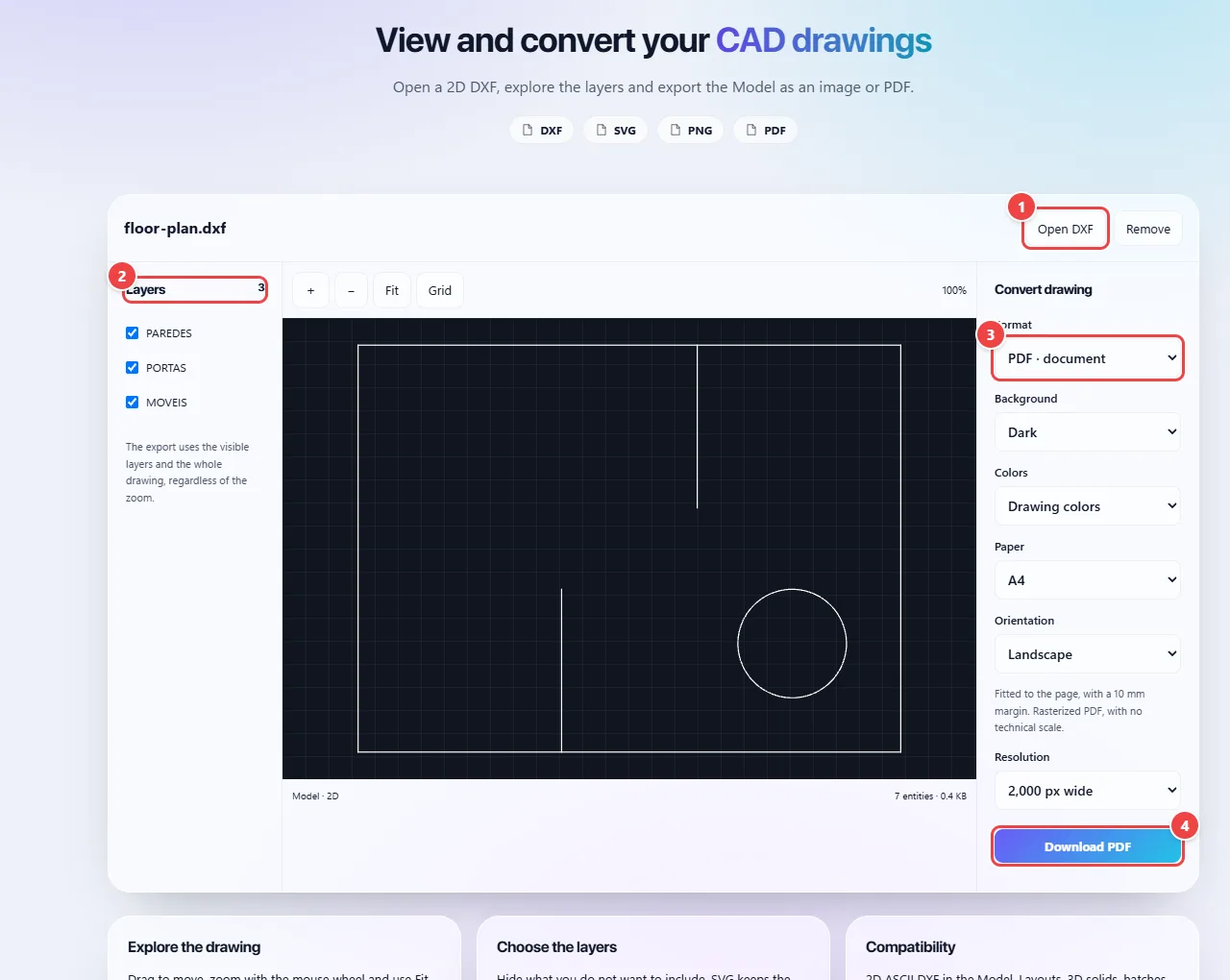
- Point 1: Open a 2D DXF drawing or drag the file onto the drawing area.
- Point 2: The layer list lets you show or hide parts of the drawing before exporting.
- Point 3: Choose the output format (PDF, SVG or PNG) and the paper, color and resolution options.
- Point 4: Download the converted file.
Result: The drawing open, with the layers you want to see.
Export to PDF to attach to a quote
Situation: You need a PDF of the drawing on A4, in landscape.
- Under “Convert drawing”, choose the “PDF” format.
- Set the background (dark or white), the colors (the drawing’s or monochrome), the paper (A4 to A0) and the orientation (landscape or portrait).
- Click “Download PDF”. The drawing is centered on the page.
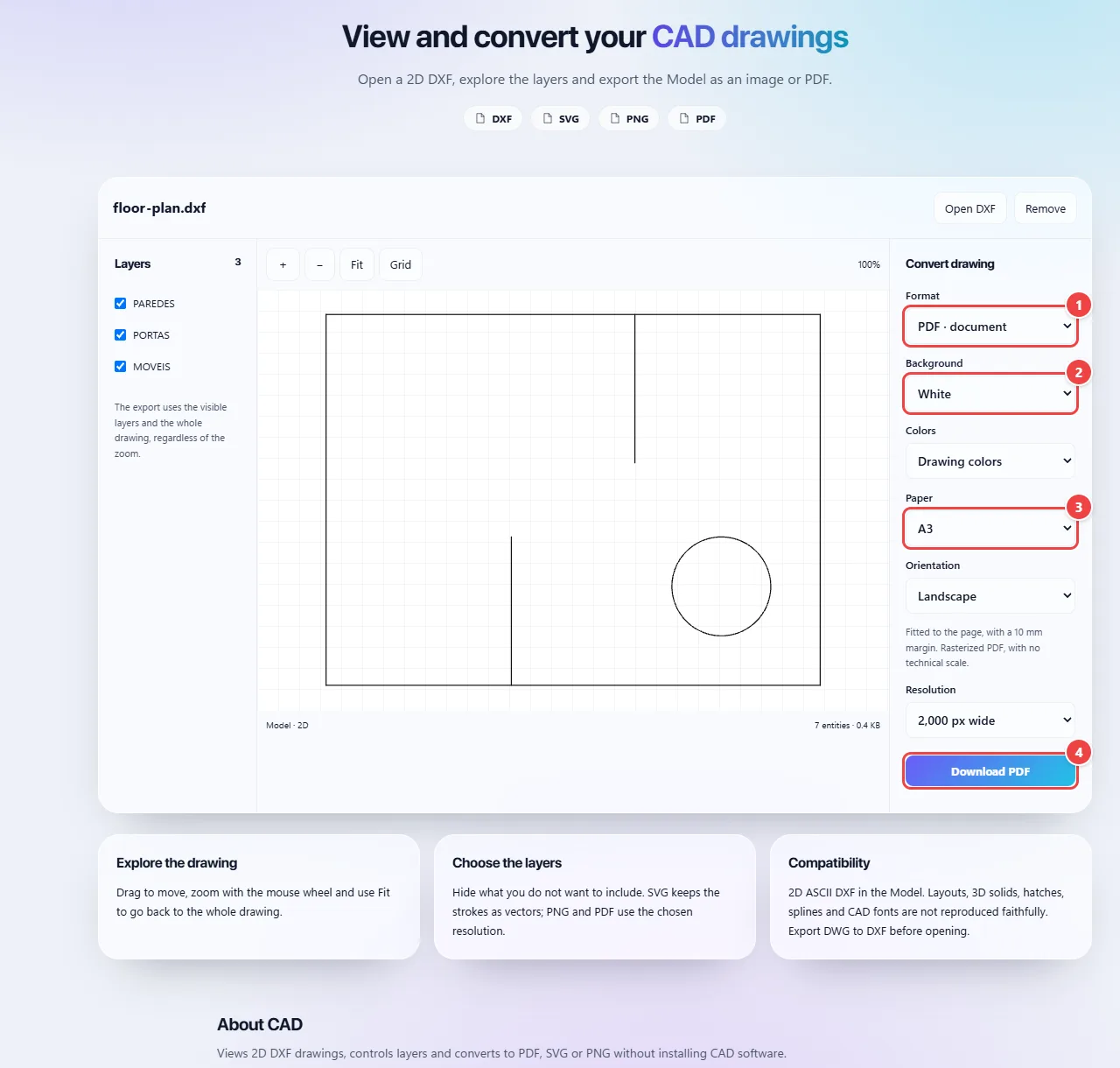
- Point 1: In Convert drawing, choose PDF to attach to a quote.
- Point 2: Set the background (dark or white) and the colors: the drawing’s own or monochrome, good for printing.
- Point 3: Choose the paper, from A4 to A0, and the orientation. The drawing is centered on the page.
- Point 4: Download PDF generates the file in your browser.
Result: A PDF of the drawing on the paper and in the orientation you chose.
Export to SVG or PNG
Situation: You want the drawing for a website, a document or another program.
- Choose “SVG” for a vector that does not lose definition when enlarged, or “PNG” for an image.
- For PNG, choose the resolution (width in pixels).
- Download the file. Turn off beforehand any auxiliary layers that should not appear.
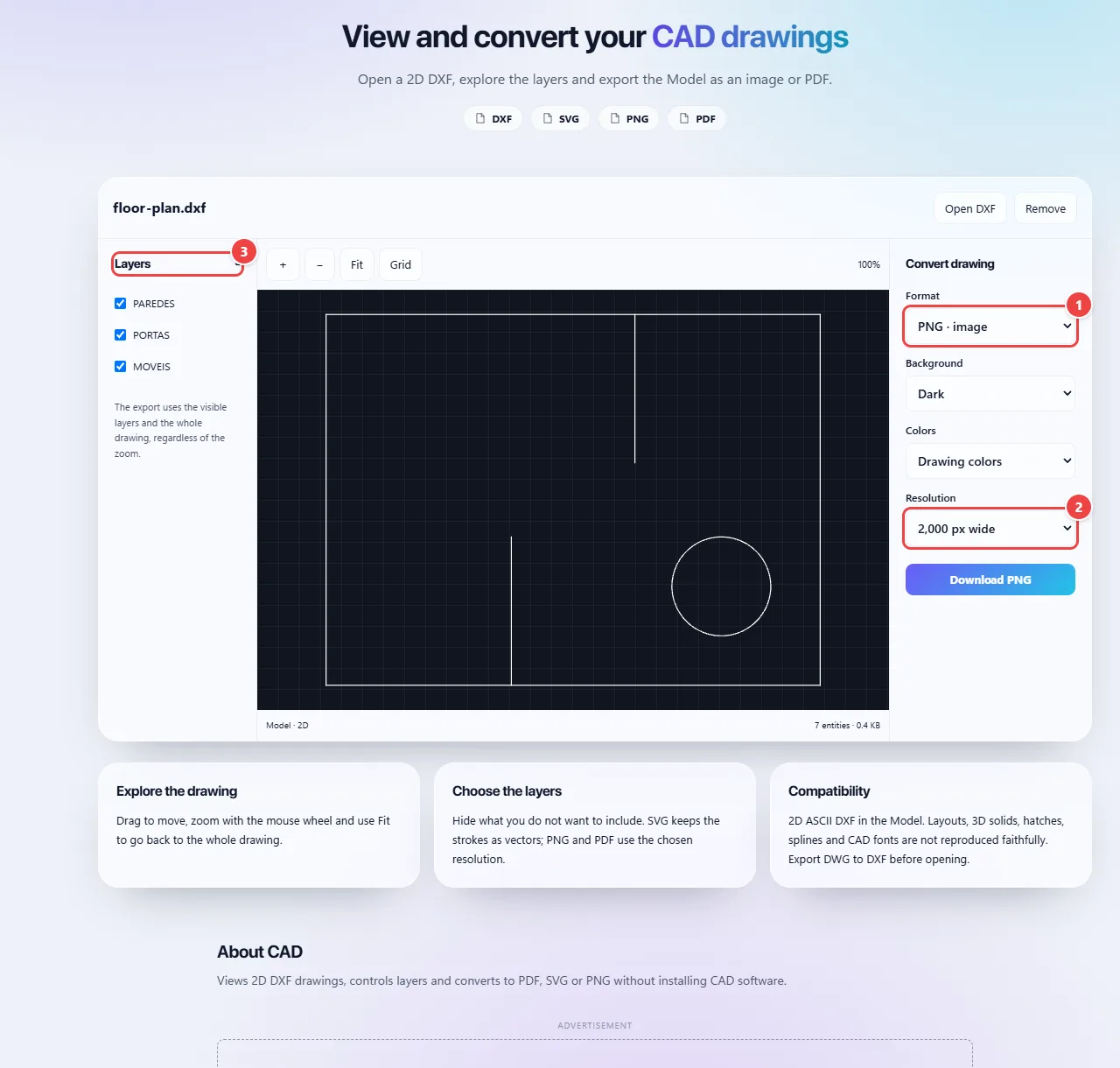
- Point 1: SVG is a vector that does not lose sharpness when enlarged; PNG is an image.
- Point 2: For PNG, choose the resolution (width in pixels).
- Point 3: Turn off beforehand the auxiliary layers that should not appear in the file.
Result: A vector SVG or a PNG at the chosen resolution.
Tips for a better result
- If the drawing is a DWG, open it in your CAD program and save it as ASCII DXF.
- For sharp printing, choose a higher resolution in PNG or prefer SVG.
- Turn off auxiliary layers (dimensions, axes, borders) before exporting if you do not want them to appear.
Limits, and when this is not the best option
- Only 2D drawings in ASCII DXF, up to 20 MB: DWG and 3D models are not supported.
- Very specific CAD entities (complex hatches, 3D objects) may not be displayed; the tool warns you when that happens.
- It is a viewer and converter: it does not measure distances or dimension. Before manufacturing a part, check in the source program.
Frequently asked questions
- Can I open DWG?
- No. Save the drawing as DXF in your CAD program.
- Can I measure distances in the drawing?
- No. The tool is a viewer and converter; it does not offer dimensioning or measuring.
- Is there a size limit?
- Yes: the DXF file can be up to 20 MB.
- Does the drawing get a watermark?
- There is no watermark. Exported files carry the credit “Processed by WebFaz.com” in their metadata.