How to calculate hours worked, overtime and your monthly balance
If you have a fixed schedule, a time bank or bill by the hour, you need to check the numbers at the end of the month. This guide shows how to log the start, end and break of each day, see your balance against your target, follow the month and export everything to CSV, without creating an account.
Guide written by Marcelo Amantino · updated on October 19, 2026 · about us
Where your data is processed
This tool runs entirely in your browser: your files and data are not sent to any WebFaz server.
All calculations happen in your browser. Entries are stored in this device’s local storage: there is no account and no server, so they do not sync between devices and can be erased if you clear the site data. To keep a copy outside the browser, export the CSV.
See the full list on the Privacy page.
Real-world use cases
Set up your workday and log a day of work
Situation: You start at 8:00, finish at 17:30 and stop for one hour at lunch, with a target of 8 hours a day.
- Under “Workday settings”, enter the hourly rate, the overtime premium (%) and the daily target (hours), then click “Apply settings”.
- In the entry form, choose the date and fill in “Start” and “End”.
- Keep “Deduct break” checked and enter the break start and end (for example, 12:00 and 13:00).
- Click “Save entry”. The day goes into the history and the period summary updates.
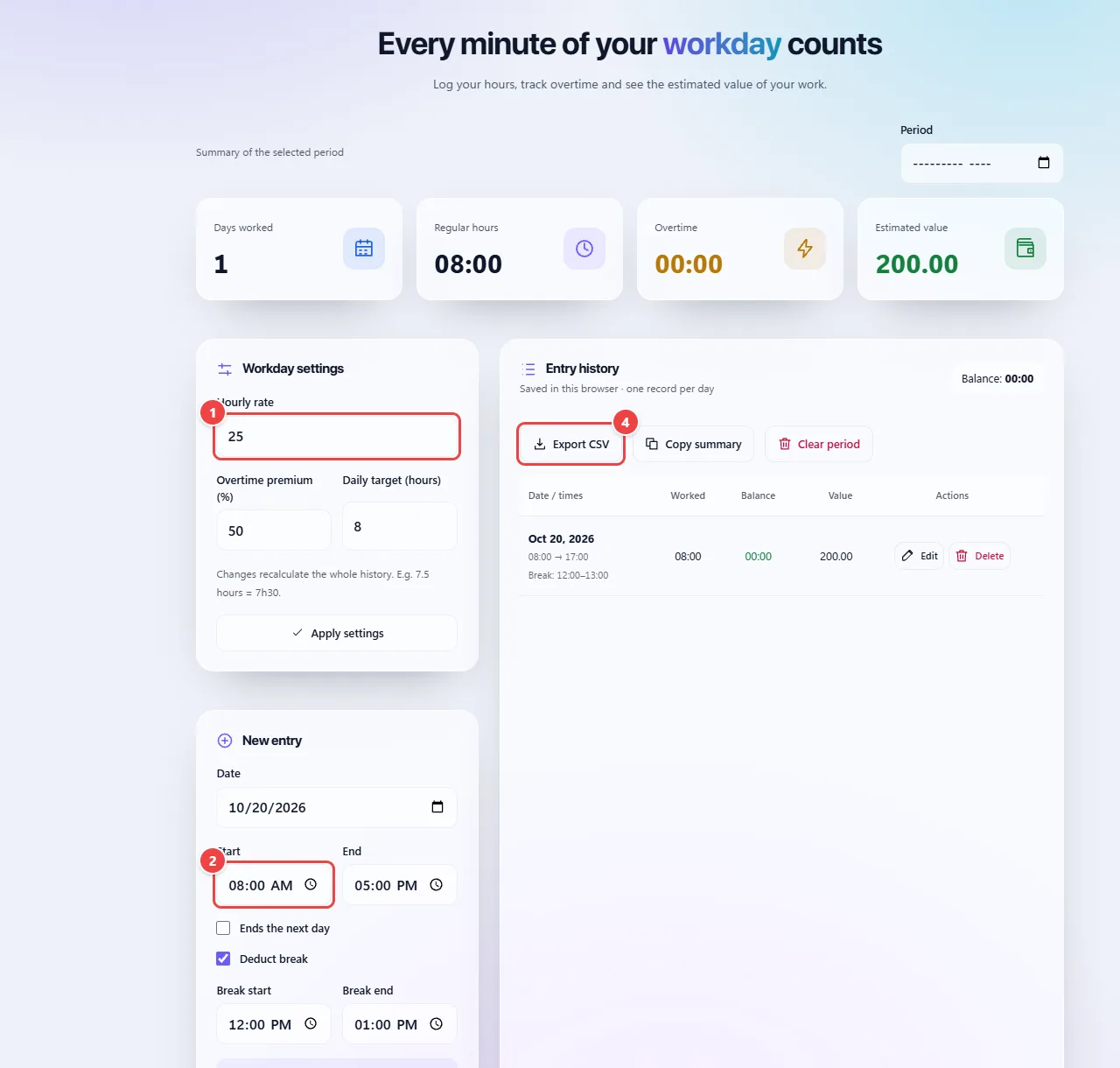
- Point 1: Enter the hourly rate, the overtime premium and the daily target.
- Point 2: Log the date, start, end and break of each day.
- Point 3: Save entry stores the day in this browser and updates the summary.
- Point 4: Export the period as CSV or copy the summary.
Result: The day appears in the history with the total worked and the balance against your target (in this example, 8h30 worked and +0h30).
Log a shift that ends the next day
Situation: You work nights: you start at 22:00 and finish at 6:00 the next morning.
- Fill in the date the shift started and the “Start” time.
- Enter the “End” time and check “Ends the next day”.
- If there was a break, keep “Deduct break” checked and fill in its start and end.
- Save the entry and check the total before relying on it.
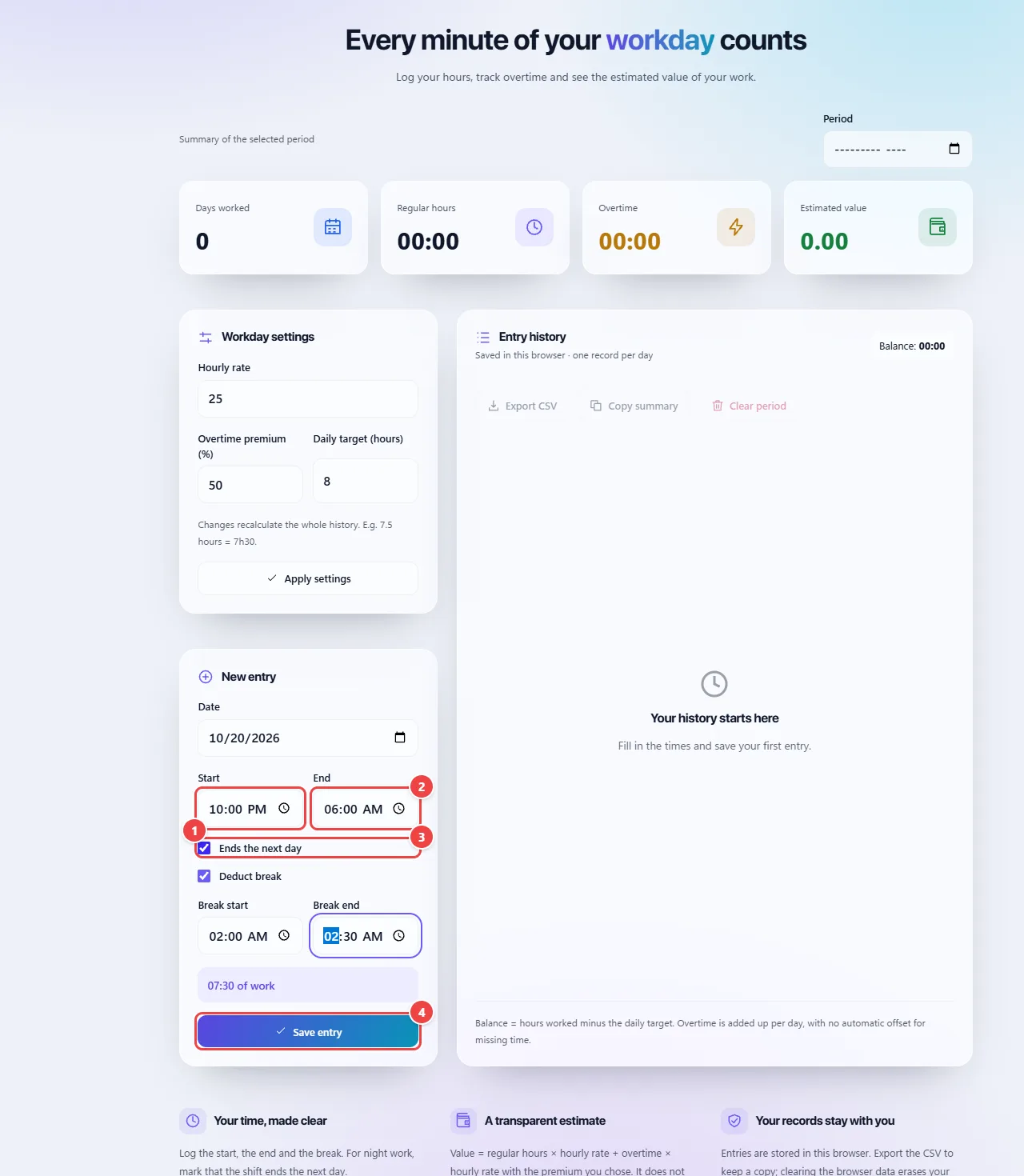
- Point 1: Fill in the date of the day the shift started and the start time.
- Point 2: Enter the final end time, even if it is earlier than the start.
- Point 3: Check “Ends the next day” so the app adds the hours until the next morning.
- Point 4: Save and check the total before relying on it.
Result: A single record for the shift, with the total calculated across midnight.
Close the month and take the numbers to a spreadsheet
Situation: It is time to close your timesheet and you need to check the monthly balance or present your hours to your employer or a client.
- Choose the month in the “Period” field to see only its entries.
- Check the summary for regular hours, overtime, days worked and the estimated value.
- Click “Export CSV” to open the data in Excel or Google Sheets, or “Copy summary” to paste it into a message.
- Once you have saved a copy, use “Clear period” if you want to start the next month from scratch.
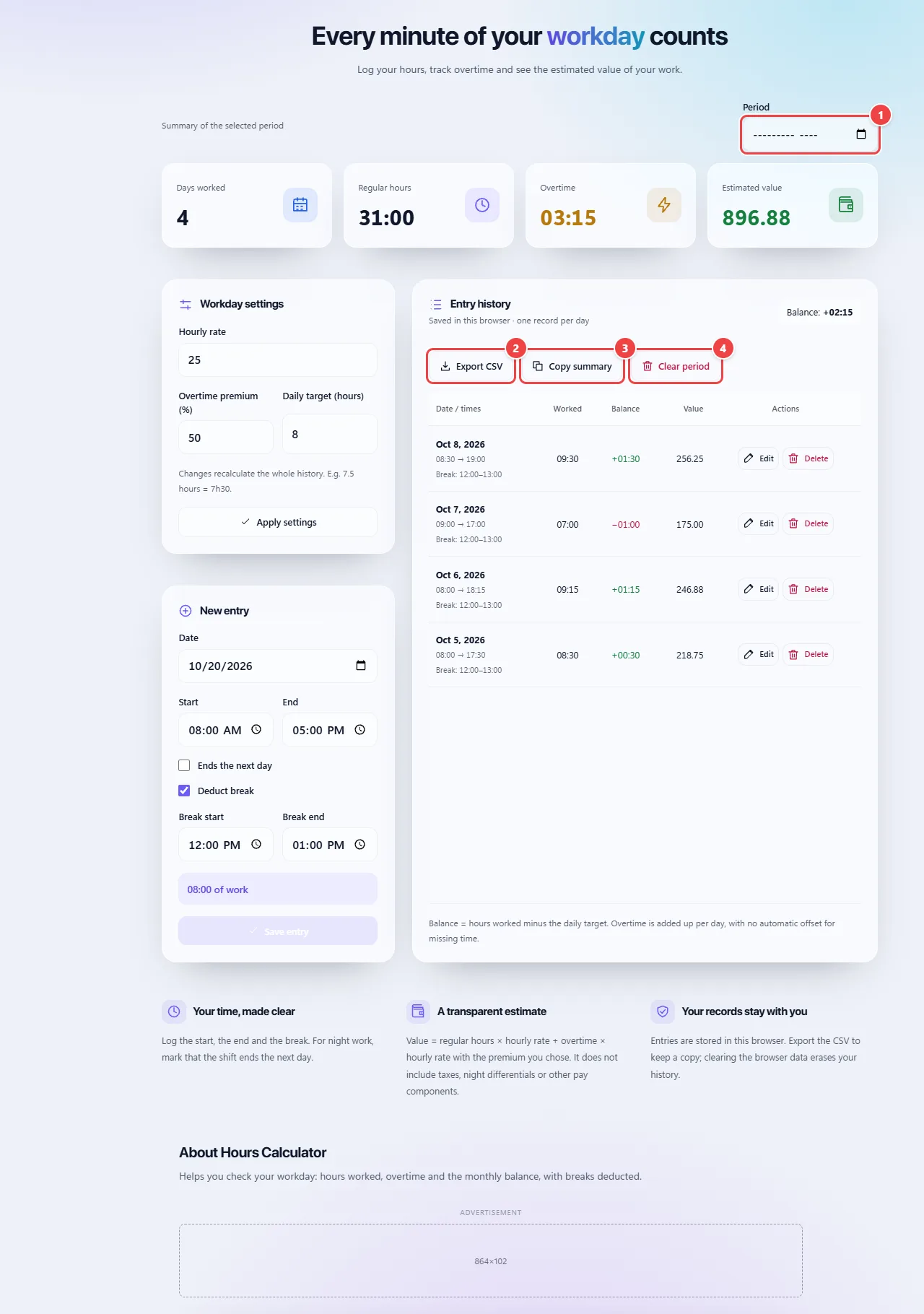
- Point 1: Choose the month in the Period field to see only its entries.
- Point 2: Export CSV opens the data in Excel or Google Sheets.
- Point 3: Copy summary takes the totals to paste into a message or an email.
- Point 4: After keeping a copy, Clear period restarts the month from scratch.
Result: A CSV for the month with every entry and a summary ready to share.
Tips for a better result
- Log your hours on the same day: rebuilding the workday from memory at the end of the month usually leads to errors.
- Export the CSV when you close each month to keep a copy outside the browser.
- Check the rules in your contract and local labor law for overtime premiums and time banks.
Limits, and when this is not the best option
- It is a support calculator, not a replacement for your employer’s official time clock or for payroll.
- Records stay only in this browser: clearing the site data erases the history, and they do not sync between devices.
- The estimated value depends on the hourly rate and premium you enter; the real rules of your contract may be different.
Frequently asked questions
- Where are my records stored?
- In your browser’s local storage, on this device. Export the CSV if you want to keep a copy.
- Can I use it on another device?
- The data does not sync between devices; export the CSV and keep it yourself.
- Does it work as an official time clock?
- No. It is a calculator for checking your own hours.
- Can I recover my records if I clear the browser?
- No. That is why there is a CSV export: make a copy from time to time.