Individual selection
Look up names, folders and sizes before extracting. Each download preserves the original file’s bytes; no folder is created on your device.
Local files are opened in the browser, with no upload; when opening from a URL, the package comes straight from the server you enter. Learn more
See what is inside the package, check text and images and download files individually.
The package is transferred into the browser’s memory. The URL must allow access (CORS). Your local files are not sent to the server.
Look up names, folders and sizes before extracting. Each download preserves the original file’s bytes; no folder is created on your device.
Text, HTML and SVG appear as text. Compatible images appear in the preview. Programs and scripts are not run. This does not scan for viruses or guarantee that files are safe.
Up to 100 MB per package, 10,000 items and 50 MB per extracted file. Previews of up to 5 MB. Packages split into volumes and some encryption methods may not open.
Opens ZIP, RAR, TAR and 7Z in the browser so you can see the structure, view text and images and extract only what you need.
Opens a package without unpacking everything: it shows what is inside and extracts only what you choose. The features that stand out:
ZIP, RAR, TAR and 7Z open right in the browser, up to 100 MB.
Download a single item from the list instead of unpacking the whole package.
See text and images straight from the list to confirm the file is the right one.
Look for a name or an extension and browse the folders.
Paste a package’s address and open it without downloading it first, when the server allows access from the browser.
The package you choose is processed on your device. A password field is available, but protected packages may not open.
Someone sends a 2 GB RAR package with photos from an event, but you only need three images. You open the file in the tool, browse the folders, view the images to find the right ones and extract only those three, without unpacking the whole package.
Os pontos de clique estão numerados. Toque na imagem para vê-la em tamanho original. As demais telas, passo a passo, estão no guia “Como funciona”.
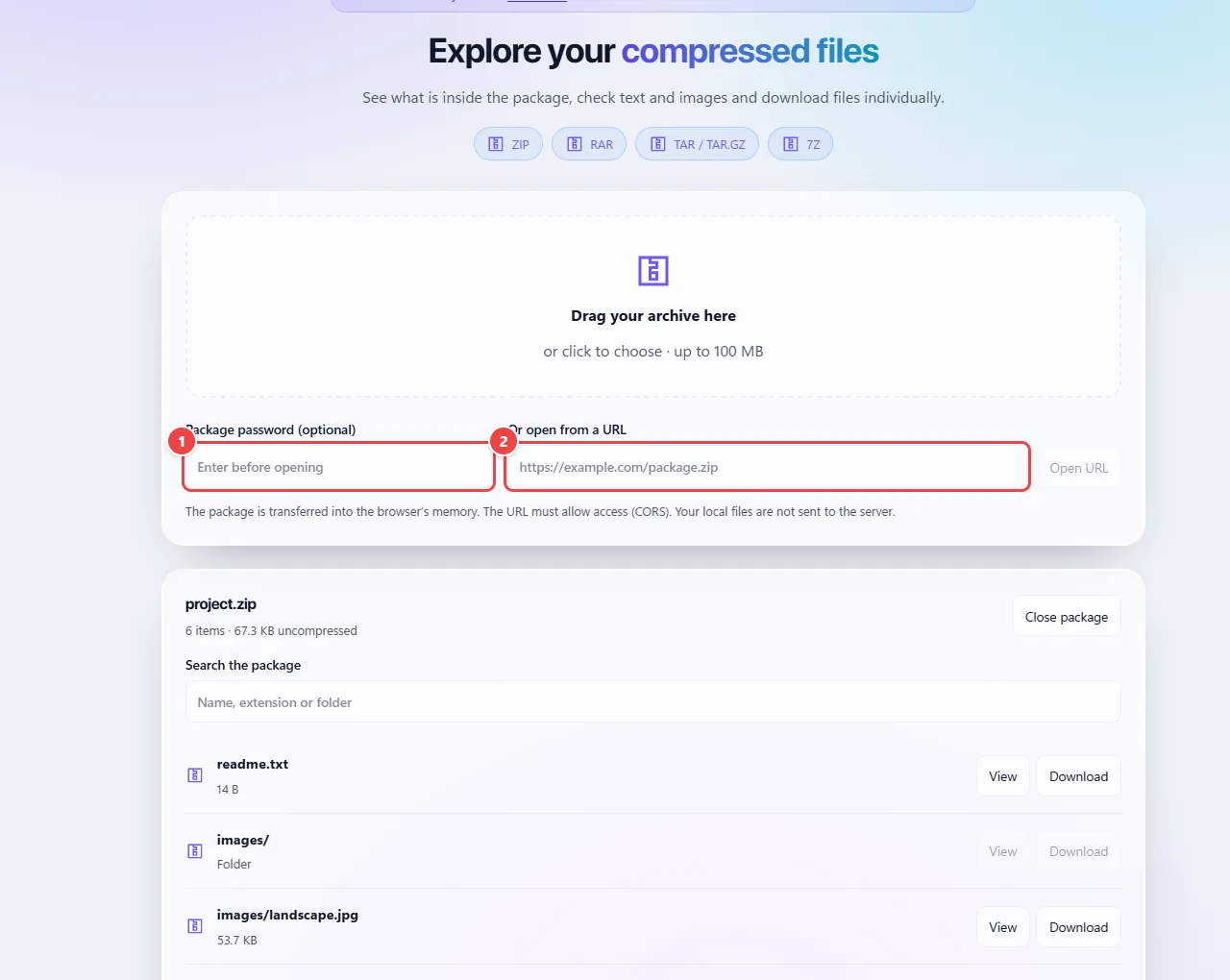
The archive is read in the browser and the list of contents appears as folders. The tool opens ZIP, RAR, TAR and 7Z, and shows text and images without requiring you to extract everything.
Extracting only what matters saves time and space, since the browser unpacks only the items you select.
Password-protected files and very large packages may not open. When you enter a URL, the remote server must allow access from the browser.
Read the full guide: real-world use cases, tips and limits →
Privacy: Local files are processed in the browser, with no upload. When opening from a URL, the browser transfers the package directly from the server you enter, which receives the request. Access depends on CORS. Learn more.