How to open ZIP, RAR, TAR and 7Z in the browser and extract only what you need
A 2 GB package of event photos, from which you need three images, does not require unpacking everything. This guide shows how to open the package, browse the folders, search and view text and images and download only the files you need.
Guide written by Marcelo Amantino · updated on October 19, 2026 · about us
Where your data is processed
Local files are processed in your browser, with no upload to WebFaz. If you open a package from a URL, your browser downloads the file directly from the server you entered.
See the full list on the Privacy page.
Real-world use cases
Open a package and see what is inside
Situation: You received a RAR with photos from an event and want to find the right images.
- Drag the file (ZIP, RAR, TAR or 7Z, up to 100 MB) onto the “Drag your archive here” area or click to choose.
- If the package has a password, enter it under “Package password” before opening.
- Browse the folders and use “Search the package” to find a name or extension.
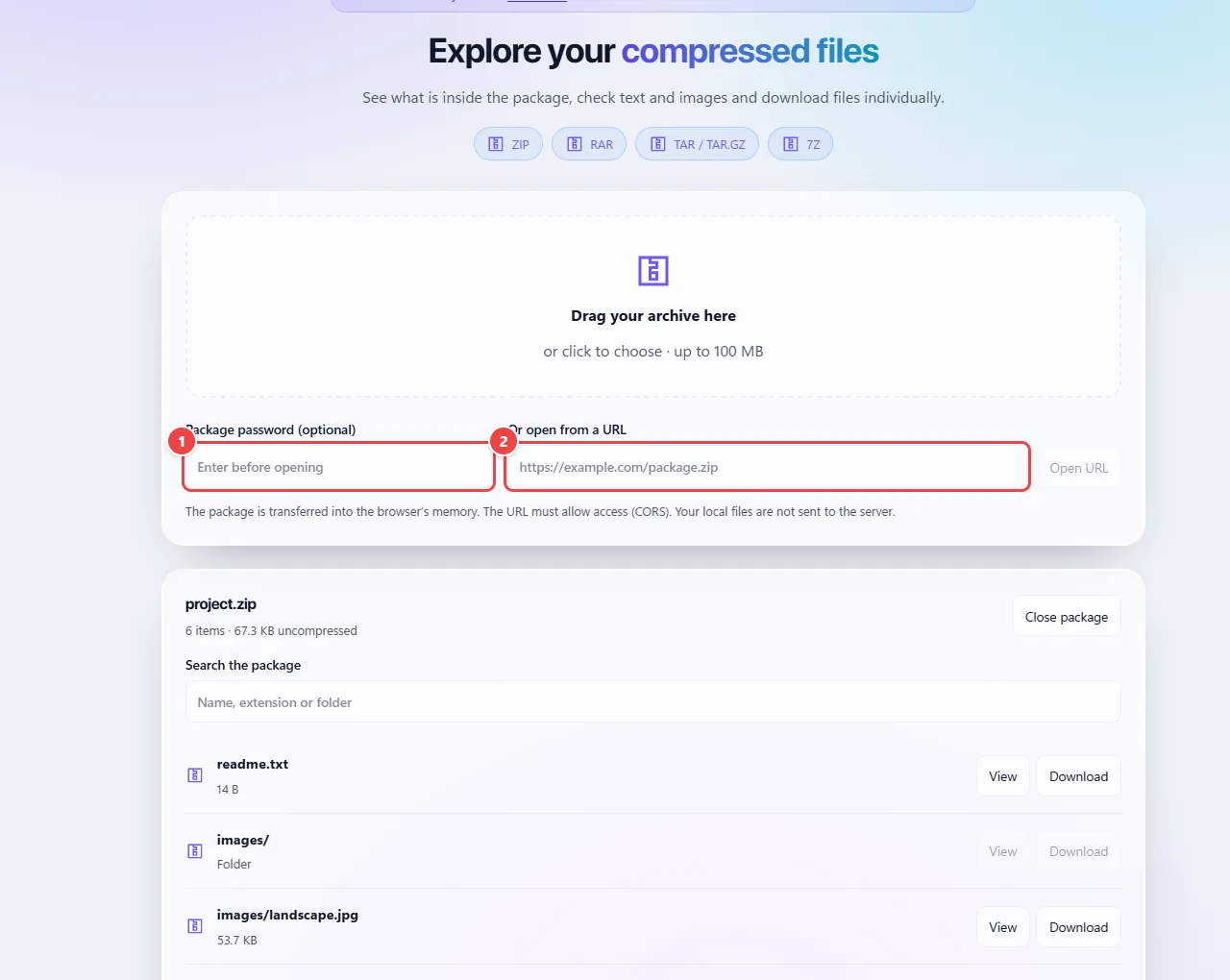
- Point 1: If the package has a password, enter it before opening.
- Point 2: You can also open a package from an address (URL).
Result: The list of the package’s files and folders, without having extracted anything.
View and extract only the files that matter
Situation: You need three images from a huge package.
- Click “View” next to a text file or an image to check it without extracting.
- When you find the right one, click “Download” on that row: only the chosen item is extracted.
- Use “Close package” when you are done.
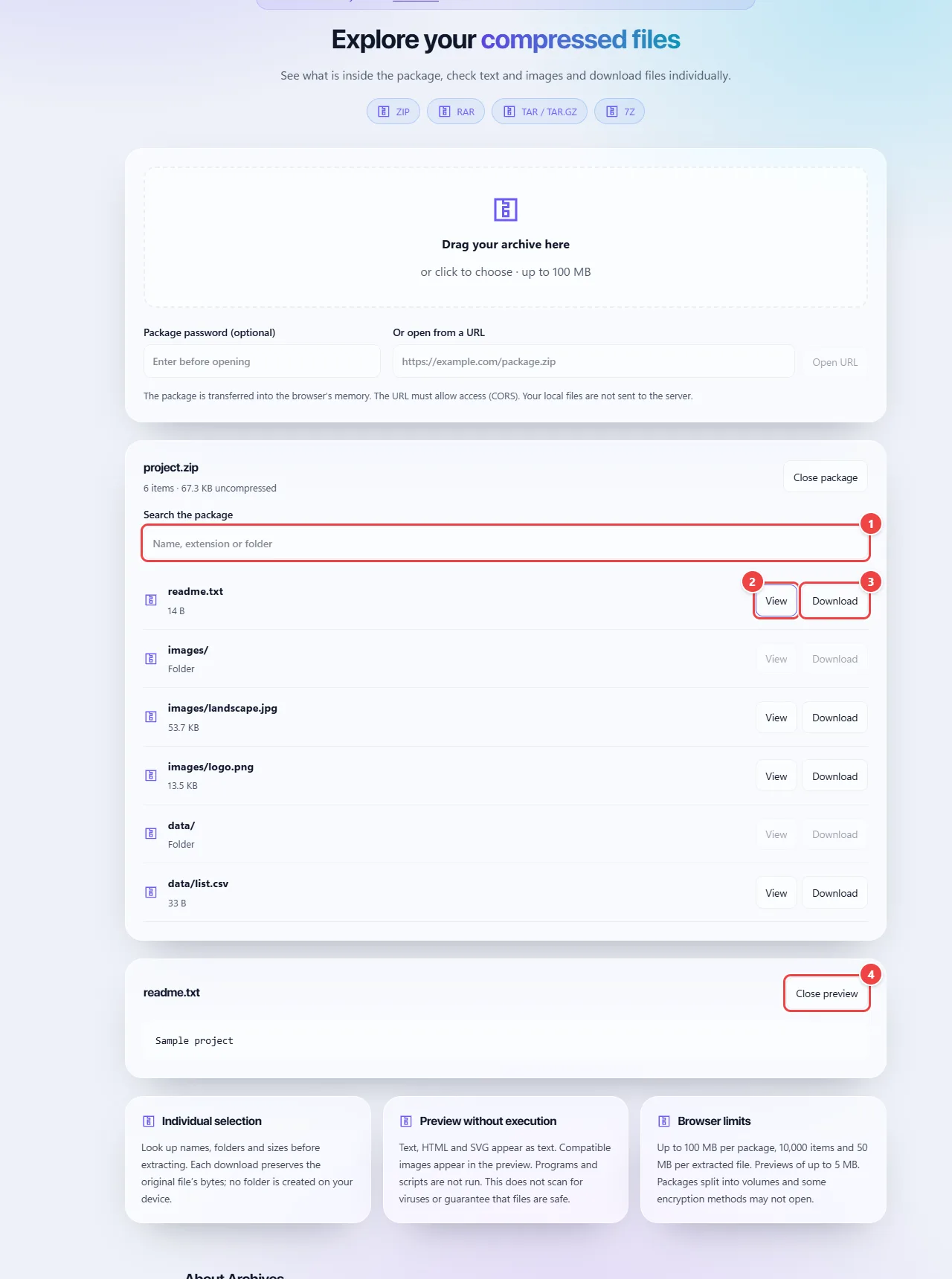
- Point 1: Search by name, extension or folder to find the right file.
- Point 2: Preview opens text and images without extracting anything.
- Point 3: Download extracts only the item on the row. Use Close package when you finish.
- Point 4: The preview appears below the list, without extracting anything. Close it when you finish.
Result: Only the chosen files, extracted individually.
Open a package from a URL
Situation: The package is at an internet address and you do not want to download it first.
- Paste the address under “Or open from a URL” and click “Open URL”.
- If opening fails, the file’s server probably does not allow access from the browser: download the file and open it from your computer.
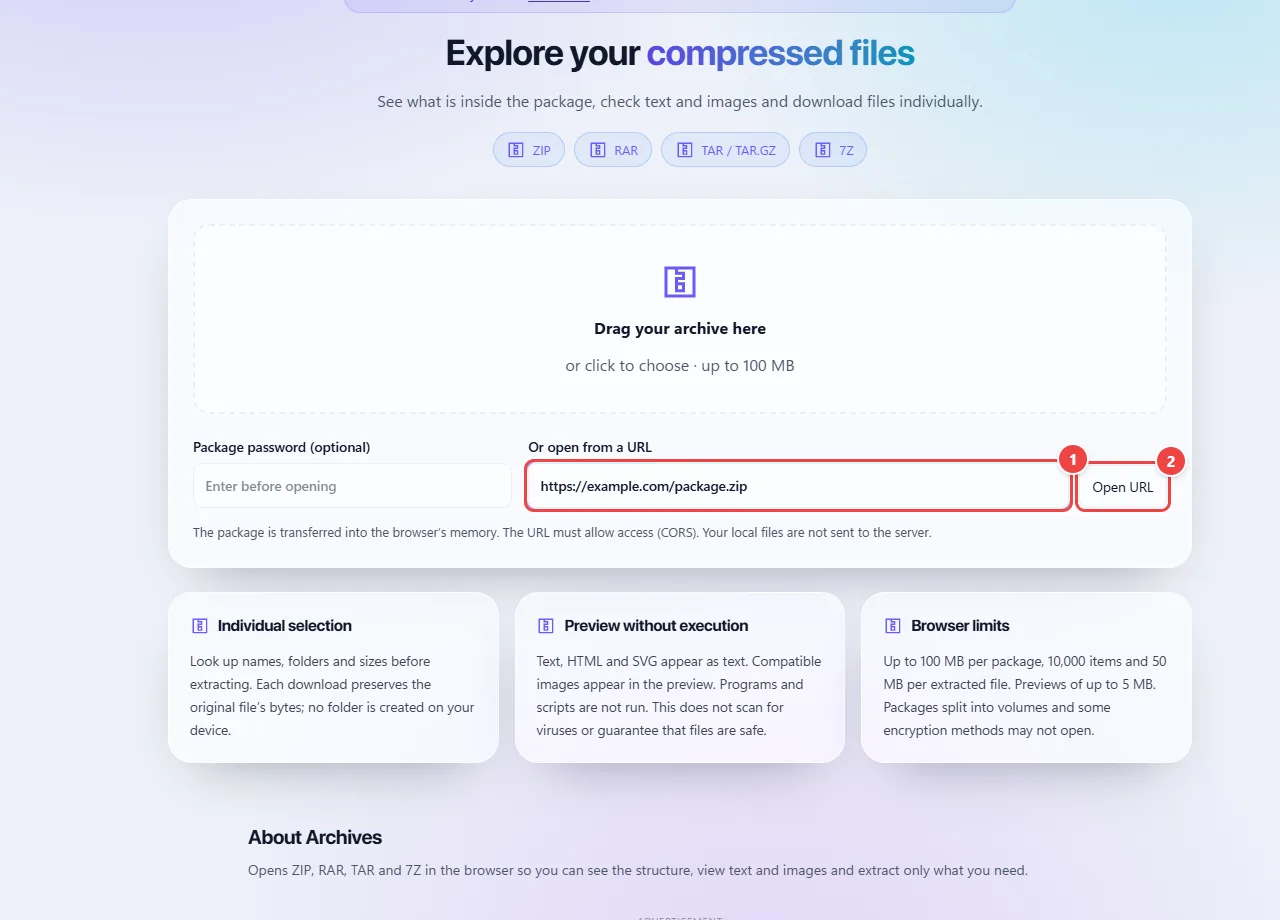
- Point 1: Paste the package address. If opening fails, the file’s server probably does not allow access from the browser: download the file and open it here.
- Point 2: Open URL tries to read the package straight from the address.
Result: The package opened straight from the address, when the server allows it.
Tips for a better result
- Be wary of packages from unknown sources: opening and viewing does not run anything, but do not run extracted programs without knowing where they came from.
- View before extracting: it is a quick way to confirm that the file is the right one.
- For huge packages, extract only what you need instead of everything.
Limits, and when this is not the best option
- Password-protected files and very large packages may not open.
- External URLs must allow access from the browser.
- The tool opens, views and extracts; it does not create archives.
Frequently asked questions
- Do I need to extract everything?
- No, you can open only the files you need.
- Which formats does it open?
- ZIP, RAR, TAR and 7Z.
- Is my file sent to a server?
- Local files are processed in the browser, with no upload. When opening from a URL, the browser downloads the package directly from the server you entered.
- Does the tool create archives?
- No. It is for opening, viewing and extracting the content of archives that already exist.