How to read and study e-books in the browser: notes, markings, two books, translation and voice
This guide shows how to open an EPUB, PDF or MOBI and use the features few readers offer: following the translation next to the original, listening to the chapter read aloud and converting the book to another format. It also shows how to read two books at once, mark passages in colors, create notes and download your notebook and back up everything. The book is opened in your browser, with no sign-up and no reader to install.
Guide written by Marcelo Amantino · updated on October 19, 2026 · about us
Where your data is processed
The book is read and interpreted in your browser and is not sent to WebFaz. The reading position, markings and notes are kept in this browser, and the processed text of the latest books stays in the local cache to reopen faster, without keeping the original file. Two things leave the browser, only when you ask: simultaneous translation sends the page or chapter text to an AI translation service (the file, images and notes do not go), and a word lookup sends only that word to Wiktionary.
See the full list on the Privacy page.
Real-world use cases
Open a book and adjust the reading
Situation: You have an EPUB, PDF or MOBI and want to read on the computer comfortably, without installing a reader.
- Open the page, click the “Drag your book or click to open” area and choose the file (EPUB, PDF or classic MOBI, up to 40 MB). With no book at hand, use “Try it with a book”.
- Use the contents to go to a chapter and the search to find a word or phrase.
- Adjust the theme (paper, sepia or night), the font, the line spacing, the weight, the column width and the font size. Your choices stay saved in this browser.
- You can close the page whenever you like: the reading position is saved, and recent books reopen from the local cache.
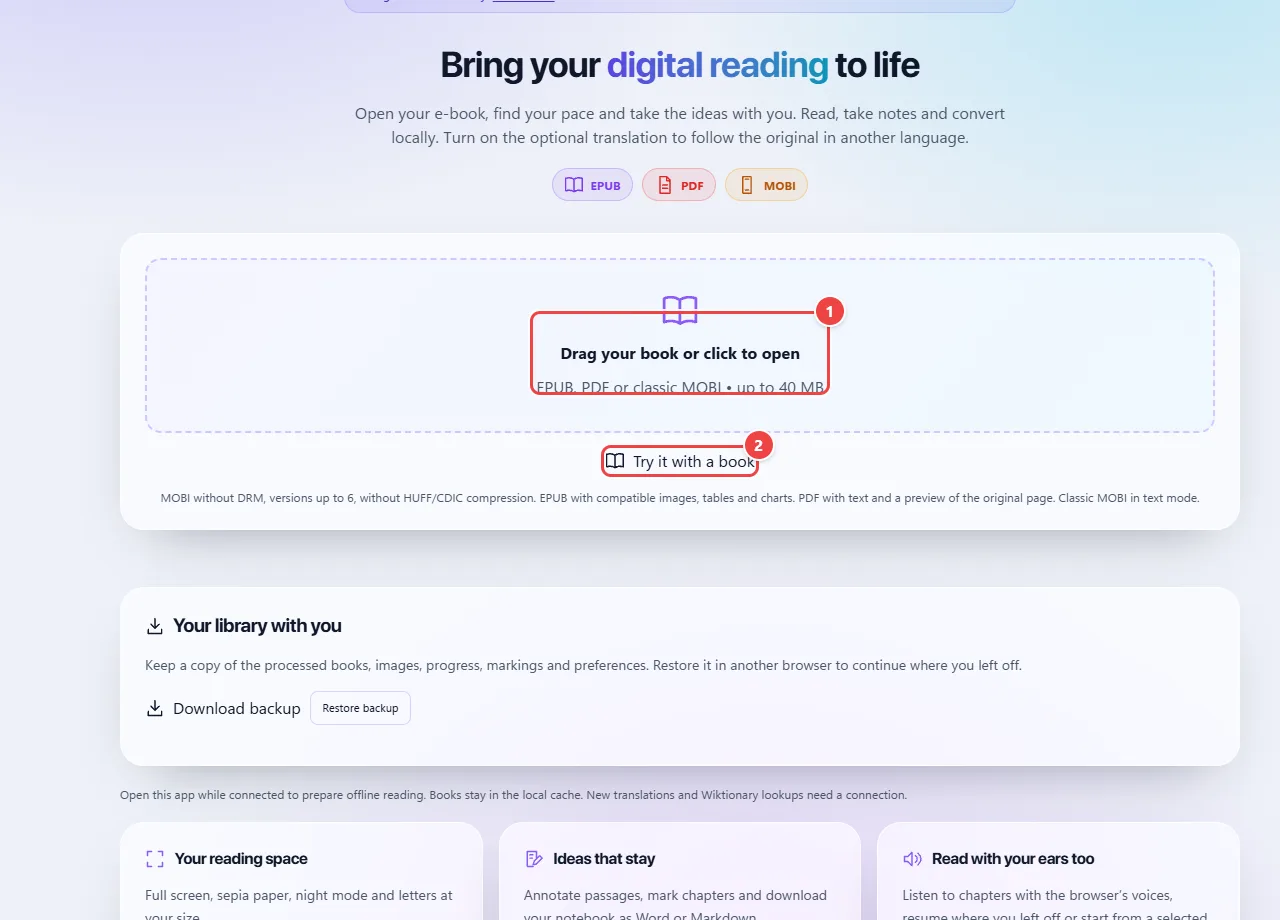
- Point 1: Open an EPUB, PDF or MOBI e-book (up to 40 MB). The book stays in your browser.
- Point 2: No book at hand? Try it with a sample book.
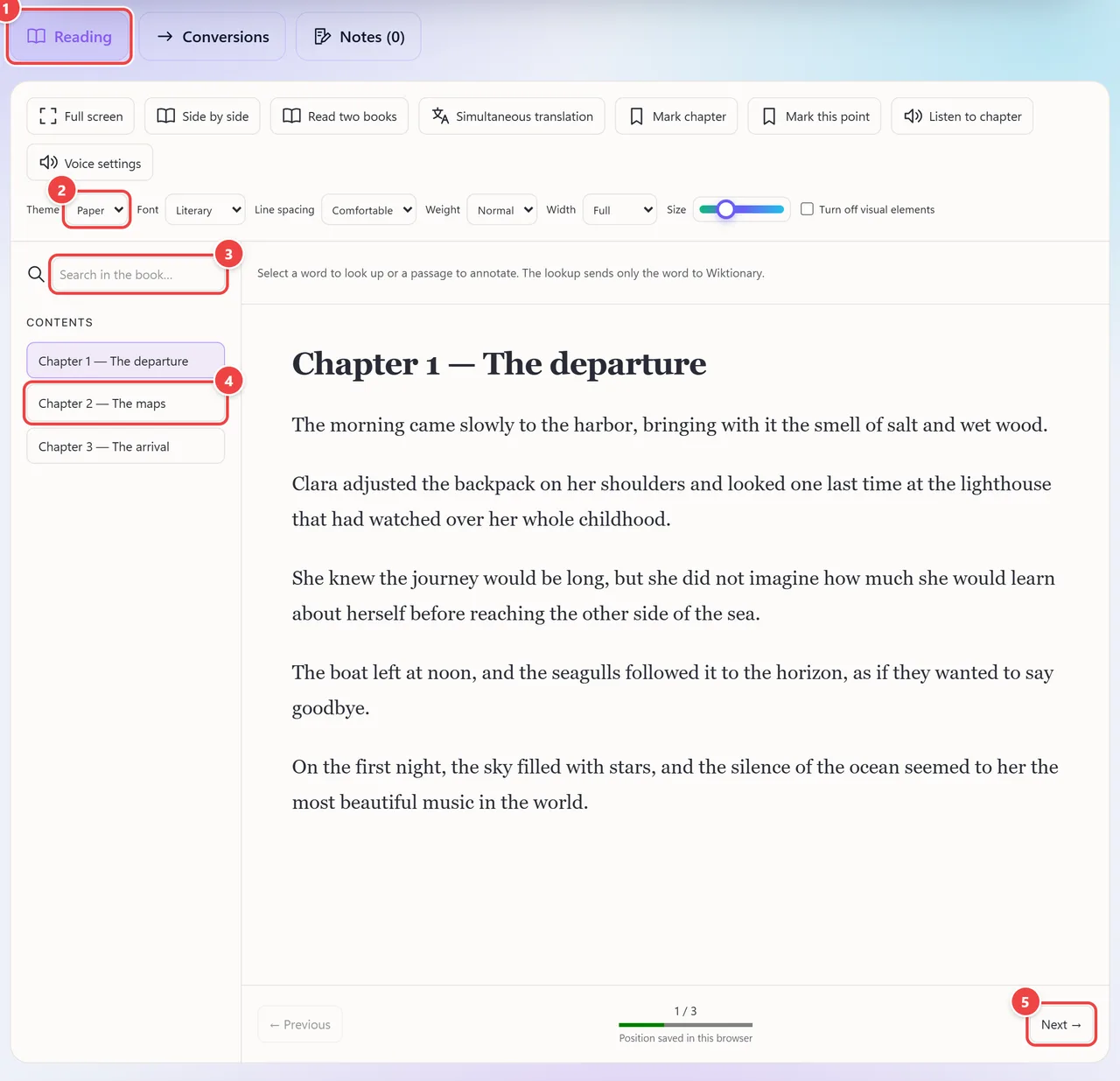
- Point 1: The book’s three tabs: Reading, Conversions (other formats) and Notes (your highlights and notes).
- Point 2: Adjust the appearance: theme (paper, sepia or night), font, line spacing, weight, column width and letter size. The choices are saved in this browser.
- Point 3: Search for a word or phrase across the whole book.
- Point 4: The table of contents takes you straight to each chapter.
- Point 5: The reading position is saved automatically: when you reopen the book, you continue where you stopped.
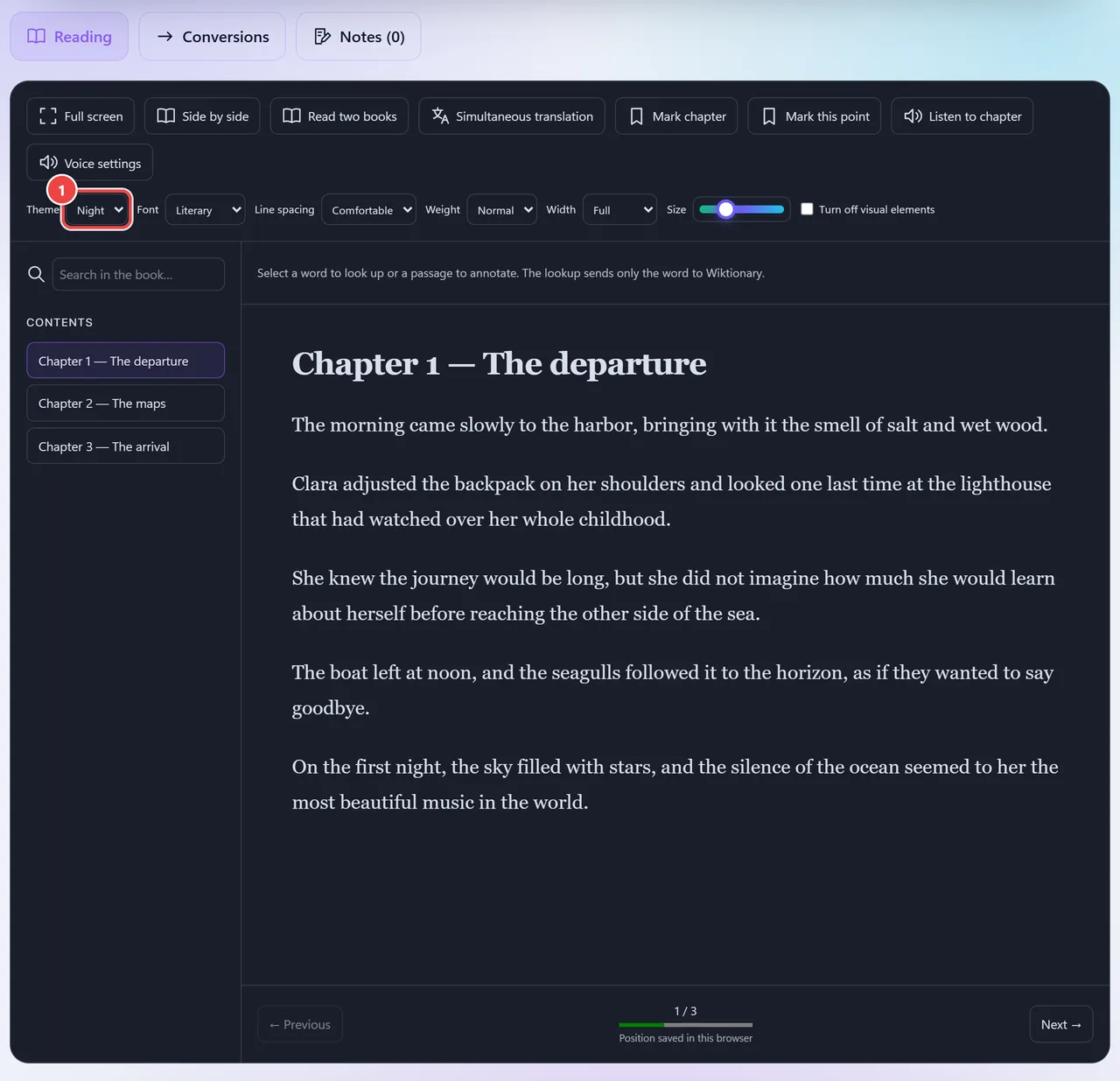
- Paper, sepia or night: change the reader’s theme without changing the site’s theme.
Result: A book open your way, which resumes where you left off.
Mark passages and create notes
Situation: You are studying a text and want to highlight the important ideas and comment on the hardest ones.
- Select a passage with the mouse. A menu appears with Copy, Annotate and Look up word.
- Choose one of the five colors, the style (highlight or underline) and click “Mark”. Selections that run from one paragraph to another also work.
- To comment, click “Annotate”, write your idea in the “Keep an idea” window and save the passage with the note.
- To know a word’s meaning, select it and use “Look up word”: only that word is sent to Wiktionary.
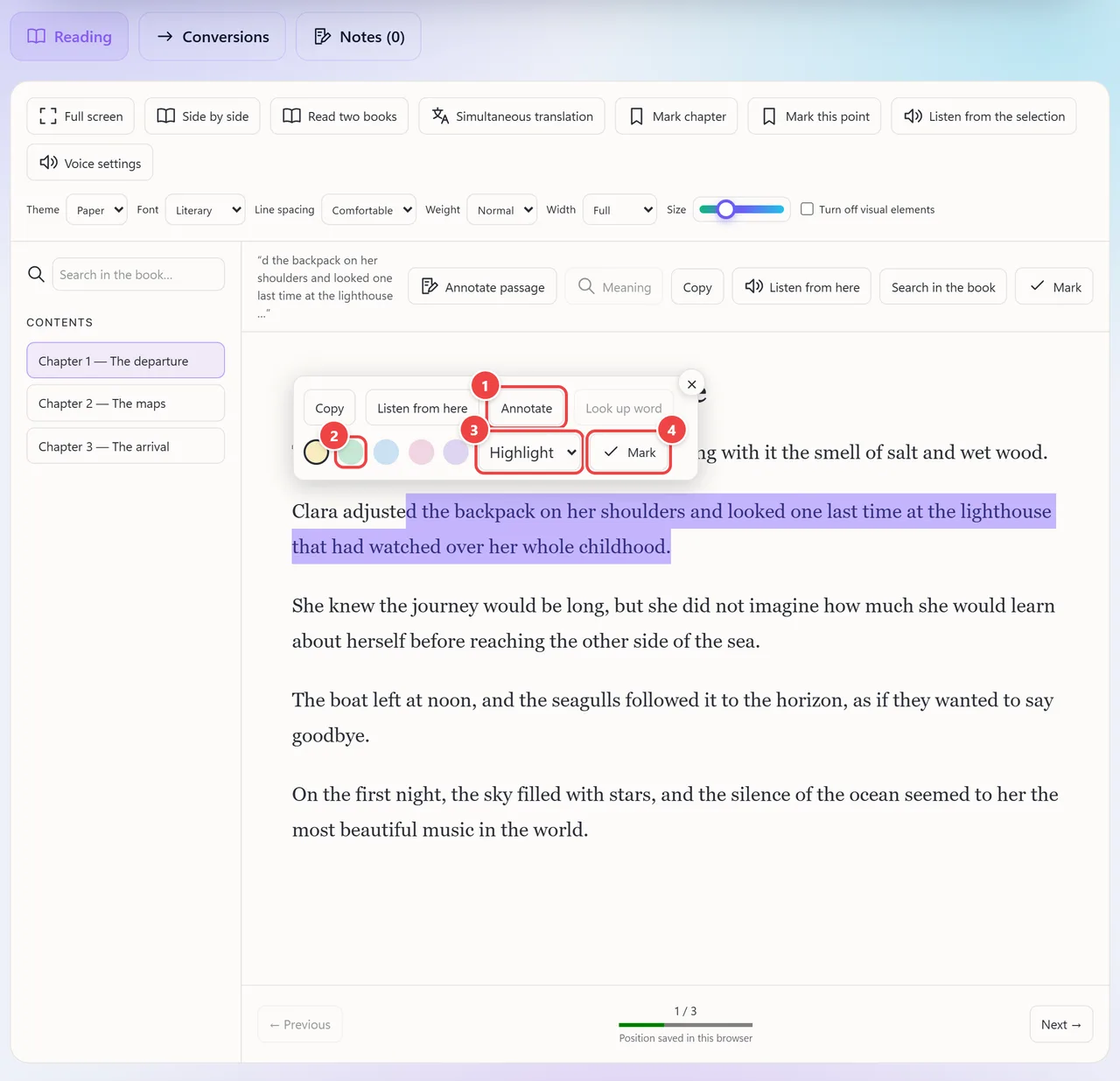
- Point 1: Note: saves the passage with a note of yours. Copy and Look up word (meaning in Wiktionary) are beside it.
- Point 2: Choose among five highlight colors.
- Point 3: Highlight or underline: the style of the mark.
- Point 4: Mark saves the highlight in the book. It stays there when you reopen the file.
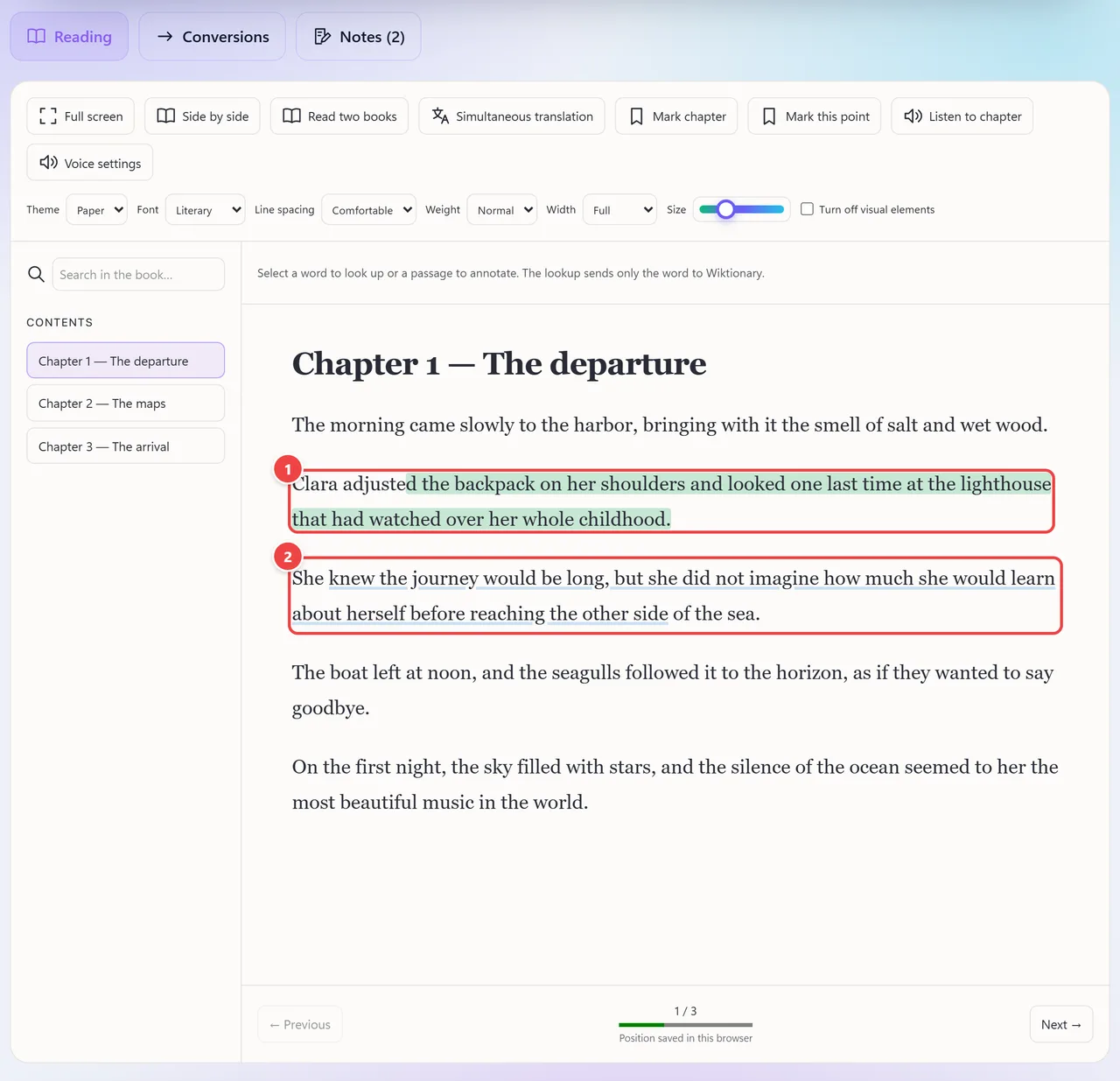
- Point 1: Green highlight: the marks stay in the text and are stored in this browser.
- Point 2: Blue underline: each mark can have its own color and style (highlight or underline).
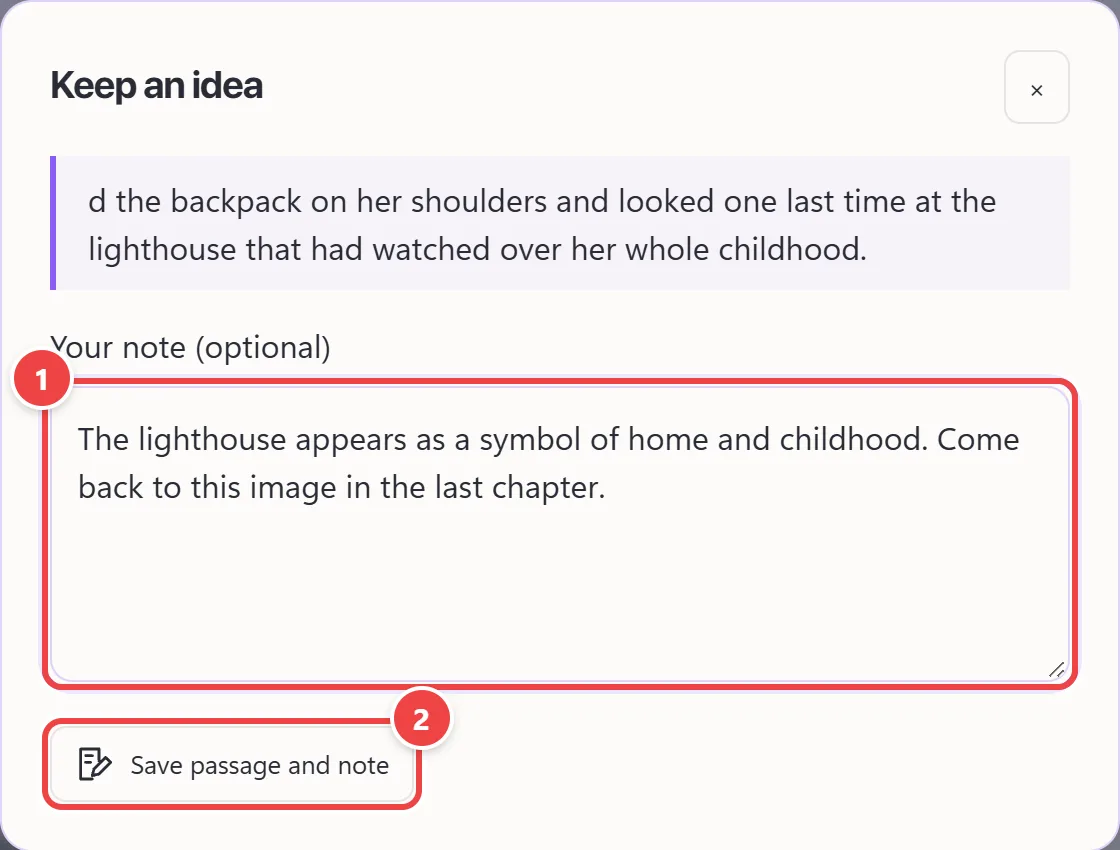
- Point 1: Write your note (optional): the selected passage appears above, as a quote.
- Point 2: Save passage and note: the note goes to the Notes tab.
Result: Colored passages in the text and notes linked to each passage, kept in this browser.
Download the notebook and make a backup
Situation: You finished a study session and want to keep the notes outside the browser, or take everything to another computer.
- Open the “Notes” tab: all the book’s notes and markings are there.
- Click “Download Word” for a document ready for study or delivery, or “Download Markdown” for a text notebook, ready for your notes app.
- For a full backup, choose under “Include in backup” the recent books or only the open book and click “Download backup”. The file carries books, images, progress, notes and preferences.
- On another browser or computer, use “Restore backup” and select the file. Notes are merged by identifier, without duplicating.
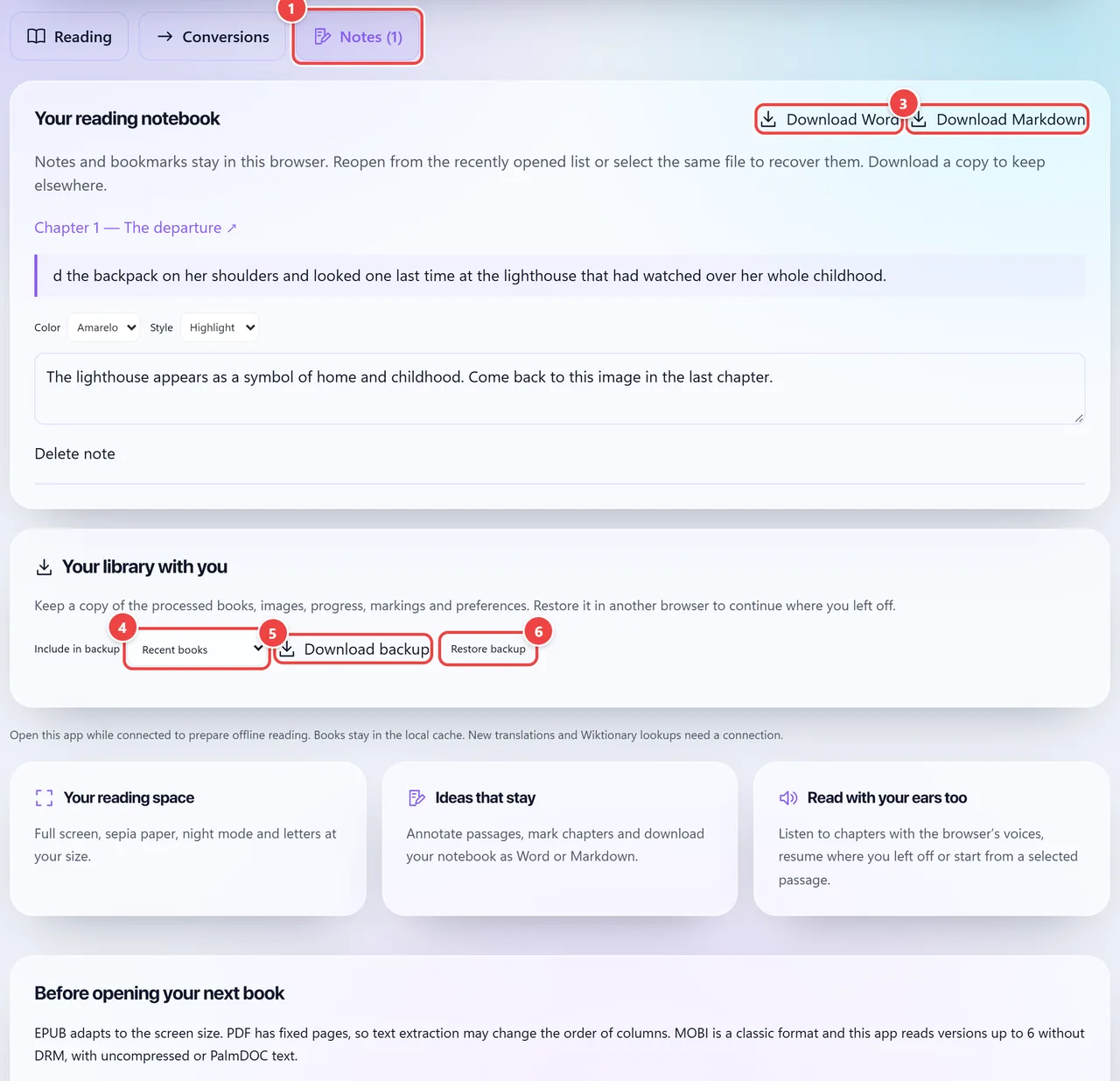
- Point 1: The Notes tab gathers all the book’s notes and highlights.
- Point 2: Download Markdown: the notebook as text, ready to open in note-taking apps.
- Point 3: Download Word: the notes and passages in a Word document (.docx).
- Point 4: Choose what goes in the backup: the recent books or only the open book.
- Point 5: Download backup: a file with books, images, progress, notes and preferences.
- Point 6: Restore backup: brings everything back in another browser or computer, without duplicating notes.
Result: Your notes as Word or Markdown and a backup that restores the whole library.
Convert the book to EPUB, PDF or TXT
Situation: You want to read a PDF on the phone with adjustable text, or print an EPUB.
- With the book open, go to the “Conversions” tab.
- Choose the output format: EPUB (text that adapts to the reader), PDF (pages to print or share) or TXT (light, editable text).
- Adjust the title and author that go in the new file and, for PDF, the font and text size.
- Click “Convert and download”. A classic DRM-free MOBI can also be opened and converted; MOBI output does not exist.
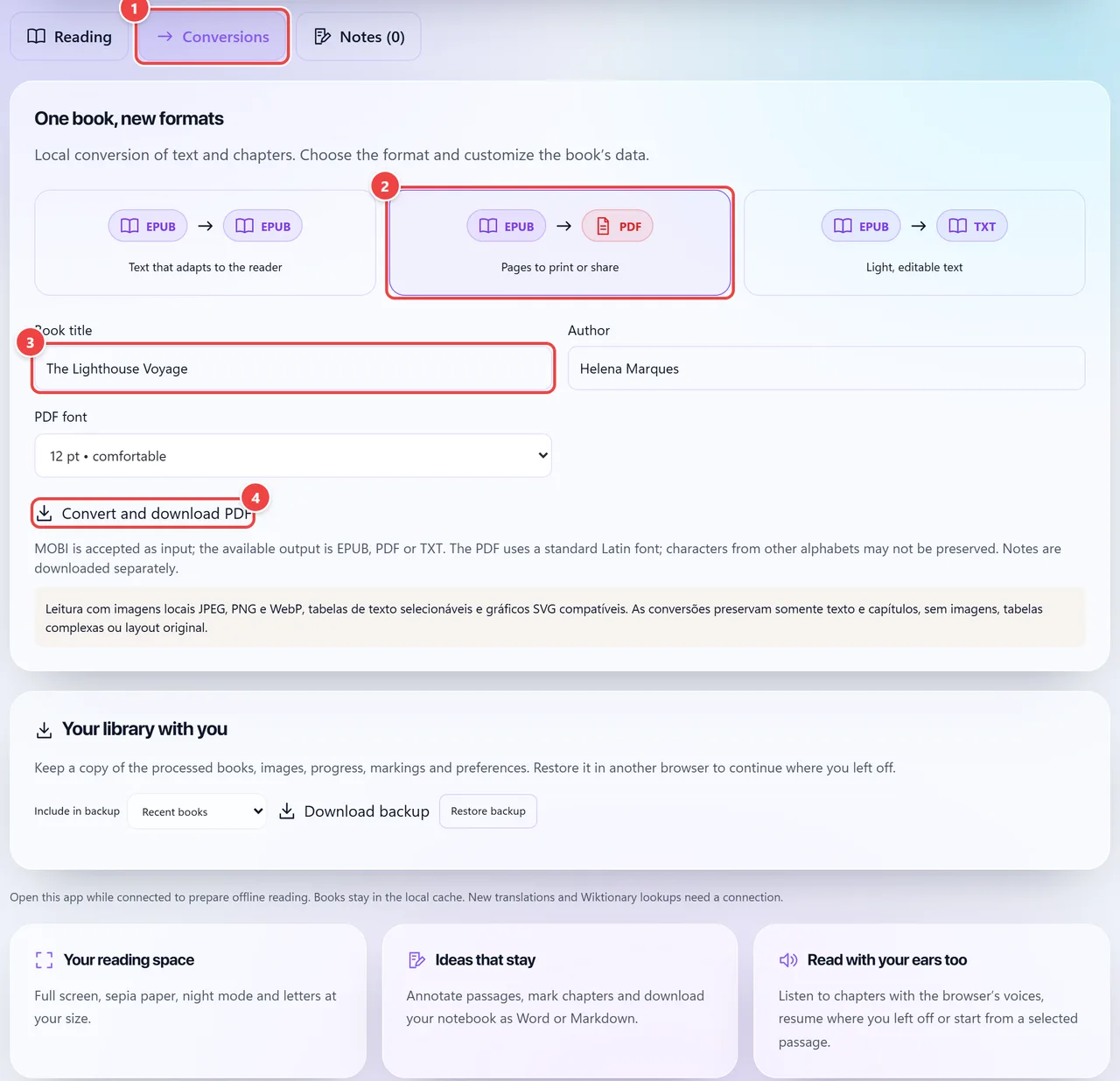
- Point 1: Conversions: turn the open book into another format, all in the browser.
- Point 2: Choose the output format: EPUB (text that adapts to the reader), PDF (pages to print or share) or TXT (light, editable text).
- Point 3: Adjust the title and author that go in the new file.
- Point 4: Convert and download generates the file. The conversion preserves text and chapters, but not covers, images or the original layout.
Result: A new file with the book’s text and chapters, generated in your browser.
Read two books at once or in two pages
Situation: You want to compare two editions, consult one work while reading another, or read like an open book.
- Click “Read two books”. A second reader opens, with independent chapters and scrolling.
- Choose the second book among the recent ones or use “Open another book” to upload another file.
- To read in pages, click “Side by side”: the chapter is split into two columns, with navigation two pages at a time.
- Markings, search and voice reading remain available in both modes.
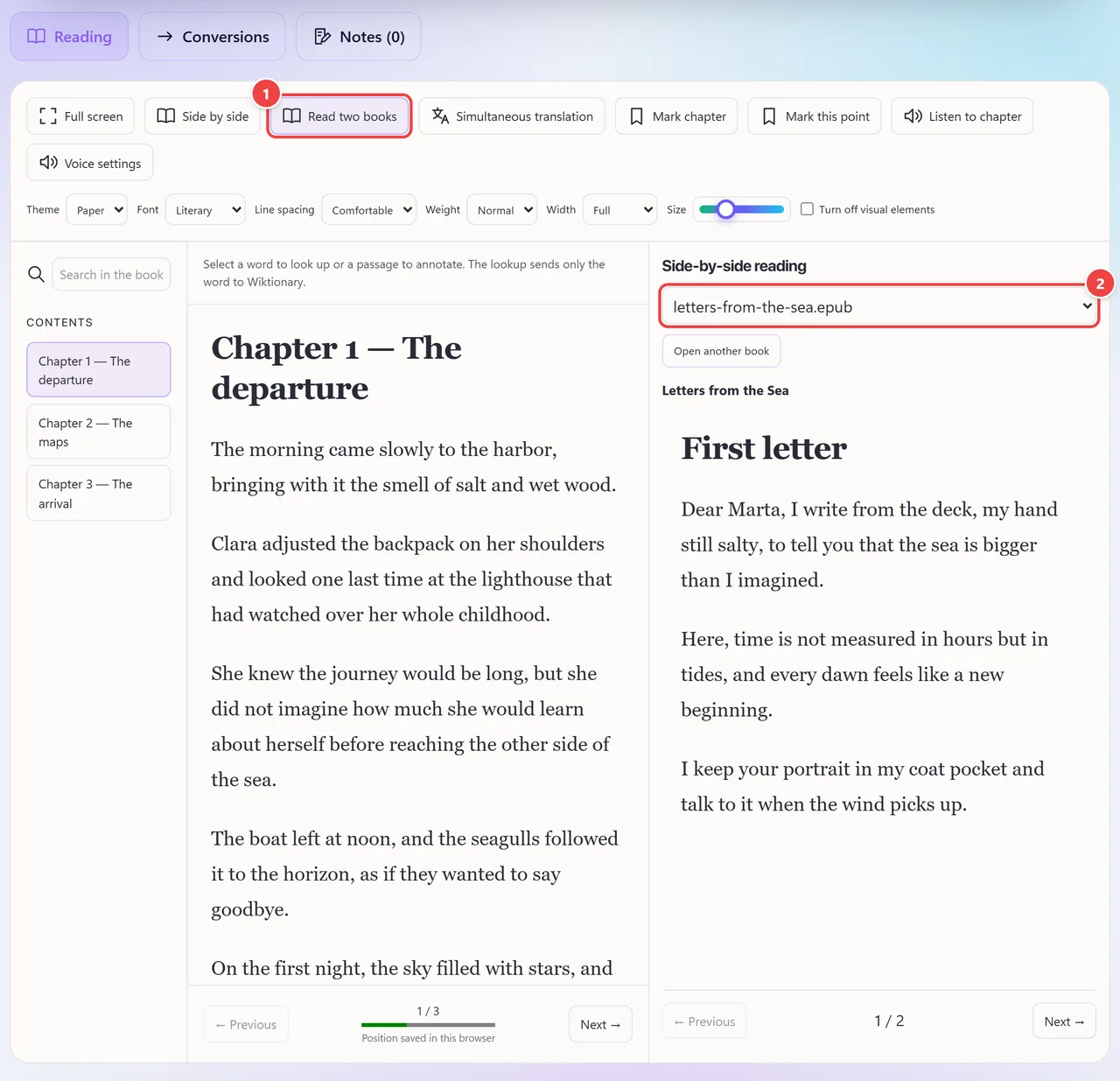
- Point 1: Read two books opens a second reader, independent of the first.
- Point 2: Choose the second book among the recent ones or open another file. Each reader has its own chapters and scrolling: good for comparing editions, translations or consulting one work while reading another.
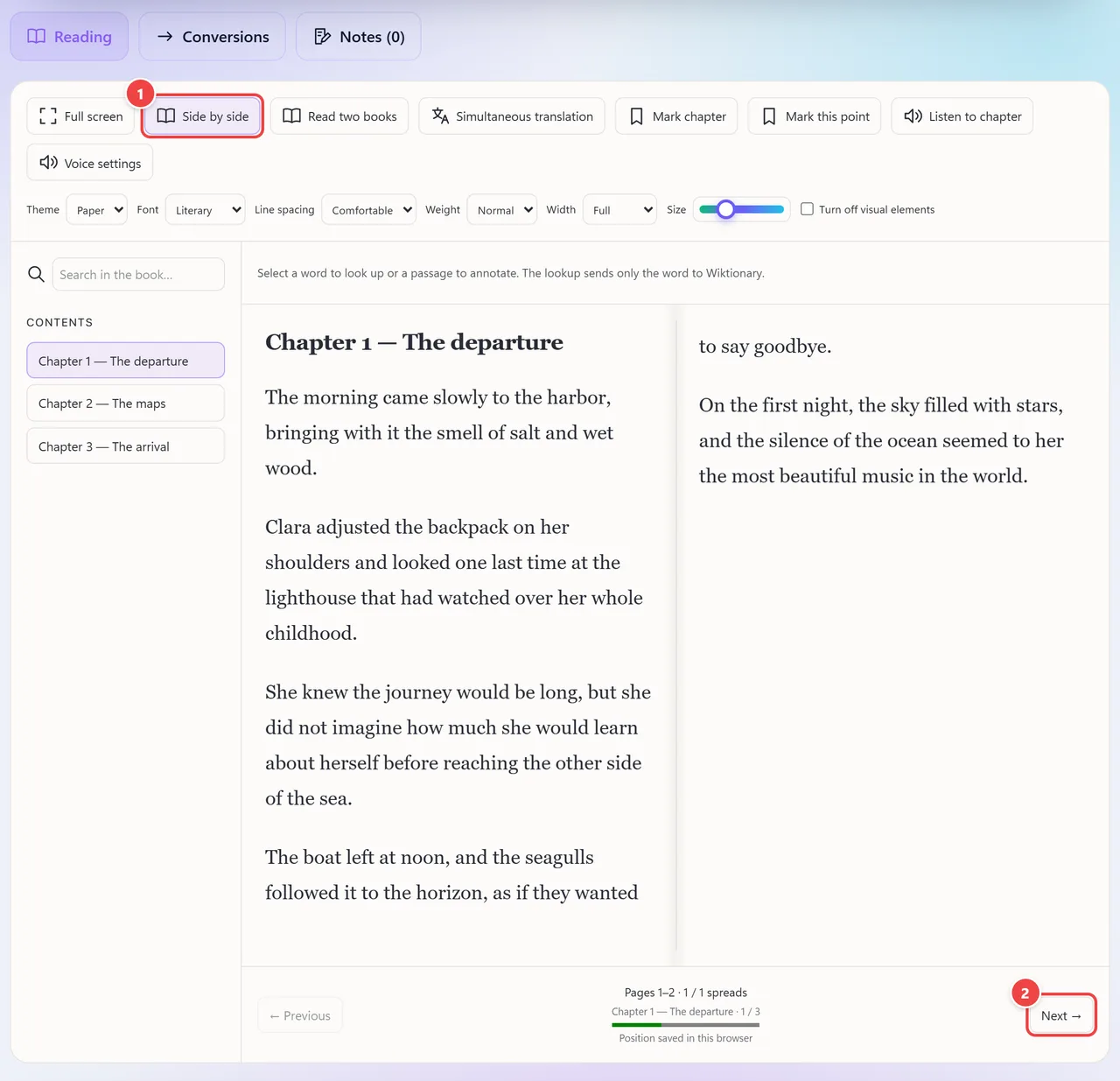
- Point 1: Side by side paginates the chapter in two columns, with a divider simulating the open book. The letter size and the font adjust on their own.
- Point 2: Navigation advances two pages at a time. Highlights, search and voice reading keep working.
Result: Two books open side by side, or a chapter paginated like an open book.
Follow the reading with the translation alongside
Situation: You read a book in another language and want to check the meaning without leaving the page.
- Click “Simultaneous translation”.
- Choose the original language (or leave it on detect) and the translation language, among nine options.
- Read the notice and click “Turn on translation”. Only the page or chapter text is sent to the translation service; the file, images and notes do not go.
- The original appears on the left and the translation on the right, paragraph by paragraph. When you change page or chapter, the translation updates by itself.
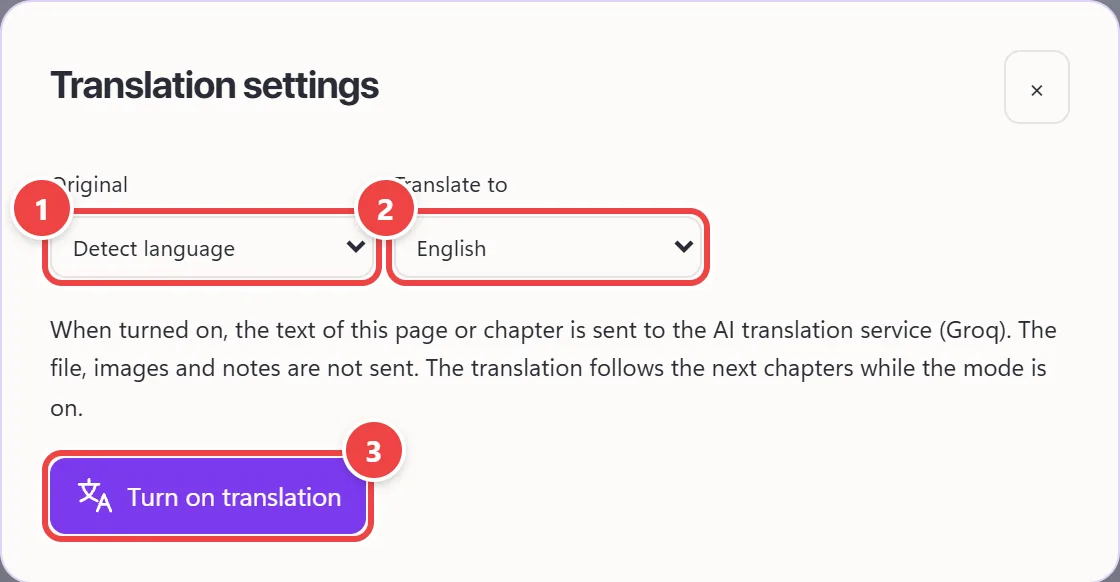
- Point 1: Original language: detect automatically or choose.
- Point 2: Translation language: nine languages available. Here, the English book is translated into Portuguese.
- Point 3: Turn on translation: only the text of the page or chapter is sent to the AI translation service. The file, the images and the notes are not sent.
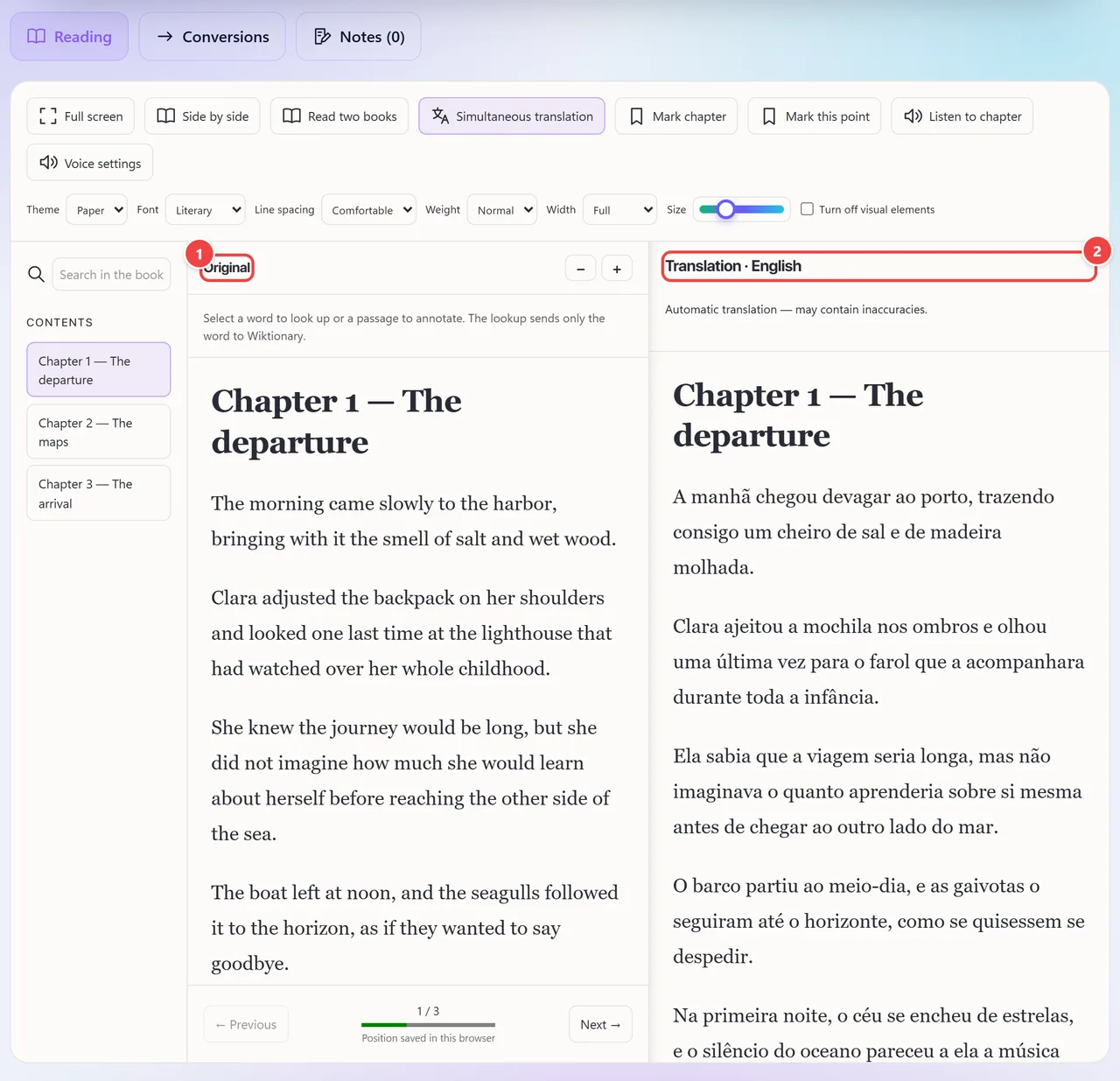
- Point 1: The original text stays on the left, and you can still highlight and annotate it.
- Point 2: The translation follows the original, paragraph by paragraph, and updates when you change chapter. It is an automatic translation and may contain inaccuracies.
Result: Original and translation side by side. The translation is automatic and may have inaccuracies: use it as support.
Listen to the chapter read aloud
Situation: You want to continue reading without looking at the screen.
- Click “Voice settings” and choose the voice among those installed on your device; the English ones appear first.
- Adjust the speed (from 0.5× to 2×), the pitch and the volume and use “Test voice” to hear a sample.
- Click “Listen”. Changing a setting interrupts the current reading; click “Listen” again to restart.
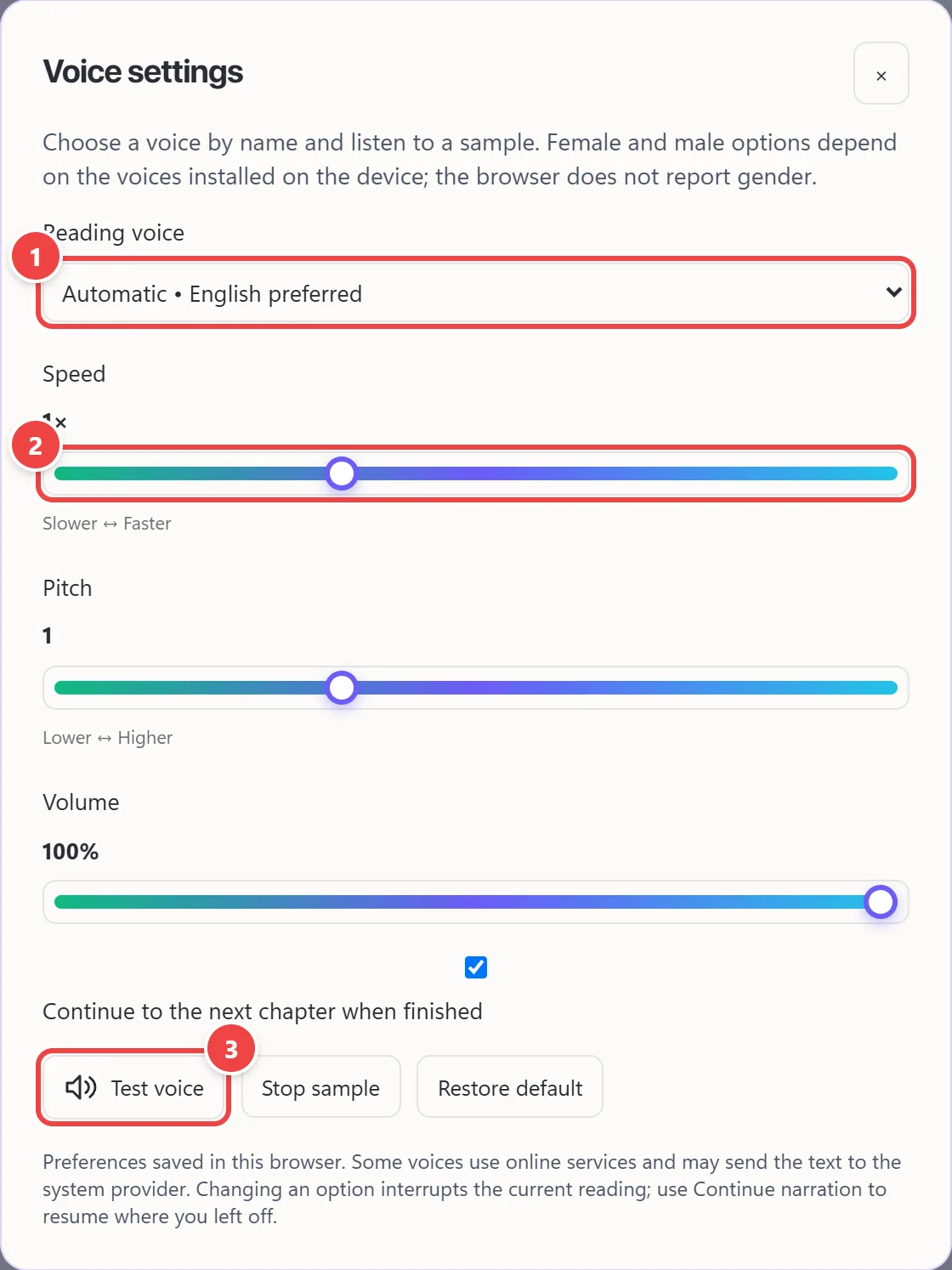
- Point 1: Choose the voice among those installed on your device; the ones in your language appear first. The options vary with the system.
- Point 2: Speed (from 0.5× to 2×), pitch and volume.
- Point 3: Test the voice with a sample before listening to the chapter.
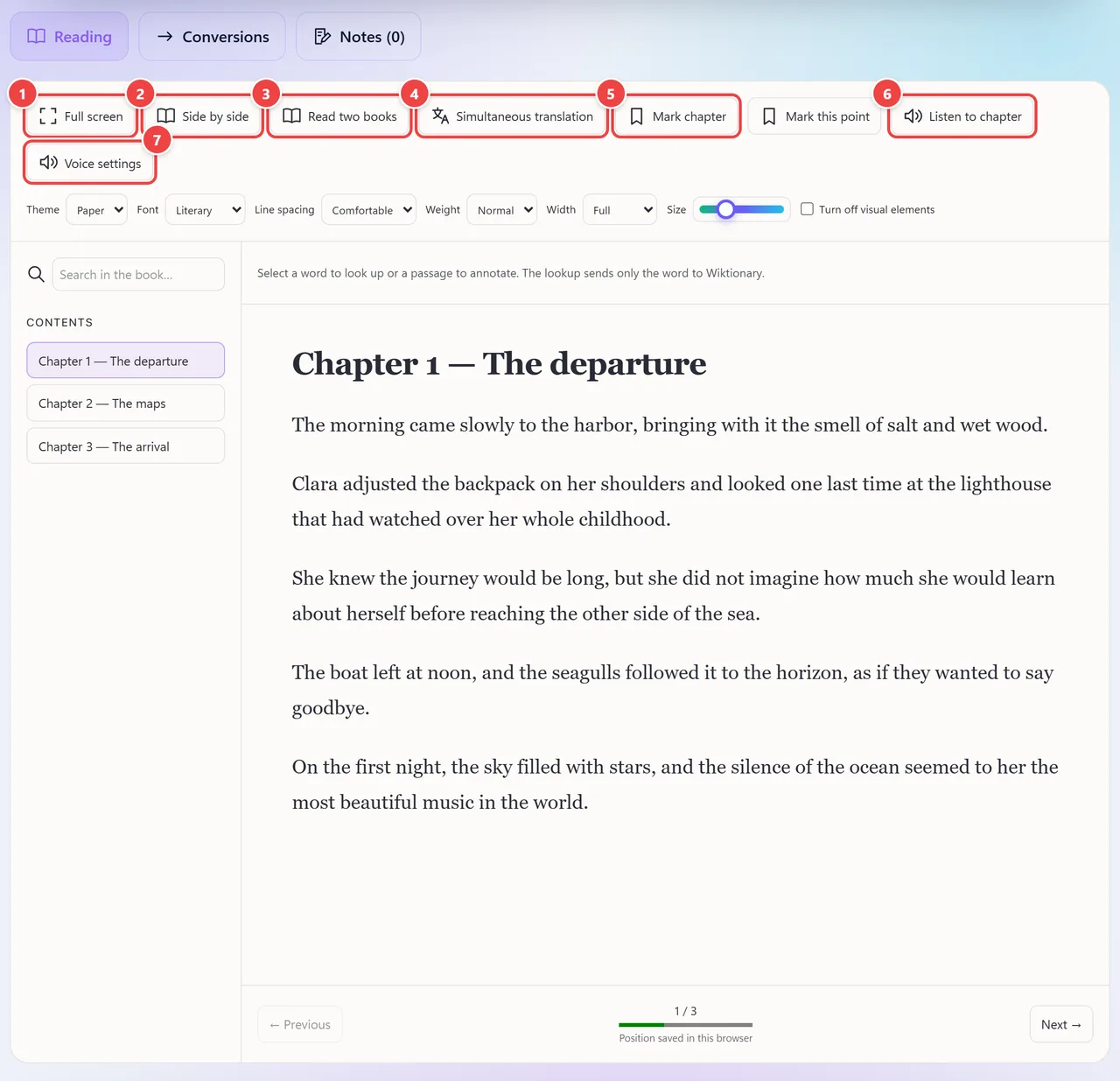
- Point 1: Full screen: distraction-free reading.
- Point 2: Side by side: the chapter in two pages, like an open book.
- Point 3: Read two books: opens a second reader, independent of the first, beside it.
- Point 4: Simultaneous translation: the original on one side and the translation on the other.
- Point 5: Bookmark chapter: creates a bookmark in the current chapter.
- Point 6: Listen: reads aloud (the selected text or the chapter), with your device’s voices.
- Point 7: Voice settings: choose the voice, speed, pitch and volume.
Result: The chapter read in the voice and rhythm you chose.
Tips for a better result
- To convert PDF to EPUB, prefer PDFs with selectable text: scanned PDFs are images and have no text to convert.
- Download the notes and make a backup at the end of each study session: clearing the browser data erases the notes.
- Use the search and the contents in long books, and “Side by side” on large screens.
- Review the simultaneous translation before quoting it: it is automatic.
Limits, and when this is not the best option
- Books with DRM (store protection) cannot be opened, and MOBI is only read in old versions, without special compression.
- Conversions carry text and chapters, but not covers, images, original fonts or layout. PDFs with columns or tables may need review.
- A scanned PDF can be viewed, but does not allow selection, voice or text conversion without an OCR step.
- There are limits of 40 MB per book and 500 notes per book.
- Voice reading depends on your system’s voices; some may use the manufacturer’s online services.
Frequently asked questions
- Is my book sent to any server?
- No. The book is opened in the browser. Only the text to translate, if you turn on simultaneous translation, and the word looked up in the dictionary leave it.
- Are my notes saved?
- They stay in this browser, together with the reading position. To keep a copy outside it, download the notes as Markdown or JSON or make a full backup.
- Does it work without internet?
- After the first visit, the reader and the cached books can be reopened without a connection. Translation and word lookup need internet.
- Can I generate a MOBI?
- No. The available outputs are EPUB, PDF and TXT.