Your text, just the way you need it.
Organize lists, replace words and transform many lines at once.
Transform
Text editor
About Text Editor
Handles repetitive text tasks: switching between upper and lower case, cleaning up lists, removing duplicate lines, replacing terms and generating Lorem Ipsum.
A practical example
You received a list of 300 email addresses pasted from a spreadsheet, with repeats and mixed capitalization. You paste everything into the tool, convert it to lowercase, remove the duplicate lines and sort it alphabetically. In seconds you have a clean list that you can copy back to the spreadsheet or your email system.
How to use it
- Paste your text into the editor, or load a text file.
- Pick a transformation (uppercase, sort, remove duplicates, replace…).
- Check the result in the editor.
- Copy or download the final text.
Limits and cautions
- Very large texts (millions of characters) can make the browser slow.
A ferramenta em uma imagem
Os pontos de clique estão numerados. Toque na imagem para vê-la em tamanho original. As demais telas, passo a passo, estão no guia “Como funciona”.
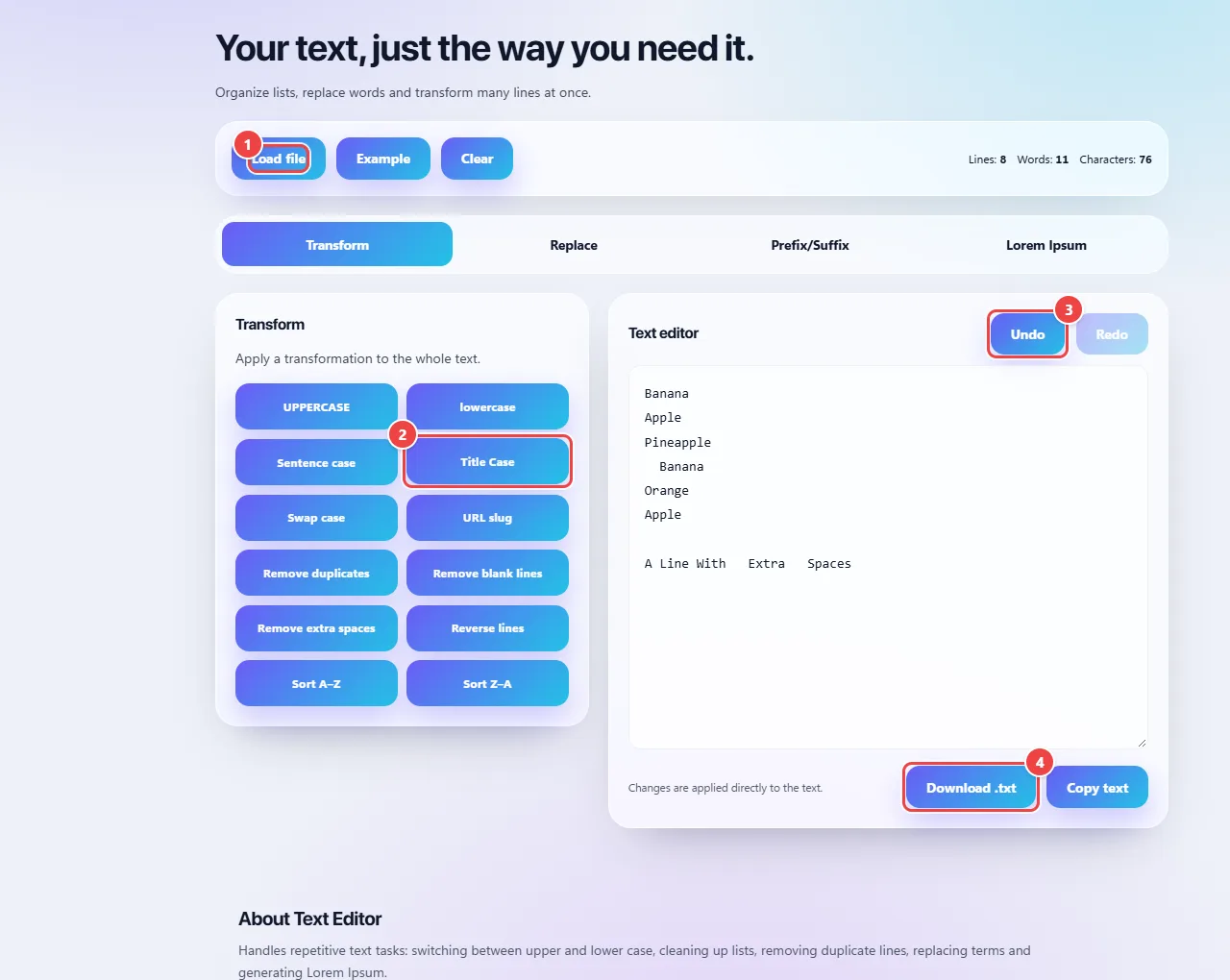
- Point 1: Load a text file or use the example. You can also paste straight into the editor.
- Point 2: Choose the transformation: upper or lower case, remove duplicate and blank lines, sort, reverse and others.
- Point 3: Undo and redo as many times as you need.
- Point 4: Copy the result or download it as .txt.
When to use it
- Cleaning a list of emails, names or codes by removing duplicate lines.
- Standardizing a text that arrived all in capitals or with mixed case.
- Swapping one term for another throughout a long text in one go.
- Generating Lorem Ipsum to test layouts and typesetting.
Tips
- Keep the original text saved and work on a copy, so you can go back.
- In lists, keep one item per line: that is how sorting and duplicate removal work best.
- When removing duplicates, check for invisible differences (a trailing space, capitalization): to the computer, those are different lines.
- Test a replacement on a small piece before applying it to the whole text.
What happens in your browser
Every transformation is done in JavaScript on the text you pasted, in your browser. Nothing is sent to a server, so it is safe to use with customer lists, contract excerpts or drafts.
Removing duplicates compares line by line and keeps the first occurrence. Find and replace works on the whole text, with optional case matching and regular expressions.
Very large texts (millions of characters) need more memory and can slow the page down; for volumes like that, split the text into parts.
Read the full guide: real-world use cases, tips and limits →
Privacy: This tool runs entirely in your browser: your files and data are not sent to any WebFaz server. Learn more.
Perguntas frequentes
- Can I paste sensitive text?
- Yes. Everything happens in your browser and the text is never sent to a server.
- Can I undo a transformation?
- Yes, the editor has Undo and Redo (also Ctrl+Z and Ctrl+Y).
- What is Lorem Ipsum?
- Meaningless placeholder text that designers and developers use to see how a layout looks before the final content exists.
- Is there a size limit?
- The practical limit is your device’s memory; texts with millions of characters can make the browser slow.