How to clean up and transform text and lists without a spreadsheet
Changing letter case, removing repeated lines, sorting a list or replacing a term in a long text are repetitive tasks. This guide shows how to do all of it by pasting the text into an editor that runs in your browser, without sending anything to a server.
Guide written by Marcelo Amantino · updated on October 19, 2026 · about us
Where your data is processed
This tool runs entirely in your browser: your files and data are not sent to any WebFaz server.
All transformations are done in your browser on the text you paste. Nothing is sent to WebFaz, so it is safe to use with customer lists, contract excerpts or drafts. Closing the page does not save the text.
See the full list on the Privacy page.
Real-world use cases
Clean up a list of emails or names
Situation: You pasted a list from a spreadsheet, with repeated items and mixed case.
- Paste the list into the editor (one item per line) or click “Load file” to open a text file. The “Example” button loads a sample text.
- On the “Transform” tab, apply “lowercase” to standardize the case.
- Apply “Remove duplicates” (the first occurrence is kept) and, if needed, “Remove blank lines” and “Remove extra spaces”.
- Use “Sort A–Z” and check the result. If something did not come out as expected, use “Undo”.
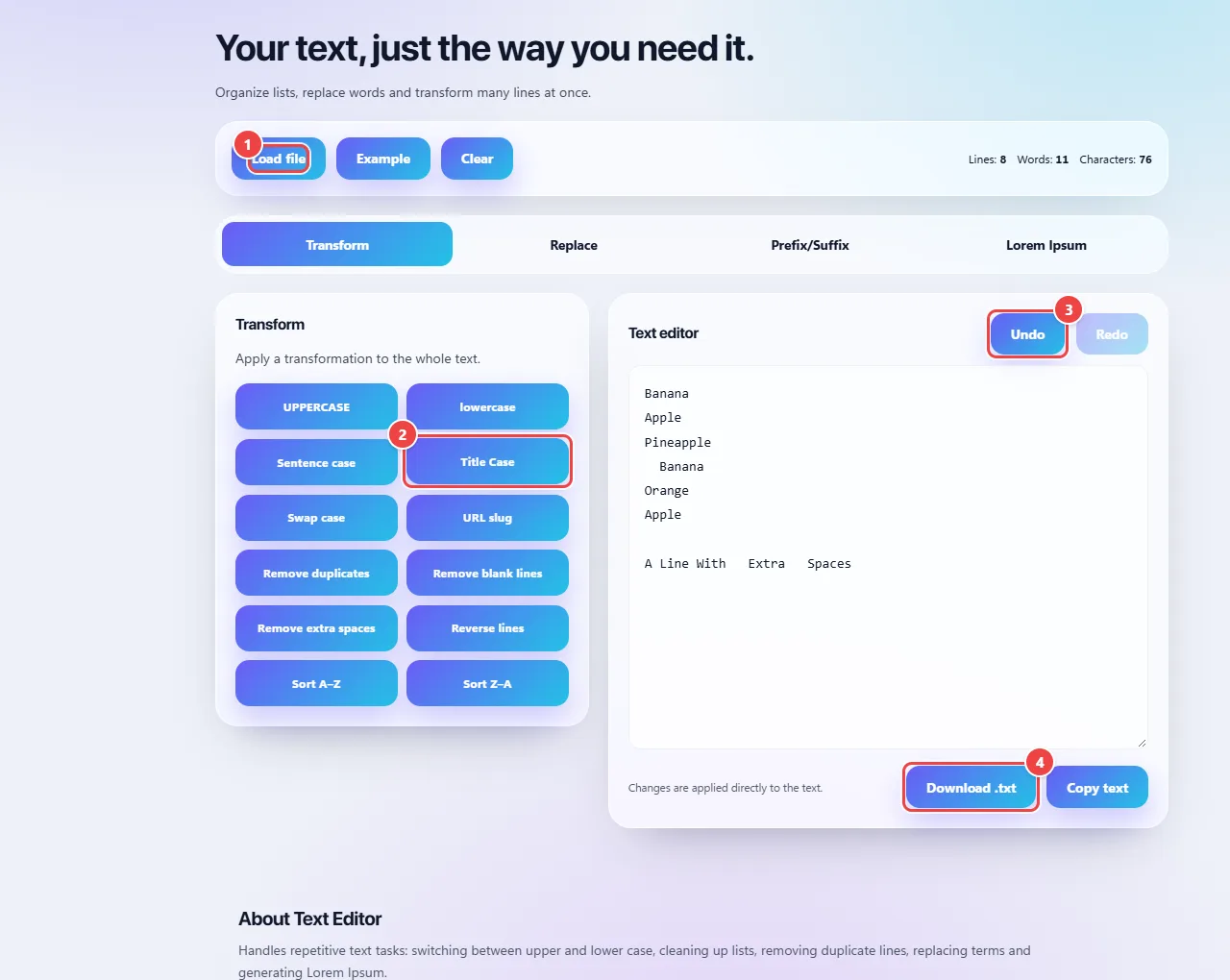
- Point 1: Load a text file or use the example. You can also paste straight into the editor.
- Point 2: Choose the transformation: upper or lower case, remove duplicate and blank lines, sort, reverse and others.
- Point 3: Undo and redo as many times as you need.
- Point 4: Copy the result or download it as .txt.
Result: A clean list with no repeats, in order, ready to copy back to the spreadsheet.
Standardize the case of a text
Situation: A text arrived all in capitals and you need normal titles and sentences.
- Paste the text into the editor.
- Apply “lowercase” and then “Sentence case” for sentences, or “Title Case” for titles.
- To create a friendly web address (for a page, for example), use “URL slug”.
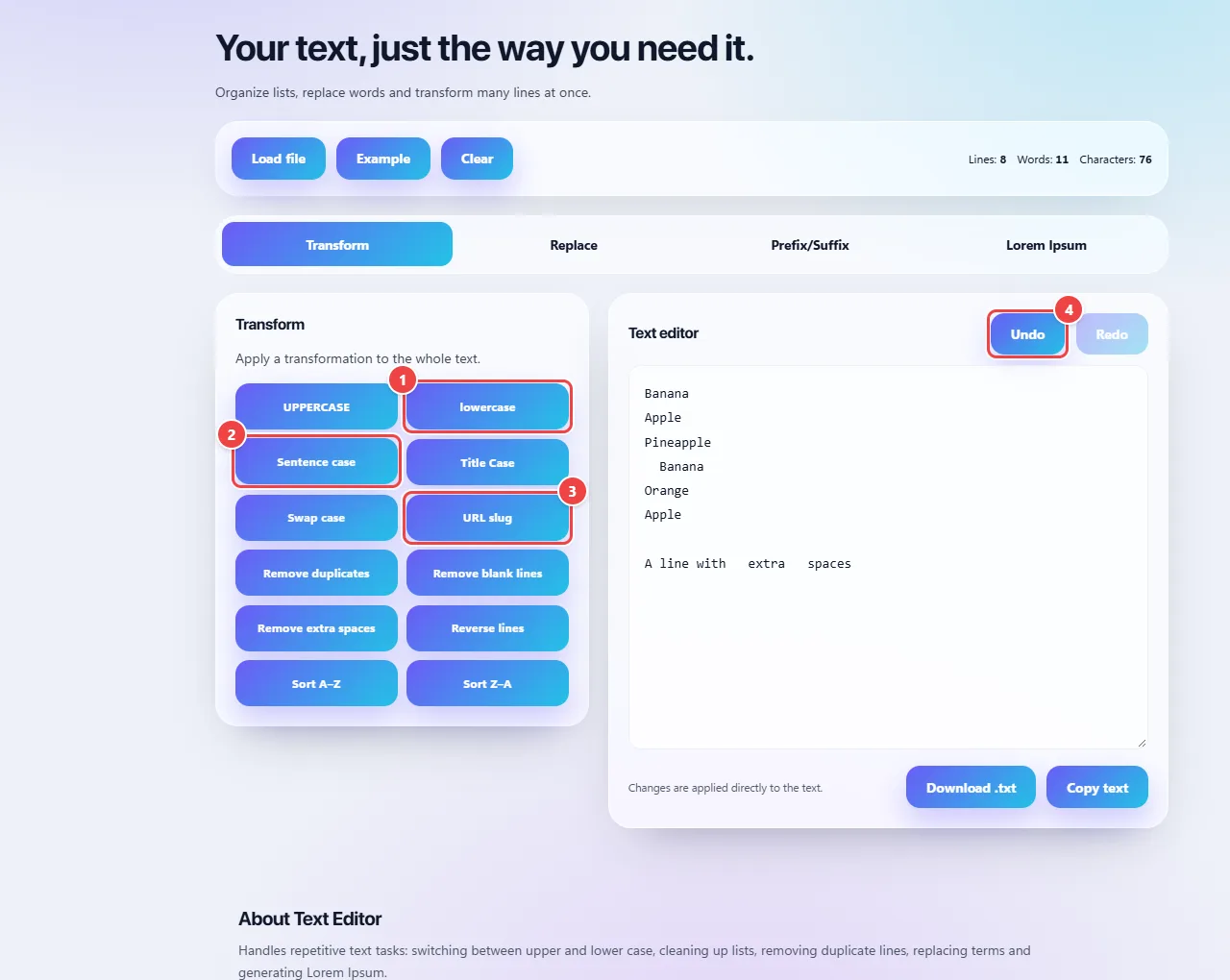
- Point 1: Start with lowercase to standardize the case; accented letters are respected.
- Point 2: Sentence case is for sentences; Title Case, for titles.
- Point 3: URL slug generates a friendly address, with no accents or spaces.
- Point 4: If the result is not what you expected, use Undo.
Result: The text with the right case, without typing anything new.
Replace terms, add a prefix and generate Lorem Ipsum
Situation: You need to swap one term for another, number lines or wrap them with some text, or fill in a layout.
- On the “Replace” tab, enter the term and the new text and apply. Test on a small piece first.
- On the “Prefix/Suffix” tab, add text at the start or end of every line.
- On the “Lorem Ipsum” tab, generate placeholder text to test a layout.
- When you are done, use “Copy text” or “Download .txt”.
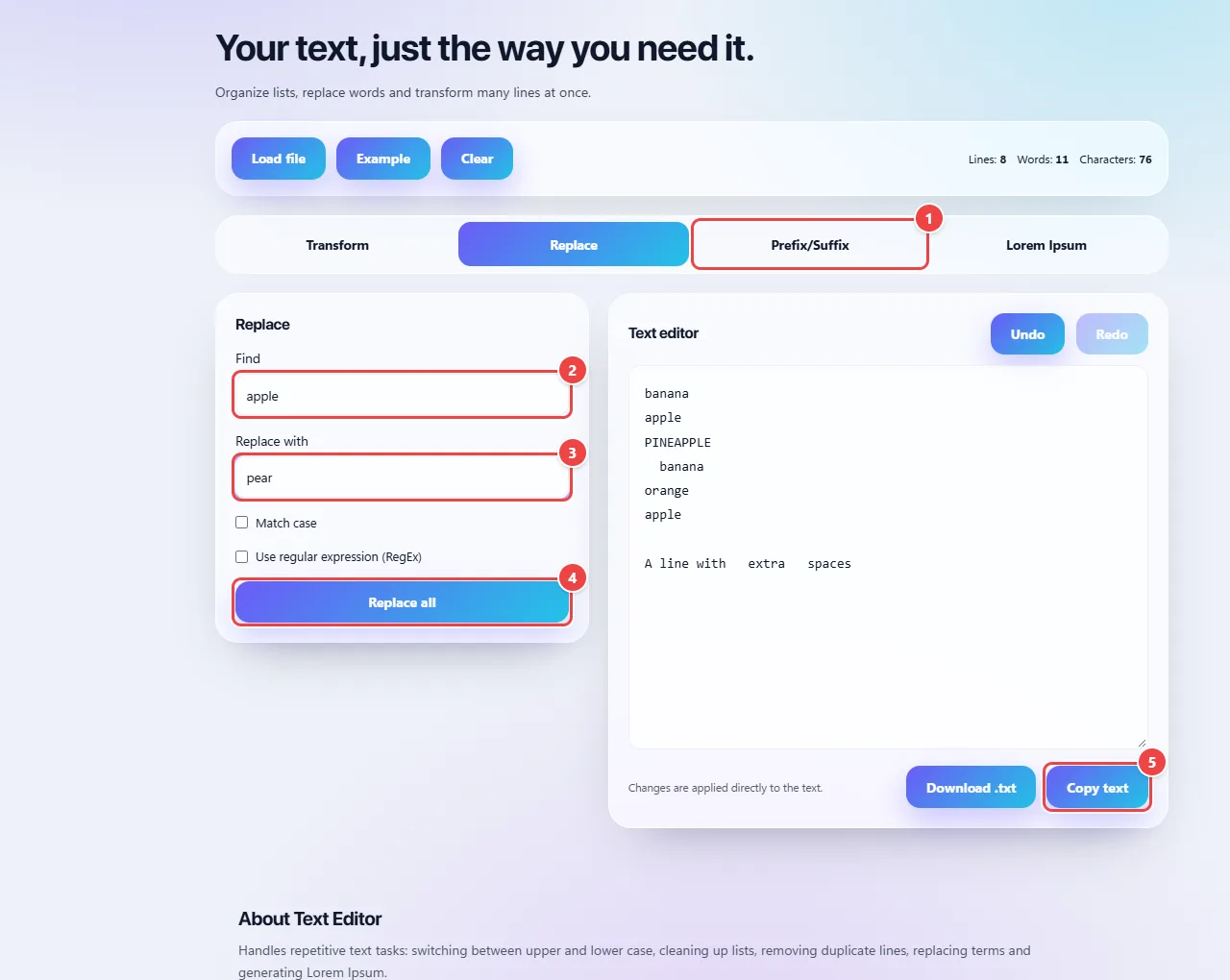
- Point 1: The Prefix/Suffix and Lorem Ipsum tabs add text at the start or end of each line and generate filler text.
- Point 2: Enter the term to look for. Test on a small piece first.
- Point 3: Type the new text. Leave it empty to remove the term.
- Point 4: Replace all applies the swap; Undo goes back.
- Point 5: When you finish, copy the text or download it as .txt.
Result: The transformed text, copied or downloaded as a file.
Tips for a better result
- Keep the original text saved and work on a copy.
- In lists, keep one item per line: that is how sorting and duplicate removal work best.
- When removing duplicates, check for invisible differences (a trailing space, capitalization): to the computer, those are different lines.
Limits, and when this is not the best option
- Very large texts (millions of characters) can make the browser slow.
- Transformations apply to the whole text; replacing several terms is done one at a time.
- The content is not saved: close the page and the text is gone.
Frequently asked questions
- Can I paste sensitive text?
- Yes. Everything happens in your browser and the text is never sent to a server.
- Can I undo a transformation?
- Yes, the editor has “Undo” and “Redo”.
- What is Lorem Ipsum?
- Meaningless placeholder text that designers and developers use to see how a layout looks before the final content exists.