How to use the WebFaz video editor: from file to MP4, with no watermark and no sign-up
This guide shows, with images of the tool itself, where to click to import your media, build the timeline, save the project in the browser or as a file and export the video. It also explains the features that set this editor apart among the free ones: automatic captions, animated backgrounds, color LUTs (including your own), 3D models as a layer and conversion of PowerPoint presentations into video. Everything runs in the browser, with no account and no watermark.
Guide written by Marcelo Amantino · updated on October 20, 2026 · about us
Where your data is processed
It works locally by default. Only if you turn on the AI feature is the timeline audio (only when you click "Generate automatic captions") sent to Groq (Whisper Large-v3).
The editor runs entirely in your browser: your videos, images, audio and 3D models are read from your device and are never sent to WebFaz, and editing and exporting happen right there. There is a single, optional exception: the "Generate automatic captions" button. When you click it, the timeline audio is sent, in 30-second pieces, to the speech recognition service (Groq/Whisper) to create the captions, and WebFaz does not store that audio. If you do not use the button, nothing leaves your device. The projects saved in "My projects" stay in this browser’s storage, also with no upload.
See the full list on the Privacy page.
Real-world use cases
Get to know the screen and import your media
Situation: It is your first time opening the editor and you want to know where to start.
- Open the editor. The “Full studio” is already open: media library on the left, preview in the center, properties on the right and the timeline at the bottom.
- Click “Import” (or drag the files onto the dashed area) and choose videos, images, audio, 3D models or a .pptx presentation. The files go into the library and are already placed on the timeline.
- In the “Project” panel, which appears on the right when nothing is selected, choose the screen format: 16:9, 9:16, 1:1, 4:5, 4:3 or 21:9.
- Use the functions bar to add text, annotations, backgrounds, audio, narration, screen recording, captions, transitions, behaviors, animations and effects.
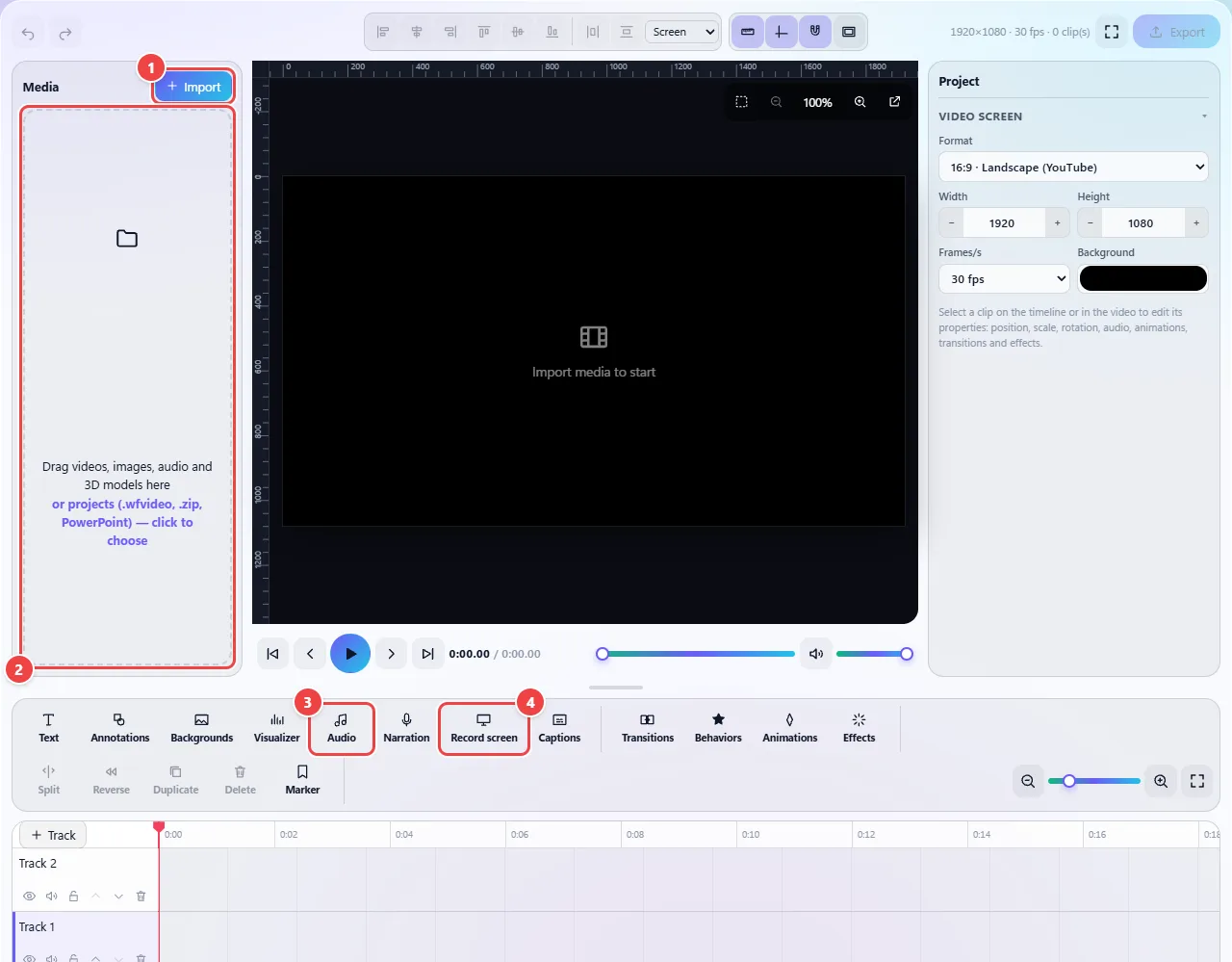
- Point 1: Import: opens your computer’s window to choose the files. You can choose several at once.
- Point 2: Dashed area: drag the files straight from the folder to here. It accepts videos, images, audio, 3D models (GLB, glTF, OBJ, STL, PLY, FBX, DAE) and .pptx presentations.
- Point 3: Audio: imports a song or voice-over already recorded, without going through the library.
- Point 4: Record screen: records the computer screen through the editor itself and puts the result on the timeline.
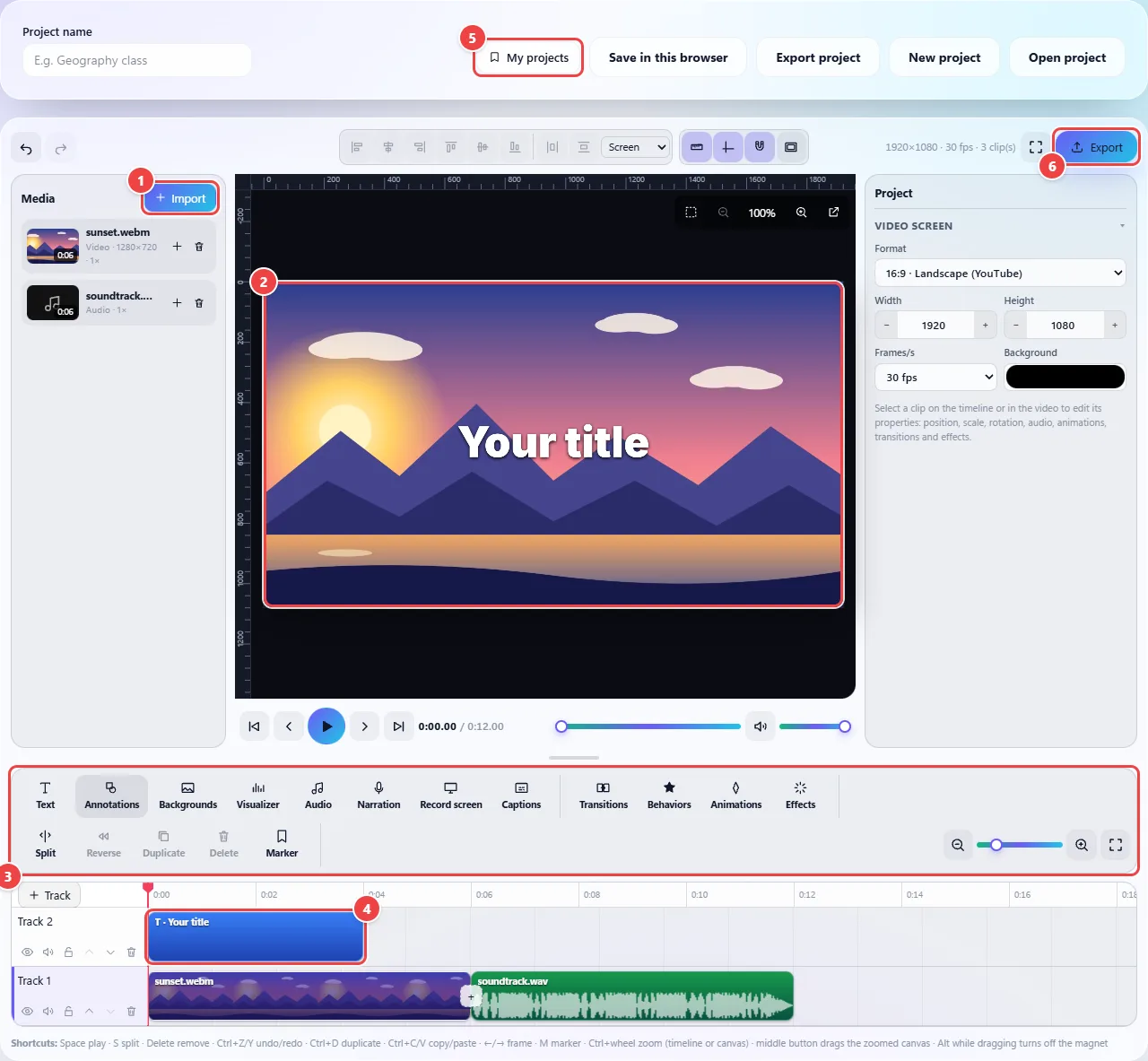
- Point 1: Import: brings videos, images, audio, 3D models and PowerPoint presentations into the library.
- Point 2: Preview: shows the frame at the timeline cursor. Click and drag the objects here to change position and size.
- Point 3: Function bar: text, annotations, animated backgrounds, audio visualizer, audio, voice-over, screen recording, captions, transitions, behaviors, animations and effects.
- Point 4: Timeline: each block is a clip. Drag to move, pull the edges to trim and stack in several tracks.
- Point 5: My projects: saves the project in this browser or downloads a file.
- Point 6: Export: generates the final video as MP4 or WebM.
Result: A project with your media already on the timeline, ready to edit.
Trim the start and end of a recording
Situation: You recorded a video with a few seconds of setup at the start and a leftover at the end and want to keep only the useful part.
- Import the video; it already goes onto the timeline.
- Click on the timeline ruler where the useful content starts and use “Split” (or the S key). Do the same at the end.
- Select the leftover and press Delete. To delete and close the gap at once, use Shift + Delete.
- Watch the preview from start to end and export as MP4.
Result: A lean video, with only the part that matters, as MP4 and with no watermark.
Record the screen, narrate and caption
Situation: You want to explain a process by showing the screen and leave captions for people watching without sound.
- Click “Record screen” in the functions bar, choose what to share and stop the recording when done; the result goes onto the timeline. If you need narration, use “Narration”, which records through the microphone.
- Follow the captions step by step, further below, to generate automatic captions or import your own.
- Review each caption: proper names and technical terms usually need adjusting.
- Export as MP4.
Result: A narrated tutorial, with captions you reviewed.
Generate automatic captions (or import your own)
Situation: You recorded a class or a testimonial and want captions for people watching without sound.
- With the video on the timeline, open “Captions” in the functions bar.
- Under “Caption style”, choose static text or the highlight of the word being spoken (by size, outline or background).
- Choose the “Spoken language” (or leave it on detect) and click “Generate automatic captions”. The timeline audio, already with your cuts, is sent in 30-second pieces to the speech recognition service. The limit is 30 minutes at a time and 30 minutes per day in this browser.
- If you already have the captions, paste an SRT or VTT file in the text box (or open the file) and click “Add to timeline”.
- Review: each caption is a text block on the “Captions” track. Click it to fix the text, timing, font and color.
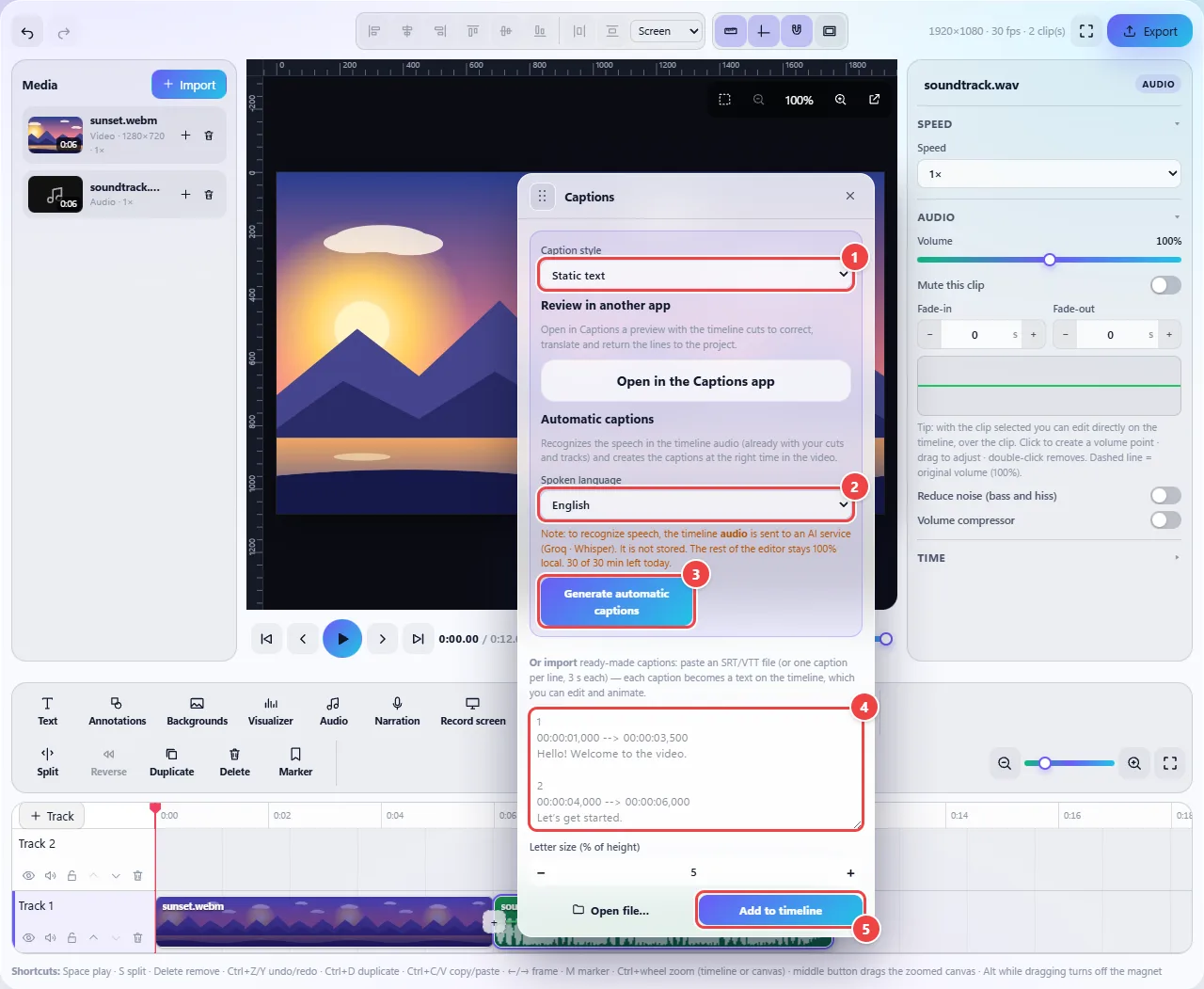
- Point 1: Caption style: static text or with the word in focus (changes the size, the outline or the background of the word being spoken).
- Point 2: Spoken language: detects automatically or you choose among ten languages.
- Point 3: Generate automatic captions: transcribes the timeline’s audio. It is the only button in the editor that sends data: the audio goes to the speech recognition service (Groq/Whisper) and is not stored.
- Point 4: Text box: paste ready-made captions here in SRT or VTT (or one caption per line).
- Point 5: Add to timeline: creates a new track with one editable caption per block.
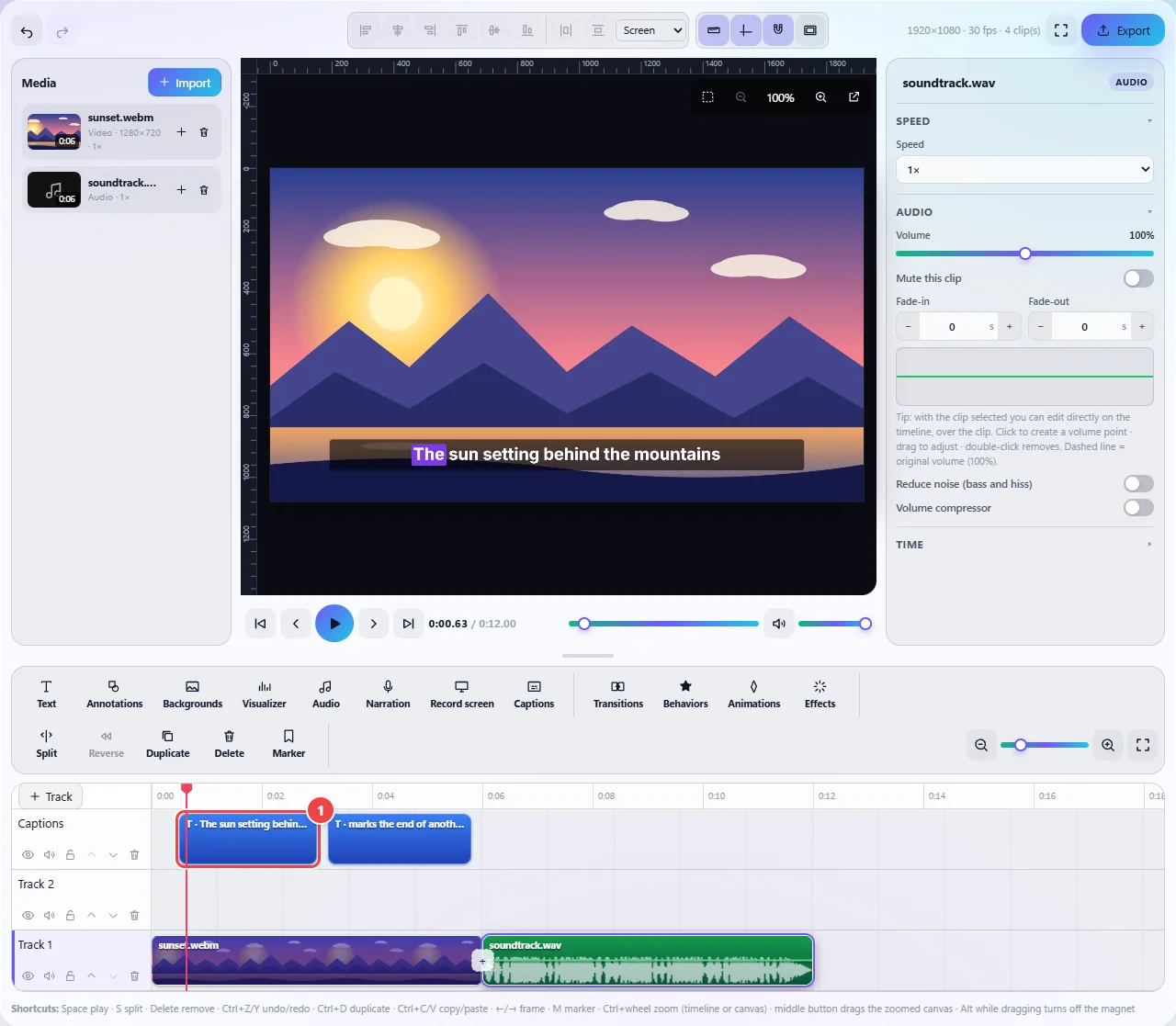
- Each caption is a text block on the “Captions” track. Click it to change the text, the font, the color and the timing, or to animate it like any other text.
Result: Captions synced with the speech, editable one by one and burned into the picture on export.
Create an animated background
Situation: You want an intro, a text-only video or a music video with visuals, without having a background video.
- Place the timeline cursor where the background should start and click “Backgrounds”.
- Choose “Surprise me”, one of the eight palettes or one of the 19 animated templates (bubbles, waves, rings, triangles, stars and bokeh…).
- The background goes in as an 8-second clip (or until the end of the project, if it is already longer). If it ends up in front of other layers, use the “Move track down” arrow next to the track name.
- Select the clip and adjust colors, motion and duration in the properties. The animation loops seamlessly.
- Put a title or an audio visualizer on top.
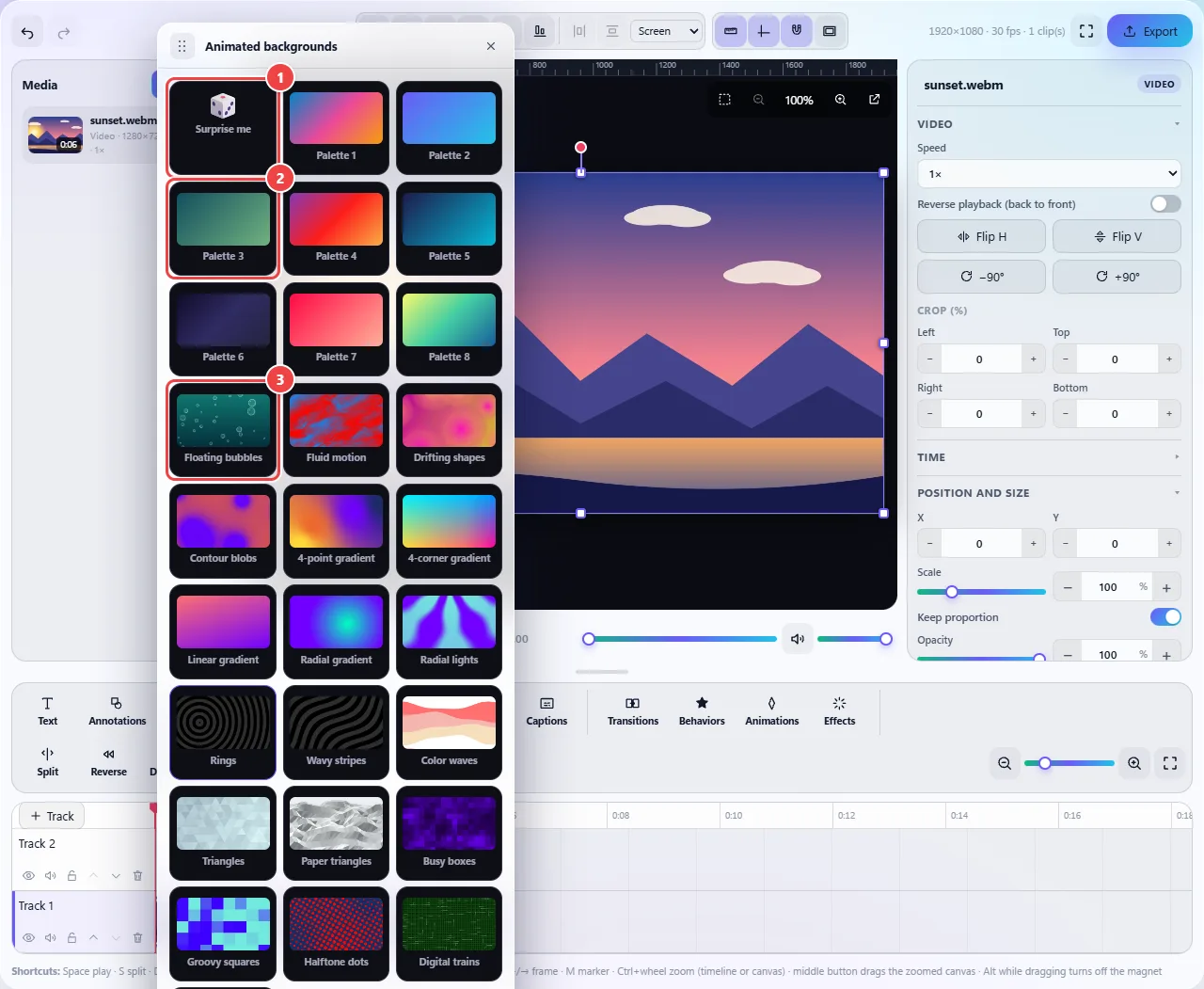
- Point 1: Surprise me: draws colors, texture and motion.
- Point 2: Palettes 1 to 8: gradients with texture and motion (rotate, orbit or breathe) that repeat seamlessly.
- Point 3: Animated templates, such as Floating bubbles: 19 scenes that move on their own, with colors and motion adjustable in the clip’s properties.
Result: A moving background that serves as a setting for texts, captions, 3D models or music.
Give the video a look with a color LUT
Situation: The video came out dull and you want a consistent look (warm, cool, cinematic) or to apply the LUT that your camera or a colorist supplied.
- Click the video clip on the timeline and open “Effects”.
- Choose “+ Color LUT (.cube)”.
- Under “Default LUT”, choose one of the 14 ready-made looks and see the result in the preview, or click “Import 3D LUT (.cube)” to use your own (up to 20 MB).
- Adjust the “LUT intensity” to blend with the original image. If needed, combine with “Color adjustment” (brightness, contrast, saturation and hue).
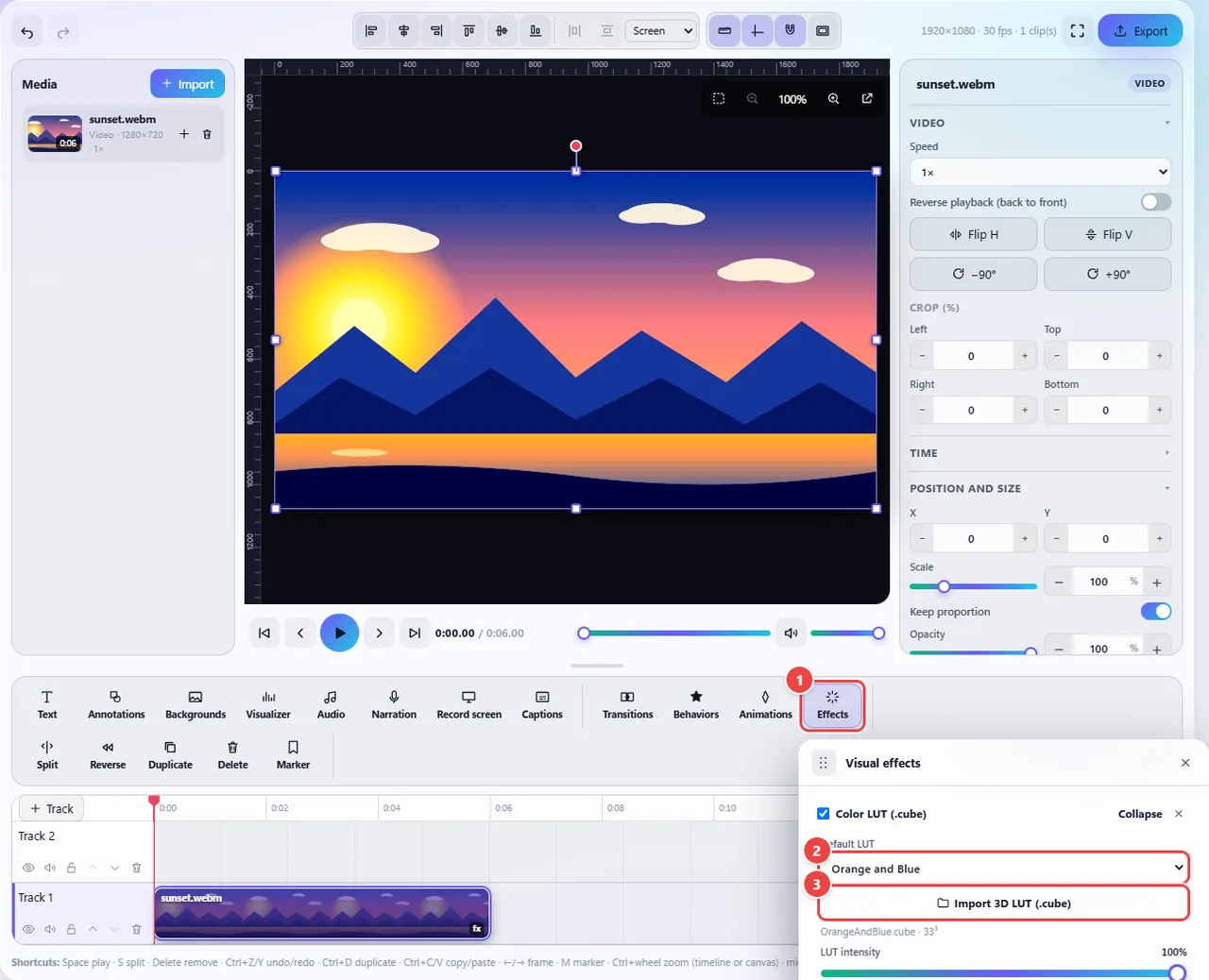
- Point 1: Effects: with the video clip selected, opens the effects catalog. “+ Color LUT (.cube)” adds the effect to the clip.
- Point 2: Standard LUT: 14 ready-made looks (such as Orange and Blue, Blue Hour, Magic Hour and Soft Black and White). The result appears in the preview right away.
- Point 3: Import 3D LUT (.cube): uses your own LUT (up to 20 MB). The intensity, just below, blends the LUT with the original image.
Result: A clip with the chosen look; the LUT is kept in the project and also applies on export.
Put a spinning 3D model in the video
Situation: You want to show a product, a 3D logo or a part over an animated background, without using a 3D program.
- Import the model file (GLB, glTF, OBJ, STL, PLY, FBX or DAE). It goes in as a 6-second “3D model” clip.
- Select the clip and use “Model position” to tilt, turn, roll, zoom and shift the model and change the perspective.
- Under “Continuous rotation”, set how many degrees per second it spins on each axis (the default is 30°/s on the Y axis).
- Under “Appearance”, adjust the light, paint the model with a color or show only the lines (wireframe). If the file carries animation (GLB, FBX), turn on “Play the model’s animations”.
- For a custom movement, use “Animations” and record keyframes. Put an animated background on a track below the model.
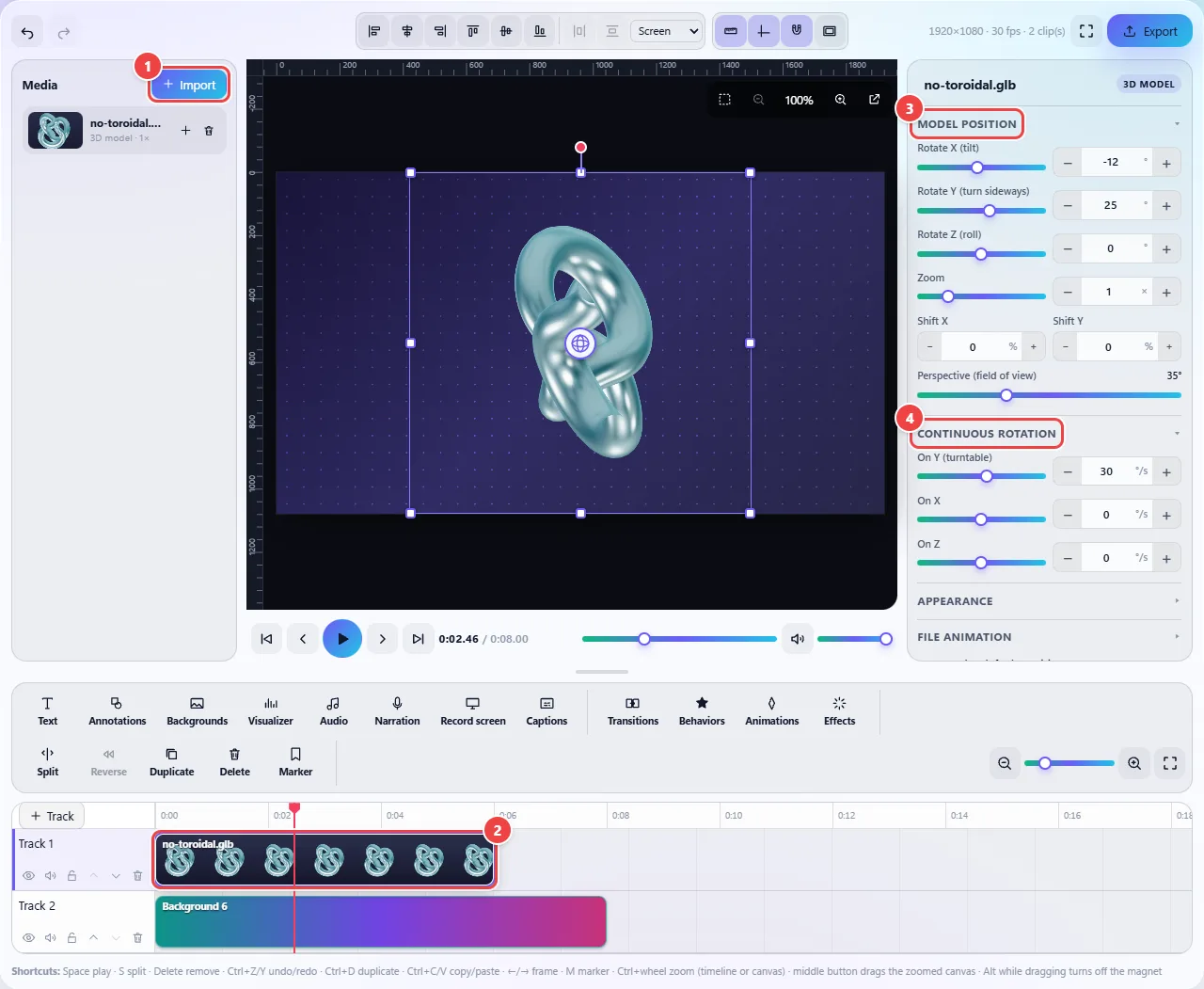
- Point 1: Import: accepts GLB, glTF, OBJ, STL, PLY, FBX and DAE. The model enters the timeline as a 6-second “3D Model” clip.
- Point 2: The 3D clip sits on a track like any other layer: what is below it (a background, a video) appears behind the model, which has a transparent background.
- Point 3: Model position: tilt, turn sideways, roll, zoom, offset and perspective. You can animate these values with keyframes.
- Point 4: Continuous spin: makes the model spin on its own, in degrees per second, on each axis.
Result: A 3D model with a transparent background, over whatever is below it on the timeline.
Turn a PowerPoint presentation into a video
Situation: You have a .pptx presentation and need a video (for social networks, a recorded class or a website), with narration, music or captions on top.
- Click “Import” and choose the .pptx file (or use “My projects” → “Open file…”).
- In the “Import presentation” window, set the duration of each slide and whether to use PowerPoint’s “advance after” time and stretch the slide to the end of an embedded video.
- Click “Import”. Each slide becomes a section of the timeline; texts, shapes, images and 3D models become editable clips, and Morph transitions become position, size and rotation animations.
- Check the warnings: whatever the importer does not convert (such as tables, charts and SmartArt) is listed.
- Add narration, music and captions and export as MP4. The reverse path exists too: in “My projects”, choose “Save as” → “PowerPoint (.pptx)” and click “Download file”.
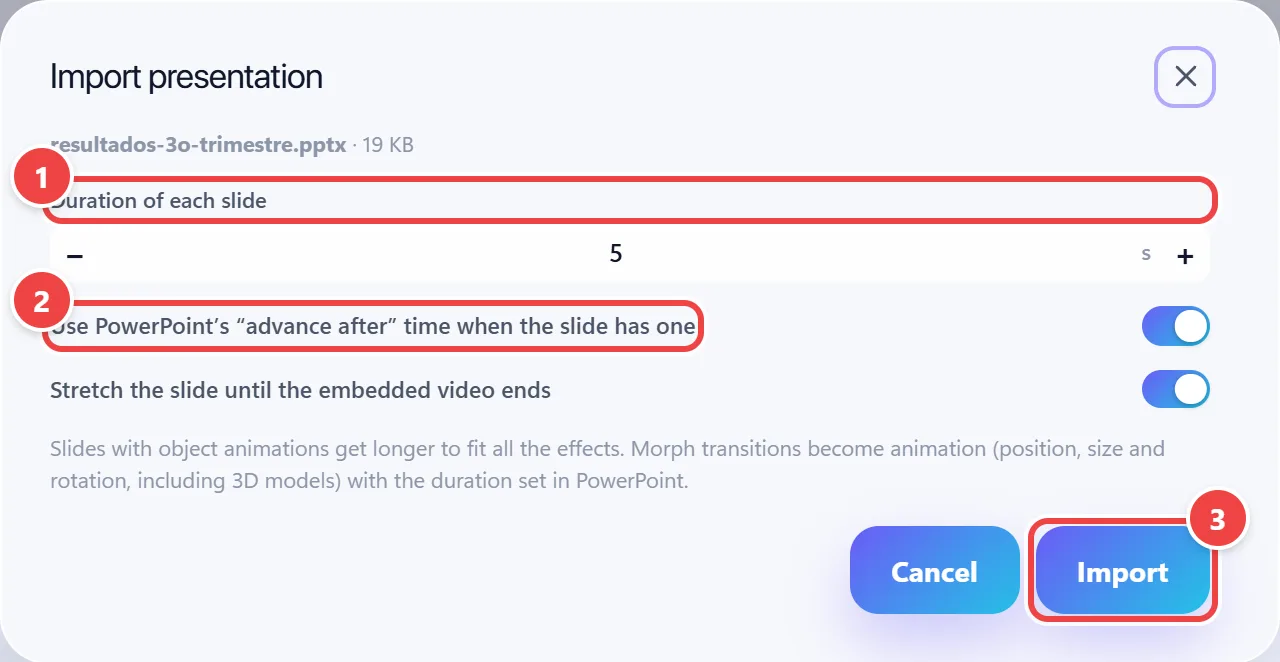
- Point 1: Duration of each slide: how long each slide stays on screen (from 1 to 120 seconds).
- Point 2: PowerPoint timing: if the slide has “advance after” set, it uses that time instead of the fixed duration.
- Point 3: Import: converts the slides into timeline sections.
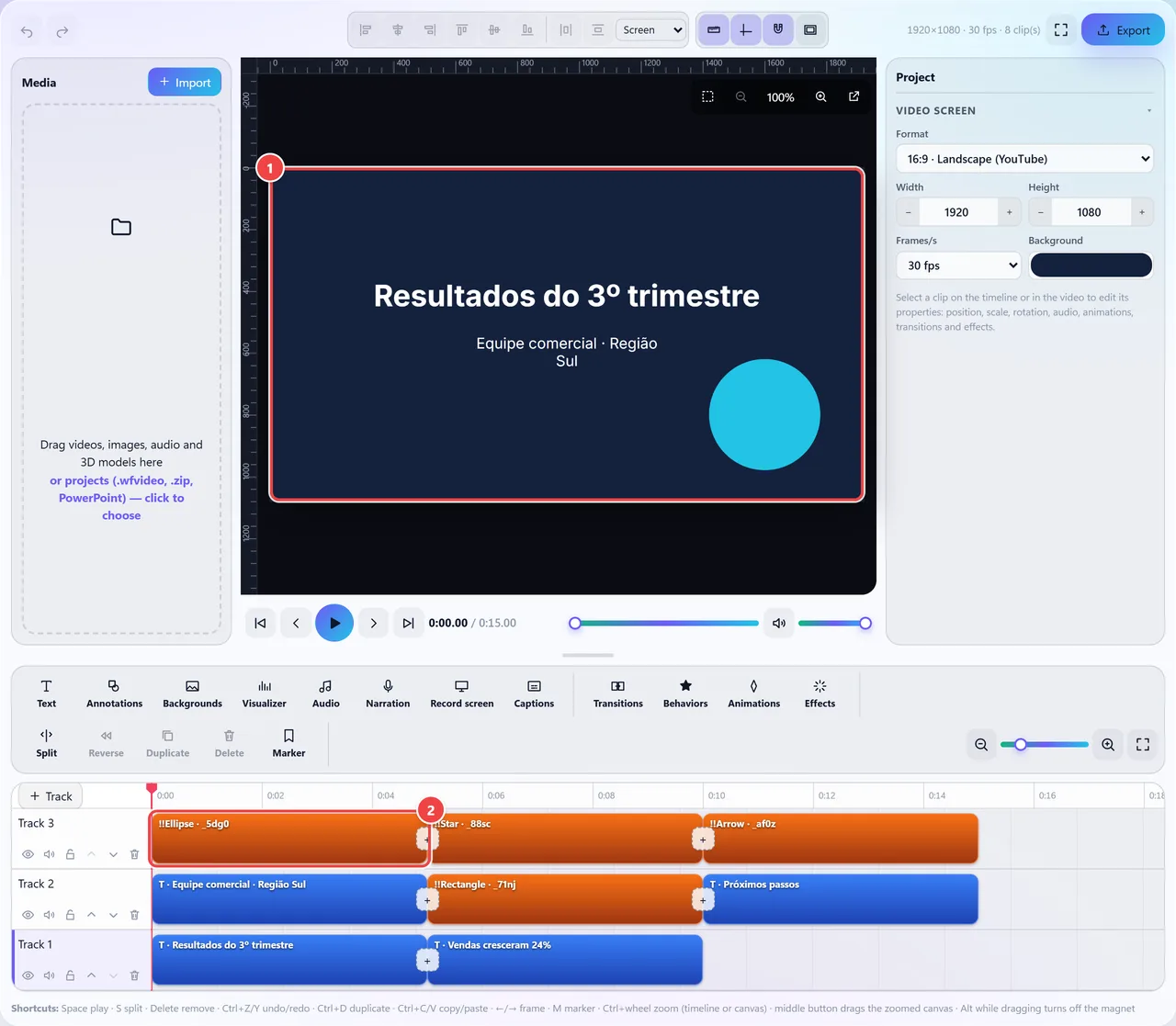
- Point 1: Preview: the first slide, with the texts and shapes as objects you can still move.
- Point 2: The slides sit one after the other on the timeline. Texts, shapes, images and 3D models become clips; Morph transitions become animations.
Result: A video built from the slides, which stays fully editable.
Animate texts and objects and join clips with transitions
Situation: You want a title to come in with an effect, an arrow to pulse or a logo to appear and leave smoothly, and to join loose clips into a sequence.
- Select the clip (text, shape, image, video or 3D model).
- Open “Behaviors” and click one of the 13 styles (Pop Up, Fly In, Reveal, Pulsating…). Each brings an in, a movement while shown and an out.
- For your own movement, open “Animations” and record keyframes for position, scale, rotation and opacity.
- Between one clip and another, open “Transitions” and choose, for example, fade, dissolve, slide, push, zoom or wipe.
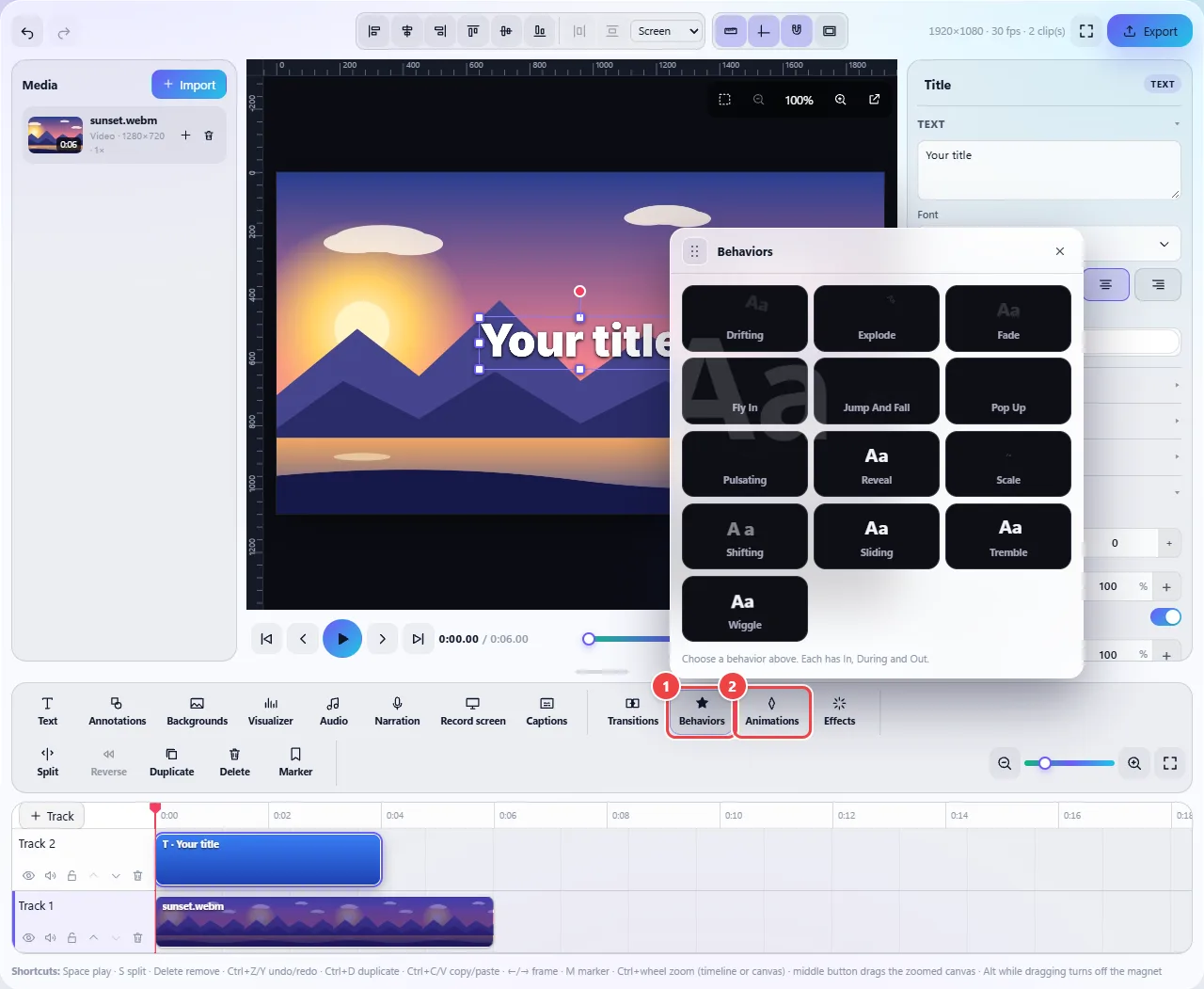
- Point 1: Behaviors: 13 ready-made animations for the selected clip. Each defines an entrance, a motion while shown and an exit.
- Point 2: Animations: for a tailor-made motion, record keyframes of position, scale, rotation and opacity on the timeline.
Result: Animated texts and objects and clips joined with transitions, without needing an animation program.
Save the project in the browser and continue later
Situation: The edit will take more than one session and you want to resume where you stopped, without downloading anything.
- Click “My projects” in the editor’s top bar.
- Type a name (optional) and click “Save current project”. The timeline and the media are kept in this browser’s storage.
- To continue later, open “My projects” and click the saved project. Use “Update” to write the new changes over the same project.
- If you close the tab without saving, the editor offers “Continue where I left off” the next time you open the tool in this browser.
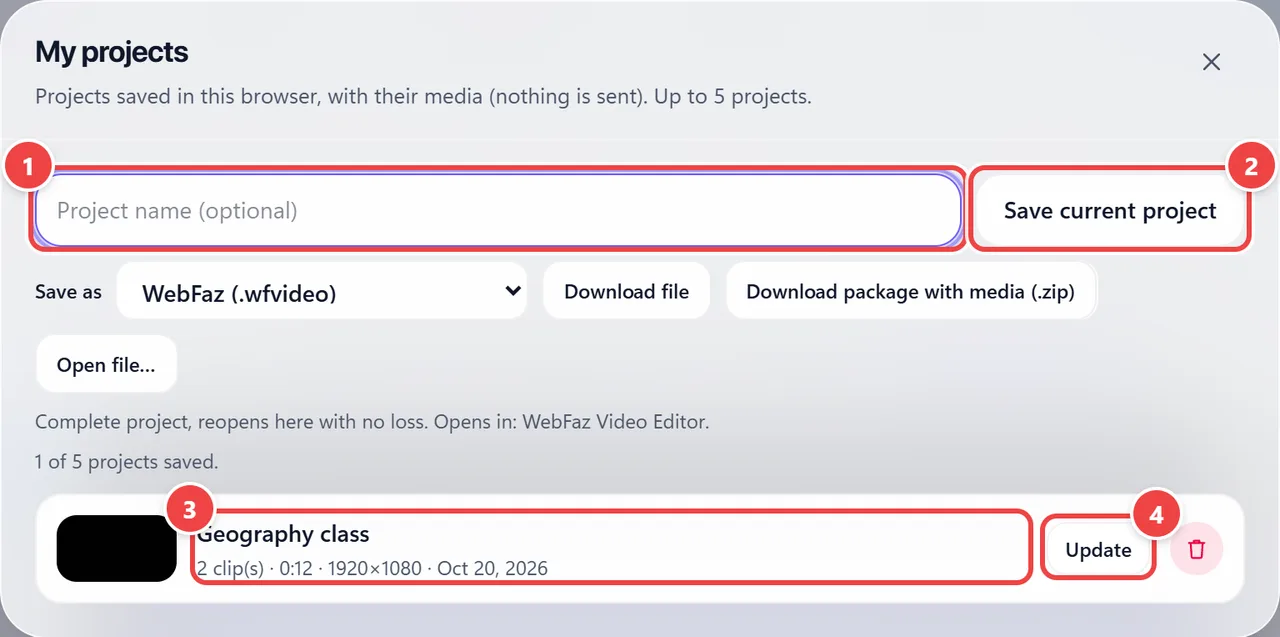
- Point 1: Project name: optional. Without a name, the editor uses today’s date.
- Point 2: Save current project: stores the timeline and the media in the browser’s storage. Nothing is sent to any server.
- Point 3: Click the saved project to reopen it (the editor warns before replacing what is on the screen).
- Point 4: Update: replaces the saved project with what is on the screen now, without taking a new slot. The limit is 5 projects.
Result: Up to 5 projects kept in the browser, which reopen with everything in place.
Save the project as a file: own format or compatibility
Situation: You want to keep a copy outside the browser, take the project to another computer or continue the edit in another program.
- Open “My projects” and, under “Save as”, choose the format.
- To keep editing in WebFaz, leave “WebFaz (.wfvideo)”: it is the own format, which keeps the complete project and reopens with no loss.
- To open in another program, choose a compatibility format: Camtasia (.tscproj), Premiere / DaVinci (.xml), Final Cut Pro / DaVinci (.fcpxml), OpenTimelineIO (.otio), cut list (.edl) or PowerPoint (.pptx). The description below the selector says what each one carries and where it opens.
- Click “Download file” (only the project; keep the media in the same folder) or “Download package with media (.zip)” (the project, a backup .wfvideo and the original files).
- To reopen, use “Open file…” and select the .wfvideo (or the .tscproj) together with the media, or the .zip package.
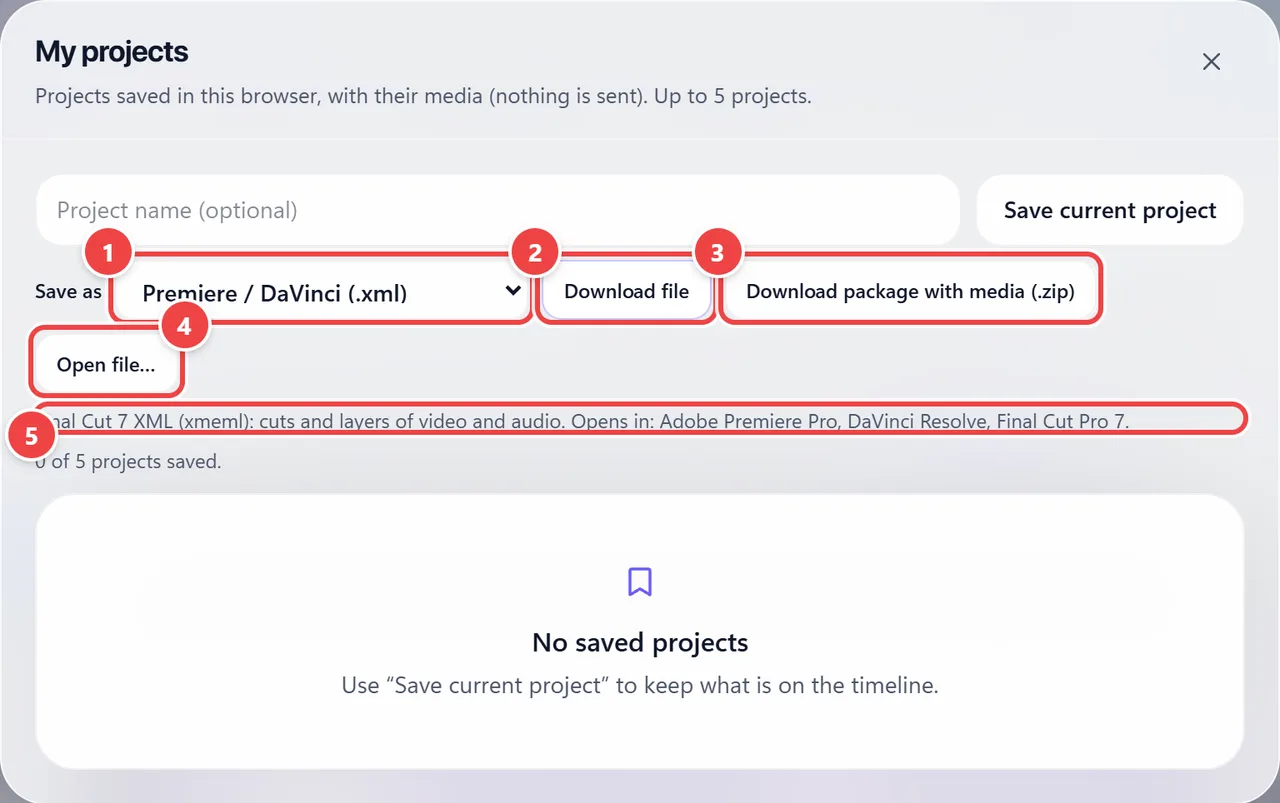
- Point 1: Save as: choose the format. “WebFaz (.wfvideo)” is the own format and keeps the complete project, which reopens here with no losses. The others are compatibility formats for other programs.
- Point 2: Download file: downloads only the project file, without the media. Keep the media in the same folder.
- Point 3: Download package with media (.zip): a .zip with the chosen file, a backup .wfvideo and the original media files.
- Point 4: Open file…: opens a .wfvideo, a Camtasia .tscproj, the .zip package or a .pptx presentation.
- Point 5: Description: says what the chosen format carries and which programs it opens in.
Result: A copy of the project outside the browser, which reopens in WebFaz with no loss or goes to another editor with whatever the format can carry.
Export the final video
Situation: The edit is finished and you need the video file to publish or send.
- Click “Export” in the top right corner. The button is only active when there is something on the timeline.
- Choose the format (MP4 or WebM), the size (original, 75%, 50% or draft), the frames per second (24 to 60) and the quality (from Low to Maximum).
- Click “Export video” and follow the progress, with the estimate of the remaining time. Keep the tab open until it finishes.
- Check the preview that appears and click “Download”. “Cover (PNG)” saves only the first frame, to use as a thumbnail.
- If your device has no video encoder, the editor explains why and turns on the “Record in real time” option, which takes as long as the video but works on almost any device.
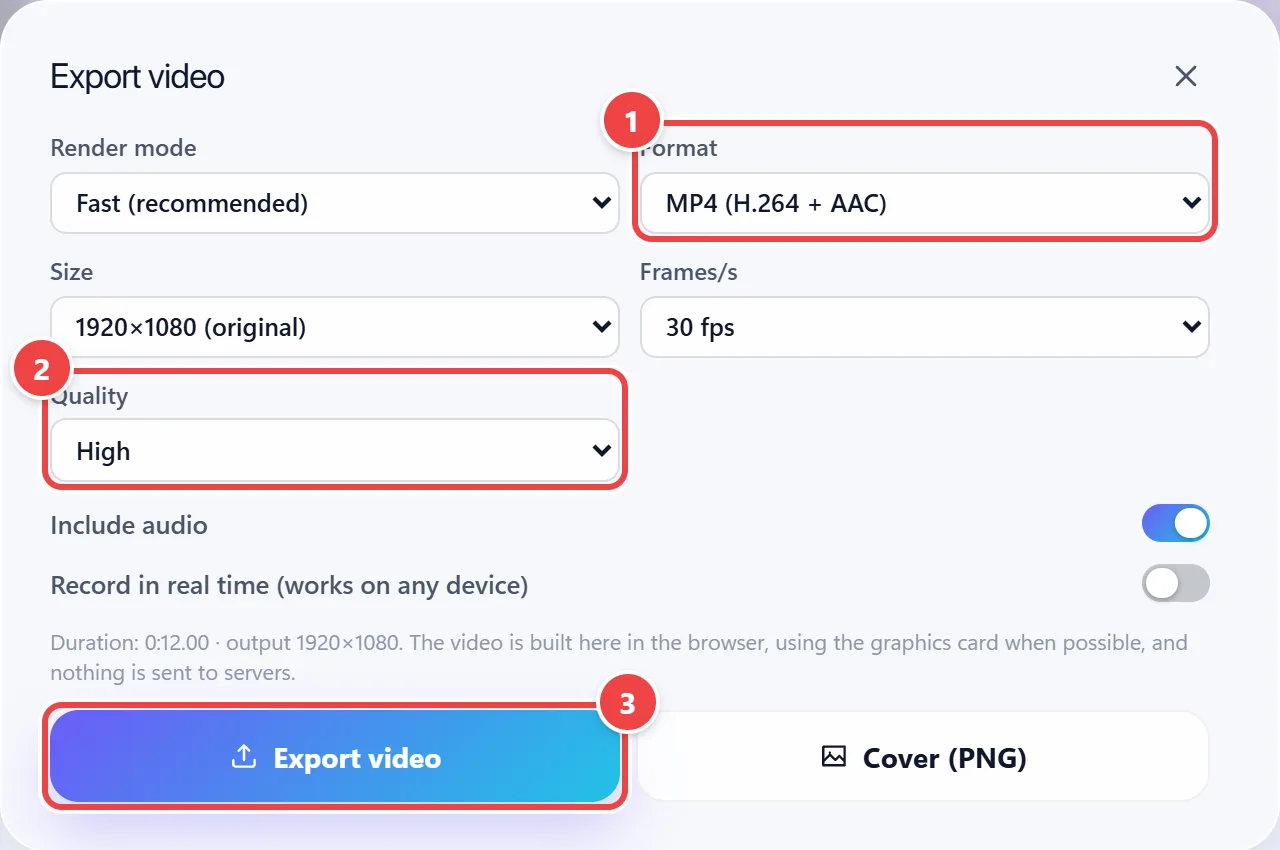
- Point 1: Format: MP4 (H.264 with AAC audio) works on most devices and social networks. WebM (VP9 with Opus) is the open alternative.
- Point 2: Quality: from Low (small file) to Maximum. Under Size you can export at 75%, 50% or as a draft.
- Point 3: Export video: builds the file on your device and shows a preview with the Download button. “Cover (PNG)” saves only the first frame.
Result: An MP4 or WebM file with no watermark, ready to publish.
Tips for a better result
- Save the project in “My projects” before exporting: that way you can go back and adjust without rebuilding everything.
- To really keep a project, download the package with media (.zip): the browser storage disappears if you clear the site data.
- Before the final export, export a draft (“draft” size and low quality) to check sound, captions and animations.
- Close other heavy tabs before exporting; your device does the work.
- Keep texts short and with good contrast over the video; captions that are too long leave no time to read.
- With 3D models, prefer optimized GLB files: very heavy models make the preview slow.
Limits, and when this is not the best option
- Long or high-resolution projects need a computer with good memory; on old phones they can freeze. The studio is designed for computers.
- The export happens in the browser and can take a while on large videos. Keep the tab open until it finishes.
- The compatibility formats carry only what the destination program understands (the EDL, for example, carries only the cuts) and the editor warns what was left out. To lose nothing, keep the .wfvideo too.
- When saving as PowerPoint, audio, video, visual effects and behaviors do not go to the presentation. When importing a PowerPoint, items the importer does not convert, such as tables, charts and SmartArt, are left out.
- Browser storage is limited: “My projects” keeps up to 5 projects and they disappear if you clear the site data or use a private window.
- Automatic captions are a suggestion and need review; they are also the only part that sends audio to an outside service, and have a daily limit.
- For film or television work, with professional color and audio workflows, a desktop editor is still the best choice.
Frequently asked questions
- Is the editor free? Do I need to sign up?
- It is free. There is no account or login, and the exported video carries no watermark.
- Is my video sent to any server?
- No. Editing and exporting happen in the browser. Only the optional automatic captions button sends the audio to the speech recognition service.
- Is my project saved?
- You can save it in this browser in “My projects” (up to 5) or download a file. Browser storage disappears if you clear the site data, so export the final video and keep the project package.
- What is the .wfvideo format?
- It is the project’s own format: it keeps the complete timeline (clips, texts, effects and animations) and reopens in WebFaz with no loss. The media goes in the .zip package or stays in the same folder as the file.
- Can I continue editing in Premiere, DaVinci Resolve, Final Cut or Camtasia?
- Partly. The editor saves in those programs’ formats (.xml, .fcpxml, .tscproj and others), which carry cuts and layers; specific effects and animations may not make it through, and the editor warns what was left out.
- Which formats is the video exported in?
- MP4 (H.264 with AAC audio) and WebM (VP9 with Opus audio).
- Which 3D model formats work?
- GLB, glTF, OBJ, STL, PLY, FBX and DAE.
- Can I use my own LUTs?
- Yes. The “Color LUT” effect accepts .cube files up to 20 MB, besides the 14 ready-made LUTs.
- Do automatic captions have a limit?
- Yes: the timeline can be up to 30 minutes at a time, and use is limited to 30 minutes per day in each browser. If you prefer, import ready-made SRT or VTT captions.