One list. Many labels.
Import your spreadsheet, review the data and build labels with custom fields. Choose the sheet model, check the layout and generate a print-ready PDF. Works with Avery® and Zweckform® compatible sheets. (Your spreadsheets and label data are processed on your computer or phone, with no upload to our servers.)
Prepare your mail merge
The first row must contain the field names. Up to 10 MB and 10,000 records.
| # | Name | Address | City | State | ZIP |
|---|---|---|---|---|---|
| 1 | |||||
| 2 | |||||
| 3 |
Use WebFaz Text Editor for other transformations and send the CSV back to Labels. Keep the header row.
About Labels
Online label maker, with no install and no sign-up: import an Excel or CSV list, pick your label sheet (the common US Letter and A4 formats are built in, compatible with Avery® 5160, 5163, L7160 and more), generate the PDF at the right size and save the project to edit later.
What this label maker does
A complete label maker that runs in your browser: from the spreadsheet to a PDF at actual size, with your sheet model and the option to save and edit later. The features that stand out:
Common sheet models with a quick search
Pick a popular model with one click or search by the code printed on the package (such as 5160 or L7160), by size or by “21 per sheet”. US Letter and A4 formats are both available, and the model list also finds equivalent codes such as 8160 or J8160.
Save and edit again whenever you want
Your work is kept automatically as a draft. You can save up to ten projects in the browser, with the spreadsheet, the text and the model, or download a project file to continue on another computer.
Online, no install and no sign-up
Open the page and use it. The spreadsheet and the addresses are processed on your device and are not sent to WebFaz.
Reuse sheets you already started
In Start at label, enter the first free position and print only on the labels that are left. There are also copies per record, to repeat the same label.
Sheet preview, test PDF and printer adjustment
See right away how each record lands on each label, print a test PDF on plain paper to check the alignment and compensate for your printer’s offset with the horizontal and vertical adjustments, in millimeters.
Mail merge from Excel, CSV and more
Import XLSX, XLS, ODS, CSV, TSV or TXT, with a choice of tab. The fields in the first row become {{fields}} you insert in the label text, next to a sequence counter.
Cleanup and duplicates before printing
Trim extra spaces, standardize upper and lower case and remove repeated records (by the whole row or by one field), with Undo, so you do not waste labels.
Other brands and custom sheets
Choose Custom and enter the measurements in millimeters. The app checks that the text fits and that the layout is inside the paper before generating the PDF.
A practical example
A small online shop has 120 orders to ship and a customer list in Excel. It imports the spreadsheet, picks the 5160 sheet it bought, reviews the duplicates and checks the preview. It generates the PDF, prints a test on plain paper to check the alignment and then prints on the adhesive sheet, with the exact measurements.
How to use it
- Import the spreadsheet of addresses or products.
- Choose the label sheet model and adjust the measurements if needed.
- Review duplicates and the preview.
- Generate the PDF and print at actual size.
- Save the project in this browser to edit it again later.
Limits and cautions
- When printing, turn off “fit to page” to keep the real measurements.
- Print a test on plain paper before using the label sheet.
- Sheet margins are typical published values, not official ones: use the test PDF and the horizontal / vertical adjustment to line your printer up.
A ferramenta em uma imagem
Os pontos de clique estão numerados. Toque na imagem para vê-la em tamanho original. As demais telas, passo a passo, estão no guia “Como funciona”.
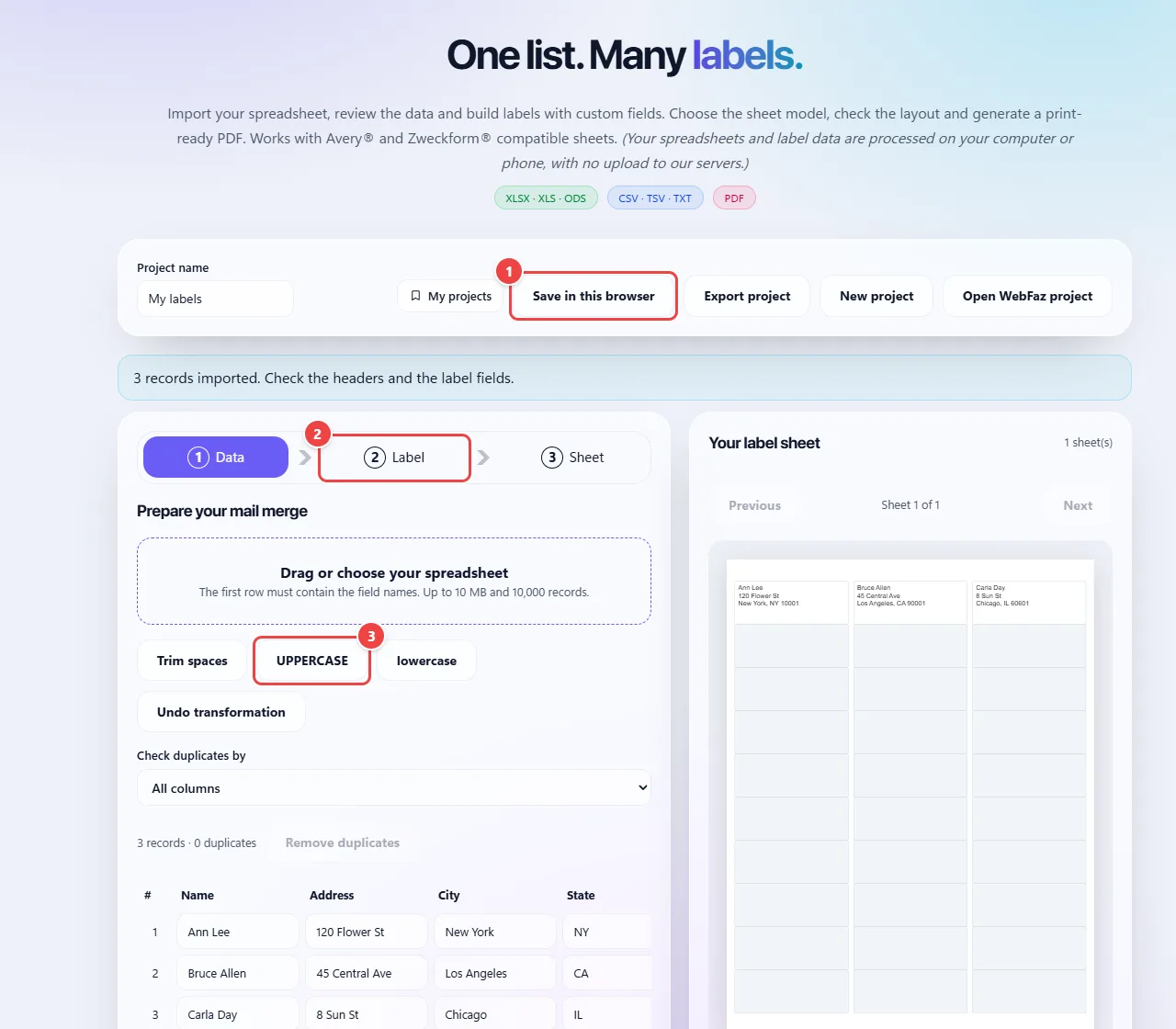
- Point 1: Save the project in this browser or export a project file to continue later.
- Point 2: Follow the steps: Data, Label (text and fields) and Sheet (model, check and PDF).
- Point 3: Clean the data: spaces, upper or lower case and duplicates. The spreadsheet is read by the browser and is not uploaded.
When to use it
- Address labels for shipping orders, invitations and mail.
- Product, price and file-folder labels.
- Mail merge from a customer or member list.
Tips
- Review duplicates before generating the PDF so you do not waste labels.
- Always print a test on plain paper at actual size (100%).
- For a sheet that is not in the list, use Custom and enter the measurements from the package.
What happens in your browser
The spreadsheet (Excel or CSV) is read in your browser, and each row becomes a label placed on the grid of the chosen model, using the margin, width, height and spacing measurements. The PDF is generated with these measurements at actual size.
That is why, when printing, “fit to page” must be off: it shrinks the PDF and misaligns the labels. Printing first on plain paper and holding it against the sheet in the light is a simple way to check the alignment.
For the common sheet models, the label size and the grid follow the manufacturer’s listing and the margins are typical published values (the grid is centered on the sheet), so they should always be confirmed with a test print.
The spreadsheet and the addresses stay in your browser and are not sent to WebFaz.
Read the full guide: real-world use cases, tips and limits →
Privacy: This tool runs entirely in your browser: your files and data are not sent to any WebFaz server. Learn more.
Perguntas frequentes
- Is my spreadsheet uploaded?
- No. Your data stays in your browser.
- Which label sheets does it support?
- Common US Letter formats (such as 5160, 5163, 5161, 5164 and 5167), common A4 formats used in the UK and Europe (such as L7160, L7163, L7162 and L7165) and a Zweckform 70 × 37 mm sheet. You can also enter any other sheet by hand with a custom model.
- Is this affiliated with Avery?
- No. Avery® and Zweckform® are trademarks of their owners. WebFaz only says that its sheet layouts are compatible with those formats.