How to make mail merge labels from Excel or CSV and print them at the right size
Printing addresses or codes on adhesive label sheets usually goes wrong in two places: building each label one by one from the spreadsheet, and getting the alignment right on the printer. This guide shows how to turn an Excel or CSV list into a PDF with the measurements of your sheet model, how to avoid duplicates and how to print without misalignment.
Guide written by Marcelo Amantino · updated on October 20, 2026 · about us
Where your data is processed
This tool runs entirely in your browser: your files and data are not sent to any WebFaz server.
The spreadsheet, names and addresses stay only in your browser: nothing is sent to WebFaz. The list of sheet models ships with the app, so choosing a model sends nothing of yours anywhere. Your draft is saved on this device, and you can keep up to ten projects here. Because they live only in the browser, clearing the site’s data deletes them; use “Export project” to keep a copy.
See the full list on the Privacy page.
Real-world use cases
Print address labels from a spreadsheet
Situation: You have a list of customers or recipients in Excel and want shipping labels, one per row.
- Under “Prepare your mail merge”, import the file (XLSX, XLS, ODS, CSV, TSV or TXT). If the spreadsheet has several tabs, choose the tab. The first row must have the field names (Name, Address, City…).
- Under “Choose the paper and the model”, click a popular model or type the code of your sheet in “Search by code, size or type” (for example 5160 or L7160) and select it.
- Under “Create the label content”, build the text with the fields in double braces, such as {{Name}} and {{Address}}, and adjust alignment, size, bold and inner margin.
- Under “Your label sheet”, check the diagram, generate the test PDF and print it.
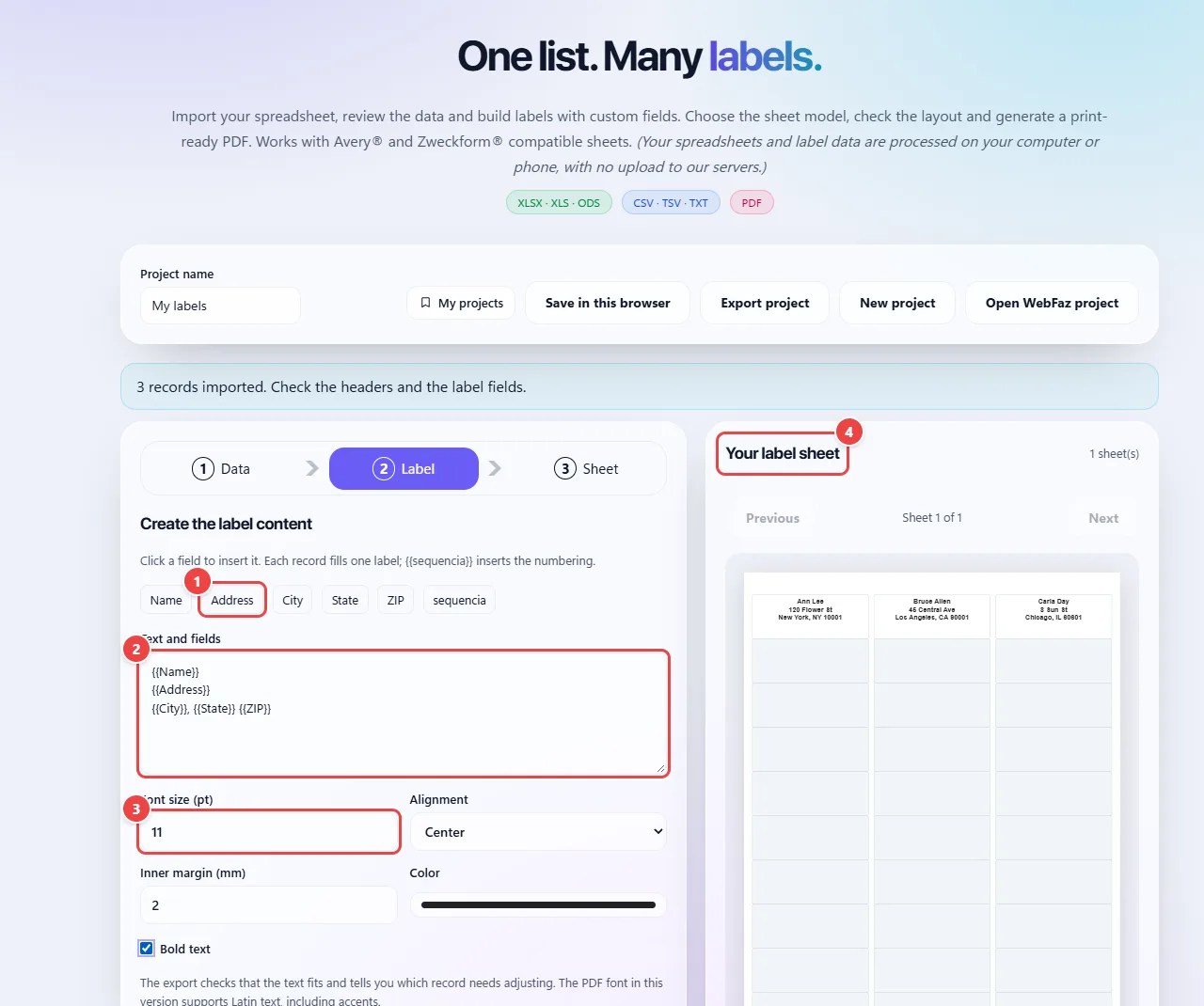
- Point 1: Click a spreadsheet field to insert it in the text. Each record fills one label. The “sequencia” field numbers the labels.
- Point 2: The label text uses fields in double braces, such as {{Name}}. You choose the order and the line breaks.
- Point 3: Adjust the font size, the alignment, the inner margin, the color and bold.
- Point 4: The sheet beside it shows, instantly, how each record lands on each label.
Result: A PDF with one label per spreadsheet record, at the positions and measurements of the chosen model.
Clean the list before printing
Situation: The spreadsheet has repeated names and extra spaces, and you do not want to waste duplicate labels.
- In the Data step, click “Trim spaces” and, if you want, “UPPERCASE” or “lowercase”.
- Under “Check duplicates by”, choose All columns or one field and review the highlighted records.
- Click “Remove duplicates”. The first occurrence is kept; use “Undo transformation” if you change your mind.
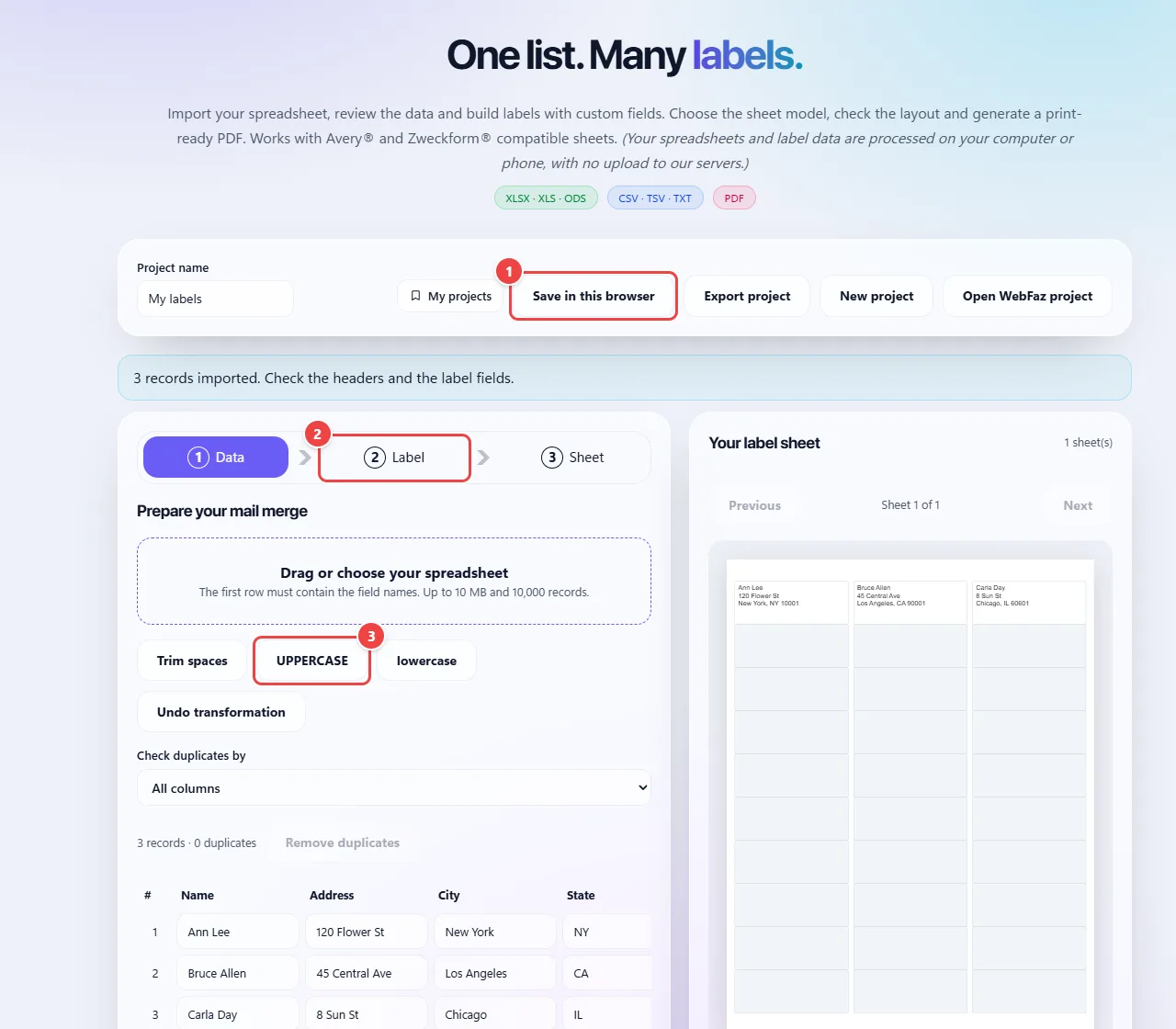
- Point 1: Save the project in this browser or export a project file to continue later.
- Point 2: Follow the steps: Data, Label (text and fields) and Sheet (model, check and PDF).
- Point 3: Clean the data: spaces, upper or lower case and duplicates. The spreadsheet is read by the browser and is not uploaded.
Result: A clean list, with no repeated labels.
Reuse a partly used sheet
Situation: Part of a label sheet is already used and you want to print only on the free labels.
- In the Sheet step, set “Start at label” to the number of the first free label (labels are counted row by row).
- Check the diagram: the used positions stay empty.
- Generate the PDF and print.
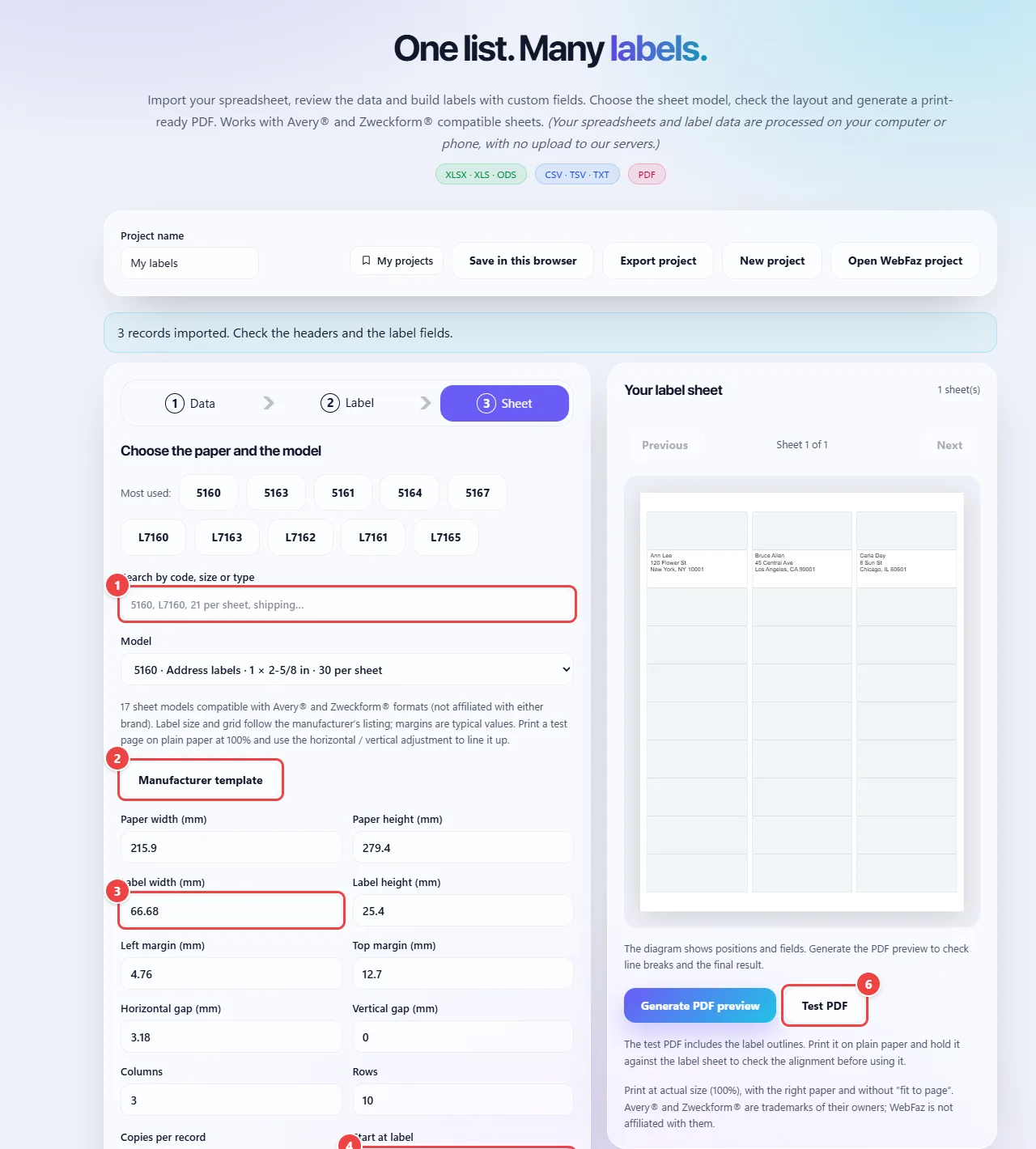
- Point 1: Search the code printed on your sheet’s package (for example 5160 or L7160), or click one of the most used models. The built-in formats are compatible with common Avery® US Letter and A4 sheets.
- Point 2: The manufacturer template button points to the source of the measurements, so you can check them.
- Point 3: The measurements appear in millimeters and can be edited, which lets you use other brands or custom models. Margins of the built-in models are typical values.
- Point 4: Start at label: skip positions that were already used and reuse partly printed sheets. The preview beside it already shows the result.
- Point 5: The horizontal and vertical adjustments compensate for your printer’s misalignment.
- Point 6: Test PDF: print on plain paper and hold it against the adhesive sheet before spending labels. Then use Generate PDF preview.
Result: Labels only on the free positions of the sheet.
Save the project and edit it again later
Situation: The work does not end today, or you will repeat the labels next month with the same setup.
- Click “Save in this browser” to keep up to ten projects in this browser, or “Export project” to download a .wfetiquetas file.
- Later, open “My projects” or use “Open WebFaz project” to resume where you stopped.
- Change the spreadsheet or the text and generate the PDF again.
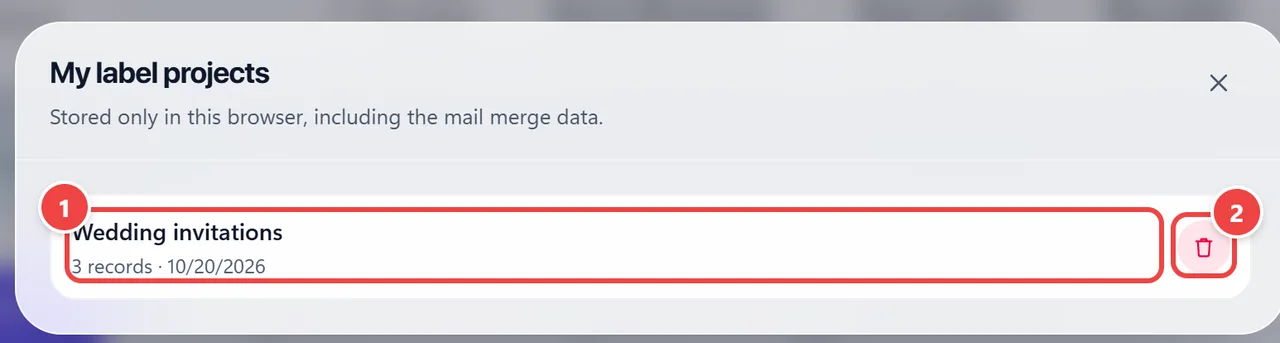
- Point 1: Click the project to reopen it, with the spreadsheet, the label text and the model as you left them. Projects stay only in this browser (up to ten).
- Point 2: Delete the ones you no longer need.
Result: The same setup, ready to reuse without starting over.
Use a sheet that is not in the list
Situation: You use a brand or a model whose measurements do not appear in the app.
- In the Sheet step, choose “Custom” and enter the paper size, the label size, the margins, the gaps and the number of columns and rows, in millimeters.
- Check the measurements with a ruler and tick “I checked the measurements of the custom model”.
- Generate the test PDF on plain paper and use the horizontal and vertical adjustment if the printer shifts the content.
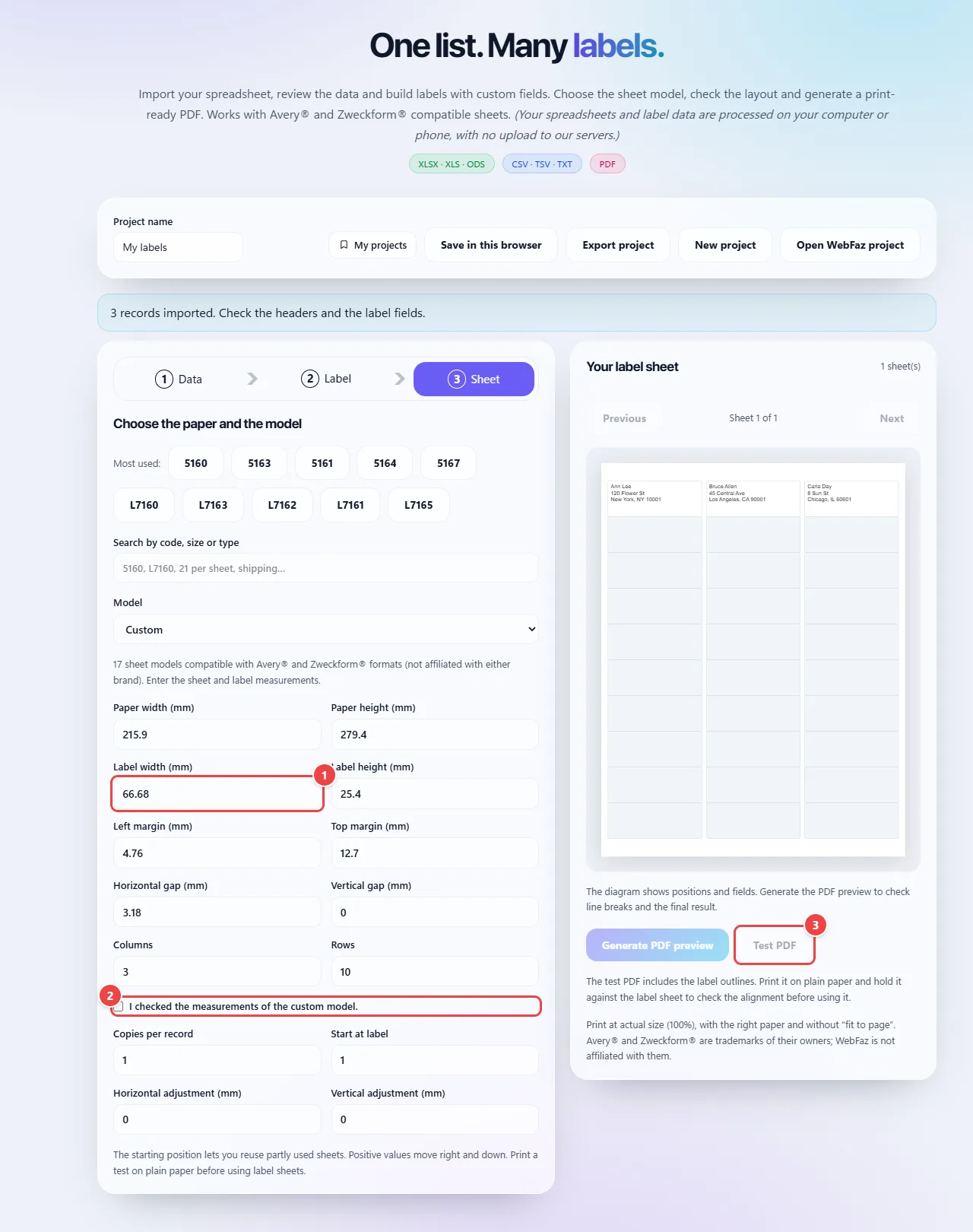
- Point 1: Fill in, in millimeters, the width and height of the paper and of the label, the margins and the gaps.
- Point 2: Measure the sheet with a ruler and tick the confirmation “I checked the measurements of the custom model”.
- Point 3: Generate the test PDF and print it on plain paper to compare with the label sheet, before spending labels.
Result: Labels on a sheet that is not built in, with the measurements you entered.
Tips for a better result
- In Excel, format ZIP code, phone and code columns as text before saving: cells formatted as text keep the leading zero, which a plain number erases.
- Always print the “Test PDF” on plain paper first and hold it against the label sheet in the light to check that the positions match.
- When printing, use actual size (100%) and turn off “fit to page”: any shrinking shifts the labels.
- If the printout is always a little off, use the horizontal and vertical adjustment, in millimeters, to compensate for your printer.
- Use the PDF preview to check how the lines break, especially in long addresses.
- Keep your work with “Export project”: the .wfetiquetas file has the spreadsheet, the model and the layout. To open it later, use “Open WebFaz project”.
Limits, and when this is not the best option
- The file can have up to 10 MB and 10,000 records.
- The margins of the built-in sheet models are typical published values, not official ones, and your sheet may differ slightly from the template: that is why the test on plain paper matters.
- There is no support for round labels, CDs, die-cut edges or continuous forms: the app works with rectangular grids.
- The PDF uses Latin letters (Helvetica). Emojis and other alphabets are refused, so no corrupted text is produced.
- Avery® and Zweckform® are trademarks of their owners. WebFaz only states compatibility with their sheet formats and is not affiliated with them.
Frequently asked questions
- Is my spreadsheet sent to any server?
- No. The data stays in the browser of your computer or phone.
- Which spreadsheet formats can I import?
- CSV, TSV and TXT (in UTF-8 or Windows-1252) and XLS, XLSX and ODS, with a choice of tab. The first row must contain the field names.
- Why did the leading zero of my ZIP code disappear?
- Because the column was formatted as a number. Format the column as text in the spreadsheet before importing and the zero is kept.
- Can I use sheets from other brands?
- Yes: choose “Custom” and enter the measurements in millimeters. Check the measurements with a ruler and run a test on plain paper.
- Is it compatible with Avery 5160 and L7160?
- Yes, the sheet layouts for those formats are built in, along with other common US Letter and A4 models. Avery is a trademark of its owner and WebFaz is not affiliated with it.
- How do I keep my work to edit later?
- Use “Export project” to download a .wfetiquetas file and “Open WebFaz project” to resume it. You can also save in the browser itself, under “My projects”.
- How do I avoid a misaligned printout?
- Print at actual size, without “fit to page”, test on plain paper and use the horizontal and vertical adjustment in millimeters if your printer shifts the content.